Repair Photos Library and Recover Lost Photos on Mac
The latest macOS versions, including Catalina, Mojave, High Sierra, and older Mac OS X versions like El Capitan and Yosemite, are supported by the software.
If your Photos Library becomes corrupted, don't worry! You can recover your photos and fix the corrupted library using the solutions provided.
| Workable Solutions | Step-by-step Troubleshooting |
|---|---|
| Part 1. Recover lost photos after Photos Library corruption |
Fix 1. Restore lost photos with Qiling Mac data recovery software in three steps...Full steps |
| Part 2. Repair corrupted Photos Library |
Step 1. Close Photo Library if it's opened. |
Photos Library corrupted, help me restore my photos, please.
If your Photos Library on Mac has become corrupted, you can try to repair it using the Photos app, or recover your photos from a Time Machine backup or an external hard drive. If you don't have a backup, you can also try using third-party data recovery software to scan your Mac for lost files. If none of these methods work, you can try reinstalling the Photos app and starting from scratch.
Please help me. And this is important for me to recover photos. Any solutions or suggestions are all welcomed."
Many Mac users are experiencing Photos Library crashes or corruption, making it impossible to restore their photos. Qiling software offers effective solutions to prevent such problems from occurring again, and provides methods to repair the Photos Library and recover all photos on Mac immediately.
Tip: Back up photos in case of losing them
If unexpected troubles happen to your photos, having backups will still save the day. To be prepared, it's best to backup all important photos and other data on your Mac using Time Machine. This way, even if disaster strikes, you'll still have your precious memories intact.
1. Click Time Machine and choose Set Up Time Machine.
2. Click "Select Backup Disk" or choose locations to back up photos, then click "Use for Backup" to proceed.
You can also copy photos and files one by one and paste them to another storage device where you want to store the backups, being patient and careful while doing so.
Part 1. Recover lost photos after photos library corruption
If your photos are lost due to corruption in the Photos application or Photos Library, you have two options to recover them: you can use Mac data recovery software to restore the lost photos, or you can retrieve the Photos Library with photos from a Time Machine backup.
Method 1. Restore lost photos with Qiling Mac data recovery software
If you didn't create a backup of Photos Library in Time Machine, you'll need Mac data recovery software to help. We recommend trying Deep Data Recovery for Mac, which can recover photos from a corrupted Photo Library and even more severe situations.
Step 1. Launch Qiling file recovery software on your Windows computer, select the desired file types, and click "Fast Scan" to initiate the recovery process.

Note: You can choose different search modes based on where and why the data was lost.
Step 2. To scan the Photos Library on the system drive, hover the mouse over the system drive where the Photos Library is, and click "Scan".

Step 3. After finishing the scan, click "Photos" in Quick Access. All your lost photos will be listed here.

Step 4. Double-click to preview the photos, select the correct one and click "Recover" to save it to a safe location on your Mac.
Method 2. Restore corrupted Photos Library with photos from Time Machine backup
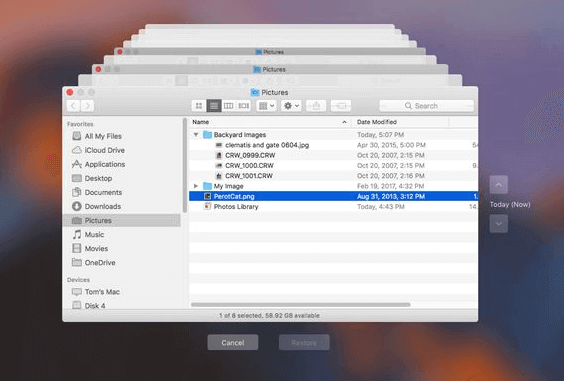
If you've backed up your Photos Library with Time Machine, you can restore it and recover lost photos by following these steps. First, restart your Mac and hold down the power button until the startup options menu appears.
1. Connect Time Machine backup drive.
2. Click Time Machine in the Dock and enter Time Machine
3. To recover lost photos, first find backups of your photos. Then, click the "Restore" button to retrieve them.
Part 2. Repair corrupted Photos Library
If Photos is behaving unexpectedly or the Photos Library becomes corrupt, you can try repairing it using a Photos library repair tool. This tool can help fix issues with your Photos Library, allowing you to recover your photos and get Photos working normally again.
Step 1. Close Photo Library if it's opened.
Step 2. Relaunch Photo Library by holding Command + Option key.
Step 3. Click "Repair" when the "Repair Library" dialog box appears, asking if you want to repair the library.
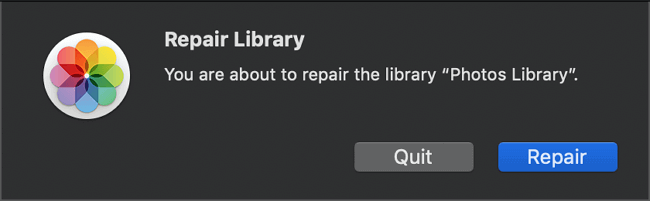
You may be prompted to enter your account and password to authorize the library repair, after which the Repair tool will analyze the database of Photos Library and repair any detected errors.
If your Photos library is synced with iCloud Photos, the entire library will be re-updated with iCloud when the repair process is finished.
Bonus Tip: Create a new Photos Library
You can repair the corrupted Photos Library on Mac by creating a new Photos Library, which will restore your Photo Library and allow you to edit your photos again. This alternative method involves creating a new library, which will then be used to edit your photos.
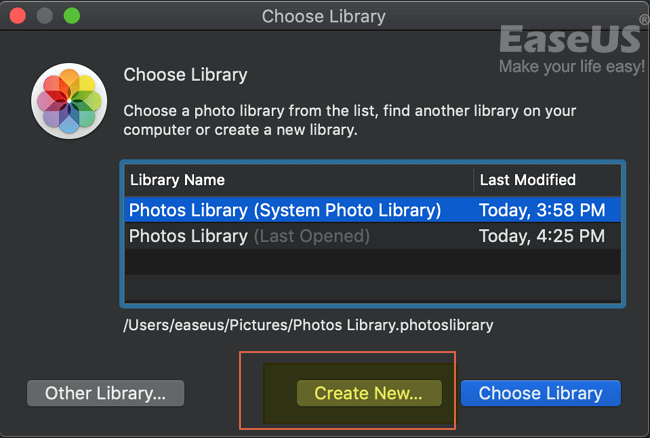
Step 1. To access the Photos app, hold the Option (or Alt) key and double-click the Photos icon in the Applications folder, or simply click the Photos icon in the Dock if it's available.
Step 2. In the Choose Library dialogue, click Create New.
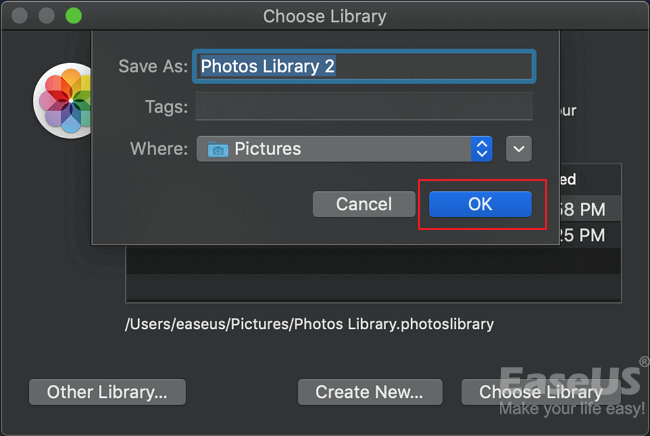
Step 3. Type a library name and choose a location to store the library. Click OK to confirm.
Related Articles
- Recover Deleted Files Mac Terminal and Better Alternatives
- PowerPoint Recovery on Mac: Recover Lost/Unsaved PPT Files
- How to Recover Deleted Emails on Mac?
- Solved: USB Flash Drive Not Showing Up on Mac
- How to Recover Files Deleted by Antivirus using CMD and Software
If your antivirus software, such as AVG or Windows Defender, accidentally deletes your files, - there are ways to recover them. - [Solved] Norton Internet Security Deleted My File - Recover Files Deleted by Norton
If Norton deletes your files, you can recover them from the Quarantine folder or use Deep Data Recovery to retrieve the deleted files. The Quarantine folder is where Norton stores removed files, allowing you to restore them if needed.
Products
Articles & Tutorials
- Data Recovery
- Data Backup
- File Recovery
- File Backup
- System Backup and Restore
- Disk and Partition Clone
- Technical articles
- Mobile articles
- Disk Master Help
- Windows Data Recovery Tutorials
- Windows Secure Delete Tutorials
- Windows Partition Management Tutorials
- Windows File Backup and Restore Tutorials
- Windows System Backup and Restore Tutorials
- Windows Disk Backup and Restore Tutorials
- Windows Clone Tutorials