Recover Deleted Files Mac Terminal and Better Alternatives
| Workable Solutions | Step-by-step Troubleshooting |
|---|---|
| 1. Can You Recover Files On Mac | Yes, you can recover deleted files on your Mac. But how you do it depends on the...Full steps |
| 2. Recover Mac Files by Terminal | Go to Finder > Applications > Utilities > Locate Terminal and double-click > Type the...Full steps |
| 3. Alternative Ways to Recover Files |
Fix 1. Try Time Machine...Full steps Fix 2. Deep Data Recovery for Mac...Full steps |
| 4. How to Secure Mac Data | Unfortunately, not all file recovery attempts are successful. Sometimes, the recovery fails...Full steps |
Accidentally deleting files on a Mac can be a nightmare, and the fear of losing them can be overwhelming. However, even if you've emptied the Trash, there's still hope to recover deleted files on your Mac. The most effective method to do so is by using the Terminal, which can help you recover files that have been deleted, even from an emptied Trash.
If you've accidentally deleted files on your Mac, don't worry - there are alternatives to recovering them. You can try restoring data from Time Machine or use third-party software, but for those who prefer a terminal-based approach, we'll guide you through the process of recovering deleted files using a Mac terminal.
Can You Recover Deleted Files On Mac
You can recover deleted files on your Mac by checking the Trash folder, as deleted files are sent there instead of being permanently deleted. If you've emptied the Trash, you can try using data recovery software to scan your Mac's storage for recoverable files. However, if you've deleted files and then reinstalled macOS, the chances of recovery are slim. In such cases, it's best to contact a professional data recovery service for assistance.
If you accidentally delete files but haven't emptied the trash, you can recover them from the trash. If you delete files by mistake, you can use the "Undo" option to retrieve them, but this must be done quickly. If you've already emptied the trash, you can use a file recovery tool to find and retrieve the deleted files. This tool will locate the file's entry and recover it.
If you've emptied the trash or bypassed it to delete files permanently, you'll need alternative methods to recover deleted files, such as using the Mac terminal app, Time Machine, or a data recovery tool.
Mac Trash Recovery | Restore Trash Data on Mac
For Mac users, deleting files into the trash is a common practice, and most users regularly clean up their trash bin to free up storage space and maintain a clutter-free system.
Recover Deleted Mac Files Using Terminal
To recover deleted files on a Mac, you can use the Terminal's special text commands. If you want to recover permanently deleted files without using a third-party tool, the Terminal is a good option, but it can only be used to recover files from the Trash.
To recover deleted files on a Mac using Terminal, follow these steps:
Step 1. Go to Finder > Applications > Utilities.
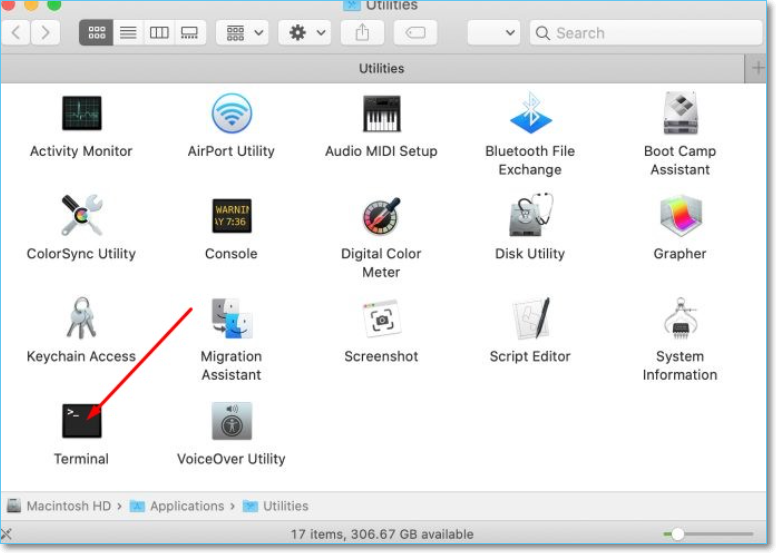
Step 2. Navigate to the trash folder by typing "cd .Trash" and pressing the "Return" key in Terminal.
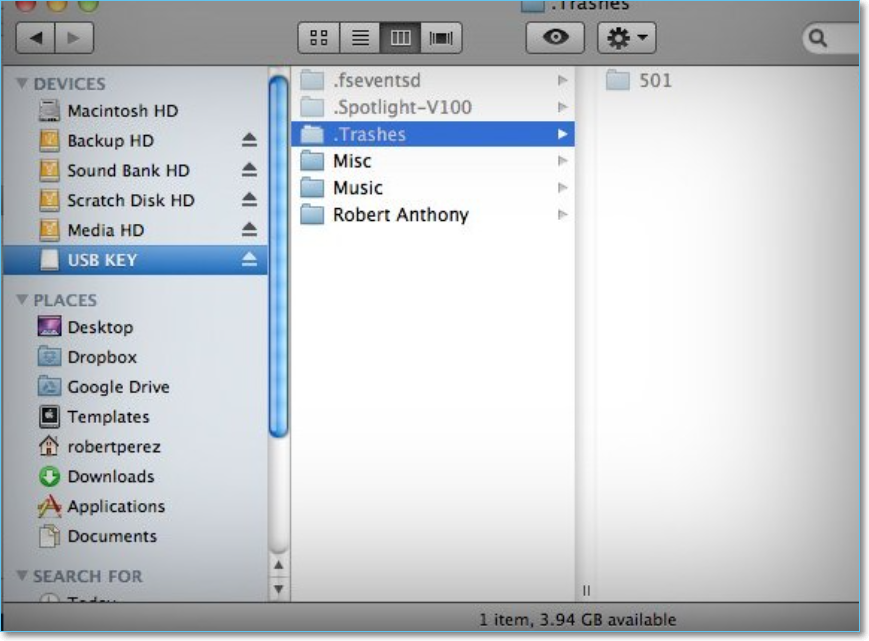
Step 3. The command "ls -al ~/.Trash" is used to view the content of the Trash folder. The "ls" command is used to list the files and directories in the current directory, the "-a" option is used to include hidden files, and the "-l" option is used to display the file and directory information in a long format.
Step 4. To recover a file, you can use the command "mv" followed by the path to the file you're trying to recover and the path to your home folder. For example, if the file you're trying to recover is named "example.txt" and it's currently located in a folder two levels up from your current directory, you would type "mv ..
Step 5. To exit Mac from the Terminal window, simply type "Quit" and press enter. This will close the Terminal window and exit the Terminal application.
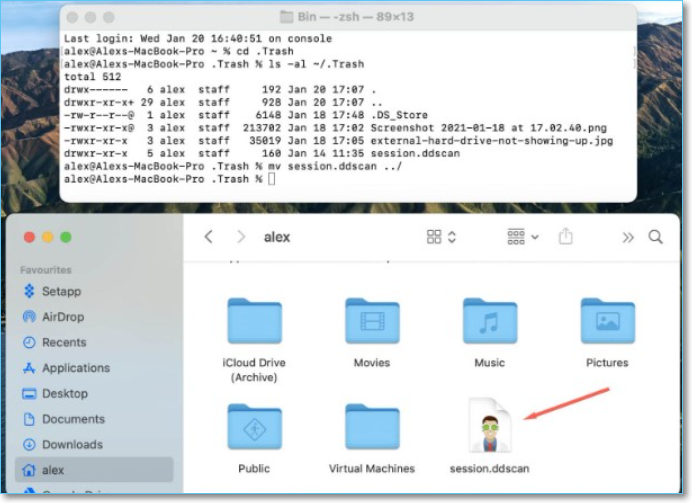
Go to the file's location and try to open it to see if it's been recovered. If the file is still recoverable, you should be able to open it normally. If not, it may be damaged beyond recovery.
Alternative Method to Recover Deleted Mac Files
If the trash has been emptied and Terminal can't be used to recover deleted Mac files, alternative methods like Time Machine or third-party tools can be used to recover deleted files on Mac.
Solution 1. Try Time Machine
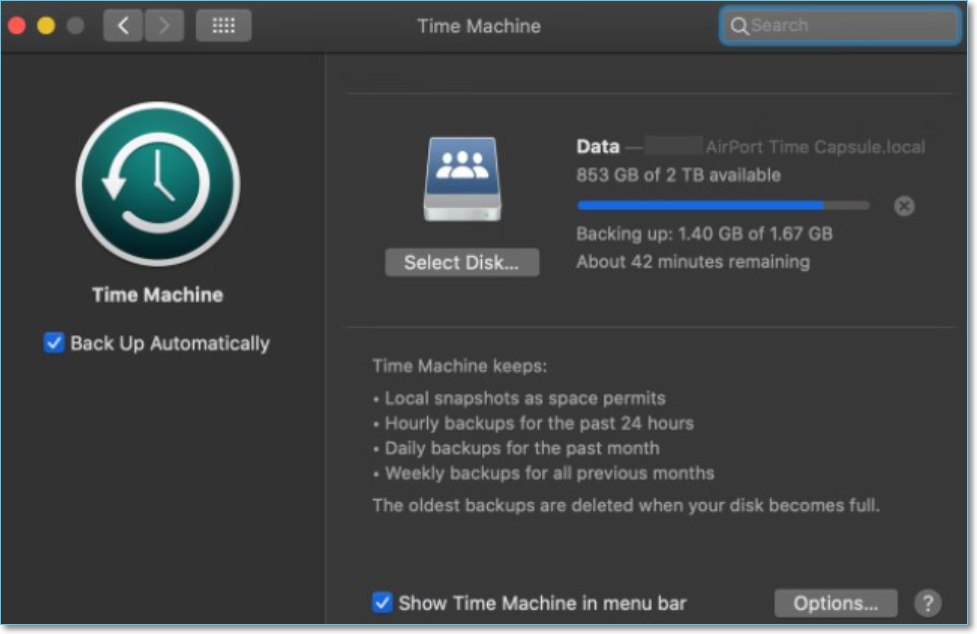
If you've failed to recover lost files from your Mac, you can use Time Machine to recover Mac data without software. If you have a trash folder, Time Machine is your easiest option.
Time Machine is Apple's built-If you've deleted files on your Mac running macOS High Sierra or Catalina, but had Time Machine backups enabled before the deletion, you can recover the lost data from the most recent backup. This is possible even if you've emptied the trash bin.
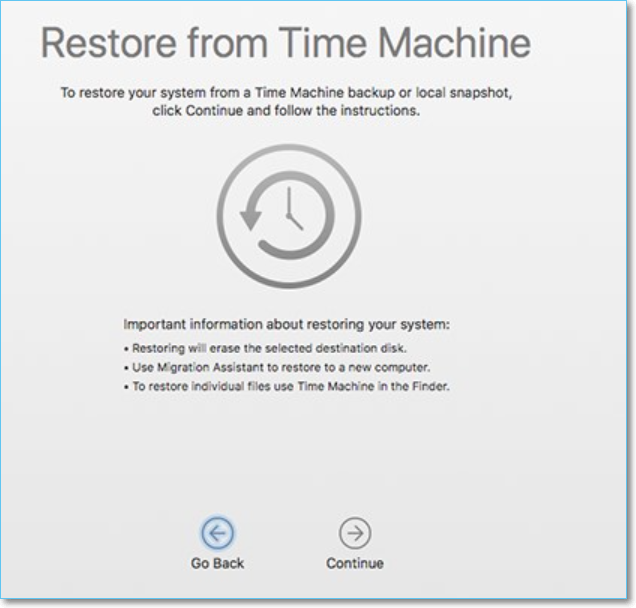
If you're unable to recover deleted files using Time Machine, you can try other recovery methods, such as using data recovery software or contacting a professional data recovery service. These options may be able to help you recover your files, but they may also come with a cost. If you're unable to recover your files, you may want to consider backing up your data regularly to prevent similar losses in the future.
Follow these steps to recover deleted files on Mac Time Machine:
Step 1. Launch the Time Machine app on your Mac.
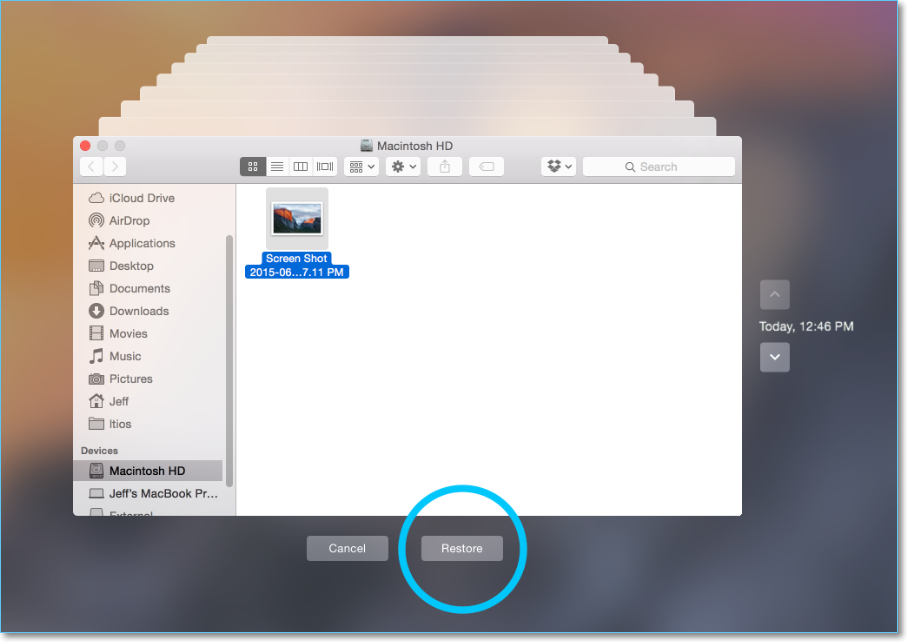
Step 2. In the Time Machine app, search for the specific files you want to restore by using the onscreen up and down arrows to locate them. You can then preview each file by pressing the Space Bar.
Step 3. To restore the deleted files, click "Restore" button.
Solution 2. Use Deep Data Recovery for Mac
You can also conduct data recovery for Mac using specialized data recovery software, such as Deep Data Recovery for Mac, which is a professional data recovery software with special features for Mac to recover data lost from accidental deletion, emptied Trash Bin, or other causes.
The Qiling Data Recovery tool allows you to recover a wide range of data, including document files, photos, music, videos, emails, and more, from any Mac-based device, such as an SSD, HDD, fusion drive, or Time Machine backup drive.
The tool has high-The software offers various features, such as data scan, file filter, file preview, and remote IT support, making it easy to use even without technical knowledge.
To recover deleted files on a Mac using Deep Data Recovery for Mac, follow these steps: First, download and install the software, then launch it and select the drive or location where the deleted files were stored. The software will scan the drive and display a list of recoverable files, which you can filter by file type, date, and other criteria.
Step 1. Launch Deep Data Recovery, select the desired file types, and click "Fast Scan" to initiate the recovery process.

Note: You can choose different search modes based on where and why the data was lost.
Step 2. Select the disk location where you lost data and files, then click the "Scan" button.

Step 3. Deep Data Recovery for Mac will immediately scan your selected disk volume and display the scanning results on the left pane.

Step 4. In the scan results, select the file(s) and click the "Recover" button to retrieve them.
A Practical Guide to Secure Your Mac Data
Unfortunately, not all Mac file recovery attempts are successful due to overwritten deleted files, user error, data corruption, or physical damage, making it crucial to avoid situations where data recovery is necessary.
Here are some tips to keep your Mac's data secure and intact:
Backing up data regularly: Use Time Machine or other cloud storage apps to back up your data on a separate hard drive.
Enabling the built-in firewal: MacOS has a built-in firewall that can help prevent harmful incoming connections, protecting your data by enabling it.
Install antivirus software: Installing an antivirus (AV) tool on your Mac will automatically scan your device for any malicious software or threats, allowing you to catch and remove them before they can cause any harm to your data or system.
Disable macOS remote access: Remote access allows users to access their files from anywhere, but it also increases the risk of unauthorized access if an admin login is compromised.
Use a password manager: A password manager is essential for having strong, secure passwords with the right length and characteristics, keeping them safe and eliminating the need to write them down, which is a fundamental aspect of password usage and Mac access.
Conclusion
If you accidentally delete a file on your Mac, don't panic - you can recover it from the trash bin using a Terminal command. If you've already emptied the trash, you can still recover deleted files from Time Machine or use data recovery software. To avoid this situation altogether, it's essential to take steps to protect your data.
Related Articles
- How to Find External Hard Drive on Mac In Case It's Working but Not Showing Up
- Mac Audio File Recovery: 3 Steps to Recover Deleted/Lost Audio Files
- How to Recover Unsaved/Deleted Quicktime Recordings
- How to Recover Data from Dead MacBook Pro Hard Drive in 2022
- How to Get Back Deleted WhatsApp Messages on Computer/iPhone
You can recover deleted WhatsApp messages, making it easy to get back what's been lost. - How to Recover a Deleted Folder in Outlook
Learn how to recover a deleted folder in Outlook from Deleted Items or Recover Deleted Items, and restore emails to the right mailbox location.
Products
Articles & Tutorials
- Data Recovery
- Data Backup
- File Recovery
- File Backup
- System Backup and Restore
- Disk and Partition Clone
- Technical articles
- Mobile articles
- Disk Master Help
- Windows Data Recovery Tutorials
- Windows Secure Delete Tutorials
- Windows Partition Management Tutorials
- Windows File Backup and Restore Tutorials
- Windows System Backup and Restore Tutorials
- Windows Disk Backup and Restore Tutorials
- Windows Clone Tutorials