How to Recover Files on Mac after Shutdown in 4 Ways
| Recover Mac Files | Full Guide |
|---|---|
| 1. Recover Mac Files from Trash Bin | Check if your lost files are in the Trash, if yes...Full steps |
| 2. Recover Mac Files from iCloud | Log in your Apple ID in iCloud.com...Full steps |
| 3. Recover from Time Machine Backup | Connect your Time Machine backup disk to the Mac...Full steps |
| 4. Recover Files using Qiling Recovery Software | If you don't have a backup of the lost files, download Deep Data Recovery...Full steps |
Unfortunately, when a MacBook Pro freezes and is forced to shut down, it can sometimes cause data loss, including files that were open at the time. However, there are some potential ways to recover the lost Pages document, such as checking the Trash, looking for a temporary autosave file, or using data recovery software. Would you like me to walk you through these steps?
-- Apple Community
A MacBook Pro user lost their Pages document due to a Mac freeze and shutdown, and they're seeking a way to recover the file. In cases of sudden Mac shutdown, data loss can occur, and the type of lost data is often unpredictable. Users may find that their Word documents, photos, or other files have disappeared, making file recovery a top priority.
Can I Recover Mac Lost Files after Shutdown?
Fortunately, it's still possible to recover deleted files on a Mac. Users can start by checking the Mac Trash bin, as deleted files are temporarily stored there. If that doesn't work, they can also check iCloud and Time Machine backups for any saved data. Alternatively, Mac data recovery software can be used to scan the computer and retrieve lost files.
1. How to Recover Files on Mac after Shutdown from Trash Bin
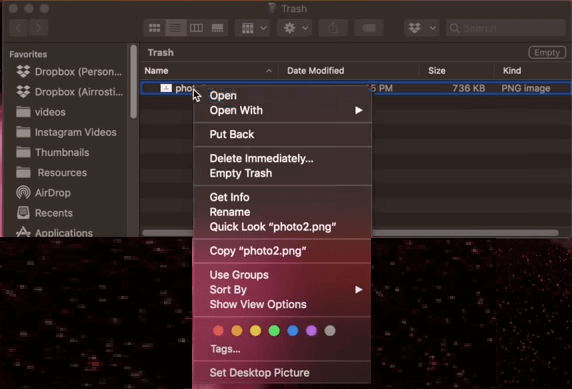
If you've lost data on your Mac, start by checking the Trash bin, as it's possible your Mac automatically deletes files after shutdown. If you've shut down your Mac recently, it's likely the deleted files will still be in the Trash bin, stored for 30 days until they're completely deleted. If you don't find your lost files in the Trash bin, you can try an alternative method. Otherwise, follow these steps to recover your Mac files from the Trash bin.
Step 1. To find a lost file on your Mac, start by checking the Trash bin. This is the first place to look, as deleted files are temporarily stored here before being permanently erased.
Step 2. If you find your lost data, you can either drag them to the desktop or right-click on them and select the "put back" option to recover deleted files on Mac from the Trash bin. This will restore the files to their original location.
2. How to Recover Files on Mac after Shutdown from iCloud
If you have enabled iCloud on your Mac, your files may be automatically synced to your iCloud account, allowing you to access a backup of the lost files. However, this method only works for iCloud-supported files.
iCloud supports backing up the following files on Mac:
- Calendar
- Note
- Pages
- Numbers
- Keynote
- Reminder
- Photos
- Mails, etc
If your lost files belong to the categories mentioned above, you might find a copy in iCloud. Here are the detailed steps of how to recover files on Mac after shutdown from iCloud.
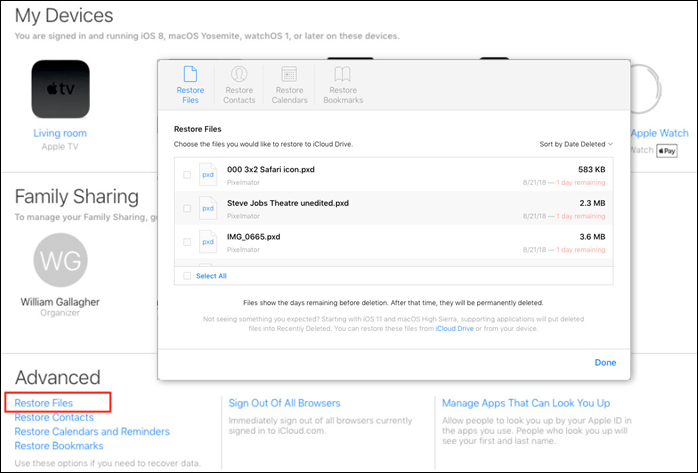
Step 1. Log in to your Apple ID in iCloud.com.
Step 2. Click the Account Settings option.

Step 3. To recover lost files from iCloud, go to iCloud.com, sign in with your Apple ID and password, and select the "Account Settings" option. At the bottom left, click on "Recover Files" to see if you can recover the lost files. If you can't find them in iCloud, try Method 4 to retrieve them.
3. How to Recover Files on Mac with Time Machine
Time Machine is Mac's built-in backup solution that automatically backs up all Mac content, including apps, music, photos, email, documents, and system files. If you've set up Time Machine to back up your Mac content and the lost files have already been backed up, you can easily recover them by following the steps to restore your Time Machine backup.
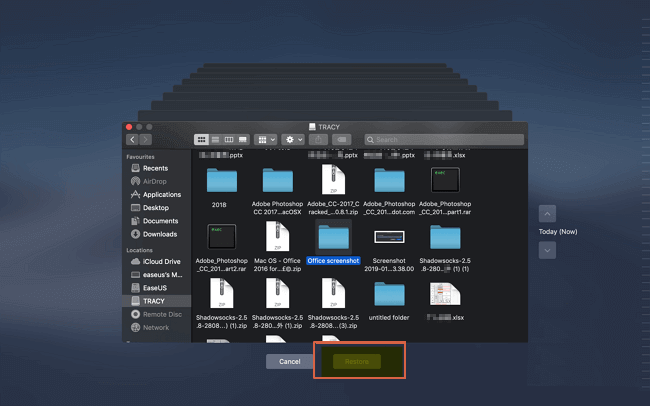
Step 1.To access your Time Machine backups, connect your backup disk to your Mac and launch Time Machine. You can click the Time Machine icon in the menu bar and select "Enter Time Machine" or use Spotlight to search for the application.
Step 2. To restore specific files, use the onscreen up and down arrows to locate them, and then press the Space Bar to preview them.
Step 3. To restore a deleted file, click the "Restore" button. This will return the file to its original location.
4. How to Recover Files on Mac after Shutdown with Qiling Recovery Software
The methods mentioned above have their own set of disadvantages. For instance, backup files may not be up-to-date, leading to missing files that were not backed up. Additionally, Macs sometimes delete files without moving them to the Trash, making them seemingly disappear. To avoid such issues, it's recommended to use a professional Mac data recovery software.
Deep Data Recovery for Mac is a tool that helps Mac users recover lost, deleted, and damaged files, including unsaved Word documents. It can also restore data from external hard drives and media devices like cameras and iPods. The software quickly scans all lost Mac files and allows users to recover the files they need without hassle.
To recover files on Mac after shutdown, download the Qiling recovery tool and follow the provided guide. This software will help you retrieve your lost files.
Step 1. Launch Deep Data Recovery. Select file types and click "Fast Scan" to start the recovery process.

Note: You can choose different search modes based on where and why the data was lost.
Step 2. Select the disk location where you lost data and click the "Scan" button.

Step 3. Deep Data Recovery for Mac will immediately scan your selected disk volume and display the scanning results on the left pane.

Step 4. In the scan results, select the file(s) and click the "Recover" button to have them back.
The Bottom Line
You might get back the lost files on Mac after reading this guide. The best way to prevent you from data loss again is to make backups regularly. For Mac users, there are a lot of choices, such as iCloud and Time Machine. And if you do not make backups, you don't need to worry about it because professional data recovery tools like Deep Data Recovery will always help you out.
Related Articles
- Full Guide: Easily Format Text on Mac without Making Mistakes
- Does Updating macOS Delete Everything? No...but Yes!
- Why Can't I Update My Mac? Fix It and Update Mac to The Latest macOS Big Sur
- File System Format Comparison: ExFAT vs Mac OS Extended
- How to Recover Shift Deleted Word Documents in Windows 11/10
You can recover Shift deleted Word files in Windows 11/10 using either Deep Data Recovery or by restoring the auto backup files, which can help you retrieve the deleted Word document. - How to Recover Temporary Word Files in Windows 11/10/7
The location of temporary files in Windows 11/10/7 can be found in the %temp% folder, which is typically located in the C:\Users\YourUsername\AppData\Local\Temp directory.
Products
Articles & Tutorials
- Data Recovery
- Data Backup
- File Recovery
- File Backup
- System Backup and Restore
- Disk and Partition Clone
- Technical articles
- Mobile articles
- Disk Master Help
- Windows Data Recovery Tutorials
- Windows Secure Delete Tutorials
- Windows Partition Management Tutorials
- Windows File Backup and Restore Tutorials
- Windows System Backup and Restore Tutorials
- Windows Disk Backup and Restore Tutorials
- Windows Clone Tutorials