Reset and Recover Instagram Password Without Email
Why Am I Being Asked to Reset My Instagram Password
You may be required to change your Instagram password if the platform detects suspicious activity on your account, such as unauthorized login attempts or unusual behavior. This is a security measure to protect your account from unauthorized access. In this case, Instagram may prompt you to change your password to ensure the account's security. This is a precautionary measure to prevent potential security risks.
- Your devices have been hacked.
- Your Instagram account has been hacked.
- Your Instagram has not been used for a relatively long time.
- The uploaded posts/pictures/videos have violated the Instagram policy.
- Your Instagram account has been logged in multiple devices simultaneously.
How to Reset Instagram Password Without Email on Mobile
When you're required to change your Instagram password but can't access your email or phone number, There are alternative methods to help you reset your password. You can try using different ways to receive the password reset link, such as sending it to an email or text message on your mobile device. If that's not possible, consider using a password manager or a trusted friend's device to access the reset link.
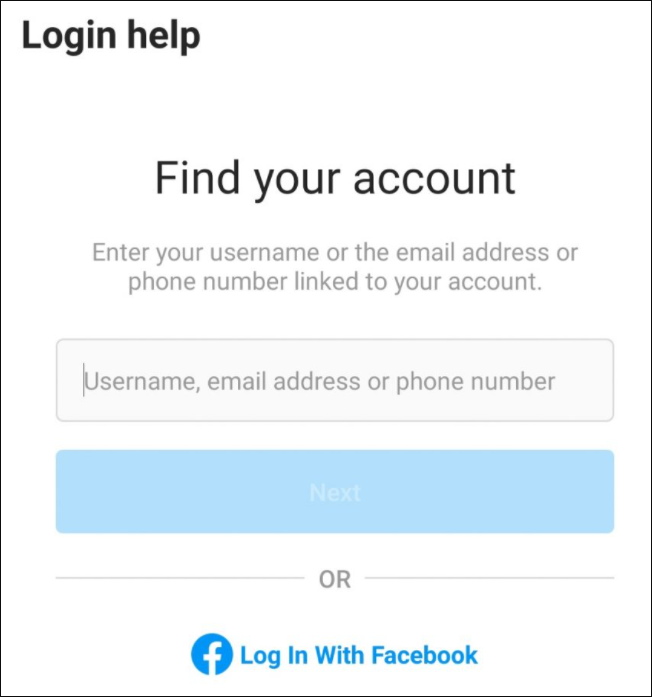
1. Reset Instagram password with Facebook account
If you've forgotten your Instagram password and don't have access to either your phone number or email, you can try resetting your password using your Facebook account. This can help you regain access to your Instagram account.
Step 1. Open Instagram and enter the login page.
Step 2. Click "Log in with Facebook" and reset the password.
2. Reset Instagram password without a Facebook email and only with a phone number
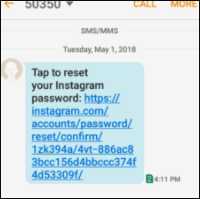
If you don't have a Facebook account, you can still log in to Instagram and change your password using your phone number.
Step 1. Enter the login page of Instagram and select "Help me sign in".
Step 2. Enter the phone number that was used to register the IG account.
Step 3. Open the login link sent to you via text.
3. Reset Instagram password with no access to email/Facebook/phone number
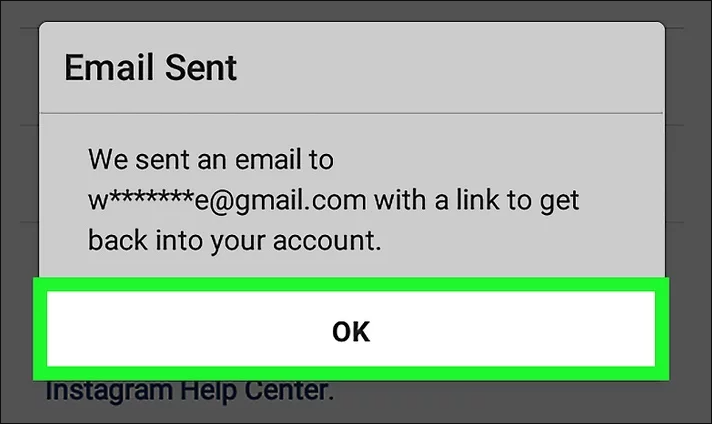
If you have no access to email, Facebook, and a phone number, you can still reset your Instagram password by using the "Forgot Password" option on the login page. This will prompt you to enter your username and then provide an answer to a security question that you previously set up. If you don't remember your security question, you can try to reset your password using the "Forgot Password" option on the login page, which will send a password reset link to your email address on file. However, if you have no access to email, you can try to contact Instagram's customer support for further assistance.
Step 1. Copy email address "support@idiskhome.com" and launch Gmail.
Step 2. To reset your Instagram password without access to email, Facebook, or phone number, you can send a request to Instagram's support email at [support@instagram.com](mailto:support@instagram.
Step 3. To recover your Instagram password, wait for an email from Instagram with a password recovery link and an ID request.
How to Reset Instagram Password Without Email on PC
If you're unable to access your email and need to recover your Instagram password on your PC, you can consider resetting it instead. Fortunately, there are methods available to help you do so, allowing you to regain access to your account without needing to retrieve your email.
To reset your Instagram password from a PC, follow these steps: Launch the Instagram website on your computer, click on "Forgot Password" on the login page, enter your email address or phone number associated with your Instagram account, select the reason for resetting your password, and follow the instructions provided to reset your password. This process should be straightforward and help you regain access to your Instagram account.
Step 1. To access your Instagram account, go to the Instagram website in a web browser and click on the "Account" option.
Step 2. Click "Profile" > Select "Edit Profile".
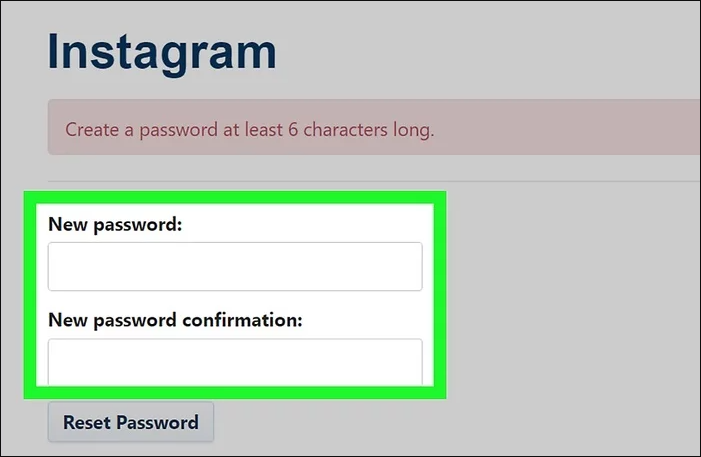
Step 3. To change your password, click "Change Password" in the pop-up window and enter your new password, then confirm it.
Bonus Tip - Recover Instagram Password with Software
If you've saved your password in personal files and documents on your computer, you can quickly recover it with the help of the Deep Data Recovery software.
Qiling data recovery software has been highly praised by its users for its excellent performance in recovering deleted files, including documents, graphics, videos, audio, emails, and other file types like ZIP, RAR, SIT, etc.
With this efficient software, you can save your Instagram password on your computer, eliminating the need to worry about password recovery or resetting issues.
Detailed steps for recovering your Instagram password with this software on your PC are presented below.
Step 1. Launch Deep Data Recovery in Windows 11/10/8/7. Select file types and click "Fast Scan" to begin the recovery process.

Note: You can choose different search modes based on where and why the data was lost.
Step 2. Choose the place where you lost data. Then, click "Scan".

Step 3. After scanning, use the file format filter to locate the desired files, and then click the "Preview" button or double-click a file to view its content.

Step 4. To recover a lost file, select the file by clicking the checkbox next to it, then click the "Recover" button to restore the file to a safe location.
Conclusion
You can still reset your Instagram password even without access to your email, phone number, or Facebook. You can do this on both your mobile devices and computer through the methods above. To make the password recovery process easier, it's recommended that you save the password in a personal place on your PC and consider using Qiling data recovery software.
Related Articles
- Free Download | Undelete Files with Windows Undelete Software
- Cerber Ransomware Decrption Tool: Decrypt/Restore .cerber Encrypted Files
- Download Free Online Micro SD Card Data Recovery Software
- Recuva Recovered Files Unreadable and Can't Open [SOLVED]
- How to Recover Files from Corrupted Micro SD Card
Micro SD card corruption can occur due to various reasons, but with the right tool, you can recover files from a corrupted micro SD card. Whenever you're in this situation, using a micro SD card corrupted recovery tool can help you retrieve your important files. - Micro SD Photo Recovery | How to Recover Photos from Micro SD Card
To recover deleted or lost photos from a Micro SD card, you'll need the help of a specialized tool. A recover Micro SD software can scan your drive and allow you to selectively retrieve your lost photos. You can free download this software to get started with the recovery process now.
Products
Articles & Tutorials
- Data Recovery
- Data Backup
- File Recovery
- File Backup
- System Backup and Restore
- Disk and Partition Clone
- Technical articles
- Mobile articles
- Disk Master Help
- Windows Data Recovery Tutorials
- Windows Secure Delete Tutorials
- Windows Partition Management Tutorials
- Windows File Backup and Restore Tutorials
- Windows System Backup and Restore Tutorials
- Windows Disk Backup and Restore Tutorials
- Windows Clone Tutorials