How to Find Firefox Account and Password
If you've forgotten your Firefox Accounts password, you can try various methods to regain access. Firefox Accounts uses your password to encrypt your data for added security, so resetting your password may result in lost data. To prevent this, you can create a recovery key before resetting your password, which can be used to sign in and recover your data if you forget your password.
Here are some tested methods you can consider to find Firefox account and password.
| Workable Solutions | Step-by-step Troubleshooting |
|---|---|
| Method 1: Use Qiling Key Finder | Launch and run Qiling Key Finder on the PC, and choose "Internet & Network" under Password to find saved browser accounts.Full steps |
| Method 2: Find via Firefox lockwise | Click on the menu button to open the panel...Full steps |
| Method 3: Check via logins and passwords | Launch Firefox, click on the Menu option and then select Preferences...Full steps |
| Method 4: Reset Firefox password | Click on the menu button to open the panel...Full steps |
Method 1: Use Qiling Product Key Finder to Read Account and password
You can use Qiling Key Finder to automatically read your Firefox username and password, eliminating the need to reset your account. This tool can also find system and software keys, Wi-Fi password, and web-username and password saved by various browsers.
Qiling Key Finder is a product key finder tool that efficiently locates your product key for installed software on your device, allowing users to easily recover their license code, serial number, or product key.
You can download this tool and follow the simple steps to find your Firefox account and password. The tool will guide you through the process, making it easy to access your account information.
Step 1. Click "Internet & Network" under Password.
Step 2. To check browser accounts and passwords, you can review the saved login information in Chrome, Edge, Firefox, and IE.
"Copy" - Click it, then directly paste.
"Save" - Save as a PDF file.
"Print" - Connect Printer to print.
Method 2: Find Firefox username and password via Firefox lockwise
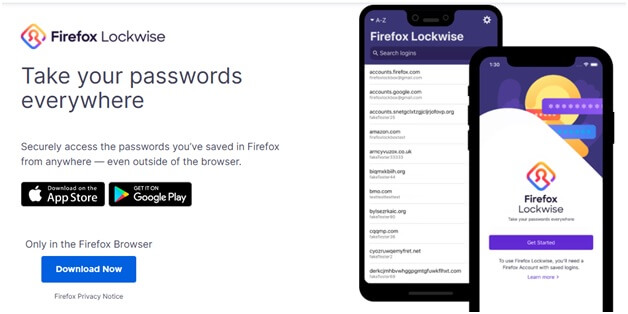
Firefox allows secure access to saved passwords from anywhere, using 256-bit encryption and syncing, and can save passwords securely with Face or Touch ID, enabling you to find your Firefox account and password.
Firefox Lockwise is the built-in password manager in Firefox. To access your Firefox account and password using the password manager in Firefox version 70 and above, follow these simple steps.
- Click on the menu button to open the panel
- Click on Passwords
To access the Firefox Lockwise about: logins page, open Firefox and type about:logins in the address bar. This will open the page where you can add or manage logins and passwords.
Method 3: Check saved passwords via logins and passwords
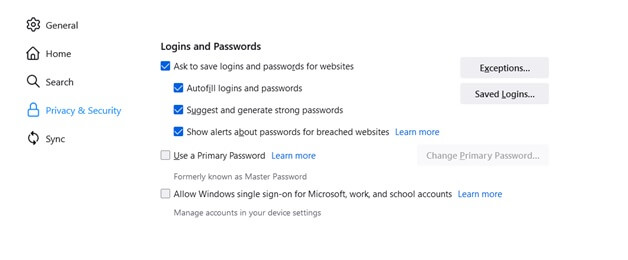
Firefox allows you to save passwords which can be convenient for users who cannot remember passwords. You can follow these steps to check your saved passwords.
Step 1: Launch Firefox and click on the Menu option, then select Preferences.
Step 2: From the left panel, select the option "Privacy & Security".
Step 3: Scroll to Logins & Passwords, then click on Saved Logins.
Step 4: Click on Show Passwords.
Method 4: Reset Firefox password
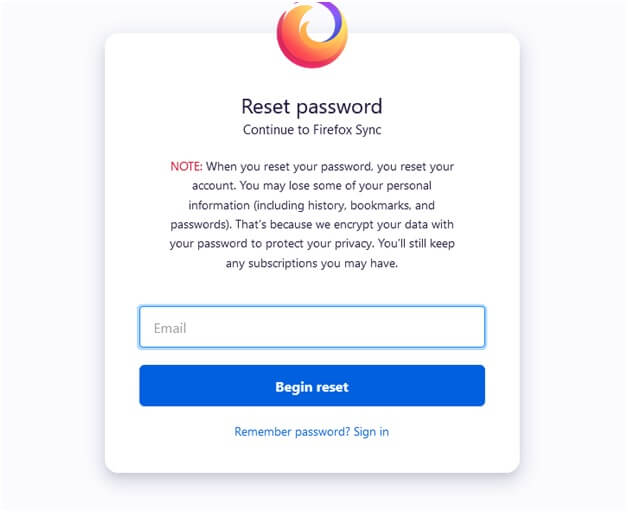
To reset your Firefox password, follow these simple steps. You can reset your Firefox password by following the simple steps mentioned below.
Step 1: Click on the menu button to open the panel
Step 2: To sign in to your account, click on the Sign In option that is located next to the Sync and save data button. This will allow you to access your account and sync your data.
Step 3: On the Sign In page, enter the Firefox Account email ID and click Continue.
Step 4: You have to then click on the option Forgot password?
Step 5: You will be asked to provide your email address linked to your Firefox account, and then a reset email will be sent to you.
Step 6: Follow the instructions you receive in your email to reset your password.
Bonus Tip: Reset your Firefox account for Android/iPhone Device
You can reset your Firefox account from your Android or iPhone device, and here's how: follow the detailed steps to accomplish this process.
Resetting with an Android device
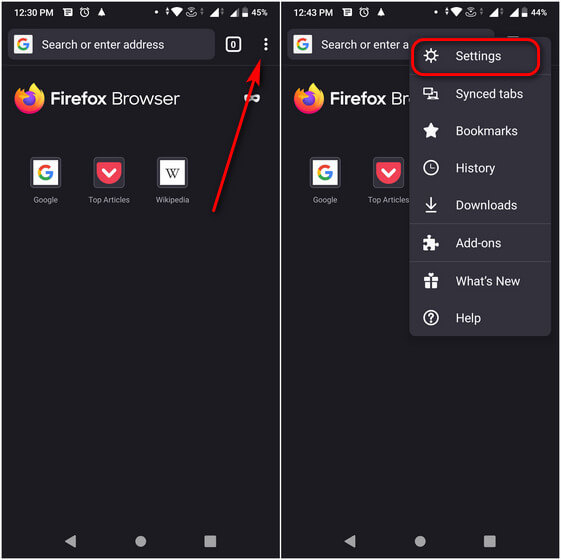
Step 1: Open the Firefox app and tap the Menu button.
Step 2: To enable sync, go to the settings option and select the "Turn on Sync" option.
Step 3: You will see two options: Ready to Scan and Use email Instead. Choose Use email Instead, and a Sign In page will be displayed.
Step 4: Enter your Firefox account email and then tap on Continue.
Step 4: When prompted to enter your password to log in, tap on the "Forgot password" option instead.
Step 5: Enter your email ID linked to your account, receive an email with password reset instructions, and then log in with your new password.
Resetting with an iPhone/iPad
Step 1: Open the Firefox app.
Step 2: To access the menu, tap the menu button located at the bottom of the screen on a phone or at the top right on an iPad.
Step 3: To sync your account, tap the Settings option and then tap Sign in to Sync.
Step 4: If you're prompted with the options "Ready to Scan" and "Use email Instead", you can choose the latter to be taken to the sign-in page.
Step 5: To log in to your Firefox account, enter your email address and tap Continue. If prompted for a password, tap the Forgot password option.
Step 6: Enter the email ID linked to your Firefox account, and you'll receive email instructions for resetting your password.
Conclusion
If you forget your Firefox account and password, you can recover it using simple techniques. Firefox allows syncing saved logins across devices with your account and Firefox Lockwise. If you enabled autofill and savings, you can retrieve your login data, including username and password. If you're unable to recover your account, contact Firefox's support team through their "Contact Us" form. They'll guide you on how to recover your account.
Related Articles
- 5 Best 2022 Office Key Finder Free Download with Full Guide - Qiling
- How to Check and Find Exchange 2016 Product Key/License
- How to Find Steam CD Key or Game Product Key on Your Own - Qiling
- How to Recover Forgotten Gmail Password? [Step-by-Step]
- How to Fix Samsung SSD Clone Failed [2023 Full Guide]
Do you know why Samsung SSD Clone Failed? This guide will help you figure out the reasons and give you full guide to fix this error. - All About Samsung SSD Reset Tool | Full Guide
Learn what Samsung SSD reset tools do, when to reset an SSD, and how to prepare data before restoring drive settings.
Products
Articles & Tutorials
- Data Recovery
- Data Backup
- File Recovery
- File Backup
- System Backup and Restore
- Disk and Partition Clone
- Technical articles
- Mobile articles
- Disk Master Help
- Windows Data Recovery Tutorials
- Windows Secure Delete Tutorials
- Windows Partition Management Tutorials
- Windows File Backup and Restore Tutorials
- Windows System Backup and Restore Tutorials
- Windows Disk Backup and Restore Tutorials
- Windows Clone Tutorials