All About Samsung SSD Reset Tool | Full Guide
Samsung SSD reset tool Samsung Magician is a software provided by Samsung to monitor and manage their SSD drives, offering insights into temperature, performance, health, and other key metrics.
Samsung's Magician software supports a wide range of SSDs, and you can check if your specific model is listed. If it is, you can use the software to access and manage your Samsung SSD or external hard drive, among other features.
To reset your Samsung SSD using the Magician software, you can follow these steps: download and install the software, launch it, select the SSD you want to reset, choose the reset option, confirm your choice, and wait for the process to complete. Before resetting, it's essential to back up your data, as the process will erase all data on the SSD. Additionally, you should ensure the SSD is not in use during the reset process, and you may need to restart your computer after the reset is complete. It's also worth noting that the Magician software may not work with all Samsung SSD models, so you should check the software's compatibility before proceeding. Overall, resetting your Samsung SSD with the Magician software is a relatively straightforward process that can help you restore your SSD to its factory settings.
Also, there are 2 posts for you to get more information about Samsung SSD:
The Review of Samsung SSD Reset Tool
Samsung Magician is a software tool designed to optimize and manage Samsung SSDs. There are different versions of the tool, each with specific purposes, such as Magician, Magician Lite, and Magician Mini. Magician is the full-featured version, which allows users to monitor and manage their SSDs, including resetting the drive. Magician Lite is a stripped-down version, which provides basic features for monitoring and managing the SSD. Magician Mini is a tiny version, which only provides a simple monitoring feature.
- Samsung SSD Magician for Consumer SSD and Enterprise SSD – Magician Tool/Reset Tool
- Samsung Data Migration Software for Consumer SSD – for Data Migration
- Samsung SSD Firmware – for Firmware Update
- Samsung SSD Toolkit for Data Center – DC Toolkit
Now, all of this software might be useless for you if you're using a portable SSD, in which case you'd need the Samsung Magician Software Portable SSD version, available on Samsung's official website.
Samsung SSD Magician is a tool that helps reset consumer SSDs, but it's not suitable for portable SSDs. It can be used to reset consumer SSDs.
What Is Samsung SSD Reset Tool
The Samsung SSD Reset tool has been renamed and is now part of a suite of separate tools for different device types and specific SSD models.
To use a portable SSD, such as the Samsung T7 or T5 series, you need to install the corresponding software, like Samsung Portable SSD Software for T7/T7 Touch or T5, which allows for more efficient control over the drive.
Samsung Magician is a primary tool that can be used on all internal Samsung SSD drives, making it an essential tool for any Samsung SSD user.
What Can Samsung SSD Reset Tool Do
Samsung Magician is a control dashboard for your SSD, allowing you to monitor its performance and health metrics, and offering features such as.
- Drive Dashboard, which has the basic information about your devices
- Drive Details provides technical information and specifications of your SSD, such as its capacity, interface, and controller type. This information can be useful for troubleshooting and optimizing the performance of your drive.
- A diagnostic scan is a process that checks for any errors or issues with your device, such as a computer, smartphone, or other electronic device. It scans the system for any problems, glitches, or bugs that may be causing issues with the device's performance, functionality, or overall health.
- Performance Benchmark checks the read and write speed of your SSD (solid-state drive), giving you an idea of how quickly data can be accessed and written to the drive. This is useful for evaluating the overall performance of your computer's storage system.
- Over Provisioning, which distributes storage to help SSD endure more
The tool offers three primary data management aspects: Secure Erase, PSID Revert, and Encrypted Drive, in addition to Drive Management tools, allowing users to overlook each drive in their system.
This includes SSDs that are not from Samsung, though they may not share information besides temperature. The Secure Erase option allows you to create a bootable USB and securely erase your Samsung SSD.
Samsung Magician
Before we proceed, let's take a look at the Samsung Magician tool's preview. This provides a comprehensive view of its features, including everything we've discussed so far, and a general idea of the user interface design.
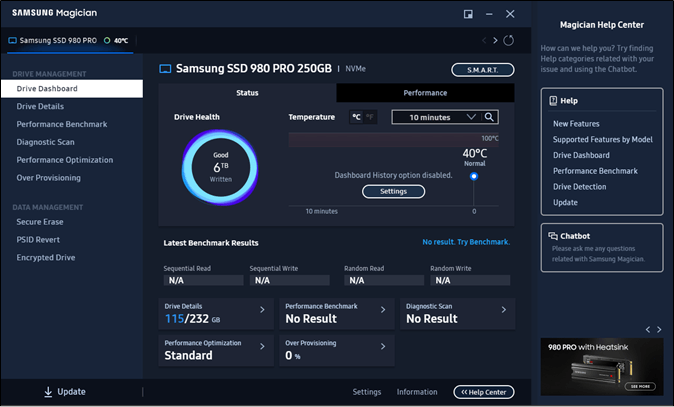
The tool has a user-friendly interface with an attractive dashboard that allows you to monitor your SSDs and view more devices on the top bar.

The Data Management section on the left side has the Secure Erase option.
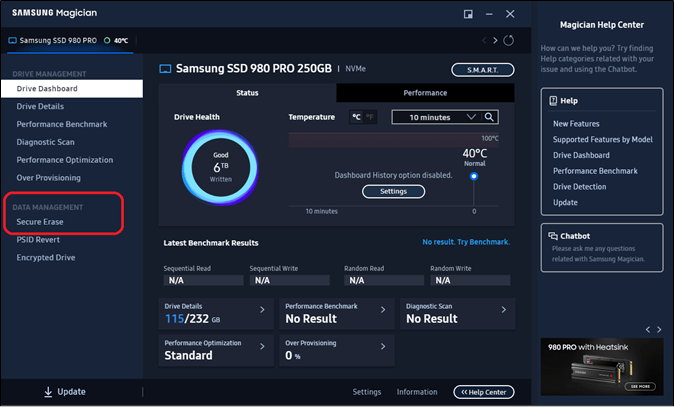
This option allows you to securely erase your Samsung SSD and reset it to its factory settings.
Pros
- Good-looking UI design
- Easy to monitor the health
- Easy to monitor capacity metrics
- Handy diagnostic and benchmark tools
Cons
- Secure erase option isn't easy
- Doesn't show drive health in percentage
- Can't format/create partitions, etc.
How to Factory Reset Samsung SSD
To reset your Samsung SSD using Samsung Magician, access the Secure Erase option in the utility. Before doing so, ensure you have a USB pen drive to commence the format.
Once you've connected your USB to your PC, you're ready to go! Simply follow the on-screen instructions to complete the setup process, which may include installing drivers, configuring settings, and maybe even updating your device's software.
Step 1. Start Samsung Magician on your PC
Step 2. Head into the Secure Erase Option
Step 3. Select the USB drive you have connected
Step 4. Tap on the Start button
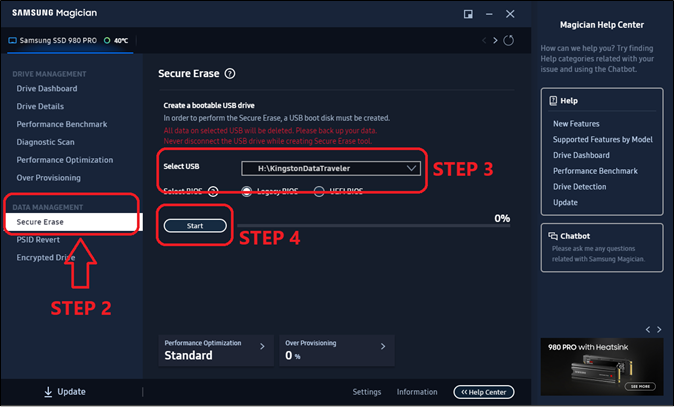
Step 5. Once the process is finished, select your SSD
Step 6. Then select USB and click Start again
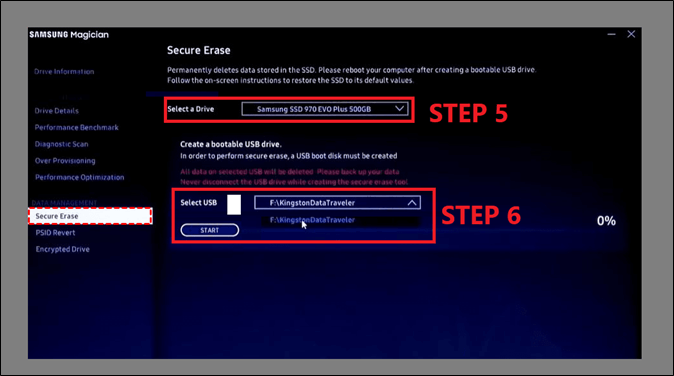
Step 7. Wait for erasure to finish
To erase your Samsung SSD quickly and securely, follow these steps carefully. First, back up your data to an external drive or cloud storage to ensure it's safe. Next, download the Samsung Magician software and create a recovery drive to restore your SSD to its factory settings.
Pro Tip: Things You Should Do Before Resetting
Before resetting your Samsung SSD, it's essential to back up your important data first. To do this, you'll need a reliable tool like Qiling Disk Master Pro, which enables you to create a comprehensive backup of your data, eliminating the need for costly data recovery services.
Macrium Reflect is widely hailed as one of the best backup and recovery software, making it an ideal tool for creating a backup for your Samsung SSD. Its key aspects include the ability to create a full image of your system, including the operating system, programs, and data, as well as the option to create a bootable rescue media, allowing you to recover your system in case of a disaster. Additionally, it supports a wide range of storage devices, including Samsung SSDs, and offers flexible backup options, such as full, incremental, and differential backups. Overall, Macrium Reflect is a reliable and efficient tool for creating a backup for your Samsung SSD.
- It creates an automatic backup plan in a few clicks.
- Save your files to 250GB of free cloud storage.
- It can clone a hard drive, Samsung SSD, or other disks.
- This system allows you to secure data in a safe zone.
- Can install Windows from one PC to another.
If you're planning to reset your Samsung SSD, it's essential to back it up first. To do this, you can use Qiling Disk Master Pro, a reliable backup and recovery tool that offers a range of features and benefits, making it one of the best tools of its kind. By downloading and installing it, you can ensure that your data is safely backed up before proceeding with the reset process.
Step 1. Open Qiling Disk Master and choose "Create Backup" on the home page, then click "Select backup contents".

Step 2. To back up your Disk, click on the "Disk" option to initiate the backup process.

Step 3. Qiling Disk Master allows you to choose whether to back up the entire disk or a specific partition, and then click "OK" to proceed.
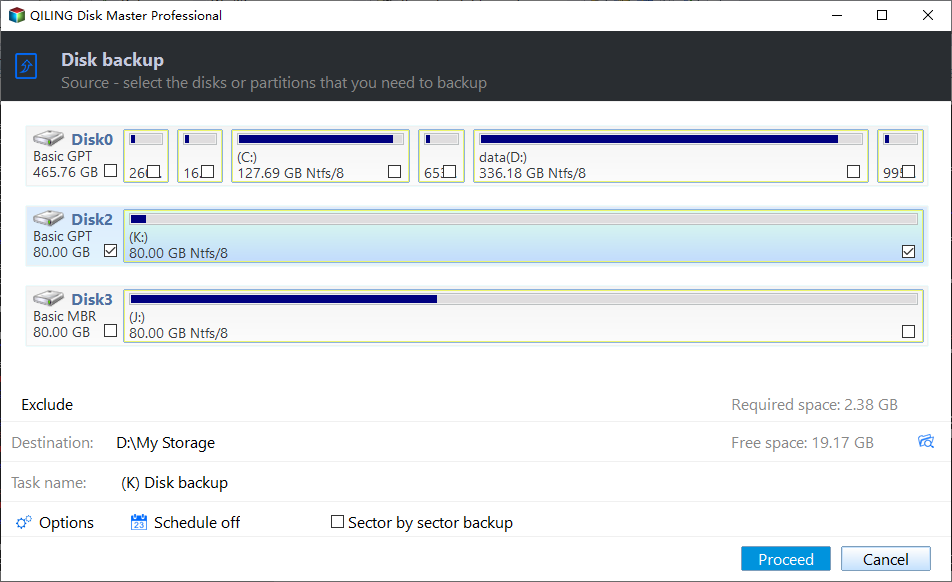
Step 4. Select the destination where you want to save the backup. You can choose to save the backup to a local drive or to a network-attached storage (NAS) device.

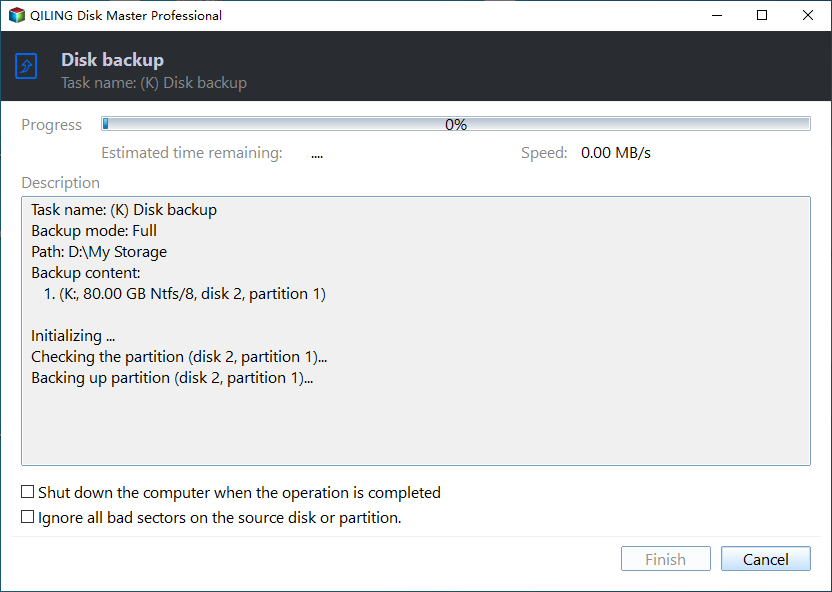
Step 5. After the backup process is completed, you can click "Proceed" and then right-click any one of the tasks to further manage your backup, such as recovering it or creating an incremental backup.
Conclusion
The Samsung SSD reset tool can help monitor device metrics, erase data securely, or encrypt drives, but first back up important data to avoid data disasters. The offline backup software Qiling Disk Master Pro can assist in backing up data.
FAQs
You will find your further queries answered here:
1. Can you factory reset an SSD?
To securely erase your Samsung SSD, you can use the Samsung Magician software, which is specifically designed for this purpose. This software will securely erase your SSD, ensuring that all data is completely removed and the drive is reset to its factory settings. You can download the software from the Samsung website and follow the instructions provided to erase your SSD securely. This is the recommended method for securely erasing your Samsung SSD, as it will ensure that all data is completely removed and the drive is reset to its factory settings.
2. How do I clear a corrupted SSD?
To format a corrupted SSD, you'll need to use software provided by the manufacturer. It's crucial to back up all data before attempting to format the SSD, as the process may erase any remaining data. The software will guide you through the formatting process, and you may need to follow specific instructions to ensure the format is successful.
Related Articles
- How to Solve OneDrive Sync Pending Error in Every Possible Way
- 7 Solutions to Fix Unmountable Boot Volume Windows 10/8/7
- How to Restore System Image from External Hard Drive Windows 10
- Samsung T7 vs. T9: Which SSD to Choose?
- How to Fix Dying Light 2 Multiplayer Not Working
If you're experiencing issues with Dying Light 2's multiplayer, the problem may be serious, but the solutions are endless! This guide has the perfect solution to fix the issue, so you can get back to gaming with friends. - How to Fix Game Stuttering on Windows 11 [Step-by-Step Guide]
Game stuttering can be frustrating for gamers, often caused by high resource applications running in the background or outdated/ faulty display adapters. Various fixes can help resolve the issue, as discussed in the article.
Products
Articles & Tutorials
- Data Recovery
- Data Backup
- File Recovery
- File Backup
- System Backup and Restore
- Disk and Partition Clone
- Technical articles
- Mobile articles
- Disk Master Help
- Windows Data Recovery Tutorials
- Windows Secure Delete Tutorials
- Windows Partition Management Tutorials
- Windows File Backup and Restore Tutorials
- Windows System Backup and Restore Tutorials
- Windows Disk Backup and Restore Tutorials
- Windows Clone Tutorials