How to Fix Dying Light 2 Multiplayer Not Working
Here are some tips to fix Dying Light 2 multiplayer not working:
Introduction of Dying Light 2
Dying Light 2 is an action survival game where players take on the role of Aiden Caldwell, a skilled survivor navigating a city overrun by zombies and other deadly creatures.
What Causes Dying Light 2 Multiplayer Not Working
There are several common causes for Dying Light 2 multiplayer not working, including issues with the game's servers, problems with the player's internet connection, and conflicts with other games or programs running in the background. Additionally, the game's multiplayer mode may not be enabled or the player's account may not be set up correctly, which can also prevent multiplayer functionality.
1. Network connectivity issues:
Ensure you have a stable and strong internet connection and that your router is functioning properly to resolve multiplayer issues.
2. Server issues:
If the game's servers are down or experiencing issues, you may be unable to connect to multiplayer. You can check the game's website and social media pages to see if there are any known server issues.
3. Game or console issues:
To resolve multiplayer issues, ensure that your game and console are up to date, and check for any known issues with the game or console that might be causing the problem.
4. NAT type:
NAT is a networking concept that determines how your console or computer communicates with other devices on the internet. If the NAT type is set to "strict" or "moderate", it can cause issues with multiplayer connectivity, but changing it to "open" may resolve the issue.
5. Firewall or antivirus software:
Disabling firewall or antivirus software, or adding an exception for Dying Light 2 may resolve connectivity issues.
If you're experiencing issues with Dying Light 2 multiplayer not working, there are several common causes to consider. These include a poor internet connection, outdated game drivers, or conflicting software.
How to Fix Dying Light 2 Multiplayer Not Working
Here are some solutions to fix Dying Light 2 multiplayer not working: Try restarting the game and your console or PC, check your internet connection, ensure you're using the correct multiplayer mode (Online or Local), check your friends list and invite them to play, and if you're still having issues, try verifying the game files or reinstalling the game. If none of these solutions work, you may want to contact the game's support team for further assistance.
1. Restart your game and console:
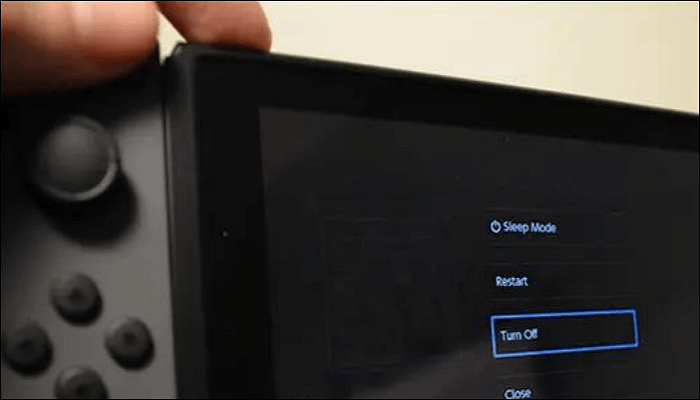
Sometimes, a simple restart can help resolve issues with multiple players.
- If the game is still not working after closing and restarting, try resetting your console to its factory settings. This will erase all data on the console, so make sure to back up any important data before doing so.
- To close Dying Light 2, press the "Home" button on your controller, navigate to the game's menu, and select "Quit".
- To restart your console, press the power button on the front of the console and select the "Restart" option from the menu.
- Once your console has restarted, open Dying Light 2 and try connecting to multiplayer again.
2. Check your network connection:
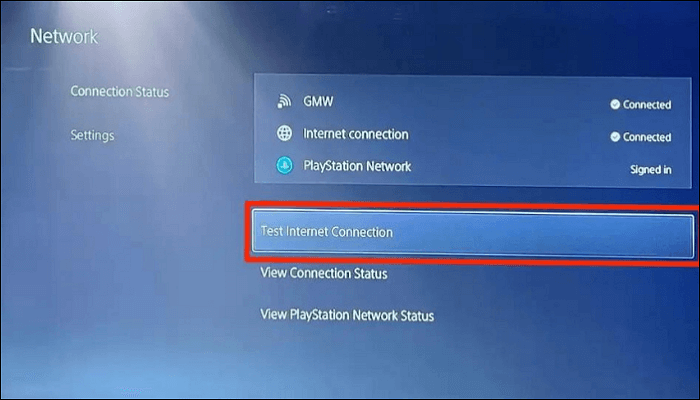
Ensure your network connection is stable and has a strong signal. Try switching from wired to wireless or vice versa. If that doesn't work, try resetting your router or modem to resolve the issue.
- Ensure your network connection is stable and you have a strong signal.
- Ensure all cables and connections are securely and properly connected to avoid any potential issues or malfunctions.
- If you're experiencing issues while playing, try switching to a different type of internet connection, such as switching from a wired connection to a wireless one or vice versa.
- You can reset your router or modem by unplugging it from the power outlet, waiting a few seconds, and then plugging it back in.
3. Check for updates:
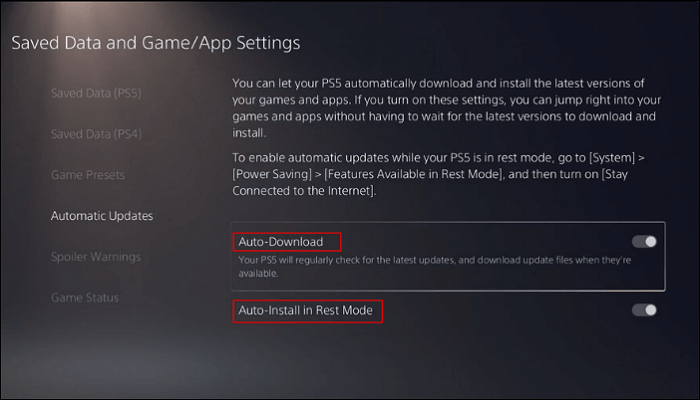
Check for updates on your game, console, and network hardware, such as your router, to resolve multiplayer issues.
- To ensure your gaming experience is running smoothly, check for any updates for your game, console, and network hardware (like your router) to ensure you have the latest software and features.
- To check for updates on your console, go to the "System" or "Settings" menu and select the option to check for system or software updates.
- To check for updates on your game, go to the "Store" or "Library" menu on your console, select the game, and look for an option to check for updates.
- To check for updates on your router, refer to the manufacturer's instructions for updating the firmware, which may be found in the router's settings or user manual.
4. Check the game's server status:
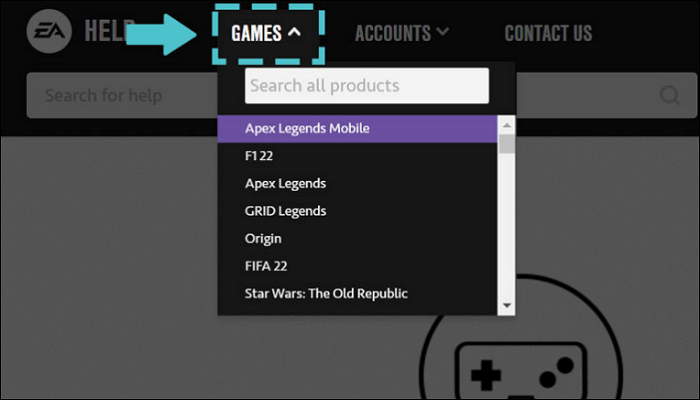
If the game's servers are down or experiencing issues, you might not be able to join multiplayer. Check the game's website or social media for any updates on server status.
- If the game's servers are down or experiencing issues, it may prevent you from connecting to multiple players.
- To check if there are any known issues with the game's servers, you can visit the game's website and social media pages. This will help you determine if the problem you're experiencing is a widespread issue or a personal one.
- You can also check the server status on websites like Downdetector or IsItDownRightNow, which track the status of popular websites and online services.
5. Try a different multiplayer mode:

If you're having trouble with a particular multiplayer mode, try switching to a different mode to see if the problem continues. This can help you determine if the issue is specific to that mode or a more general problem.
- If you're having trouble with a particular multiplayer mode, try switching to a different mode to see if the issue persists. This can help you determine if the problem is specific to that mode or if it's a more general issue.
- In Dying Light 2, to switch between multiplayer modes, go to the main menu, select Multiplayer, and choose the desired mode from the available options.
6. Change your NAT type:
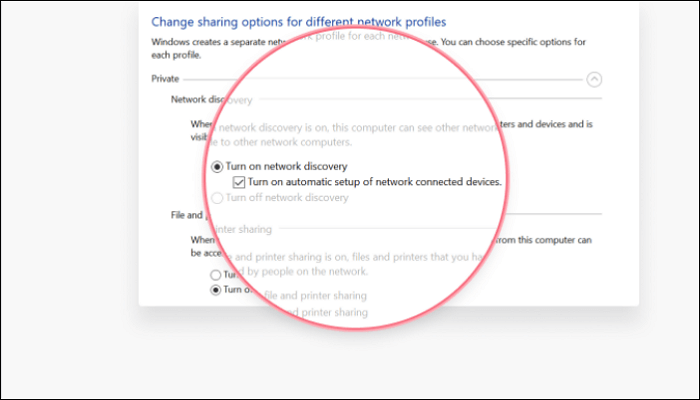
If your NAT type is set to "strict" or "moderate", it may cause problems with online multiplayer connections. You can try switching to "open" NAT type to see if this resolves the issue.
- To change your NAT type, refer to your router or modem's manufacturer instructions to adjust the settings accordingly.
- You can use a network tool like UPnP to automatically change your NAT type to "Open".
To resolve the Dying Light 2 multiplayer not working issue, check your internet connection, restart the game, and ensure that your account is active and has a valid subscription. If the problem persists, contact the game's support team or your internet service provider for further assistance.
Conclusion
If you're having trouble with multiplayer in Dying Light 2, you can try restarting the game and console, checking your network connection, updating the game, checking the server status, trying a different multiplayer mode, or changing your NAT type to resolve the issue.
If the Dying Light 2 multiplayer is not working, try restarting the game, checking for updates, verifying game files, and ensuring a stable internet connection. If the issue persists, try resetting the game's network settings or contacting the game's support team or your internet service provider for further assistance. This should help resolve the issue and get the multiplayer feature working again.
Related Articles
- How Many Pictures Can a 32GB SD Card Hold [Full Info]
- Clean C Drive without Formatting in Windows 10/8/7 [Tested & Worked]
- HP Laptop Stuck on Loading Screen - Why & Fixes
If you're experiencing an HP laptop stuck on the screen error, you can resolve the issue using the troubleshooting methods mentioned in this guide. By following the best fixing tips outlined in this blog, you should be able to get your laptop up and running smoothly again. - [Detailed Answer] Is Cloning A Hard Dive Safe & How to Clone
Cloning a hard drive can be a safe process if done correctly, but it can also pose risks if not done properly. To clone a hard drive safely, you can use software like Qiling Disk Master, which can create an exact copy of your hard drive, including all files, programs, and settings. - How to Fix 0x4005(16389) Error | Windows Update Failed
If you're trying to upgrade your MS Office, you might run into this error code 0x4005(16389). This guide offers demonstrated the top 6 ways to fix this error. Go through each steps carefully to get rid of this error. - Genshin Impact File Location| Where's the Game Data?
Find the Genshin Impact file location on PC and learn how to change the game directory, move files, or locate screenshots and installation data.
Products
Articles & Tutorials
- Data Recovery
- Data Backup
- File Recovery
- File Backup
- System Backup and Restore
- Disk and Partition Clone
- Technical articles
- Mobile articles
- Disk Master Help
- Windows Data Recovery Tutorials
- Windows Secure Delete Tutorials
- Windows Partition Management Tutorials
- Windows File Backup and Restore Tutorials
- Windows System Backup and Restore Tutorials
- Windows Disk Backup and Restore Tutorials
- Windows Clone Tutorials