Fixes for Adobe Photoshop Has Stopped Working Without Losing Files
If Photoshop is not responding or has crashed, try the quick fix by closing and reopening the application. If that doesn't work, try the advanced fix by deleting the Adobe Photoshop preferences file, which can be found in the Application Support folder for Windows or the Library folder for Mac. If you're looking to recover data, try using the Adobe Bridge to recover deleted files, or use a third-party recovery software to scan your computer for lost files.
| Workable Solutions | Step-by-step Troubleshooting |
|---|---|
| Part 1. All four fixes for Photoshop stopped working |
Fix 1. Rename and change a .dll file...Full steps |
| Part 2. Recover lost and unsaved Photoshop files |
Fix 1. Photoshop data recovery software...Full steps |
Adobe Photoshop has stopped working, help!
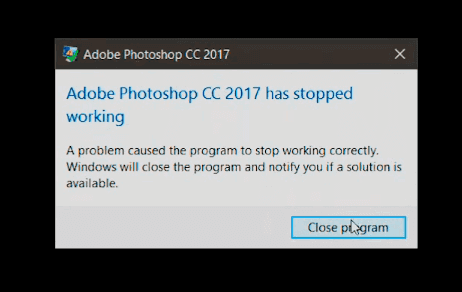
If Photoshop CC 2017 crashes on your PC, try restarting your computer and running Photoshop again. If the issue persists, try reinstalling the latest updates for Adobe Photoshop CC 2017. You can also reset Photoshop settings to their default values. If none of these steps resolve the problem, you may need to reinstall Photoshop CC 2017. To prevent data loss, make sure to export your PSD files or save them to a cloud storage service. If you're still having trouble, you can contact Adobe Support for further assistance.
Adobe Photoshop is a raster graphics editor that may crash and stop working due to various reasons, including software conflicts, corrupted files, or hardware issues, which can occur when launching the program or during the working process.
- Outdated software
- Incompatibility between Photoshop and the Windows operating system
- Third-party plugins
- Software bugs
If Adobe Photoshop crashes while editing a PSD file, you can repair and fix the issue without losing any work. Follow the steps below to troubleshoot and resolve the Photoshop 2017 stop working error.
Fixes for Photoshop stopped working
Here are two methods to try and repair not working Adobe Photoshop 2017 to function again:
Method 1. Rename and change a .dll file to fix Adobe Photoshop 2017 not working
Step 1. Go to C: drive and follow this path: c://windows/system32.
Step 2. Find LavasoftTcpService64.dll find and rename it to oldLavasoftTcpService64.dll.
Step 3. After this, reboot Adobe Photoshop CC 2017 and it should work properly again.
Method 2. Put a Tilda symbol ~ in front of the Spaces folder in Photoshop
Step 1. Go to C: drive > "Program Files" > "Adobe".
Step 2. Find Adobe Photoshop CC 2017 folder > "Required" > "Plug-Ins".
Step 3. Find Spaces folder and put a Tilda symbol ~ in front of this folder.
Step 4. Restart Photoshop to see if the problem has been fixed or not.
Method 3. Update Adobe Photoshop or Windows
If Photoshop keeps crashing, it might be due to an incompatibility between the software and your Windows system. To troubleshoot, check the tech specifications and system requirements of your current Photoshop version to see if they match your system. If there's an incompatibility, consider updating either Photoshop or your system to resolve the issue.
Method 4. Remove plug-ins
If Adobe Photoshop was working fine on your computer but now crashes frequently, it's likely due to recently installed third-party plug-ins or software. Try removing the latest plug-ins or software you've installed, as they might be causing the issue, and this should resolve the "Adobe Photoshop has stopped working" error.
How to Recover lost or unsaved PSD files in Adobe Photoshop
Losing data due to a software crash can be frustrating, especially when it's a whole PSD file or progress on an ongoing project. To recover your data, first, specify your situation - did you lose the entire file or just the progress you made on it? Once you've identified the issue, you can choose the right method to retrieve your data.
Method 1. Restore lost PSD files in Adobe Photoshop from PC
If Adobe Photoshop suddenly stops working or crashes, you risk losing PSD files on your PC. If you've lost PSD files after Photoshop stopped working, you can recover them using the Deep Data Recovery software, which helps recover lost, deleted, or formatted files on your computer with simple clicks.
Step 1. Choose file types and click "Fast Scan" to start
Launch Deep Data Recovery, select the file types you want to recover, and click "Fast Scan" to begin the process.

Note: You can choose different search modes based on where and why the data was lost.
Step 2. Select a location and start scanning
Choose the partition where you lost data. Then, click "Scan".

Step 3. Filter and preview files
To find the files you need, use the file format filter on the left or upper right corner, and then click the "Preview" button or double-click a file to preview its content.

Step 4. Recover lost data or files
To recover a file, click the checkbox next to the file and click "Recover" to restore the lost data to a secure place.
Method 2. Recover unsaved PSD from Adobe Photoshop
If Adobe Photoshop suddenly stops working and you've lost unsaved PSD files, you can try to recover them if you had enabled the AutoSave feature beforehand. This feature is usually turned on by default, and it can help restore your lost progress. By following the guidelines, you may be able to retrieve your unsaved PSD files.
Step 1. Go to C:\Users\lindseysprague\AppData\Roaming\Adobe\Adobe Photoshop CC 2019\Auto Recover.
Step 2. If saved files are hidden, go to View in File Explorer and tap on "View".
Step 3. To save specific PSD files, check the box next to "Hidden items" and save the files you want to keep to a secure location on your computer.
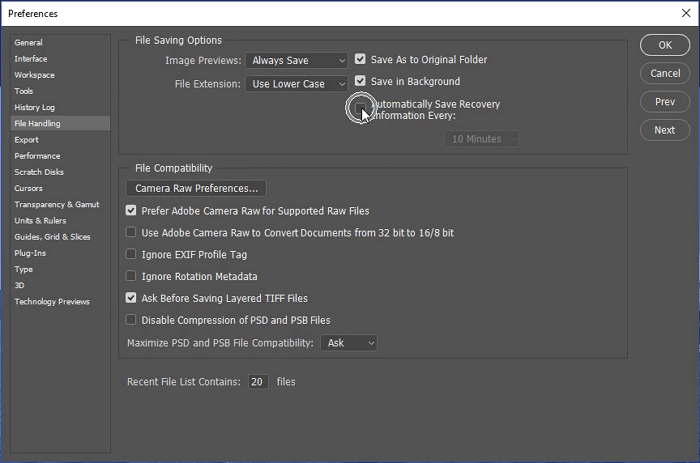
If AutoSave is disabled, it's not late to turn it on now to minimize data loss in future software crashes or other situations. How to set up the AutoSave feature? Here we will show you how to enable automatic save in Photoshop CC 2019:
Step 1. Open Adobe Photoshop on your computer.
Step 2. Go to "Edit" > "Preferences" > "File Handling..."
Step 3. In the "File Saving Options" section, select "Automatically Save Recovery Information Every" and choose a time interval that suits you.
The Bottom Line
Running antivirus software may also resolve the issue of Adobe Photoshop crashing due to virus attacks, but be cautious as it may delete some files and require data recovery.
Related Articles
- How to Fix Error Code 43 for USB in Windows 10 & Recover Data
- Windows 11 ISO Download Full Version 64 Bit or 32 Bit
- 4 Ways | How to Fix Word Runtime Error 91
- Red Dead Redemption 2 Lost Save Game, How to Recover?
- Windows 11 Update Slows Down SSD Performance? Newest Guide
Windows 11 update slows down SSD performance. Is that true? How to fix it? If you are considering updating to Windows 11 or have updated to Windows 11, don't miss this article. - How to Fix Windows Backup Error Code 0x8078002a [5 Methods]🔥
People often use Windows backup to create a system image or back up important files in case of data loss, but may encounter error code 0x8078002a during the process.
Products
Articles & Tutorials
- Data Recovery
- Data Backup
- File Recovery
- File Backup
- System Backup and Restore
- Disk and Partition Clone
- Technical articles
- Mobile articles
- Disk Master Help
- Windows Data Recovery Tutorials
- Windows Secure Delete Tutorials
- Windows Partition Management Tutorials
- Windows File Backup and Restore Tutorials
- Windows System Backup and Restore Tutorials
- Windows Disk Backup and Restore Tutorials
- Windows Clone Tutorials