Windows 10 Stuck in Airplane Mode and How to Fix it
If your Windows 10 is stuck in airplane mode and won't let the device connect with Wi-Fi, you can try restarting your device, checking the Wi-Fi switch in the action center, or toggling the Wi-Fi switch in the network and sharing center. If none of these methods work, you can try resetting the network stack or seeking further assistance from Microsoft support. In the meantime, you can try using a USB cable to transfer files between devices.
You'll learn why Windows 10 gets stuck in airplane mode and discover ten ways to fix it, allowing you to connect your device to wireless networks.
Why Windows 10 Stuck in Airplane Mode
Switching your device to airplane mode can cause connectivity issues with Wi-Fi, Bluetooth, and GPS if you can't turn it off. Windows 10 may get stuck in airplane mode due to various reasons, including software glitches, hardware problems, or incorrect settings.
- Can't install Windows 10
- Bugs in the Wi-Fi software
- Hardware issues with the Wi-Fi chip
- Glitches in network driver.
If you're experiencing issues with Windows 10 getting stuck in airplane mode, there are a few handy fixes you can try. First, simply toggle the Airplane Mode switch on and off.
Fix Windows 10 Airplane Mode Stuck
If you're having trouble turning off airplane mode or Windows 10 is greyed out, there are multiple solutions to try. Some of these solutions may work for you, so try them one by one until you find the one that fixes the issue. Ten potential solutions are listed below.
- Method 1. Restart Device
- Method 2. Use System Settings To Turn Off Airplane Mode
- Method 3. Network Settings Reset
- Method 4. Turn Off Radio Management Settings
- Method 5. DNS flush and IP address renewal
- Method 6. Editing The Registry
- Method 7. Turning On Normal Startup
- Method 8. Modify the Power Settings
- Method 9. Troubleshoot Internet Connections
- Method 10. Disabling Antivirus
Method 1. Restart Device
When you're having trouble turning off airplane mode in Windows 10, try restarting your device. This will allow your device to start all software and programs efficiently, potentially resolving the issue.
Step 1. Go to the "Start Menu" in your taskbar.
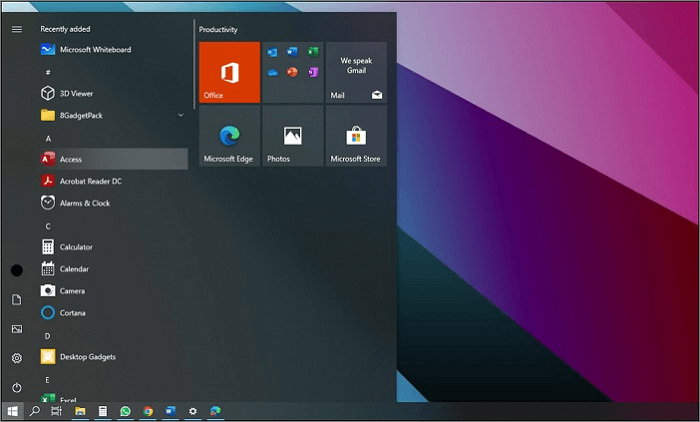
Step 2. To shut down your computer, click on the "power" button to open a menu with sleep, shut down, and restart buttons. Then, select the "shut down" option.
Step 3. Restart the device, let it turn off, and then restart automatically.
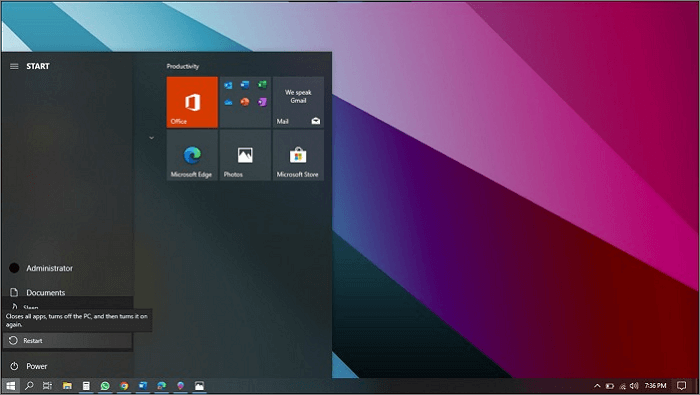
Step 4. Wait for a few minutes until the computer starts, then check if you can turn off airplane mode.
Method 2. Use System Settings To Turn Off Airplane Mode
To resolve the issue, try turning off airplane mode using the System Settings. This may help resolve the problem.
Step 1. Go to "Settings."
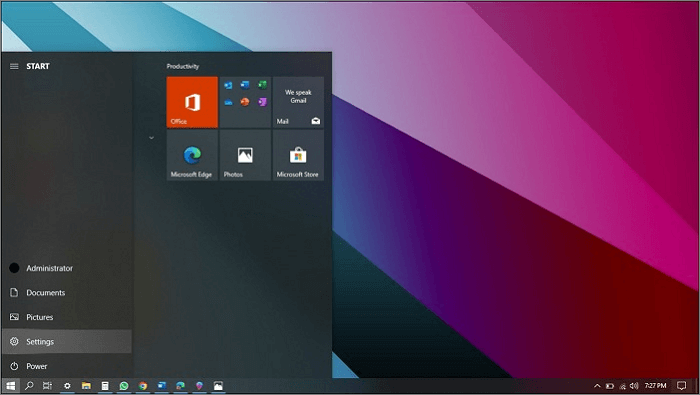
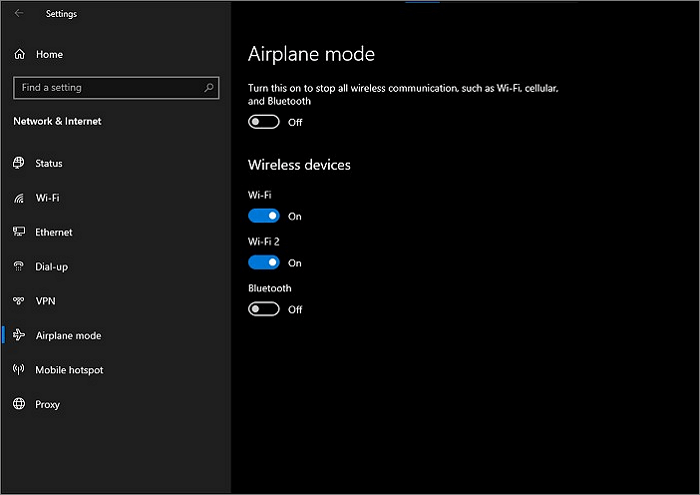
Step 2. To access the Settings menu, go to the "Settings" app on your device and select "Network and Internet" from the available options.
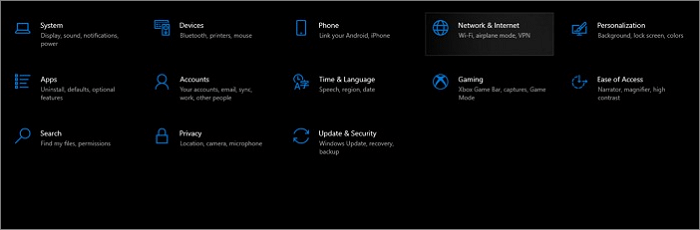
Step 3. To turn off airplane mode, go to your device's settings, then select "Airplane mode" and toggle it off. Additionally, ensure that the "Turn on to stop all wireless networks" option is enabled.
Method 3. Network Settings Reset
To resolve the stuck airplane mode, reset your network settings. Note down your Wi-Fi passcode beforehand, as resetting will remove all networks. To do this, go to Settings, then scroll down to General, and tap on Reset. From the options, select Reset network settings.
Step 1. Go to Settings, then to Network and Internet.
Step 2. Click "Advanced Network Setting," then select "Network reset."
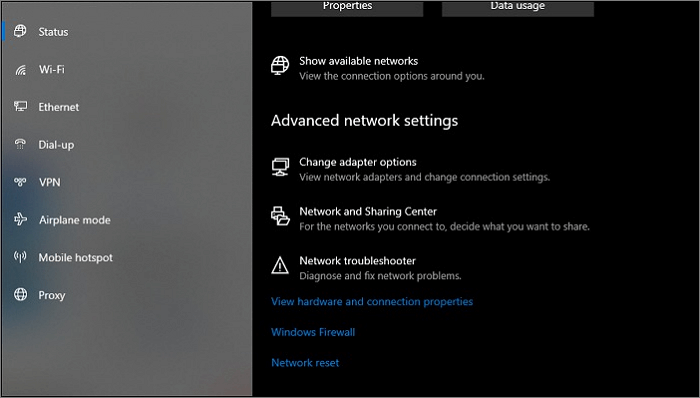
Step 3. Select "reset now" and wait for the device to complete the process.

Step 4. Once the device resets your network, add your Wi-Fi password. Then, try to turn off airplane mode and reconnect the wireless networks.
Method 4. Turn Off Radio Management Settings
To disable radio management settings and turn off airplane mode, follow these steps: 1) Go to Settings > System > Developer options > Wireless network optimization > Radio management settings and toggle it off. 2) Restart your device. 3) Check if the airplane mode is working correctly. If it still doesn't work, you may need to reset your device to its factory settings.
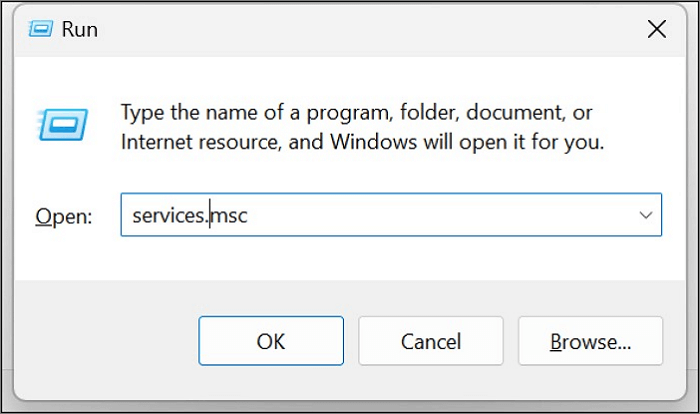
Step 1. The Windows Run dialog box opens, allowing you to quickly access various system tools and utilities.
Step 2. Type services. msc in the search bar and click "OK."
Step 3. The services of your device are: Bluetooth, Wi-Fi, and Internet.

Step 4. To access the Radio Management Settings, right-click on it and select Properties.
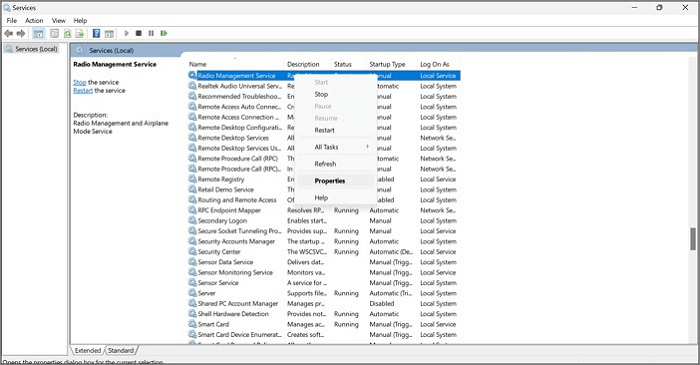
Step 5. To disable the Startup type, go to the "Startup type" section in the Properties tab and change it from "Automatic" to "Disabled".
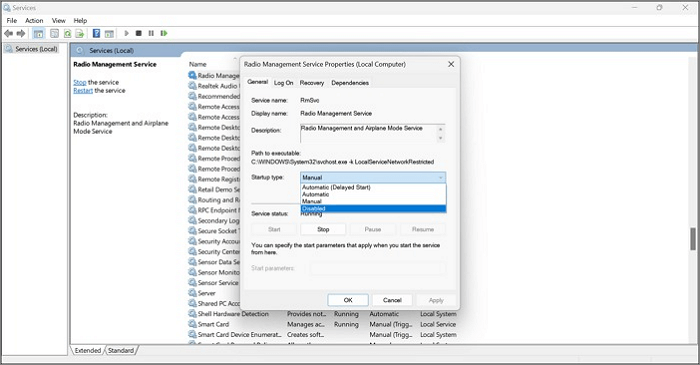
Step 6. Try to turn off airplane mode and check if the problem is resolved.
Method 5. DNS flush and IP address renewal
After following method 4, flush your device's DNS and renew the device's IP address. The steps below will help you out.
Step 1. To open the Command Prompt, press the Windows key + R to open the "run utility", then type "cmd" and press Enter. This will launch the Command Prompt.
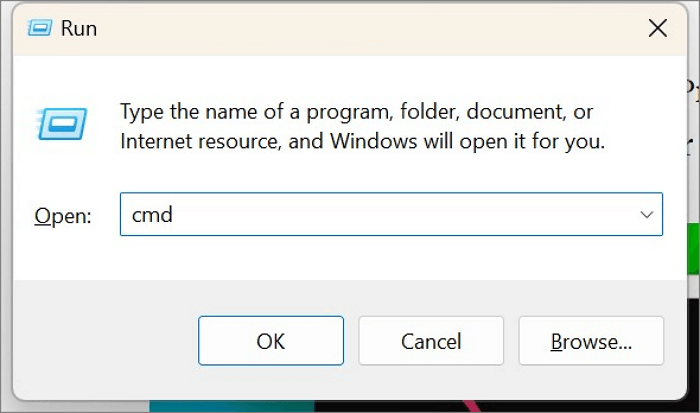
Step 2. Type ipconfig /flushdns and press "Enter." DNS flush is done.

Step 3. Repeat step 1, and type this set of commands by pressing "Enter" after each line:
ipconfig /release
ipconfig /all
ipconfig /flushdns
ipconfig /renew
netsh int ip set dns
netsh winsock reset
The device's IP address is renewed. If it still doesn't work, try switching off airplane mode and then move on to method 6.
Method 6. Editing The Registry
Airplane mode can be exited by editing the Registry, but it's recommended to have a registry backup to avoid potential issues.
Step 1. Go to"run utility," type regedit, and press "Enter."
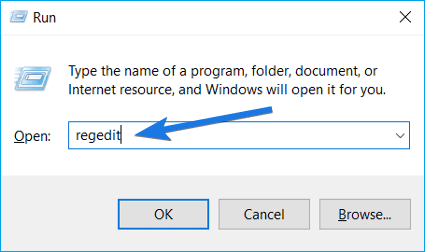
Step 2. Use the "registry key" and navigate to the following:
HKEY_LOCAL_MACHINE\System\CurrentControlSet\Control\Class.

Step 3. A new window will appear, and you need to click on the "radio enable key" and set the value data to "1".
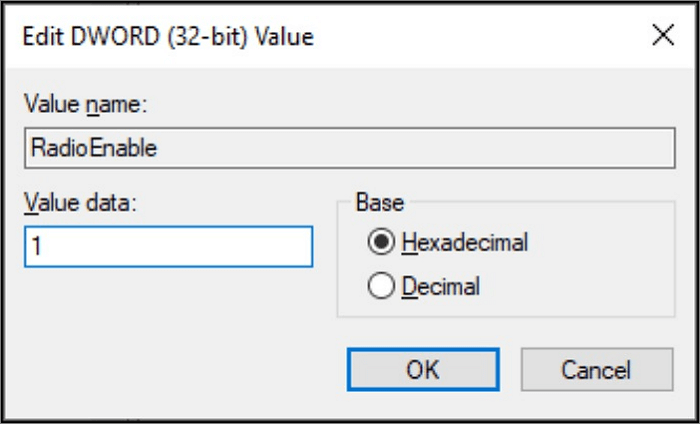
Step 4. Restart your device and recheck, turning off airplane mode.
Method 7. Turning On Normal Startup
If you're having trouble turning off airplane mode in Windows 10, you can try turning on your device's normal startup. To do this, follow the steps: 1. Press the Windows key + X and select Device Manager from the menu.
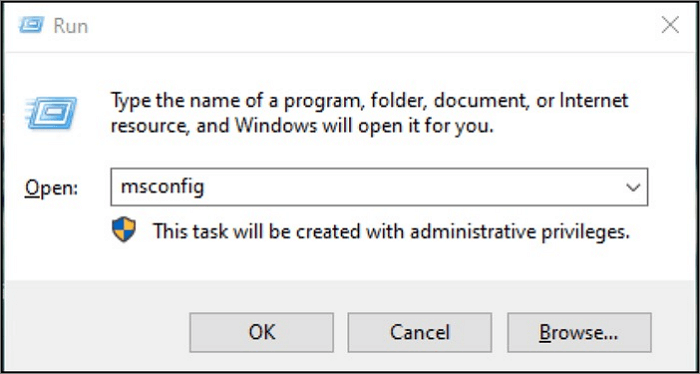
Step 1. Type msconfig after launching the run utility.
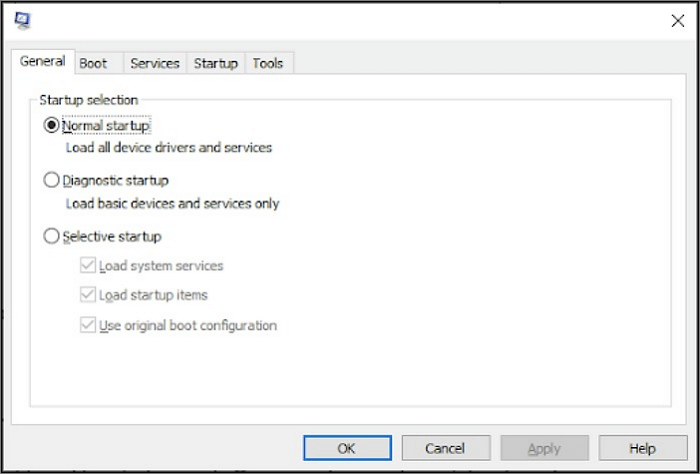
Step 2. Select "normal startup" and apply.
Step 3. Turn off your device completely.
Method 8. Modify the Power Settings
If your computer's Power Management Settings keep disabling your wireless adapter, you can try changing the power setting to prevent this from happening.
Step 1. To access the Device Manager, press the "Windows + X" key on your keyboard, which will open a menu where you can select Device Manager.
Step 2. Click on "Network Adapters" and drop down the adapters.
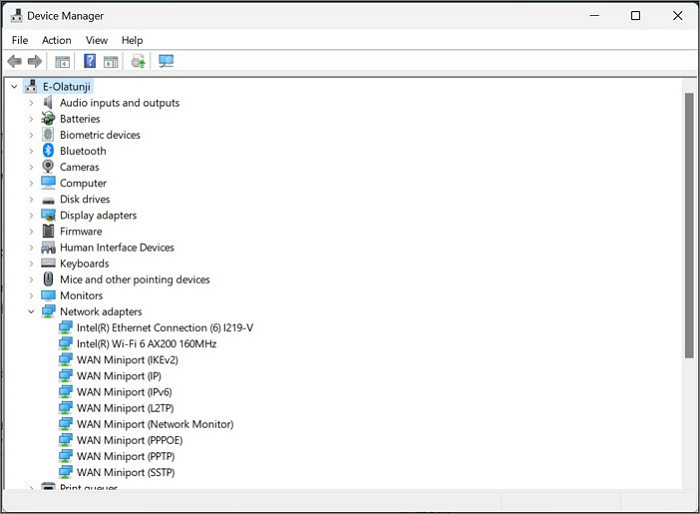
Step 3. Open the Properties of your Wi-Fi network.
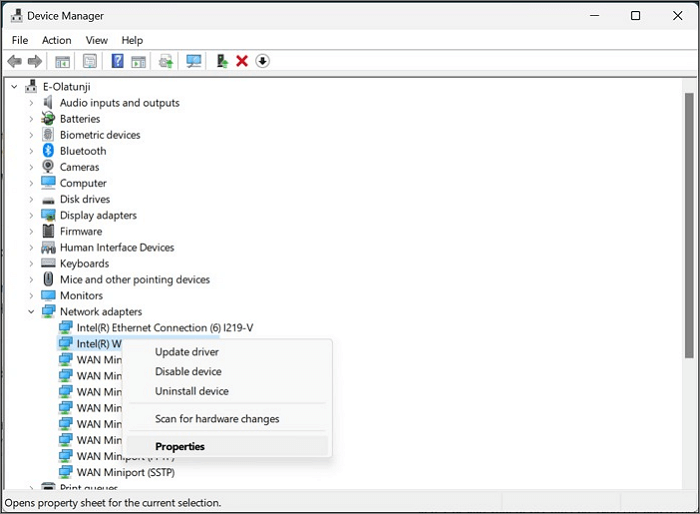
Step 4. Go to the "Power Management tab" and select the option to allow the computer to turn off the device to save power.
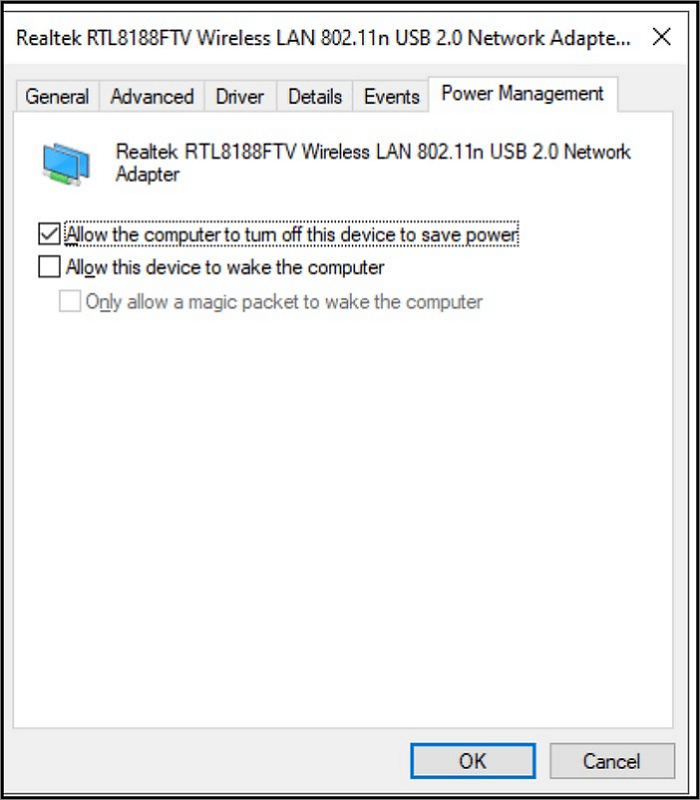
Step 5. Restart your device after pressing "OK" and check if the issue is resolved.
Method 9. Troubleshoot Internet Connections
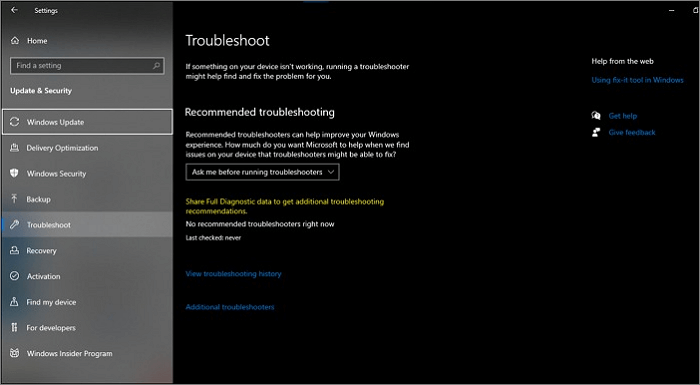
Running internet troubleshooting can resolve connectivity issues and may automatically turn off airplane mode.
Step 1. Go to "Settings."
Step 2. To update and troubleshoot network connections, click on the "Update and Security" option in the Settings app, then select "Troubleshoot" and choose "Network Connections."
Method 10. Disabling Antivirus
Your Windows 10 antivirus may inadvertently cause your device to get stuck in airplane mode, but you can try disabling the antivirus to resolve the issue.
Step 1. To access the Task Manager, open the Task Manager, and right-click a space in your Taskbar.
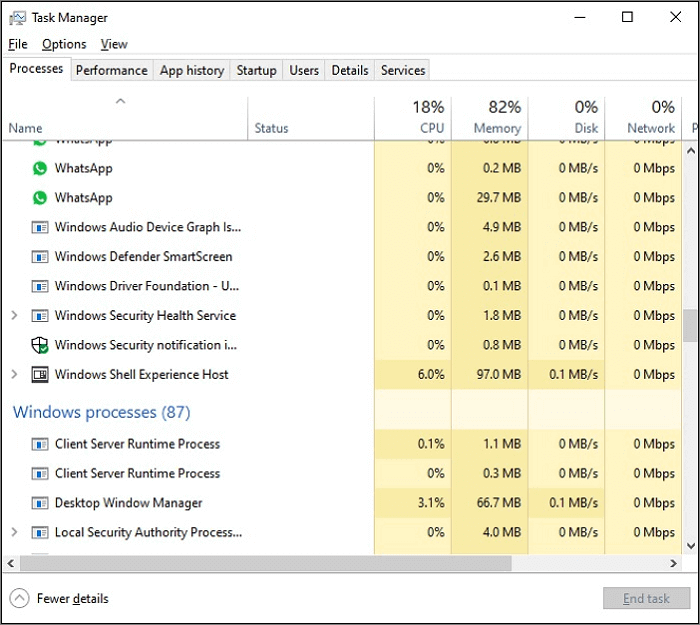
Step 2. Select the "Startup tab" and disable the antivirus application.
Step 3. Close all the tabs and restart your computer. We are sure you've solved your problem using these ten methods, and now you can turn off airplane mode.
Conclusion
After reading this article, you'll gain key insights and learn 10 methods to resolve the issue of Windows getting stuck in Airplane mode, ensuring your devices stay connected to WiFi without any issues. This knowledge will not only benefit you now but also in the future.
Related Articles
- What Is Spindump Mac and How to Utilize It? [Complete Guide]
- What Is System Partition? [Best Explained in 2022]
- How to Factory Reset from BIOS on a Windows PC [Methods in 2022]
- What is AMD CPU fTPM? Everything You Need to Know
- What Is Hard Reset & How to Hard Reset PC/iPhone/Android
A hard reset reinitializes a device's core hardware, forcing a complete system restart from firmware. Learn how to hard reset Windows PC, Mac, Chromebook, iPhone, and Android with step-by-step instructions, and understand the key differences between hard reset, soft reset, and factory reset. - What Is HFS+ | HFS+ vs. APFS, HFS+ vs. exFAT
HFS+ is a file system developed by Apple in 1998, also known as Mac OS Extended. It is natively supported on all Mac computers since macOS 8.1, but is not readable or writable on Windows, and only readable on Linux.
Products
Articles & Tutorials
- Data Recovery
- Data Backup
- File Recovery
- File Backup
- System Backup and Restore
- Disk and Partition Clone
- Technical articles
- Mobile articles
- Disk Master Help
- Windows Data Recovery Tutorials
- Windows Secure Delete Tutorials
- Windows Partition Management Tutorials
- Windows File Backup and Restore Tutorials
- Windows System Backup and Restore Tutorials
- Windows Disk Backup and Restore Tutorials
- Windows Clone Tutorials