What Is MRT Process Mac: High CPU Usage [Updated 2023]
MRT, a primary defense line against malicious software on macOS, aims to safely remove malicious software, while XProtect focuses on detecting and blocking it.
The MRT (Malware Removal Tool) continuously scans for malware on your Mac by checking for infections every time you log in or restart your device, effectively removing any threats it finds. This process can sometimes cause high CPU usage on your Mac, but it is a normal part of the MRT's functionality.

What Is MRT Process Mac?
The MRT process mac is a malware removal tool that resides in the CoreServices folder, located in /Library /System, rather than the Utilities folder or applications where user-level programs are typically found. This application bundle is not meant to be launched by users, despite taking the form of an executable.
MRT.app has command line settings that allow it to operate in daemon or agent mode, and can also report an error message for unknown malware families, but unfortunately, this error message does not provide any information about the characteristics of the malware.
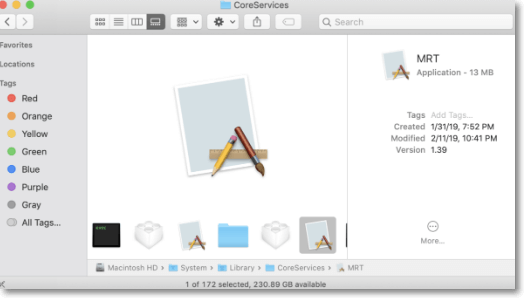
To determine the MRT targets, several techniques are required. First, you'll need to obtain a copy of the binary, which is a good practice even if you're not intended to modify it, as working with a copy during evaluation is a top-notch approach during reverse engineering. System Integrity Protection may protect the original binary, but a copy can be used for analysis.
Running the command "sudo ditto MRT ~/Desktop/MRT COPY" will create a copy of the binary "MRT" and save it to the Desktop, where it can be easily retrieved.
Advantages
- It's a front-line security measure in the macOS.
- It can safely eradicate all malicious software from a Mac.
- MRT can perform numerous signature checks against Apple's CRL while running in daemon mode.
- The agent mode operation is more silent and effective.
Disadvantages
- In 2019, MRT removed Zoom from users, leaving them vulnerable, and eliminated a useful application.
- The newest update to MRT version 1.68 for mac is known for releasing internal information to the third-parties.
Why Does MRT Use High CPU on Mac and How to Solve It?
If you've noticed the MRT process using an unusually high amount of CPU or memory in Activity Monitor, it can cause your Mac to slow down or become unresponsive. This can occur while scanning compressed files, eliminating malware, or installing a new malware database, leading to excessive CPU usage.
If you're wondering why MRT uses a high CPU on Mac, it's due to two main reasons: automatically downloading apps from the App Store and limited memory capacity. However, this process should not take long unless MRT encounters any issues. If the MRT process is hindering your daily work, consider the following solutions.
Force Quit MRT
The MRT process can utilize a high CPU on Macs, and to temporarily disable it, you can Force Quit the process by selecting it in Activity Monitor, hitting the X sign, and opting to Force Quit. This will not affect the overall functionality of your Mac, but it may prevent the MRT process from running in the background.
Update MRT
The MRT might enter a loop of deleting programs or files, causing excessive CPU usage. To resolve this, updating to the latest MRT version can help, as it is more functional and may prevent such issues.
Step 1. Open Terminal.
Step 2. Paste this command: sudo softwareupdate --background and hit Enter.
Although the background check might take a little time to finish, you must keep checking if the MRT process vanishes from the Activity Monitor.
Safe Mode Booting
Corrupted caches may be the cause of high CPU usage by MRT on a Mac. Restarting in safe mode can resolve this issue, and if macOS works properly in safe mode, a full reboot is recommended.
Conclusion
MRT.app is one of the top-notch official malware scanners and removal tools for Mac OS X and macOS, built into Apple's anti-malware program, which can be accessed via the /System/Library/CoreServices/ directory. This program is designed to detect and prevent potential malware attacks.
MRT (Malware Removal Tool) not only helps remove malware, but also unwanted or malicious Safari modifiers and extensions, such as Nariabox.safariextz, SafariProxy, and Dok, among others. However, Apple's frequent updates to the MRT.app can sometimes cause conflicts with other antivirus updates.
Related Articles
- What Is PowerShell ISE? [Updated 2022]
- One PC Plays as Two: How to Dual Boot Windows 11 with Windows 10 Together
- What Is A Boot Device [Everything You Need to Know]
- Windows Recovery Environment [How to Access with Video]
- Solved: Screen Black But Still Running Issue
If your Lenovo laptop screen is black but still running, this issue can be caused by various factors. This article covers the possible causes and solutions to resolve the problem of your Lenovo laptop's screen being black but still running. - How to Solve LG TV Not Recognizing USB [Ultimate Guide]
Fix LG TV not recognizing USB. Check USB format, drive compatibility, ports, firmware, file system, and simple troubleshooting steps.
Products
Articles & Tutorials
- Data Recovery
- Data Backup
- File Recovery
- File Backup
- System Backup and Restore
- Disk and Partition Clone
- Technical articles
- Mobile articles
- Disk Master Help
- Windows Data Recovery Tutorials
- Windows Secure Delete Tutorials
- Windows Partition Management Tutorials
- Windows File Backup and Restore Tutorials
- Windows System Backup and Restore Tutorials
- Windows Disk Backup and Restore Tutorials
- Windows Clone Tutorials