How to Recover Windows 8 Password When You Forgot It [Ultimate Guide]
| Workable Solutions | Step-by-step Troubleshooting |
|---|---|
| Method 1. Qiling Key Finder | Step 1. Click the "Windows" tab under the Registry Key; Step 2. Check the Windows product key...Full steps |
| Method 2. PasswordReset Wizard | Step 1: Boot your Windows 8 PC on which you're thinking of resetting its password and wait...Full steps |
| Method 3. Computer Management | Step 1: Kickstart your computer management tool; Step 2: Reset your Windows 8 password...Full steps |
| Method 4. Microsoft Account | Step 1: Open the Microsoft account rest page on your browser; Step 2: Provide your phone...Full steps |
Introduction
If you've forgotten your Windows 8 password, don't worry, you don't have to reinstall Windows. There's a quick and easy way to reset your password without losing any data. You can use the built-in Windows 8 feature called "Password Reset" or use a third-party password recovery tool to regain access to your account. This way, you can avoid the hassle of reinstalling Windows and keep your essential files safe.
If you've forgotten your Windows 8 password, don't panic! You can easily recover it using various methods. One way is to use the built-in administrator account to reset your password.
To retrieve a Windows 8 password, you can use the built-in Password Reset Tool or create a password reset disk. If you've forgotten your Windows 8 password, you can use the built-in feature to reset it without losing any data. Alternatively, you can create a password reset disk and use it to reset your password. This method is especially useful if you're unable to access your computer.
Why Do You Need a Windows 8 Password
A strong Windows password helps protect your PC from unauthorized access by making it difficult for hackers to gain access to your data, even if they have physical access to your device. The more complex and powerful your password is, the more secure your PC will be from attackers and malicious software.
To maintain strong passwords for your Windows PC, you must provide a password for a Microsoft account every time you login into your Windows 8 PC, providing a specific level of protection against third-party access.
Here are important tips for setting strong passwords and protecting your information:
- 1. Evade consecutive keyboard combinations
- 2. Use a creative and hard-to-detect password for your PC
- 3. Never use your details while creating your Windows password
- 4. Never tell your password to anyone
If you've lost or forgotten your Windows 8 password, don't panic! There are four ways to recover it instantly. You can try the built-in password reset feature, use a password reset disk, reset your password using the administrator account, or use a third-party password recovery tool. Each of these methods can help you regain access to your Windows 8 account with ease.
Method 1. How to Use a Password Recovery Tool on Windows 8
If you're looking for the strongest password recovery tools on your Windows 8 system, Qiling Key Finder is the best option. This tool not only recovers Windows 8 passwords but also helps find passwords for Windows 10/11, 7, and earlier versions with ease.
Step 1. Click "Windows" tab under the Registry Key.
Step 2. To check your Windows product key, look on the right side of your screen and click "Copy" to paste it, or select one of the other two options.
"Save" - Save to local as a PDF file.
"Print" - Click to print key file.
Qiling Key Finder is a top-notch utility that displays CD-Keys, ProductIDs of various software such as SQL Server, Windows, Adobe, and MS Office, making it a smart password recovery tool for Windows.
- Retrieve Windows credentials
Qiling Key Finder can help back up your account-related app settings and credentials, allowing you to regain your details on a new device and potentially avoid being locked out or having to reconfigure accounts.
- Recoup the product keys of the Windows system
If you need to install Windows 11/10/8/7 on a new PC or transfer your license, Qiling Key Finder can help you find your product key without requiring any specific information.
You can also learn how to find Windows 7 product key by using Qiling Key Finder in this related article.
Method 2. How to Reset Your Windows 8 Password
To recover your Windows 8 password, you can use a password reset disk, which is a USB or disc storage system that helps you regain access to your PC when you forget your password. To create a password reset disk, insert a blank USB drive or CD/DVD into your computer, go to User Accounts in the Control Panel, click on "Create a password reset disk," and follow the prompts to complete the process. Once you have the disk, insert it into the computer you want to reset the password for, select your user account, and click "Next" to begin the password reset process. If you don't have a password reset disk, you can also try using a third-party password recovery tool or contacting a professional for assistance.
Step 1: To reset your Windows 8 password, boot your PC and wait for the login page. Enter incorrect login credentials, then click "OK" on the password incorrect message and select "Reset Password".
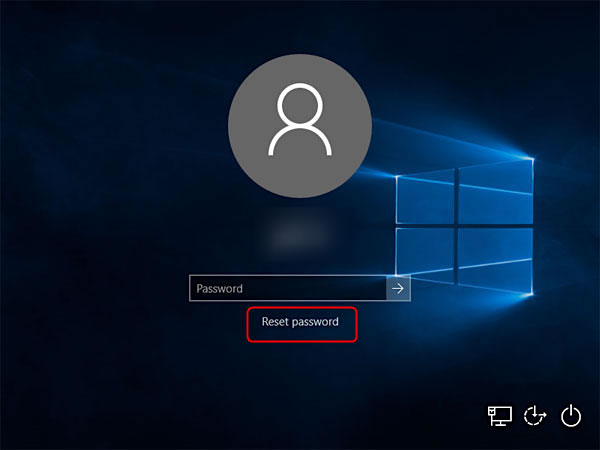
Step 2: You'll be taken to the Password Reset Wizard, where you'll need to insert or associate a Windows 8 password reset disk into the locked PC, select an option from the dropdown menu, and hit "Next". This will lead to a window showing "Reset the User Account Password" on the next few screens.
Step 3: In this window, enter the new password you want to change to and ensure it's visible on the computer screen. Then, type a brief hint to help you remember the new password in the future.
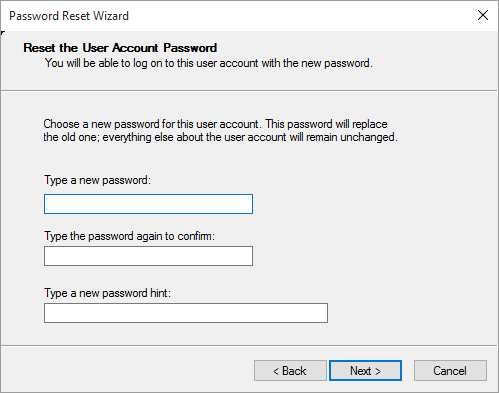
Step 4: Once the tool receives your password request, it will change your Windows 8 password, and you can then hit the "Finish" button.
Method 3. How to Change Windows 8 Password with Another Admin Account
To change the Windows 8 password with another available admin account, follow these steps:
Step 1: Kickstart your computer management tool.
To open the Computer Management tool, right-click on "My PC" and select "Manage", or press the Windows key and the "X" key simultaneously, then click on "Computer Management" from the menu that appears.
Step 2: Reset your Windows 8 password for the locked local admin account.
To recover a local admin user account, navigate to Computer Management, select Local Users and Groups, then Users. Right-click on the desired admin account and choose Set Password from the context menu. This action will allow you to reset the password for the selected account.
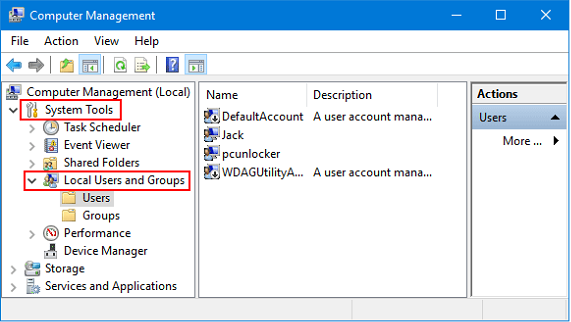
To confirm that the password has been successfully changed, log out of your user account and then log back in using the new password with your admin account.
Method 4. Reset Microsoft Account Password to Reset Windows 8 Password
Windows 8 requires a Microsoft account to access many of its features, but if you forget your administrator password, you'll need to reset it to regain access.
If you're using a Windows 8 system with a default Microsoft account for login, you can skip the password reset process and follow these steps instead. To reset your password, go to the Microsoft account website, click on "Forgot password" and follow the prompts. You'll need to enter your Microsoft account email address and then follow the instructions to reset your password.
Step 1: Open the Microsoft account reset page on your browser.
Step 2: Please provide your phone number or email associated with the Microsoft account and click "Next".
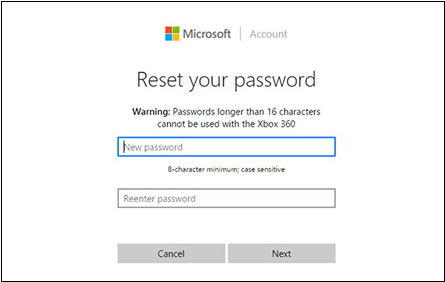
Step 3: An OTP will be sent to either your phone number or email ID, which you'll need to open and enter for security verification.
Step 4: Please provide the OTP you received and click the "Next" button to proceed.
Step 5: You need to go to the Microsoft account sign-in page, click on "Forgot password" and follow the instructions to reset your password. This might involve answering security questions, receiving a verification code via email or phone, and then creating a new password.
Step 6: To restart your Windows 8 PC, first, click on the Start button located at the bottom left corner of the screen. Then, click on the "Settings" icon which is represented by a gear symbol.
Conclusion
If you're concerned about recovering your Windows 8 password, these top 4 methods can help. However, the best product key finder to recover Windows passwords is Qiling Key Finder, which can do so within a few clicks.
Related Articles
- Best Windows Key Finder for Windows 11/10: Which Key Finder Is Best - Qiling
- How Do I Find My Autodesk Utility Design Product Key
- How to Find Microsoft Office 2007 Product Key (7 Ways)
- Forgot OneDrive Password, How Do I Restore It [2022 Guide]
- How to Fix Zsh: Command Not Found: Python [with Video]
The zsh: command not found: python issue has been addressed in this article, with the top four solutions discussed. If data is lost while resolving this problem, Deep Data Recovery for Mac can recover the lost data. - How to Use CMD Delete File/Folder [Windows 11 Applicable]
To delete files and folders using Windows cmd, you'll need to use two command lines: del and rmdir. The del command is used to delete files, while the rmdir command is used to delete folders.
Products
Articles & Tutorials
- Data Recovery
- Data Backup
- File Recovery
- File Backup
- System Backup and Restore
- Disk and Partition Clone
- Technical articles
- Mobile articles
- Disk Master Help
- Windows Data Recovery Tutorials
- Windows Secure Delete Tutorials
- Windows Partition Management Tutorials
- Windows File Backup and Restore Tutorials
- Windows System Backup and Restore Tutorials
- Windows Disk Backup and Restore Tutorials
- Windows Clone Tutorials