How to Access Startup Security Utility Mac? [Latest Tips]
The Startup Security Utility is a highly popular security feature on Macs, particularly those with the Apple T2 security chip, providing an extra layer of protection against malicious intent and unauthorized access, making it a valuable addition to any Mac.
The Startup Security Utility is a feature in macOS that allows users to access and change the security settings of their startup applications and services. It can only be accessed from the Recovery mode, where users can change the security settings to be more secure or less secure, and also add or remove trusted applications and services.
What Is Startup Security Utility Mac?
The Startup Security Utility on Macs, enabled by the Apple T2 security chip, provides system protection against unauthorized access. This feature offers three key protections: Secure Boot, which verifies the system's boot process; Firmware password, which adds an extra layer of security to the system; and Allowed boot media, which restricts the types of devices that can boot the system.
On a Mac with a T2 chip, users can access the Startup Security Utility in Recovery mode to configure device security settings easily.
The features are –
- Firmware password: The firmware password on a Mac ensures that the system can only be started from a designated disk, preventing unauthorized access and preserving the physical integrity of the system.
- Secure Boot: The feature allows users to verify that the OS is legitimate, ensuring its authenticity. There are three sub-options available.
- Allowed boot media: Users can now control whether their Mac starts from an external or removable hard drive or media, providing a layer of protection against potential issues from external sources.
How To Access Startup Security Utility Mac?
To access the Startup Security Utility on a Mac, follow these steps:
Step 1: Turn on your Mac, immediately press and hold the Command (⌘) and R keys. Hold them until you see the Apple logo and the macOS Utilities window appears.
Step 2: To select the user profile, type the administrator password, and the macOS Utilities window will appear.
Step 3: To access the Startup Security Utility on your Mac, go to the Apple menu, select Restart, hold down the Shift key, and then select Restart again. This will open the Startup Security Utility. Please wait for it to load.
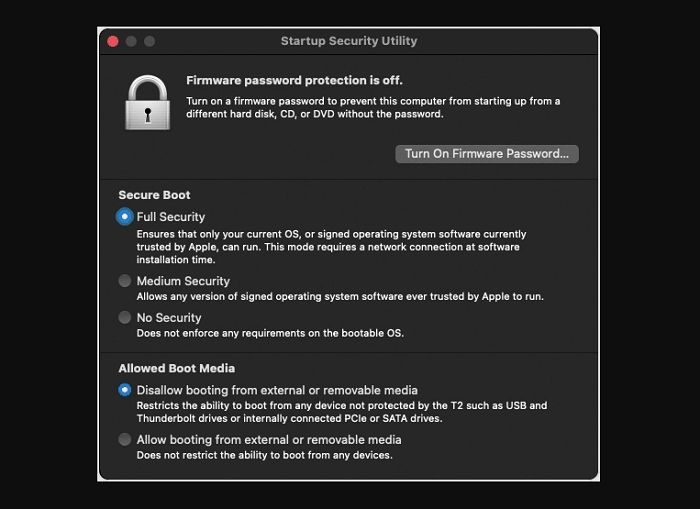
Step 4: To authenticate and access the administrator account on a macOS system, you need to type the macOS password first, followed by selecting the desired administrator account and entering its password.
To enhance security, you can turn on the firmware password, set up a secure boot, and more, providing an additional layer of protection for your system.
How To Change Settings of Startup Security Utility Mac?
On a Mac, you can change the settings of the Startup Security Utility in various ways. This utility allows you to configure settings related to booting, firmware passwords, and other security features. To access and modify these settings, you can use the Startup Security Utility, which can be found in the Security & Privacy preferences or by restarting your Mac and holding down certain keys during boot-up.
To set the firmware password, follow the steps given below –
Step 1: On the Startup Security Utility page, go to the Firmware Password option.
Step 2: You need to click on Turn On Firmware Password.
Step 3: To set up your Mac, you'll need to type in your Apple ID and password. You'll also need to type in the password twice to confirm. Once you've done that, you can restart your Mac.
To change the Secure Boot settings, you can click on any of the available options, which include Full Security, Medium Security, and No Security.
Full Security The default option, which offers the best security for the system, involves verifying the condition of the OS on the startup disk. This process ensures the OS is legitimate and free of issues. If verification fails, more information is downloaded to aid the process. However, if the OS still can't be verified, a software update alert is triggered.
If you choose Medium Security, the Mac will verify that the OS is properly signed, but won't prevent it from being used. If verification fails, the user will receive an alert for a software update.
If you choose the third option, "No Security", you won't have to take any security precautions, and the operating system won't be verified.
The Allowed Boot Media section has two options: disallowing booting from external or removable media, and allowing booting from external or removable media. If the first option is chosen, the Mac will not start from external media and will instead display a warning if the user attempts to do so.
Conclusion
The Startup Security Utility on Mac is a security feature available on Macs with an Apple T2 chip, offering three security features: Secure Boot, Firmware password, and allowed boot media for added protection.
To access and modify the Startup Security settings, simply navigate to the utility and make the desired changes. After making any adjustments, be sure to restart your system to ensure the updated settings take effect.
FAQs
Knowing more about the Startup Security utility on Mac is a great idea, as it can provide your system with more protection. To increase your knowledge, you can read through the questions and answers listed below.
1. How do I turn off the Startup Security utility Mac?
To turn off the Startup Security utility on a Mac, you need to undo the previous settings. If you previously enabled a Firmware password, you'll need to disable it. If you had Secure Boot set to Full Security, switch to the No Security option. This will disable the Startup Security utility.
2. How do I allow my Mac to use an external boot disk?
To allow your Mac to use an external boot disk, go to the Startup Security Utility, select the "Allowed Boot Media" section, and click on "Allow booting from external or removable media".
3. How do I get out of Safe Boot?
To get out of Safe Boot, simply restart your device by pressing and holding the power button until you see the Apple logo on the screen, then tap on it and wait for it to turn on normally. This will automatically exit Safe Boot mode.
Related Articles
- What is Windows PE and How to Use It
- How to Customize Lock Screen on Windows 10
- All You Need to Know About Patch Cable
- What Is NFS and How Does It Work? [This Might Help You]
- What Is ASD File? [Detailed Information]
Do you wish to know about the ASD file present on your computer? Being a frequent Microsoft Word user, you should definitely have some knowledge of this file format and how it can be opened on the computer. This article helps cover all essentials related to the ASD file. - How to Backup and Restore Google Chrome Bookmarks?
This article will show you how to manually backup Google Chrome bookmarks and auto-backup Chrome bookmarks with free backup software. If you need simple methods to backup and restore Chrome bookmarks, you can follow the solutions here to find the answers now.
Products
Articles & Tutorials
- Data Recovery
- Data Backup
- File Recovery
- File Backup
- System Backup and Restore
- Disk and Partition Clone
- Technical articles
- Mobile articles
- Disk Master Help
- Windows Data Recovery Tutorials
- Windows Secure Delete Tutorials
- Windows Partition Management Tutorials
- Windows File Backup and Restore Tutorials
- Windows System Backup and Restore Tutorials
- Windows Disk Backup and Restore Tutorials
- Windows Clone Tutorials