What Is User Folder Mac and How to Manage It? [Updated 2023]
The Mac is a widely used computer system globally, with Apple continuously innovating to meet user needs. The Mac has several in-built folders for effective functioning, including the Home folder, User folder, macOS library folder, System folder, and others. This post will explore the user folder Mac and provide guidance on how to manage it.
What Is User Folder Mac?
The User Folder on a Mac is a crucial directory that contains the Home folders of different user accounts, playing a vital role in the overall management of the system.
macOS allows multiple users to create accounts, generating a home folder for each new user account to keep their files and settings separate and avoid confusion when multiple users share the same device, all of which are stored under the User Folder.
How to Manage User Folder Mac?
To manage the user folder on a Mac, you'll first need to locate it. The user folder is typically found at /Users/username, where "username" is the name of the user account. From there, you can navigate to the user folder and manage its contents, including files, documents, and other user-specific data.
1. How to Find the User Folder on Your Mac?
To find the user folder on a Mac, press Shift, H, and Command (⌘) simultaneously, and the folder will appear on the screen.
The second method requires you to follow simple steps. These include.
Step 1. Launch the Finder app.
Step 2. Go to the Finder menu.
Step 3. Select Preferences.
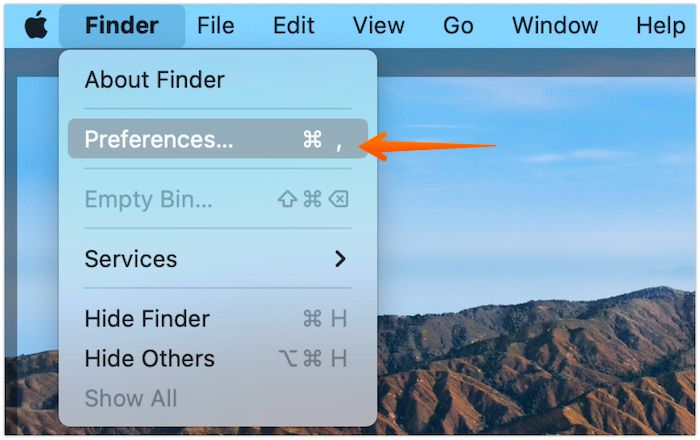
Step 4. Press Sidebar.
Step 5. You need to activate the folder that has your name on it.
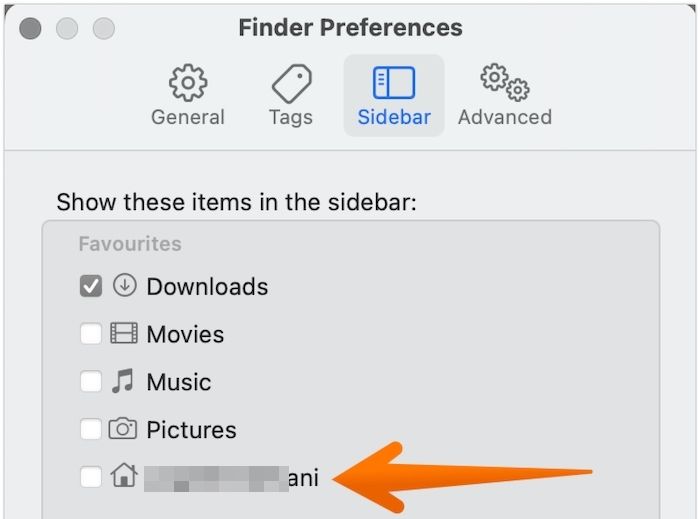
Now, you can access the user folder with a single click from the Finder sidebar.
2. How to move your Mac user folder to another drive?
To move your Mac user folder to another drive, you can follow these steps: First, create a new user folder on the target drive by copying the existing folder and pasting it to the new location. Then, change the ownership and permissions of the new folder to match the original.
Step 1. To move the Mac user folder, mount the drive where you want to relocate the user folder. This could be an external hard drive, a network drive, or another volume on the same Mac. Make sure the drive is properly connected and accessible before proceeding.
Step 2. Ensure the User folder is located on the same drive as your operating system, typically the C: drive, so it shares the same drive letter as your operating system. This usually matches the name of your user account.
Step 3. Press the folder and select the Copy option.
Step 4. Now, go to the destination drive.
Step 5. Paste the folder here.
Note: After copying, check the User folder to see if all files were copied. The best way is to compare the size of the User folder on the system to the one on the backup drive. If they match, it's likely everything was copied.
Step 1. Open System Preferences (or System Settings).
Step 2. Go to Users & Groups.
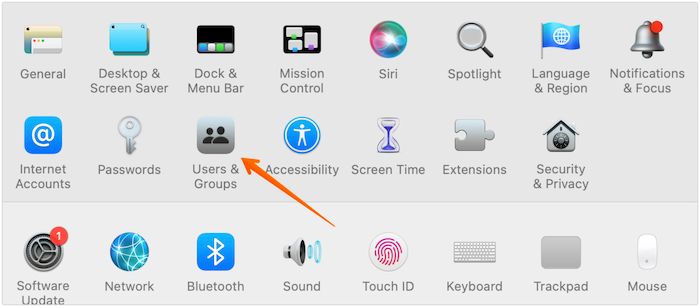
Step 3. Press the padlock button on the bottom-left part of the window.
Step 4. Enter the password.
Step 5. On the left-hand sidebar, select your user name.
Step 6. Right-click on that name.
Step 7. In the Advanced Options, you will see the Home directory setting. Click on the "Choose" button next to it.
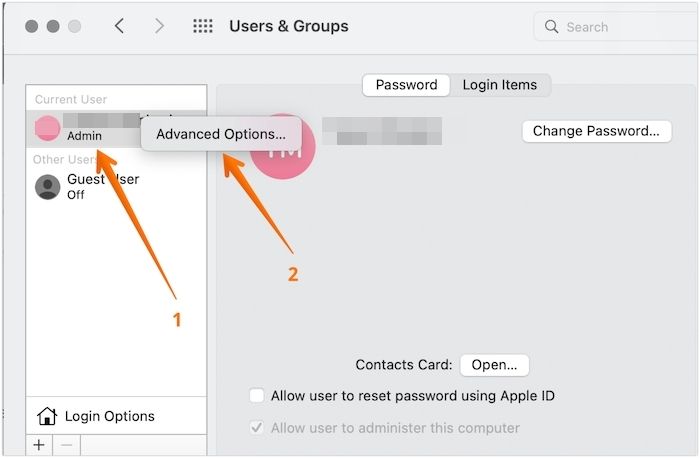
Step 8. It will lead to a new window.
Step 9. To access the Home directory field, click on it. Then, click on the "Choose" button.
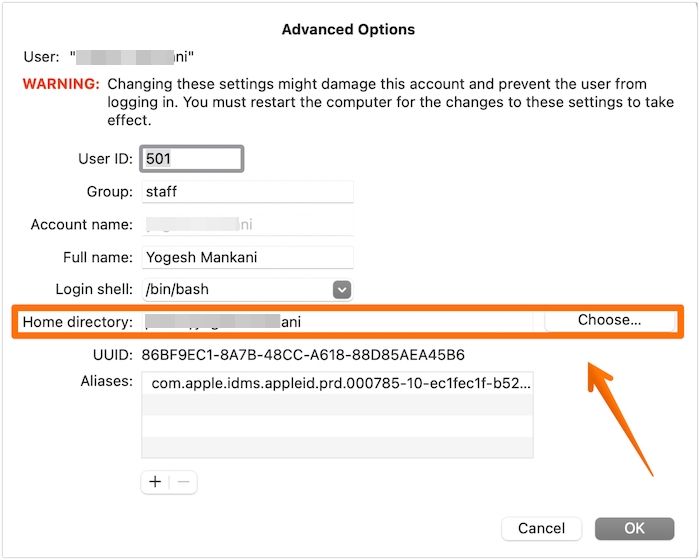
Step 10. Open the User folder on the destination drive.
Step 11. After that, press Open.
Step 12. Select Ok.
Step 13. A pop-up will appear asking the user to reboot the system. Press the Restart option to proceed.
Conclusion
The User Folder, a default folder on Mac, contains Home folders for multiple users and the Shared Folder, making it easy to find and manage.
User Folder Mac FAQs
1. Can I delete the user folder on Mac?
On a Mac, you can delete a user folder, but only if you're an admin user. Be cautious, though, as deleting a user folder will erase all files and contents under that account.
2. Is the user folder as same as the home folder?
The user folder and home folder are not the same. The home folder contains personal files and folders for a specific user, while the user folder contains shared resources and home folders for all users on the system.
3. Why is my user file so big?
Your user folder may be large due to accumulated files, downloads, and application data. To free up space, delete files you no longer need and consider moving large media files to an external drive.
Related Articles
- All Information About the Disk Utility on Mac [Updated 2022]
- What Is SMTP? Everything You Need to Know about Simple Mail Transfer Protocol
- How to Open Windows Device Manager [Full Guide in 2022]
- Copy vs. Xcopy vs. Robocopy | What Is the Difference Between Them
- What Is an Intrusion Prevention System (IPS)?
An intrusion prevention system (IPS) monitors and blocks malicious network traffic in real-time. Learn how IPS works, its types, benefits, and how it protects against cyber threats. - Is My Computer Running 32-Bit-or 64-Bit Windows? How to check?
Knowing whether your computer runs 32-bit or 64-bit Windows is crucial for installing compatible software and drivers. Learn how to check your system architecture and the key differences between 32-bit and 64-bit.
Products
Articles & Tutorials
- Data Recovery
- Data Backup
- File Recovery
- File Backup
- System Backup and Restore
- Disk and Partition Clone
- Technical articles
- Mobile articles
- Disk Master Help
- Windows Data Recovery Tutorials
- Windows Secure Delete Tutorials
- Windows Partition Management Tutorials
- Windows File Backup and Restore Tutorials
- Windows System Backup and Restore Tutorials
- Windows Disk Backup and Restore Tutorials
- Windows Clone Tutorials