ASUS Recovery Partition Not Working: Fix and Protect Data
An ASUS recovery partition may stop working after a Windows update, disk clone, partition resize, or recovery environment error. Before resetting the laptop, back up personal files and check whether the recovery partition still exists.
Why ASUS Recovery May Fail
ASUS recovery depends on the recovery partition, Windows Recovery Environment, boot configuration, and sometimes manufacturer-specific tools. If the disk was cloned, resized, converted between MBR and GPT, or cleaned, the partition may still exist but no longer be connected to the recovery boot entry.
BIOS/UEFI settings can also matter. If Secure Boot, boot mode, or disk mode changed, the recovery environment may not start as expected.
Check the Recovery Partition
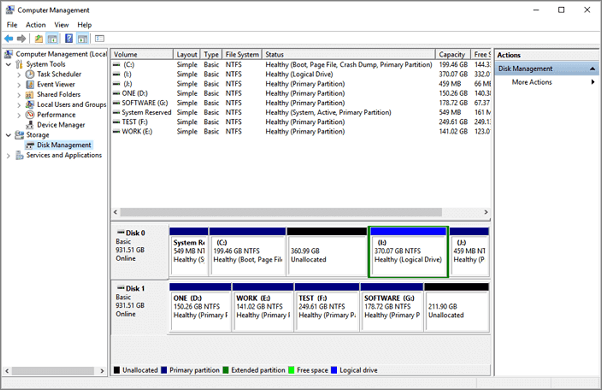
Open Disk Management and look for a recovery partition. If it is missing, damaged, or moved incorrectly, the ASUS recovery option may fail.
Back Up ASUS Laptop Before Repair
Repairing recovery options can involve boot records, partitions, or reset operations. Qiling Backup helps protect your system and files first.
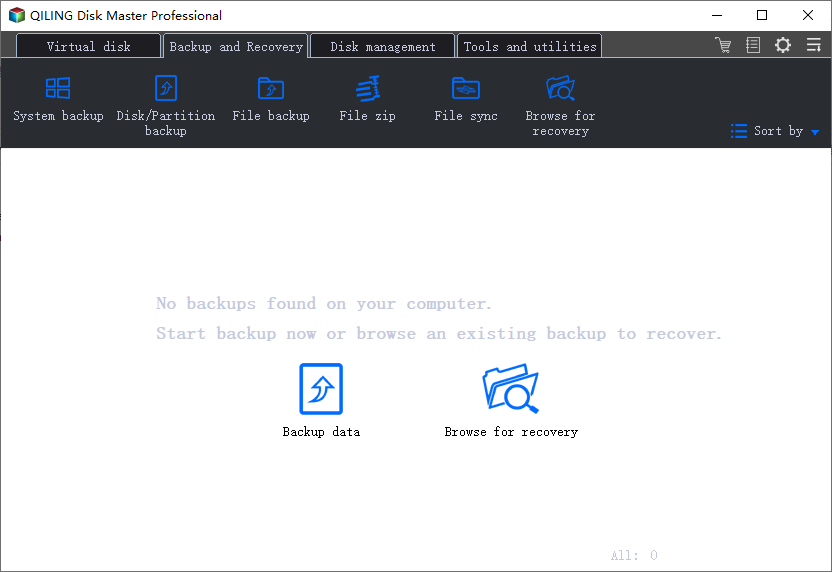
Step 1. Open Qiling Backup and choose System Backup or File Backup.
Step 2. Choose an external drive or another safe destination.
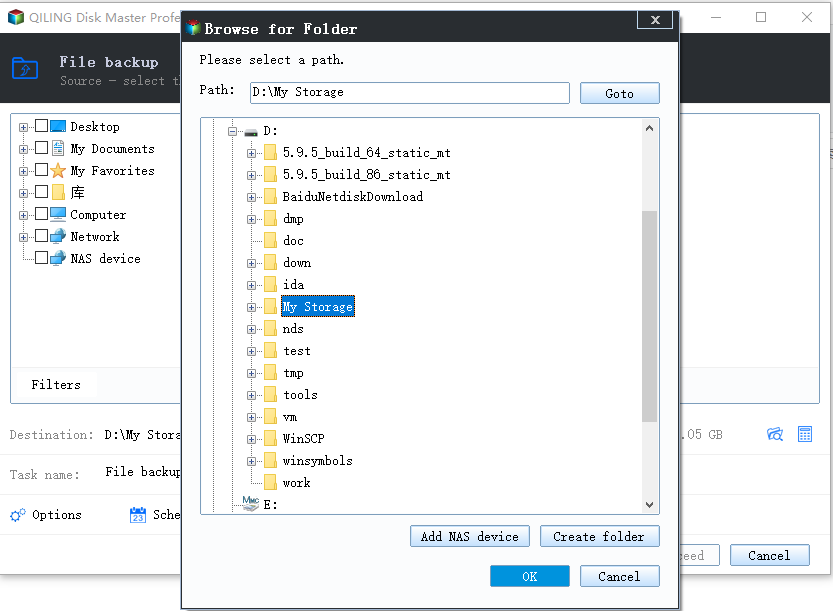
Step 3. Click Proceed and wait for the backup to complete.
Repair Recovery Options
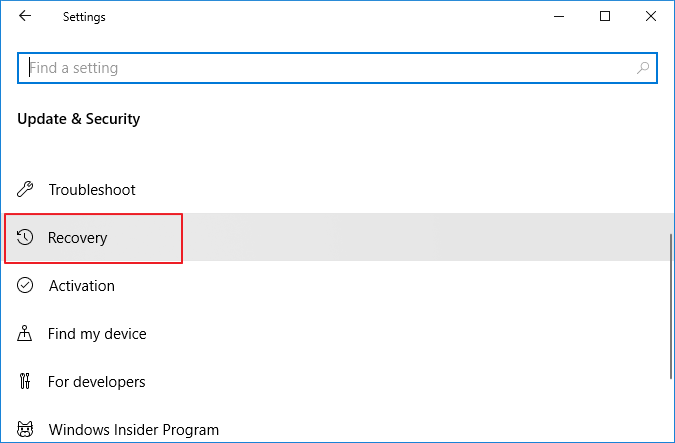
Try Windows Recovery Environment, Startup Repair, and System Restore first. If the recovery partition is damaged, use Windows installation media or a full system backup to restore the laptop.
Conclusion
If the ASUS recovery partition is not working, do not reset the laptop blindly. Confirm the partition status, protect your files, and then choose the safest repair path.
Related Articles
Products
Articles & Tutorials
- Data Recovery
- Data Backup
- File Recovery
- File Backup
- System Backup and Restore
- Disk and Partition Clone
- Technical articles
- Mobile articles
- Disk Master Help
- Windows Data Recovery Tutorials
- Windows Secure Delete Tutorials
- Windows Partition Management Tutorials
- Windows File Backup and Restore Tutorials
- Windows System Backup and Restore Tutorials
- Windows Disk Backup and Restore Tutorials
- Windows Clone Tutorials