Windows Point-in-Time Restore vs Full Backup
Windows point-in-time restore, often called System Restore, can roll back some system settings to an earlier state. A full backup is different: it saves files, partitions, disks, or the whole system so you can restore data after a larger failure.
Quick Comparison
| Item | Point-in-Time Restore | Full Backup |
|---|---|---|
| Main use | Undo system setting or driver changes | Restore files, disks, or Windows system |
| Personal files | Usually not protected | Can be included |
| Disk failure | Cannot restore to a new disk alone | Can restore if a backup image exists |
| Best time to use | Before drivers or system changes | Before updates, resets, migration, or hardware changes |
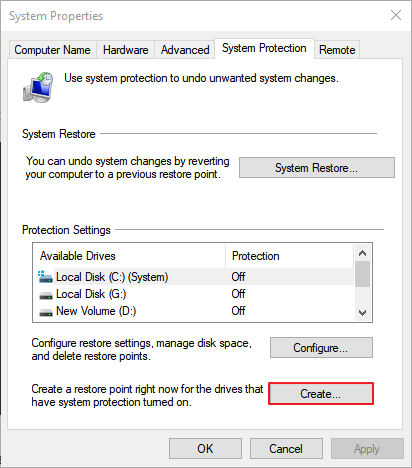
Use Windows Restore Point for Small System Changes
A restore point is useful before installing drivers, changing registry settings, or testing new software. It is quick, but it should not replace a real file or system backup.
Use Qiling Backup for Full Protection
Qiling Backup can create file, partition, disk, and system backups. It is a better choice before a Windows update, factory reset, SSD replacement, or disk repair.
Step 1. Open Qiling Backup and choose System Backup, File Backup, or Disk/Partition Backup.
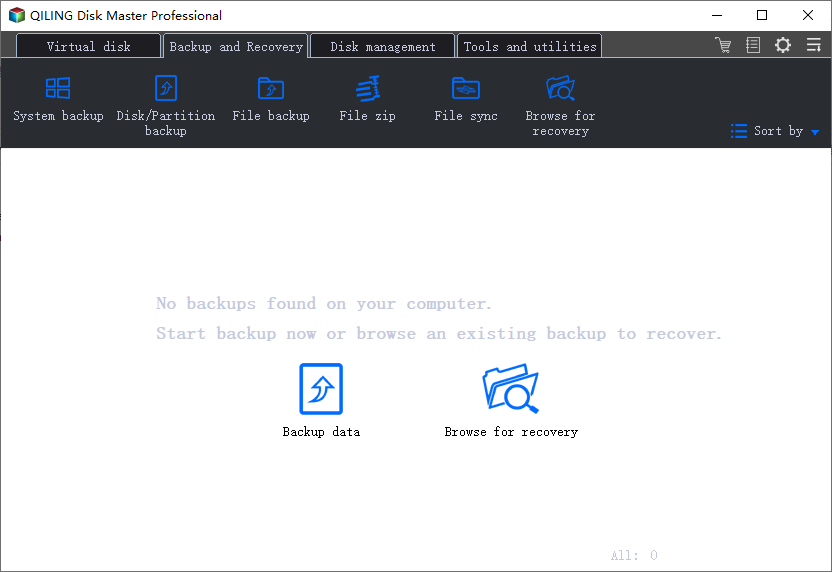
Step 2. Select the source data. System Backup selects required Windows partitions automatically.
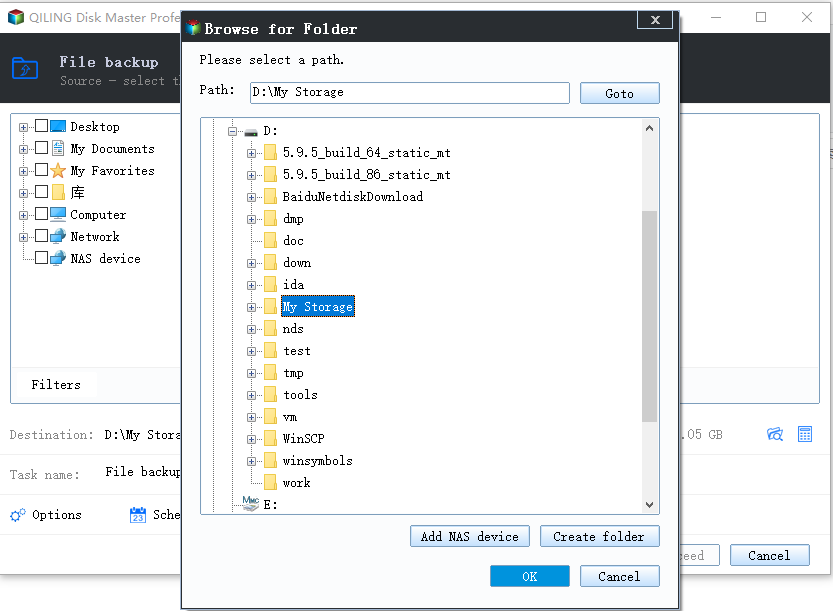
Step 3. Choose an external disk, NAS, or another safe destination.
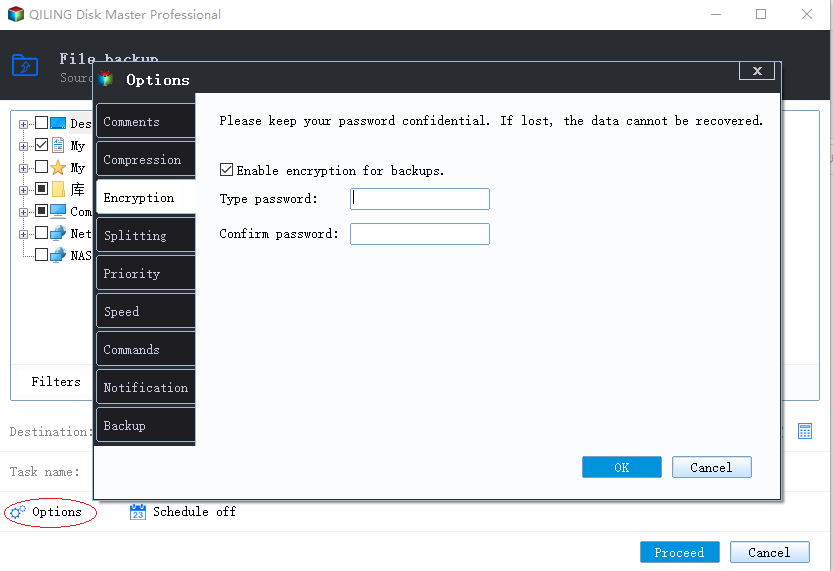
Step 4. Set backup options or schedule if needed, then click Proceed.
Which One Should You Choose?
Use point-in-time restore for small Windows changes. Use full backup when you care about personal files, installed programs, system rollback, or recovery from disk failure.
Conclusion
Point-in-time restore is helpful, but it is not a complete safety net. A full backup gives you a stronger way to recover files and Windows when an update, disk, or system problem becomes serious.
Related Articles
Products
Articles & Tutorials
- Data Recovery
- Data Backup
- File Recovery
- File Backup
- System Backup and Restore
- Disk and Partition Clone
- Technical articles
- Mobile articles
- Disk Master Help
- Windows Data Recovery Tutorials
- Windows Secure Delete Tutorials
- Windows Partition Management Tutorials
- Windows File Backup and Restore Tutorials
- Windows System Backup and Restore Tutorials
- Windows Disk Backup and Restore Tutorials
- Windows Clone Tutorials