Backup Image Will Not Open After a USB Drive Disconnects
If a USB backup drive disconnected during a job, the latest image may be incomplete. If it disconnected later, the image may be intact but unavailable under its old drive letter. Do not delete the previous backup point or assume the new image is usable until you browse and test it.
Find the correct disk and file
Step 1. Reconnect the external drive through a stable port and cable. In Disk Management, identify it by model and capacity. Note the current drive letter and check whether the expected backup folder is present.
Step 2. Compare the backup task's last-success time with the disconnection. Look for an older completed image on the same drive or another location. If Windows reports I/O errors or the drive repeatedly vanishes, stop using it and preserve any other copies.
Browse the image with Qiling
Step 1. Open Backup and Recovery > Browse for recovery. Choose the existing image file from its current location instead of creating a new backup task merely to make the old file appear.
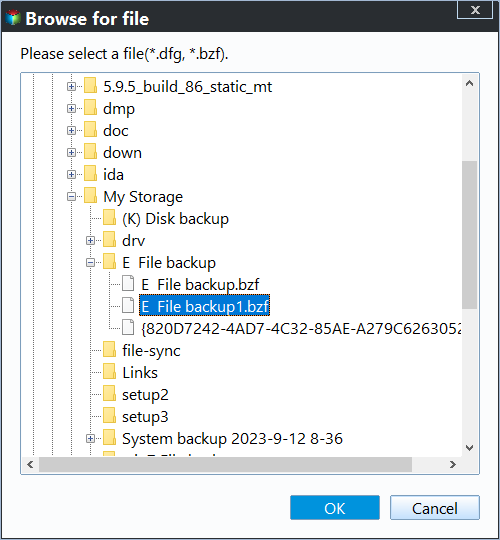
Step 2. If Qiling can read the image, select the appropriate backup point and a small noncritical file. Choose Specify a recovery location on another drive, then click Proceed. Open the restored file to confirm it is usable.
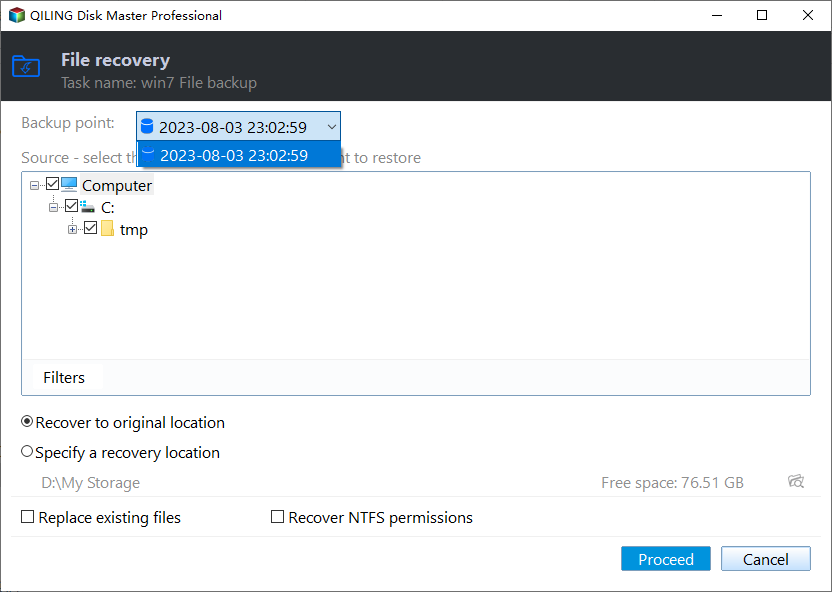
Step 3. If the interrupted image cannot be opened, try the last completed point. Do not rename image parts or overwrite older backup files to force a restore. Record the exact error for support if no complete point can be read.
Create a new trusted copy
After fixing the USB connection, run a new backup to a reliable destination and test a restore. Keep the older known-good image until the replacement is verified. A successful file copy of the image alone is not a restore test.
Related Articles
- Drive Disconnected During Backup
Check an interrupted external-disk backup task. - Backup Image Missing After Letter Change
Find a valid image under its new drive letter.
Products
Articles & Tutorials
- Data Recovery
- Data Backup
- File Recovery
- File Backup
- System Backup and Restore
- Disk and Partition Clone
- Technical articles
- Mobile articles
- Disk Master Help
- Windows Data Recovery Tutorials
- Windows Secure Delete Tutorials
- Windows Partition Management Tutorials
- Windows File Backup and Restore Tutorials
- Windows System Backup and Restore Tutorials
- Windows Disk Backup and Restore Tutorials
- Windows Clone Tutorials