Should You Back Up System Files to the Recovery Drive?
When creating a Windows recovery drive, you may see an option to back up system files. Selecting it makes the USB more useful for recovery, but it also needs more time and storage space.
What the Option Means
System files on a recovery drive help Windows provide more repair and reset options. They do not include all personal files, installed programs, or a full copy of your disk.
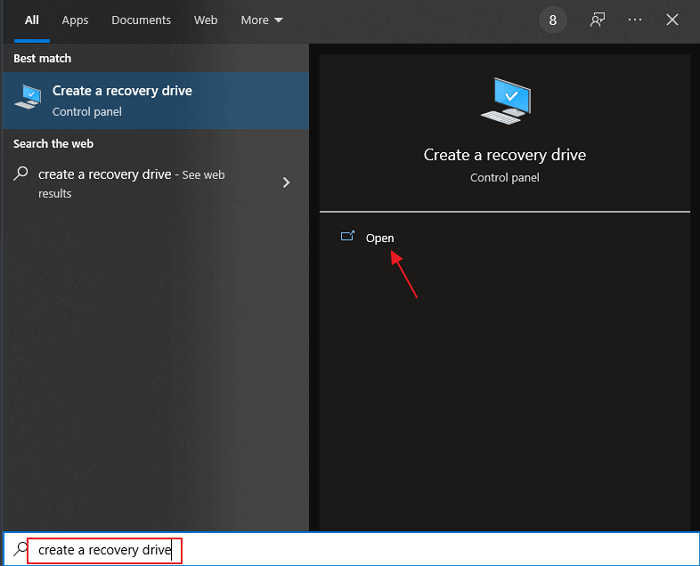
How to Create the Recovery Drive
- Connect an empty USB drive. Use a larger drive if you plan to include system files.
- Search for Recovery Drive in Windows and run it as administrator.
- Select Back up system files to the recovery drive if you want Windows reset files on the USB.
- Choose the correct USB drive and click Create. The selected USB will be erased.
- When the process finishes, label the USB with the PC name and Windows version.
When to Select This Option
Select it when you want a stronger repair USB for the same computer. Skip it only when the USB is too small or you need a quick repair drive. Either way, it should not replace a real system image.
Still Create a Full System Backup
Step 1. Open Qiling Backup and choose System Backup.
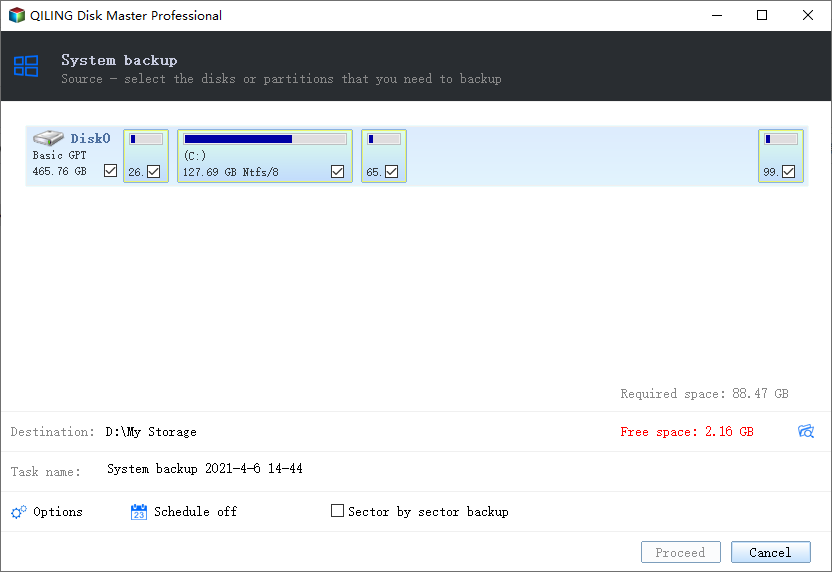
Step 2. Confirm that the Windows system and boot partitions are selected.
Step 3. Save the image to another drive and click Proceed. Keep this backup separate from the recovery USB.
Conclusion
Choose the system files option if your USB drive is large enough. For real rollback, keep a separate system image backup.
Related Articles
- What Is Stored in a Recovery Drive?
- How Long Does It Take to Create a Recovery Drive?
- Should You Back Up System Files to a Windows Recovery Drive?
Compare the recovery USB option with a separate system image backup.
Products
Articles & Tutorials
- Data Recovery
- Data Backup
- File Recovery
- File Backup
- System Backup and Restore
- Disk and Partition Clone
- Technical articles
- Mobile articles
- Disk Master Help
- Windows Data Recovery Tutorials
- Windows Secure Delete Tutorials
- Windows Partition Management Tutorials
- Windows File Backup and Restore Tutorials
- Windows System Backup and Restore Tutorials
- Windows Disk Backup and Restore Tutorials
- Windows Clone Tutorials