Qiling File Sync Ran but the Destination Did Not Change
A completed file-sync task may have copied nothing because no eligible source file changed, a filter excluded the files, or the destination path is not the folder you inspected. A sync job is not a versioned backup: depending on its settings, changes and deletions can propagate. Verify the source and destination before rerunning it.
Find the exact source and destination
When a source folder has been renamed, compare both task paths and the old and new destination folders. The guide to duplicate folders after a source rename covers that separate case.
Step 1. Open the task details and record the source folder, destination folder, last-run time, and result. Compare the full paths, not only their drive letters or folder names.
Step 2. Create a harmless test file in the selected source folder. Do not use a file outside the selected tree or one with an excluded extension.
Step 3. Check whether the destination is local, external, or on a NAS. Confirm that Windows can open it and create a test file under the same account.
Check exclusions and scheduling
In Qiling Disk Master Pro, the Filters dialog can include or exclude filename patterns and hidden or system files. Review it before concluding the program ignored a source file. A schedule set to Off will not run automatically, even if a manual run succeeded earlier. If the source is a cloud placeholder, ensure its content is locally available.
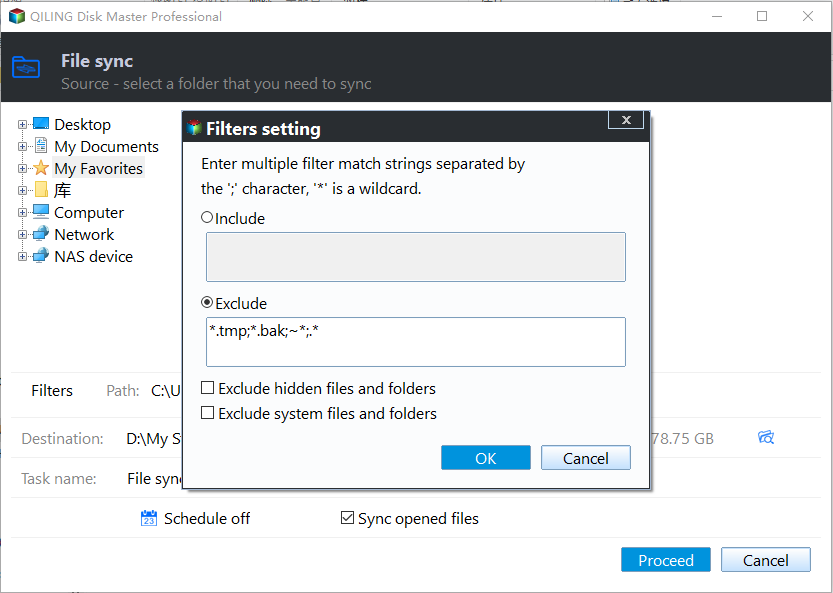
Run a controlled Qiling File sync test
Step 1. Open Backup and Recovery > File sync. In the source tree, select the intended folder directly; do not look for an Add Source button.
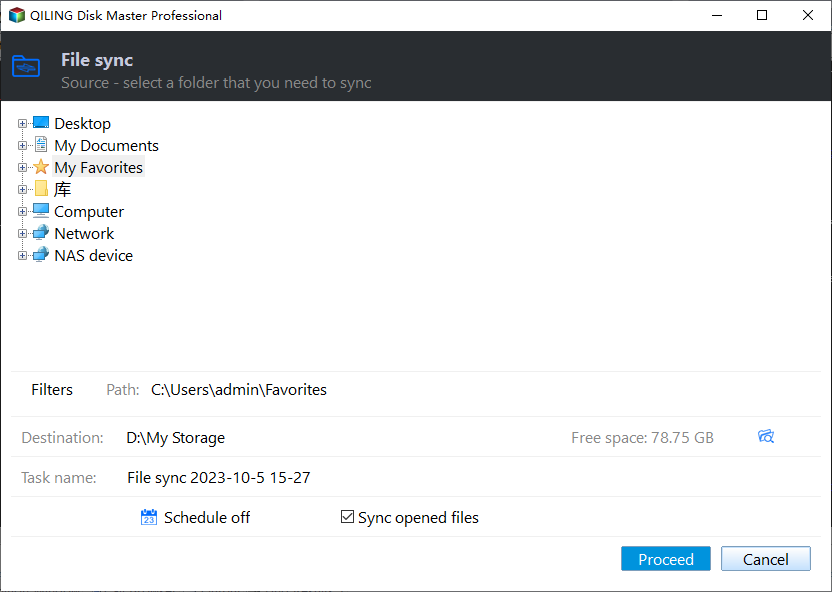
Step 2. Open Destination and choose the exact target folder. Check available space and whether the target is a separate device or share.
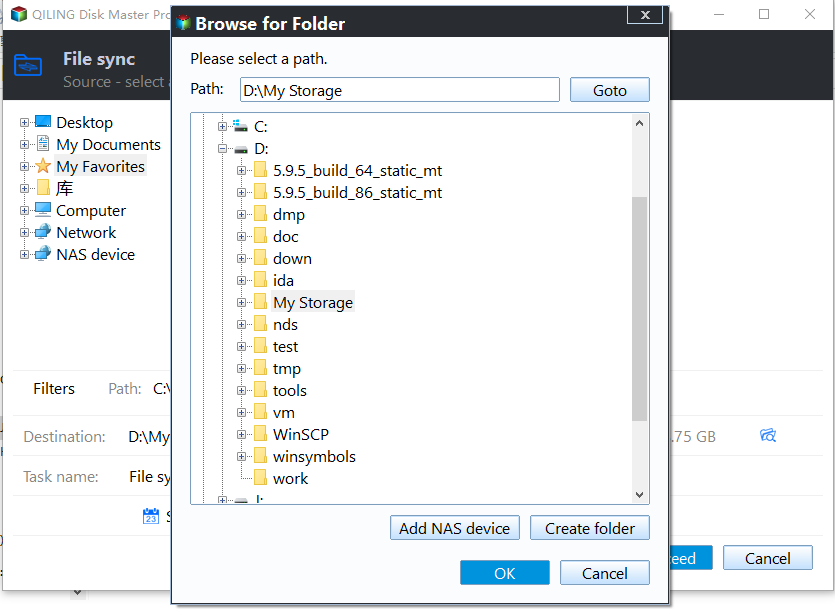
Step 3. Review Filters and Schedule, then click Proceed. When the run ends, open the exact destination path and look for the new test file. Compare its contents, size, and timestamp.
Step 4. If the test succeeds but production files do not, compare their paths, attributes, filters, and modification times. If the test fails, inspect the task result and destination permissions or connectivity.
Keep an independent backup
Do not treat a mirror-like sync as your only recovery copy. Before changing sync rules that might remove destination-only files, create a separate file backup with restore points and test one restore. Keep a written source-to-destination map for scheduled tasks so a renamed external drive does not silently point elsewhere.
Related Articles
- Windows File Sync Options
Compare sync methods and backup needs. - Missing Files in Backup
Check source selection and filters in a backup task.
Products
Articles & Tutorials
- Data Recovery
- Data Backup
- File Recovery
- File Backup
- System Backup and Restore
- Disk and Partition Clone
- Technical articles
- Mobile articles
- Disk Master Help
- Windows Data Recovery Tutorials
- Windows Secure Delete Tutorials
- Windows Partition Management Tutorials
- Windows File Backup and Restore Tutorials
- Windows System Backup and Restore Tutorials
- Windows Disk Backup and Restore Tutorials
- Windows Clone Tutorials