Move Windows 10 to New Computer with Dissimilar Hardware
Moving Windows 10 to a new computer is harder than replacing a disk in the same PC. The new motherboard, CPU, storage controller, and boot mode may be different, so Windows may need a dissimilar hardware restore.
Check Before You Move
- Confirm Windows license transfer rules for your edition.
- Check whether the old system uses UEFI/GPT or Legacy/MBR.
- Prepare storage, network, and chipset drivers for the new computer.
- Create a full system image of the old PC.
Use Qiling Backup for Dissimilar Hardware Restore
Step 1. Create a system backup of the old Windows 10 PC.
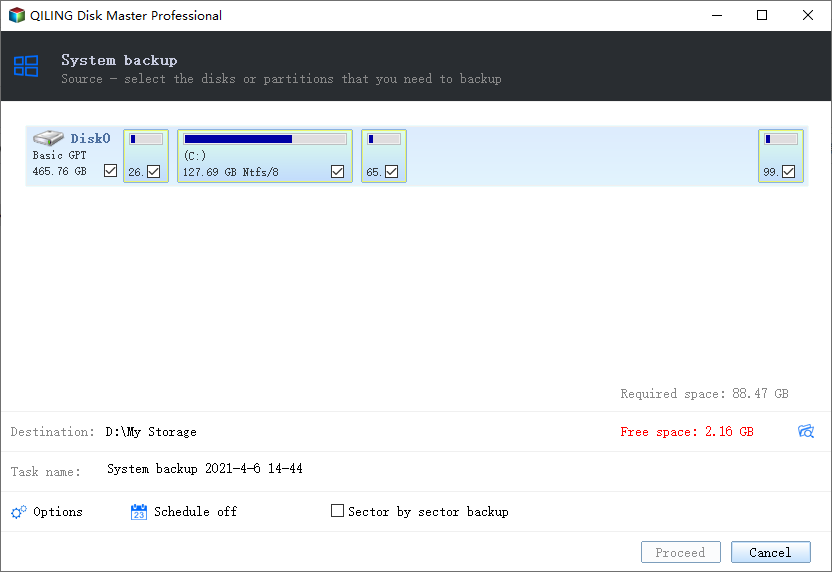
Step 2. Boot the new computer with Qiling recovery media and select the backup image.
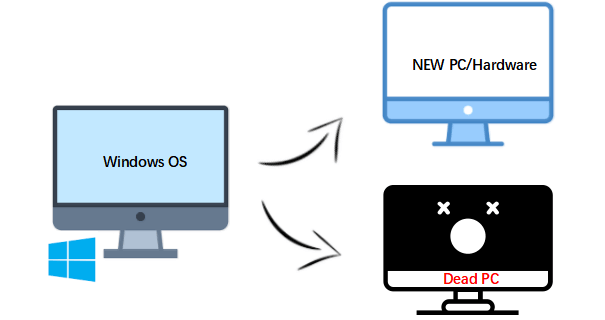
Step 3. Restore Windows to the target disk and click Proceed. After booting, install missing drivers.
Complete Migration Workflow
- Back up the old PC. Create a system image and a separate file backup for irreplaceable data.
- Create bootable media. Prepare Qiling recovery media or Windows installation media for the new computer.
- Prepare the new disk. Install the target SSD/HDD and confirm it appears in BIOS/UEFI.
- Restore the image. Select dissimilar hardware restore so Windows can adapt to the new storage controller and motherboard.
- Fix boot settings. Match UEFI/GPT or Legacy/MBR to the restored system.
- Install drivers. After Windows starts, install chipset, network, graphics, and storage drivers from the new PC vendor.
- Check activation and apps. Windows activation and some licensed software may require reactivation after hardware changes.
If the new PC shows a boot error, check boot mode and storage mode before repeating the restore. These two settings are the most common reason a restored system cannot start on different hardware.
Conclusion
For different hardware, a simple disk move may fail. A full backup plus dissimilar hardware restore gives Windows 10 a better chance to boot on the new PC.
Related Articles
Products
Articles & Tutorials
- Data Recovery
- Data Backup
- File Recovery
- File Backup
- System Backup and Restore
- Disk and Partition Clone
- Technical articles
- Mobile articles
- Disk Master Help
- Windows Data Recovery Tutorials
- Windows Secure Delete Tutorials
- Windows Partition Management Tutorials
- Windows File Backup and Restore Tutorials
- Windows System Backup and Restore Tutorials
- Windows Disk Backup and Restore Tutorials
- Windows Clone Tutorials