Scheduled Backup Missed While a Windows Laptop Was Asleep
A schedule is not the same as a completed backup. When a laptop is asleep, shut down, disconnected from its backup drive, or without network access, the scheduled time can pass without a usable new copy. Modern Standby and wake timers also vary by device and policy.
Confirm what happened
Step 1. Check the backup application's last successful run and the timestamp of its newest image. Do not rely on the planned time shown in the schedule.
Step 2. Check whether the laptop was asleep, hibernated, off, or on battery at that time. In Windows Event Viewer and Task Scheduler, review relevant task history if the backup uses a scheduled task.
Step 3. Confirm that the external drive or NAS was available, mounted, and had enough free space when the task should have run.
Fix the schedule and power conditions
Choose a time when the laptop is normally on and connected to AC power. If the scheduled task supports it, review Conditions and the option to wake the computer, along with Windows power settings for wake timers. A vendor setting, battery policy, or closed-lid behavior may still prevent a wake. Do not assume a task will run during hibernation or after a complete shutdown.
For a network backup, ensure Wi-Fi reconnects after wake and the share is reachable before the task starts. Run one manual test at the same destination to separate schedule problems from credential or capacity problems.
Set a practical schedule in Qiling Disk Master Pro
Qiling Disk Master Pro provides schedule settings for a file-backup task. Choose an interval that matches how often the files change, then verify the first automatic run rather than trusting the setting alone.
Step 1. Open Backup and Recovery > File backup, select folders from the source tree, and choose an external drive or NAS destination.

Step 2. Select Schedule in the task window. Choose Daily, Weekly, or Monthly as appropriate, and set a time when the PC and destination are normally available. Enter account details only if the software requests them for scheduled access.
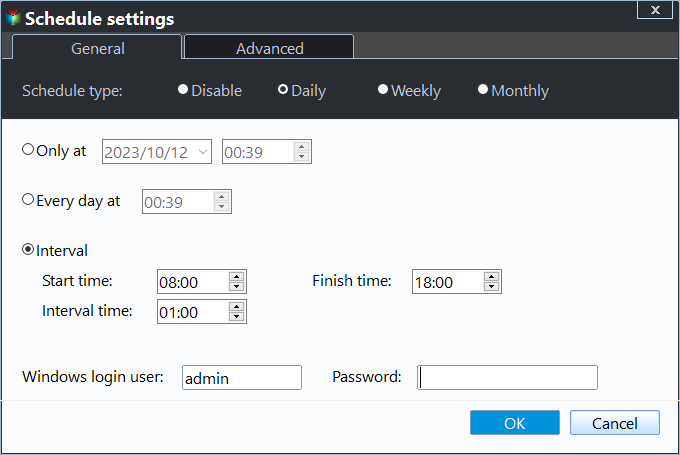
Step 3. Save the schedule, click Proceed for an initial backup, and wait for it to finish. On the following scheduled day, check the task's last-backup time and restore a sample file to another folder.
Plan for missed runs
If the laptop is often asleep, use a manual reminder or an alternate always-on device for critical files. Keep the backup drive connected only when needed if ransomware protection matters, but connect it reliably during scheduled windows. Record failures promptly; a task that silently misses weeks is not a backup strategy.
Related Articles
- Backup Completed but Files Missing
Verify content instead of trusting the status alone. - Back Up Changed Files
Reduce repeated copying of unchanged data.
Products
Articles & Tutorials
- Data Recovery
- Data Backup
- File Recovery
- File Backup
- System Backup and Restore
- Disk and Partition Clone
- Technical articles
- Mobile articles
- Disk Master Help
- Windows Data Recovery Tutorials
- Windows Secure Delete Tutorials
- Windows Partition Management Tutorials
- Windows File Backup and Restore Tutorials
- Windows System Backup and Restore Tutorials
- Windows Disk Backup and Restore Tutorials
- Windows Clone Tutorials