System Restore in Safe Mode Windows 11: Step-by-Step Guide
System Restore can undo some system changes, drivers, or app installations. If Windows 11 cannot boot normally, running System Restore in Safe Mode may help you reach a working state.
What Safe Mode Changes
Safe Mode starts Windows with a minimal set of drivers and services. It is useful when a graphics driver, startup app, or third-party service blocks normal startup. It does not repair personal files, and it cannot use a restore point that was never created.
If Safe Mode itself fails to load, use Windows Recovery Environment from Advanced Startup or installation media instead.
How to Enter Safe Mode
Hold Shift while selecting Restart, then open Troubleshoot > Advanced options > Startup Settings. Restart and choose Safe Mode.
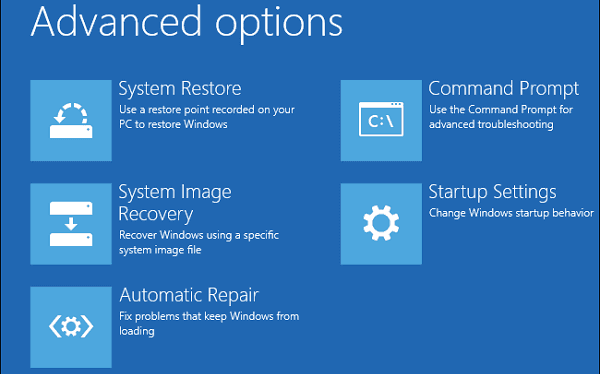
Run System Restore
In Safe Mode, search for Create a restore point, open System Restore, choose a restore point, and follow the wizard. If no restore point exists, System Restore cannot roll back the system.
Create a Stronger System Backup for Next Time
Restore points are useful, but they do not replace a full system image. Qiling Backup can save Windows, boot files, programs, and settings together.
Step 1. Open Qiling Backup and choose System Backup.
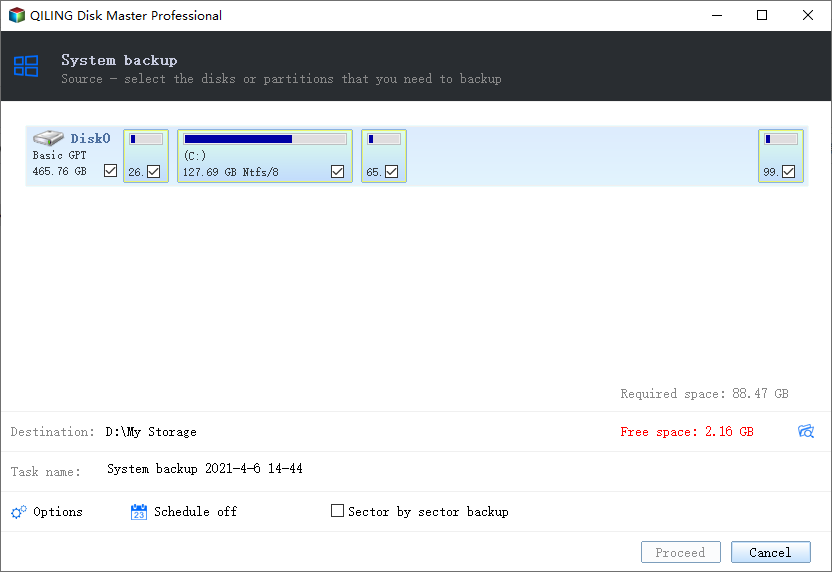
Step 2. Select a safe backup destination such as an external drive.
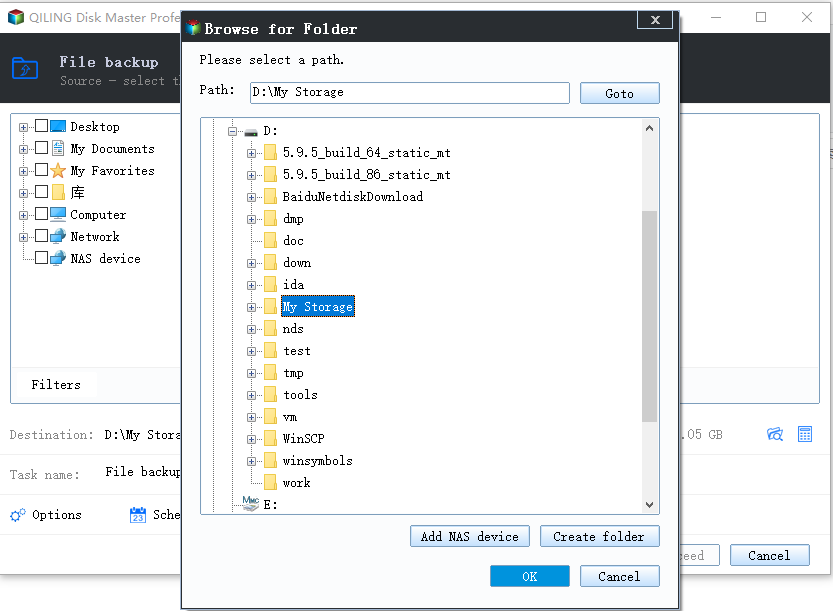
Step 3. Click Proceed to create the system image.
Conclusion
System Restore in Safe Mode is helpful when normal Windows 11 startup fails. For stronger protection, create a system image before updates, drivers, or major repairs.
Related Articles
Products
Articles & Tutorials
- Data Recovery
- Data Backup
- File Recovery
- File Backup
- System Backup and Restore
- Disk and Partition Clone
- Technical articles
- Mobile articles
- Disk Master Help
- Windows Data Recovery Tutorials
- Windows Secure Delete Tutorials
- Windows Partition Management Tutorials
- Windows File Backup and Restore Tutorials
- Windows System Backup and Restore Tutorials
- Windows Disk Backup and Restore Tutorials
- Windows Clone Tutorials