Backup Data to Tape with Tape Backup Software
How to backup data to tape?
To ensure your files and servers are protected from disasters, consider using a tape for backups, providing a safe and secure place for business users to store their important data. This way, you can safeguard against losses due to fires, mal-operations, or other catastrophes that may affect your servers, including those running Windows 8, 2003, or XP, as well as Apache/Linux servers.
Creating a disaster recovery plan for your business is crucial, especially when it comes to backing up server system state and critical files. Many people overlook the importance of this, but it's essential to protect your data. One popular method is using tape drives, which remain a leading technology for backup and archiving. While it may seem complex, using a tape backup software can make the process easy and efficient, giving you peace of mind knowing your server data is protected.
Solution: Use tap backup software - Qiling Backup to backup data to tape
Qiling Backup Server is a tape backup software that supports backing up data or system state to tape, ideal for offline, archival data storage, with a favorable unit cost and long archival stability.
Advanced features such as one-click system backup and recovery, incremental backup, fast files and disk partition backup and recovery, and an advanced backup scheduler can help simplify and automate backup, protecting the system and saving storage space.

Qiling Backup is compatible with Windows Server 2012/2003/2008, simplifying server backup and recovery management, minimizing downtime, and ensuring business continuity.
How to backup Server with Qiling Backup
With Qiling Backup, you can backup individual files and folders, as well as all word, excel, etc. documents on your computer, even if they are open now, thanks to its hot backup method. This allows it to backup open files without any issues. When choosing a backup storage location, select tape as an option.
If you need to backup Microsoft SQL Server or Exchange Server, please refer to our Qiling SQL server backup.
Here's a one-paragraph summary:
SQL or Exchange Server backup
Step 1. Open Qiling Backup and select "File backup" to start.
Step 2. Select the SQL Server database that you want to back up on the left window.
You can customize the basic information for your Server backup, including the name, destination, and even create a plan for it.

Step 3. Click Proceed to start backing up your SQL Server data.
To create a SQL Server backup image using this software, simply wait patiently and refrain from performing any additional operations. This will allow the software to complete the backup process efficiently.
SQL or Exchange Server restore
1. Launch Qiling Backup, select Recovery, and choose an image file to recover.

2. Select file that you want to recover.
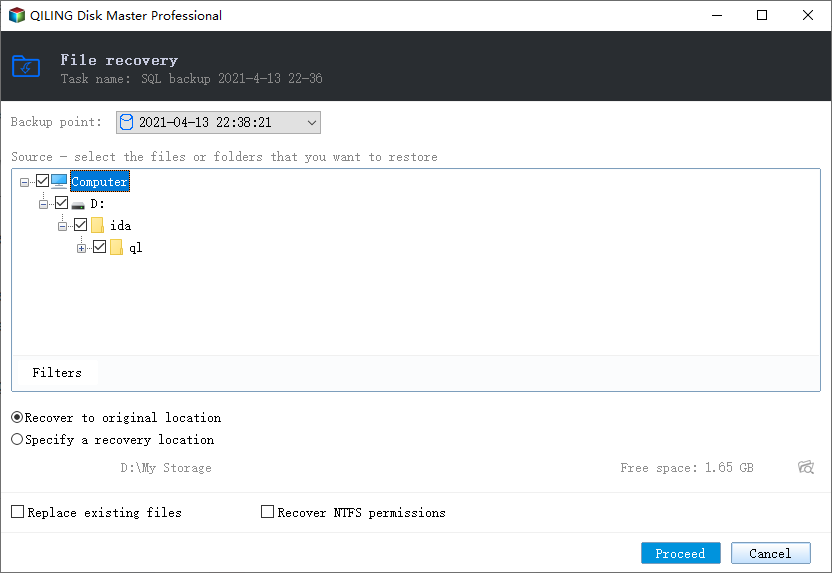
3. Click Proceed to execute the recovery task.
Tip: We provide a feature called "Tape management" to help you organize and manage image files stored on tapes. By accessing this feature, you can view a list of detected tapes and see what's included in each one, or select an outdated image file and delete it to free up space. This makes it easier to keep track of your image files and maintain your storage system.
Related Articles
- How to Set Dell Factory Restore without Losing Data?
- How to restore SQL Server 2008 database to SQL Server 2005
- Clone Windows 10 Hard Disk Partition
- How to Clone Raspberry Pi SD Card Windows 10
- Hard Disk Drive Imaging Software: Qiling Backup to Protect Your Data
- How to Clone RAID Disk with RAID Cloning Software
- How to Backup NAS to Google Drive (2 Proven Ways)
Learn how to back up NAS to Google Drive using reliable methods for Synology, QNAP, and other network storage devices.
Products
Articles & Tutorials
- Data Recovery
- Data Backup
- File Recovery
- File Backup
- System Backup and Restore
- Disk and Partition Clone
- Technical articles
- Mobile articles
- Disk Master Help
- Windows Data Recovery Tutorials
- Windows Secure Delete Tutorials
- Windows Partition Management Tutorials
- Windows File Backup and Restore Tutorials
- Windows System Backup and Restore Tutorials
- Windows Disk Backup and Restore Tutorials
- Windows Clone Tutorials