Upgrade CPU in Windows 10: What to Do Before and After
Upgrading a CPU can improve performance, but Windows 10 also depends on motherboard chipset support, BIOS version, cooling, and activation status. Prepare the system before opening the case.
Check Hardware Compatibility
- Confirm the CPU socket and chipset support from the motherboard vendor.
- Update BIOS only when the new CPU requires it.
- Check cooler mounting, thermal paste, and power requirements.
- Back up important files before hardware work.
Back Up Windows Before CPU Replacement
A CPU upgrade normally keeps the disk intact, but a failed BIOS update or hardware mistake can make Windows unbootable. Create a system image first.
Step 1. Open Qiling Backup and choose System Backup.
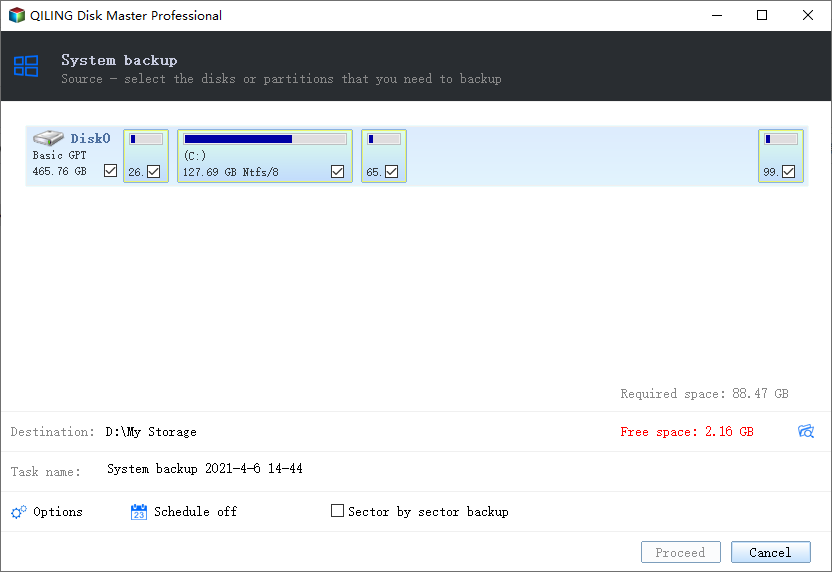
Step 2. Select an external disk or another safe location as the destination.
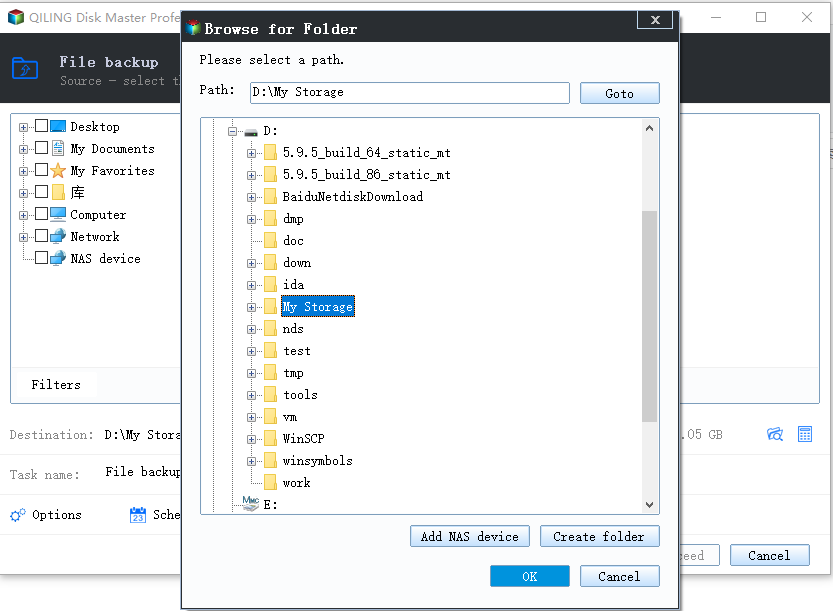
Step 3. Click Proceed and wait until the backup completes.
After Installing the CPU
Enter BIOS, load optimized defaults if needed, check CPU temperature, then boot Windows 10. Install chipset drivers from the motherboard vendor and confirm Windows activation if hardware changed significantly.
Detailed CPU Upgrade Steps for Windows 10
- Check the motherboard support list. Search the motherboard model on the vendor website and confirm the exact CPU model, BIOS version, and power requirement.
- Back up Windows and files. Save a system image to an external drive before BIOS update or hardware replacement.
- Update BIOS only if required. Do this before removing the old CPU, keep power stable, and do not interrupt the update.
- Replace the CPU carefully. Shut down the PC, unplug power, discharge static electricity, remove the cooler, replace the CPU, apply thermal paste, and reinstall the cooler evenly.
- Check BIOS after first boot. Confirm CPU name, temperature, memory profile, boot disk, and storage mode.
- Check Windows 10. Install chipset drivers, restart, open Device Manager, and confirm there are no unknown devices.
If Windows fails to boot after the upgrade, enter BIOS again and verify boot mode, boot order, and storage mode. Do not reinstall Windows before checking these settings and your backup image.
Conclusion
A Windows 10 CPU upgrade is safest when compatibility, BIOS, cooling, and backup are handled first. Keep a system image ready before changing core hardware.
Related Articles
Products
Articles & Tutorials
- Data Recovery
- Data Backup
- File Recovery
- File Backup
- System Backup and Restore
- Disk and Partition Clone
- Technical articles
- Mobile articles
- Disk Master Help
- Windows Data Recovery Tutorials
- Windows Secure Delete Tutorials
- Windows Partition Management Tutorials
- Windows File Backup and Restore Tutorials
- Windows System Backup and Restore Tutorials
- Windows Disk Backup and Restore Tutorials
- Windows Clone Tutorials