Can I Use a Windows Recovery Disk on a Different Computer?
A Windows recovery disk can sometimes boot a different computer, especially when both PCs use the same Windows version and architecture. However, recovery tools, drivers, and factory reset options may not match the second PC.
What May Work
- Startup Repair and Command Prompt may open.
- Basic troubleshooting tools may be available.
- Booting may work if UEFI/Legacy mode and Secure Boot settings match.
What May Not Work
Factory recovery and system file restoration may fail on another PC. A recovery disk is not a universal system backup.
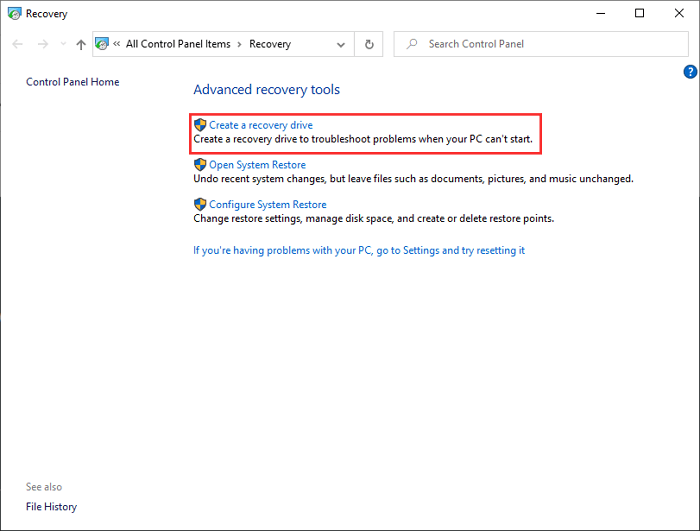
Check Compatibility Before Booting
- The two computers should use the same Windows architecture, such as 64-bit Windows.
- The boot mode should match: UEFI media for UEFI systems, or Legacy media for older BIOS systems.
- Secure Boot may block some USB drives. Change this setting only if you understand the device policy.
- Manufacturer factory recovery usually works only on the original brand or model.
- Drivers for storage, network, and chipset may be missing on the second PC.
Safe Way to Test It
- Back up the second computer before booting from another recovery disk.
- Insert the recovery USB and open the boot menu instead of changing the internal disk.
- Use read-only tools such as Startup Repair or Command Prompt first.
- Do not choose reset, factory recovery, or disk formatting unless the data is already safe.
- If the recovery disk fails, create a new recovery drive on the target computer or use Windows installation media.
Use a System Image for Real Migration
If you need to move Windows to another PC, create a system image and use dissimilar hardware restore instead of relying on a recovery disk alone. This keeps the operating system, programs, and settings in one restorable image.
How Qiling Backup Helps
Qiling Backup is useful when the goal is not just to open repair tools, but to restore a working Windows system to another computer. It can create a system image, keep boot-related partitions together, and help restore Windows to different hardware when drivers and boot settings need adjustment.
Create a System Backup on the Original PC
Step 1. Install and open Qiling Backup on the original Windows computer. Choose System Backup. The program selects the required Windows, EFI/System Reserved, and boot partitions automatically.

Step 2. Set an external hard drive, large USB drive, or network location as the destination. Do not save the image only on the same internal disk, because that disk may not be available on the second computer.
Step 3. Click Proceed and wait until the backup task finishes. This confirms that the image contains the Windows partitions needed for restore.

Step 4. Create Qiling bootable media if the target computer cannot start Windows. Keep the bootable USB and the backup drive together for the restore process.
Restore the Image to a Different Computer
Step 5. Connect the backup drive to the target computer. Boot the computer from Qiling bootable media so the restore can run outside the installed Windows system.
Step 6. Choose Restore and browse to the system image created from the original PC.

Step 7. Select the target disk on the new computer. Confirm that the disk can be overwritten, because restore will replace the selected destination data.
Step 8. Enable Universal Restore when the target computer uses a different motherboard, storage controller, or chipset.
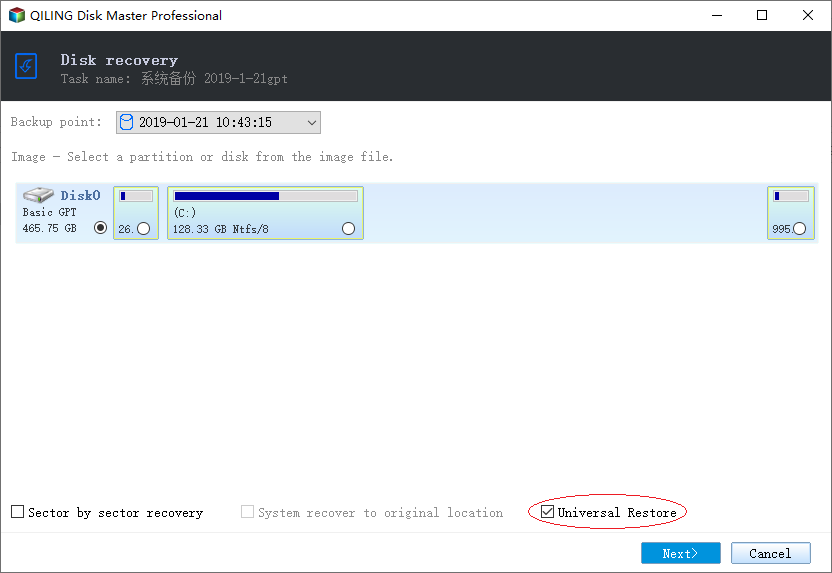
Step 9. Preview the restore settings and click Proceed. After restoration, restart the computer, set the restored disk as the first boot device in BIOS/UEFI, and install missing drivers if Windows starts normally.
After the Restore
- Check whether the target computer boots in the same mode as the restored system, such as UEFI or Legacy.
- Install chipset, storage, network, and graphics drivers for the new computer.
- Run Windows Update after the first successful boot.
- Reactivate Windows or apps if the hardware change triggers license verification.
- Keep the original backup until the new computer works normally for several days.
Conclusion
You can try a Windows recovery disk on a different computer for basic repair, but it is not guaranteed. For migration or full restore, use a proper system backup.
Related Articles
- Move Windows 10 to New Computer with Dissimilar Hardware
- What Is Stored in a Recovery Drive?
- Can a Windows Recovery Drive Be Used on Another PC?
Check version and hardware limits before trying a recovery USB on a second PC.
Products
Articles & Tutorials
- Data Recovery
- Data Backup
- File Recovery
- File Backup
- System Backup and Restore
- Disk and Partition Clone
- Technical articles
- Mobile articles
- Disk Master Help
- Windows Data Recovery Tutorials
- Windows Secure Delete Tutorials
- Windows Partition Management Tutorials
- Windows File Backup and Restore Tutorials
- Windows System Backup and Restore Tutorials
- Windows Disk Backup and Restore Tutorials
- Windows Clone Tutorials