Windows 7 System Restore from Safe Mode
When Windows 7 cannot start normally after a driver, update, or software change, Safe Mode may still let you open System Restore and roll back the system to an earlier point.
When Safe Mode Helps in Windows 7
Safe Mode loads Windows 7 with basic drivers and fewer startup programs. It is useful after a bad driver, display issue, or failed software installation. If the hard drive is not detected in BIOS or Windows shows disk errors, fix the hardware or disk problem first.
System Restore mainly changes system files, registry settings, and drivers. It is not a full personal file backup.
Run System Restore in Windows 7 Safe Mode
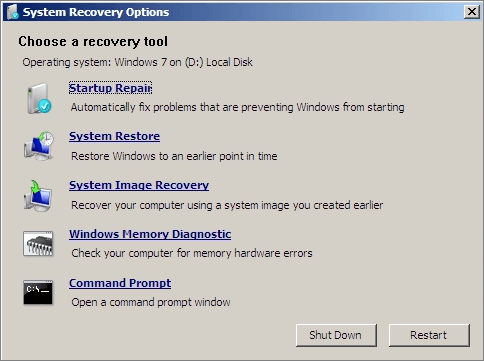
Restart the PC and press F8 before Windows starts. Choose Safe Mode, sign in, open Start, search for System Restore, and select a restore point created before the problem appeared.
When System Restore Is Not Enough
System Restore does not protect every personal file and may fail if restore points are missing or damaged. A full system backup is safer before large repairs or hardware changes.
Step 1. Open Qiling Backup and choose System Backup.
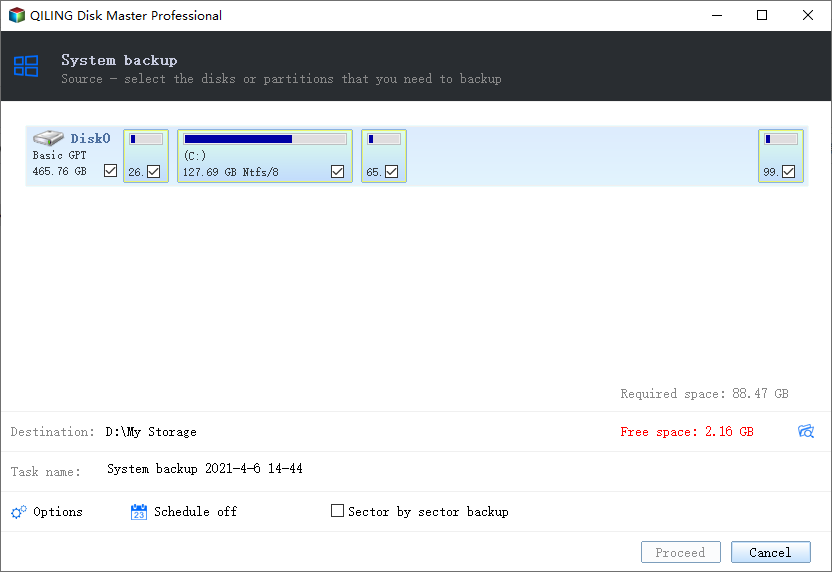
Step 2. Choose an external drive or another disk as the destination.
Step 3. Click Proceed to create the backup image.
Conclusion
Windows 7 System Restore from Safe Mode is a useful repair option for startup and driver problems. For complete rollback, keep a system image backup on another drive.
Related Articles
Products
Articles & Tutorials
- Data Recovery
- Data Backup
- File Recovery
- File Backup
- System Backup and Restore
- Disk and Partition Clone
- Technical articles
- Mobile articles
- Disk Master Help
- Windows Data Recovery Tutorials
- Windows Secure Delete Tutorials
- Windows Partition Management Tutorials
- Windows File Backup and Restore Tutorials
- Windows System Backup and Restore Tutorials
- Windows Disk Backup and Restore Tutorials
- Windows Clone Tutorials