Windows Backup to NAS Keeps Asking for Credentials
A repeated NAS password prompt is usually an authentication or share-access problem, not a reason to start over with the backup. Check that Windows can open the exact network share under the account used by the backup task before changing software settings.
Isolate the connection problem
Step 1. In File Explorer, enter the NAS share path, such as \\NAS-NAME\Backups. Confirm that the share opens and that you can create and remove a harmless test file in the intended backup folder.
Step 2. Compare the NAS username with the Windows sign-in name. They need not be the same. For a domain or NAS-local account, use the account format the NAS expects.
Step 3. Check whether a saved Windows credential points to an old password. Update only the entry for the correct NAS in Credential Manager; do not erase unrelated credentials.
Step 4. Verify NAS time, SMB service, share permissions, and available capacity. If Explorer access fails, fix the NAS or network first. Do not enable obsolete SMB versions just to suppress a prompt.
Set the NAS destination in Qiling Disk Master Pro
After File Explorer access works, create or edit a Qiling file-backup task. The destination dialog includes Add NAS device, where you can specify the NAS path and credentials. This is a destination setting; the source folders are selected separately in the file-backup tree.
Step 1. Open Backup and Recovery > File backup and select the folders to protect.

Step 2. Open Destination, choose Add NAS device, enter a display name, the exact share path, and a NAS account with write permission. Use Anonymous only if the share is intentionally configured for it.
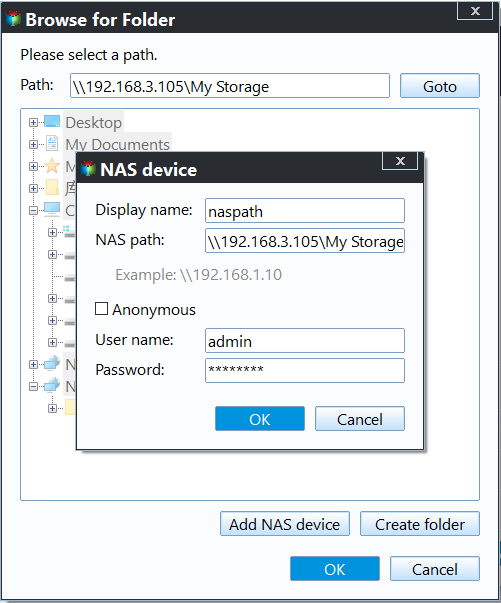
Step 3. Select a folder on that share, verify free space and the displayed path, then click Proceed. If authentication fails, return to the Explorer test instead of repeatedly submitting different passwords.
Step 4. After completion, open the NAS folder from another session and use the backup task to browse a restore point. A successful login alone does not prove that the backup image is usable.
Avoid common credential mistakes
Do not put a password in the UNC path or publish a screenshot that exposes it. Avoid changing share ownership or granting Everyone full control as a shortcut. If the NAS enforces multifactor or modern authentication that the backup client does not support, use an officially supported service account or another destination method.
Related Articles
- Windows 11 NAS Backup
Plan a NAS destination and recovery test. - Interrupted Backup
Verify an incomplete task before relying on it.
Products
Articles & Tutorials
- Data Recovery
- Data Backup
- File Recovery
- File Backup
- System Backup and Restore
- Disk and Partition Clone
- Technical articles
- Mobile articles
- Disk Master Help
- Windows Data Recovery Tutorials
- Windows Secure Delete Tutorials
- Windows Partition Management Tutorials
- Windows File Backup and Restore Tutorials
- Windows System Backup and Restore Tutorials
- Windows Disk Backup and Restore Tutorials
- Windows Clone Tutorials