How to Copy the C: Drive to a New Drive and Keep Windows Bootable
The visible C: volume holds Windows files, but boot files and recovery tools may be on hidden partitions. If the goal is a bootable replacement, treat C: as part of a system layout rather than copying a folder or an isolated partition.
Find the boot files before you copy
Open Disk Management and identify the physical disk holding C:, the EFI System Partition or System Reserved partition, and the recovery partition. Some older installations have boot files on another physical disk. Record this before selecting a clone mode.
File Explorer cannot copy a running Windows installation into a bootable system. It omits boot metadata, protected files, and the target partition structure. A file copy is useful only when you want personal data, not a complete operating system.
Choose the right scope
System clone selects the Windows partitions needed for an OS move. Whole-disk clone also transfers other partitions and data volumes on the same source disk. Choose based on what you need on the new drive. Save important files and the BitLocker recovery key first.
Check target capacity and interface. A smaller disk needs enough room for the copied partitions and software that can resize them; sector-by-sector mode is not appropriate. Everything on the destination will be replaced.
Test the copy as an independent boot disk
After cloning, shut down and put the new drive in its intended slot. Disconnect the original boot disk for the first test when practical and select the new Windows Boot Manager. Confirm Windows, apps, files, encryption, and recovery access.
If Windows boots only while the old disk remains attached, investigate where the boot files are. Do not erase the old source until the new drive passes multiple restarts and a file check.
Move C: and Its Boot Partitions with Qiling System Clone
Use System clone for a Windows-only move. The wizard automatically selects the system partitions; it is safer than manually selecting only C:.
Step 1. Connect a compatible replacement drive and open Tools and utilities > System clone in Qiling Disk Master. Attach the compatible target and verify its model and capacity.
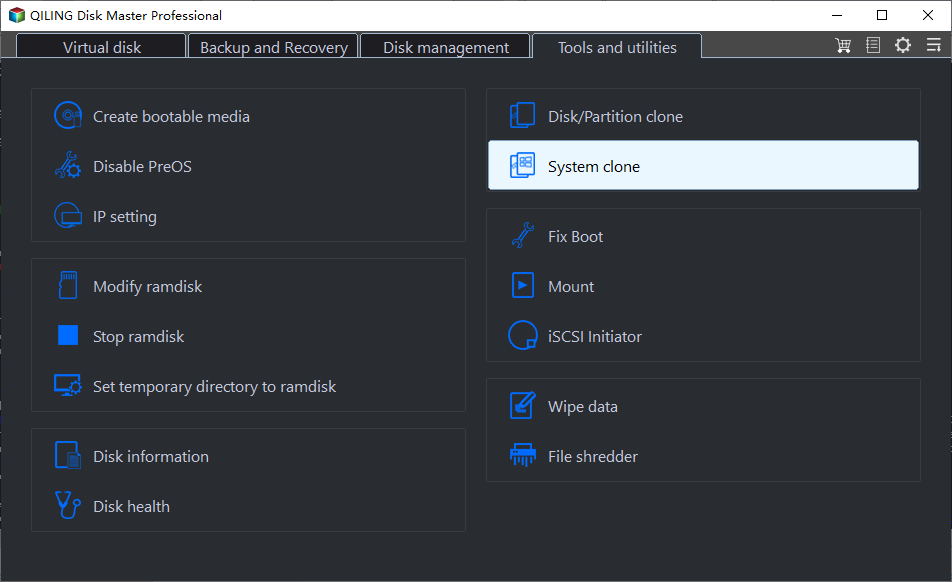
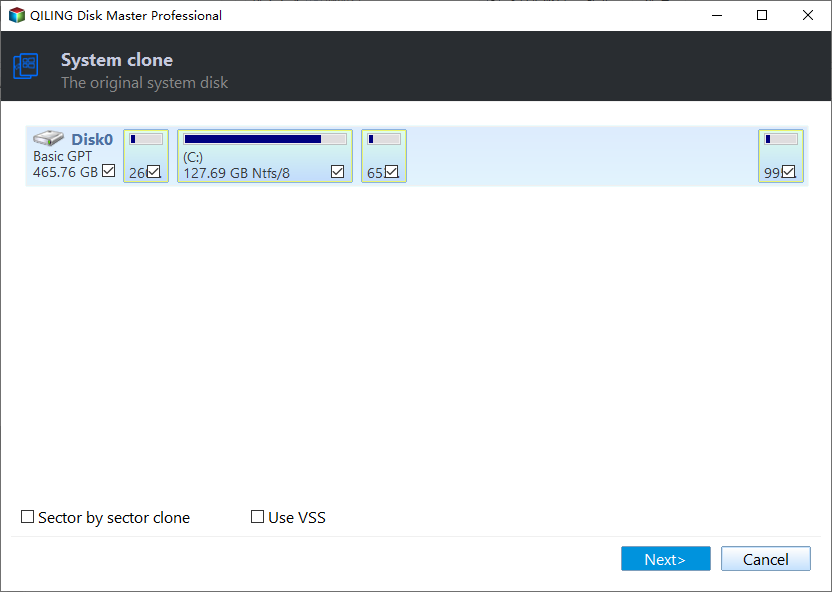
Step 2. Confirm the wizard automatically selected the intended Windows installation and its system partitions; click Next. Confirm the selected Windows installation and system partitions are correct.
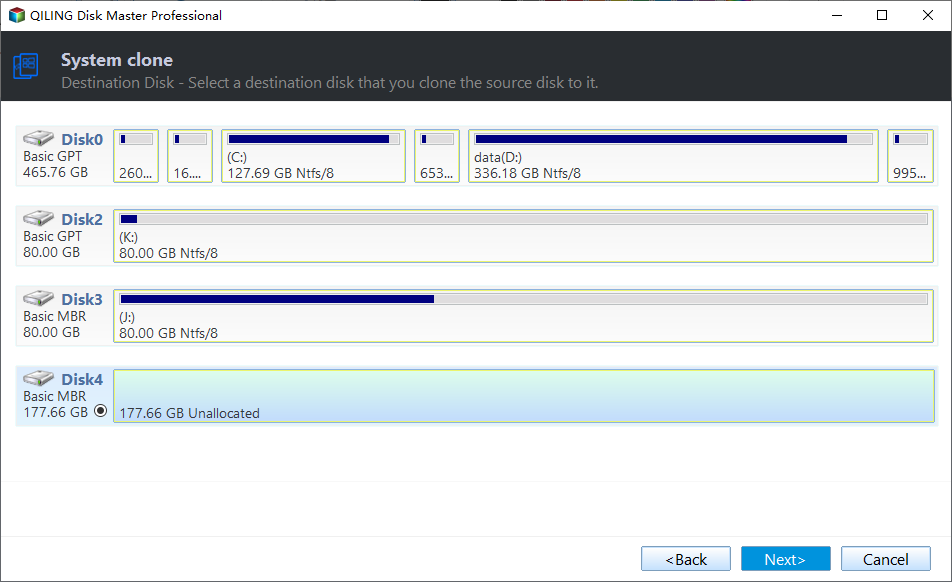
Step 3. Choose the replacement disk by model and capacity and click Next. All files on that destination will be overwritten. Select the replacement and protect any existing files on it.
Step 4. Review the source, target, and proposed layout. Click Proceed, accept the destination overwrite warning, and wait for completion. Check the proposed layout and space before Proceed.

Step 5. Shut down and test the new drive without the original boot disk connected, if practical. Boot from the new disk alone and verify applications, files, and encryption.
Frequently Asked Questions
Can I copy and paste C: to a new SSD?
That does not normally create a bootable Windows disk.
What if boot files are on another physical disk?
Map the layout first and use a supported migration or repair plan that includes those boot files.
Conclusion
Move the full Windows system layout, then test independent startup before wiping the original disk.
Related Articles
- Transfer a Windows Boot Drive
Compare system and whole-disk migration. - Clone Boot Drive to SSD
Check hidden boot partitions.
Products
Articles & Tutorials
- Data Recovery
- Data Backup
- File Recovery
- File Backup
- System Backup and Restore
- Disk and Partition Clone
- Technical articles
- Mobile articles
- Disk Master Help
- Windows Data Recovery Tutorials
- Windows Secure Delete Tutorials
- Windows Partition Management Tutorials
- Windows File Backup and Restore Tutorials
- Windows System Backup and Restore Tutorials
- Windows Disk Backup and Restore Tutorials
- Windows Clone Tutorials