How to Migrate Only Windows to an SSD, Not the Whole Disk
What “only OS” actually includes
A bootable Windows migration cannot copy just a single folder or always only C:. UEFI/EFI or System Reserved and recovery partitions may be required for startup. System Clone selects the necessary Windows partitions while leaving unrelated data volumes out. Files stored on C: move with that partition; files on a separate D: data volume do not.
Check destination capacity and data
Step 1. Open Disk Management and map the physical disk and partitions. Move large personal files off C: only if needed to fit the destination, and verify their separate backup.
Step 2. Connect the new SSD through a supported internal slot or enclosure. Check that its usable capacity can hold the selected system partitions. Copy any existing SSD files away because the target is overwritten.
Step 3. Record the BitLocker recovery key and make an independent file backup before migration. If the original disk also holds D:, leave it untouched until Windows boots from the SSD.
Test the result
After System Clone, boot from the SSD alone. Check that C: is on the new physical disk and that required applications launch. Reconnect the old disk to access D: or copy its data separately; do not format it until its role is clear.
Migrate Only the Windows System with Qiling System Clone
Step 1. Connect the target SSD and open Tools and utilities > System clone in Qiling Disk Master.
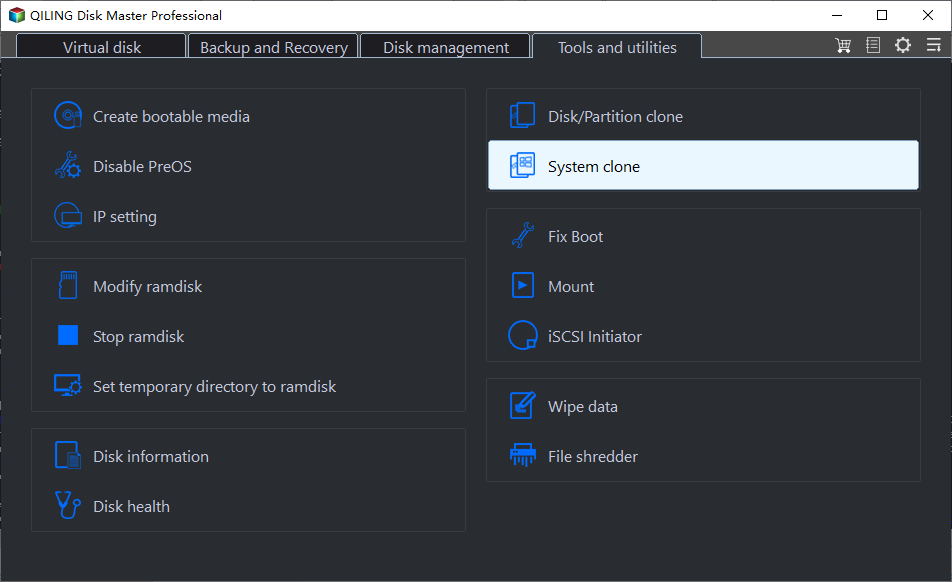
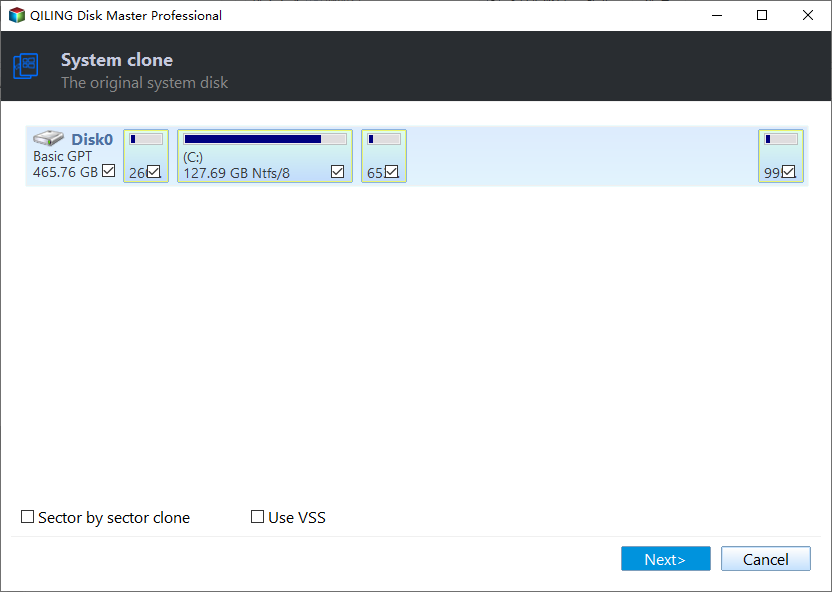
Step 2. Confirm the automatically selected Windows boot and system partitions, then click Next. Other data partitions are not included.
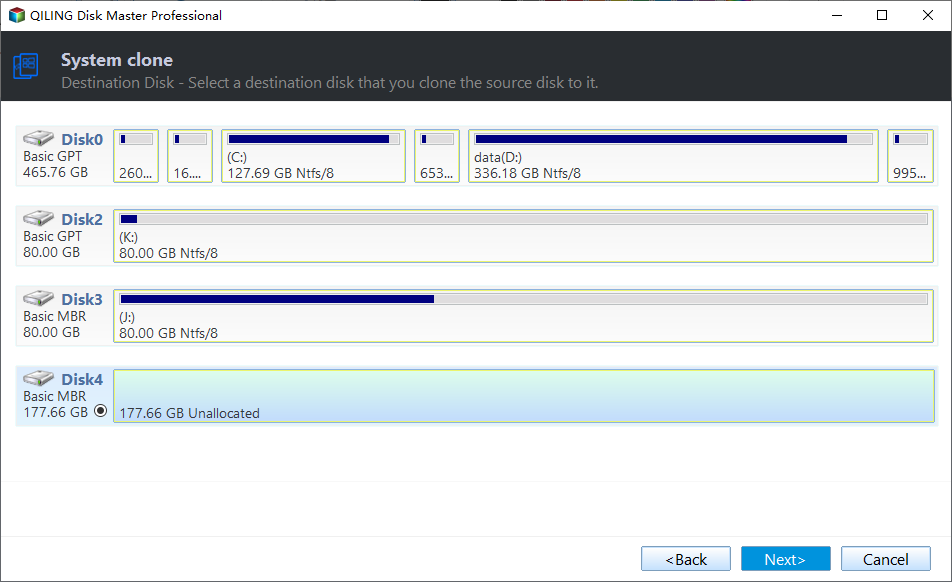
Step 3. Select the correct target SSD by model and capacity. Copy existing target files elsewhere first; the selected target is overwritten. Click Next.
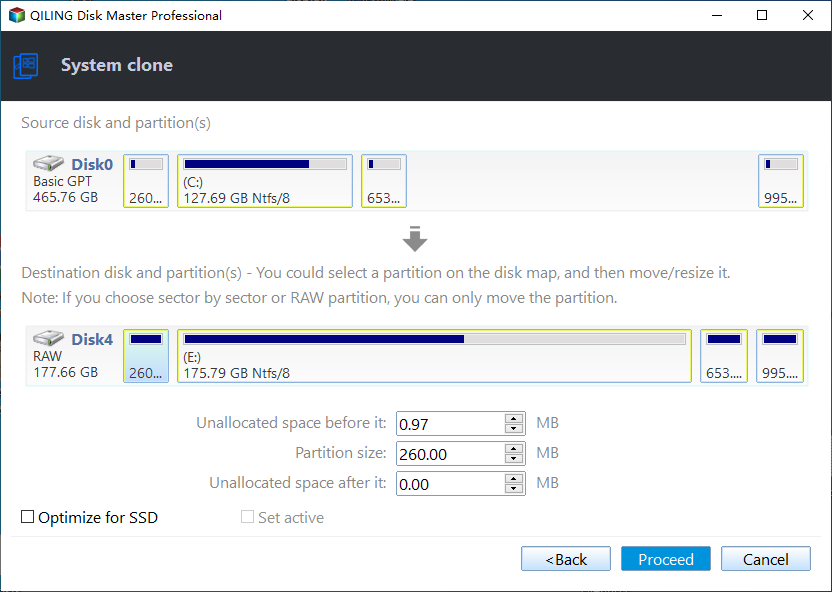
Step 4. Review the layout and optional SSD optimization, then click Proceed. Accept the overwrite warning and wait until completion.
Step 5. Shut down and boot from the new SSD's Windows Boot Manager, preferably with the old boot disk temporarily disconnected. Verify Windows, apps, files on the system volume, BitLocker, and activation.
Conclusion
System Clone moves the partitions needed to boot Windows while leaving unrelated data partitions behind. Plan those other files separately.
Related Articles
- Windows Cloning Tutorials
Explore Windows disk, system, and SSD migration topics. - Windows Disk Backup and Restore Tutorials
Compare migration with a separate disk image. - Move Windows 11 to Another Drive Without Losing Data
Move Windows 11 to a compatible drive with its boot partitions, preserve personal files, and verify the new Windows Boot Manager after cloning. - How to Clone a Windows Boot Drive to a New SSD
Clone a Windows boot drive with its EFI or System Reserved partition, check the target layout, and verify the new SSD boots independently.
Products
Articles & Tutorials
- Data Recovery
- Data Backup
- File Recovery
- File Backup
- System Backup and Restore
- Disk and Partition Clone
- Technical articles
- Mobile articles
- Disk Master Help
- Windows Data Recovery Tutorials
- Windows Secure Delete Tutorials
- Windows Partition Management Tutorials
- Windows File Backup and Restore Tutorials
- Windows System Backup and Restore Tutorials
- Windows Disk Backup and Restore Tutorials
- Windows Clone Tutorials