Fix Samsung SSD Clone Not Booting
Cloning an HDD/SSD can sometimes result in a frustrating issue: the cloned drive won't boot. This common error can significantly impact work efficiency, making it essential to troubleshoot and resolve the problem as soon as possible.
If your Samsung SSD clone is not booting, this guide is for you. It explains the reasons behind this issue and offers effective solutions to make a cloned hard disk bootable on Windows 11/10/8/7.
Key Takeaways
- ⏺️A cloned Samsung SSD may fail to boot due to various reasons, including incorrect installation or unstable connection, incorrect boot drive settings, hidden boot sectors, unsuccessful cloning process, presence of bad sectors, incompatible BIOS boot mode, and more.
- ⏺️To resolve the issue of a cloned Samsung SSD not booting, try reconnecting the SSD, resetting the boot order, running a disk check on the SSD, using Bootre.exe, or adjusting the BIOS settings to boot from UEFI or Legacy mode, among other potential solutions.
- ⏺️Qiling Disk Copy is a reliable alternative to Samsung Data Migration, allowing users to successfully clone Samsung SSDs with minimal effort.
You cloned your data from the old HDD to the new SSD using Samsung Data Migration, but the SSD didn't become the primary boot drive. This is likely because the cloning software only copied the data, not the boot configuration. To move all boot drives to the SSD, you'll need to reinstall Windows on the SSD, making it the primary boot drive. You can do this by booting from a Windows installation media, selecting the SSD as the installation drive, and following the installation prompts. This will ensure that Windows is installed on the SSD and it becomes the primary boot drive.
Are you experiencing the same issue when attempting to upgrade to a new Samsung SSD? To effectively resolve the problem, you must first understand why this error occurs. Some of the most common reasons are:
- An unstable SSD connection or incorrect installation may have caused the SSD to be unrecognized.
- The cloned SSD isn't set as the boot drive.
- You can't use a cloned SSD in BIOS boot mode because the BIOS is looking for a specific signature that the cloned SSD doesn't have. You need to change the boot mode to UEFI to use the cloned SSD.
- The Boot sectors are not cloned to the SSD, making them hidden and inaccessible.
- The Samsung SSD cloning failed during the process.
- ✏️Editor's Recommendation:
- If you don't know the exact reason and don't want to try fixes one by one, it is strongly recommended to try Qiling Disk Copy, which can clone Samsung SSD successfully and boot from it seamlessly.
Workable Solutions to Fix Samsung SSD Won't Boot Issue
To resolve the issue with your SSD, try restarting your computer, checking for BIOS updates, running a disk check, updating your SSD drivers, or reinstalling your operating system. If none of these solutions work, you may need to take further action to troubleshoot the problem.
Quick Navigation.
- 1. Reconnect/Reinstall SSD Correctly
- 2. Change Boot Order to Boot from Cloned SSD
- 3. Set BIOS to boot from UEFI or Legacy
- 4. Perform Bootre.exe
- 5. Re-Clone Samsung SSD 🔥
1️⃣ Reconnect/Reinstall SSD Correctly+
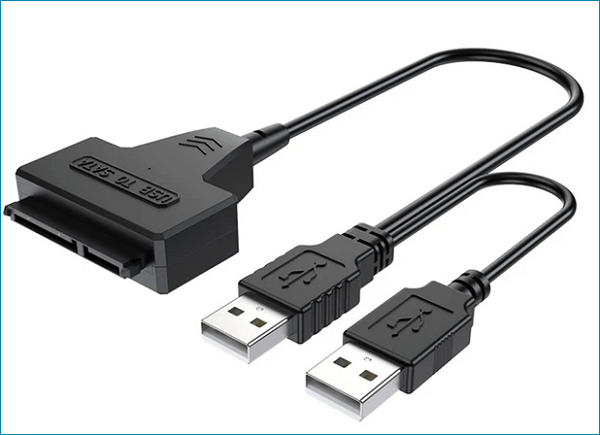
To properly connect the Samsung SSD to your computer, you'll need to ensure it's connected via a SATA to USB cable or an adapter, which will allow the SSD to be recognized correctly by your computer.
To ensure a smooth installation of a Samsung SSD in your computer's case, it is recommended to reinstall it and verify that the SSD is properly seated in its designated slot. This ensures optimal performance and prevents any potential issues.
After that, restart your computer and check if it can boot from the new SSD.
2️⃣ Change Boot Order to Boot from Cloned SSD
If you have two disks on your computer, there's a possibility you didn't boot from the Samsung cloned SSD. You can change the boot disk in your BIOS settings.
Step 1. Shut down your PC, restart it, and press F2.F8/F12/Del key to enter BIOS settings.
Step 2. In order to set the cloned Samsung SSD as the primary boot drive, navigate to the Boot tab and select the cloned Samsung SSD as the boot drive.
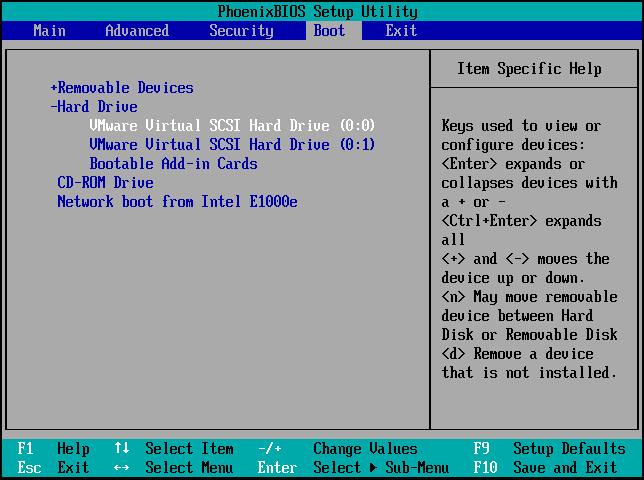
Step 3. Save the changes and exit BIOS.
Step 4. Restart your computer, wait patiently, and check if it can boot up from the cloned SSD.
🎨Note: To resolve the issue of the SSD not booting after cloning from an MBR original boot disk, make the partition active on the original boot disk before cloning. This ensures the SSD will boot properly after cloning. You can do this by using a tool like Qiling Backup or DiskGenius to make the partition active.
Is the post helpful? Remember to share it with your followers and fans to help them solve the same issue.
3️⃣ Set BIOS to boot from UEFI or Legacy
If you clone a GPT disk to an MBR SSD or clone an MBR disk to a GPT, you'll need to switch the boot mode from UEFI to Legacy or vice versa.
Step 1. To enter the BIOS settings, restart your computer and press the specific key for your computer model, which is usually one of the following: F2, F8, F12, or Del. This will allow you to access the BIOS settings and make any necessary changes.
Step 2. To change the boot mode from UEFI to legacy or vice versa, navigate to the Boot tab, click on the UEFI/BIOS Boot Mode option, and select the desired mode. This can be done by moving your mouse under the Boot tab, clicking on the UEFI/BIOS Boot Mode option, and changing it to legacy or UEFI.
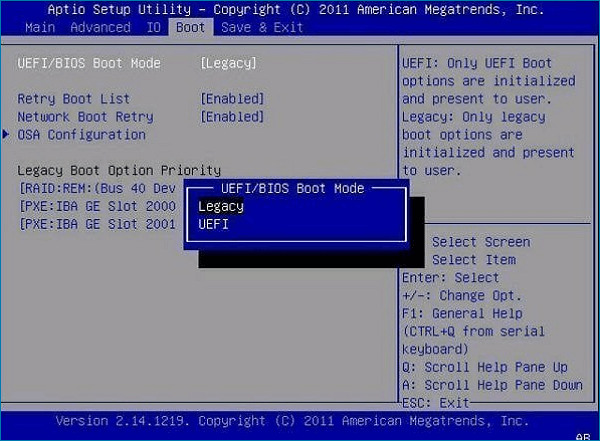
Step 3. Press the F10 key to save the setting and exit BIOS.
Step 4. Restart your PC and check if the cloned SSD is bootable. If it's not, you may need to reinstall your operating system or contact the manufacturer for further assistance.
🎨Note: There are situations where your computer only supports MBR or only supports GPT, requiring you to convert MBR to GPT or vice versa to make your SSD bootable.
4️⃣ Perform Bootre.exe
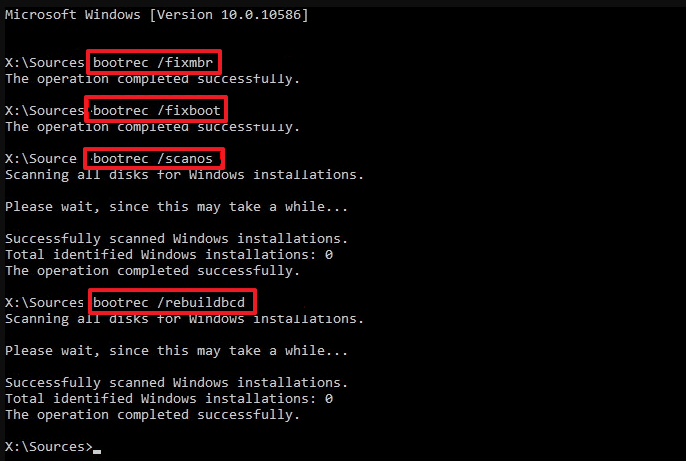
Bootrec.exe is a utility that updates the master boot record code, partition boot sector code, and BCD in the Windows Command Prompt to resolve issues like a Samsung cloned hard drive not booting.
Step 1. Prepare a Windows installation disc and boot your computer from it.
Step 2. Select Troubleshoot - Advanced Options - Command Prompt.
Step 3. Type `bootrec /fixmbr` in the command prompt to launch the bootrec tool and fix the error.
- bootrec.exe /fixmbr
- bootrec.exe /fixboot
- bootrec.exe /scanos
- bootrec.exe /rebuildbcd
5️⃣ Re-Clone Samsung SSD
If none of the above solutions work, it's possible that the disk cloning process is incomplete. In this case, you may want to try using Samsung Data Migration, but if it gets stuck or doesn't work, you can use a professional disk cloning program like Qiling Disk Copy instead, which offers many advanced features.
- Fast cloning speed without data loss.
- Compatible with various HDDs and SSDs.
- Support sector-by-sector cloning to copy only used space.
- Smart cloning to skip bad sectors while disk cloning.
- Support system clone to migrate OS to SSD seamlessly.
With this robust disk cloning tool, you can confidently clone your Samsung SSD without worrying about a failed process or data loss, making it easy to download and clone your drive right now.
Prior Notice:
- The "Sector by sector copy" feature requires the destination disk to be at least as large as the source disk, making it necessary to clone a larger hard disk to a smaller one. If you want to clone a larger disk to a smaller one, this feature should be left unchecked.
- All data on the destination disk will be completely erased, so take care.
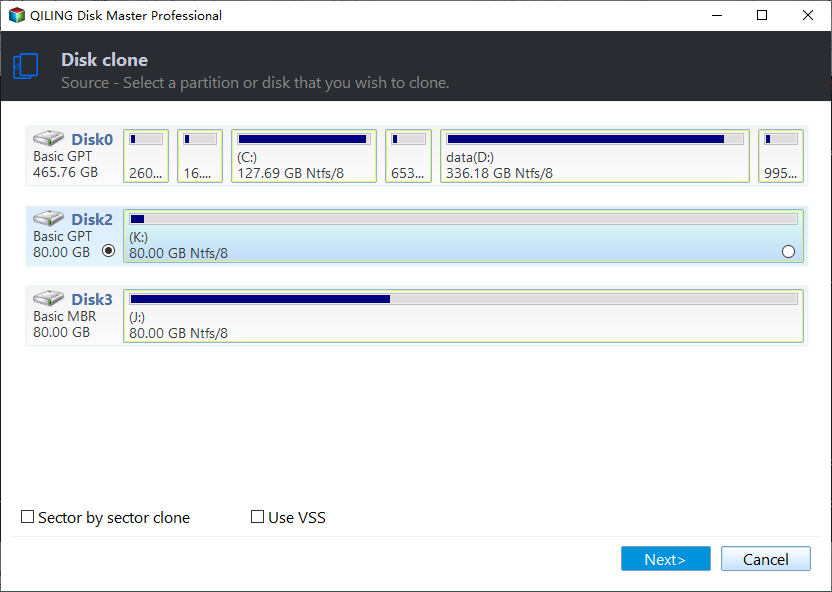
Step 1. To start copying/cloning an entire disk to another, select the disk you want to copy as the source disk under "Disk Mode" and then click "Next".
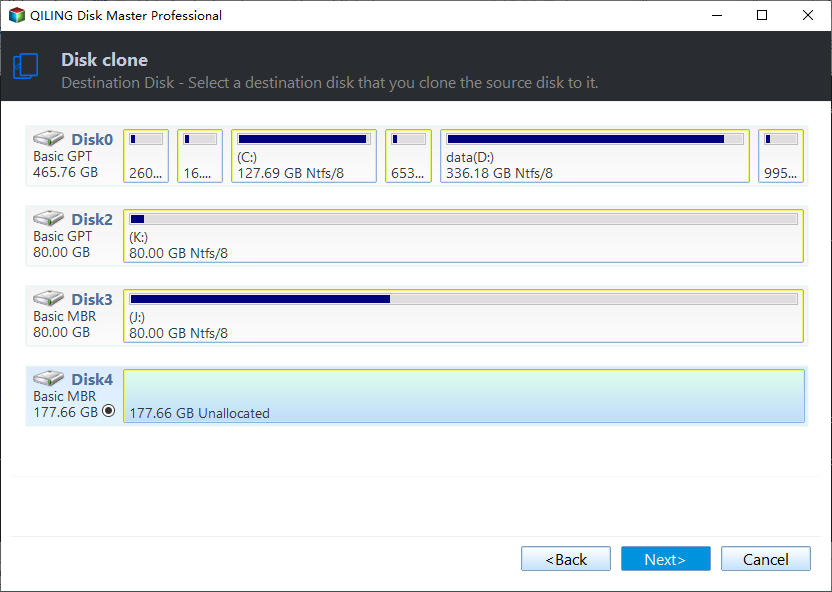
Step 2. Choose the other disk as the destination disk.
Step 3. To manage the disk layout of the destination disk, check the layout of the two disks and make necessary adjustments by dragging the disk, editing its position or size, or making other changes as needed.
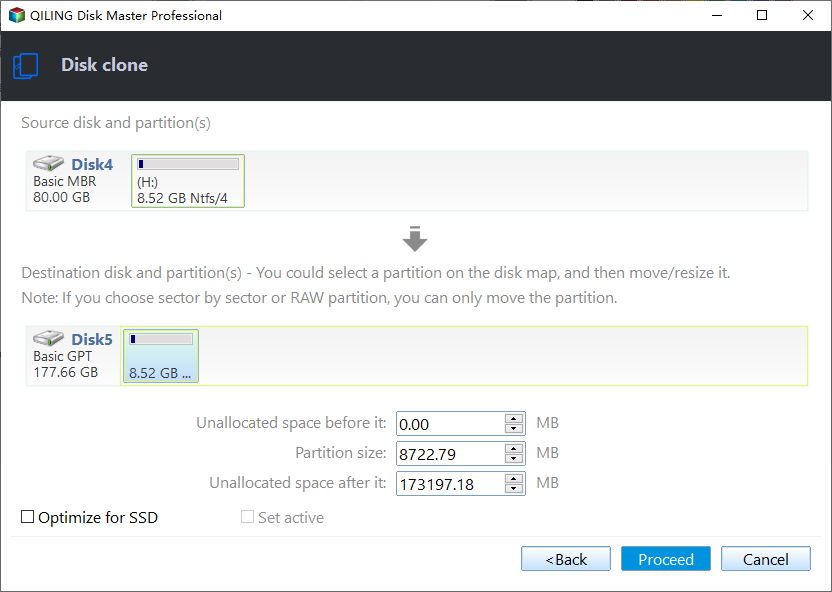
Enabling the "Check the option if the target is SSD" option can help put your Solid-State Drive (SSD) in its best performance by optimizing it for faster data access and retrieval times. This is especially useful for systems that rely heavily on SSD storage, such as gaming PCs or workstations that use SSDs as their primary storage device.
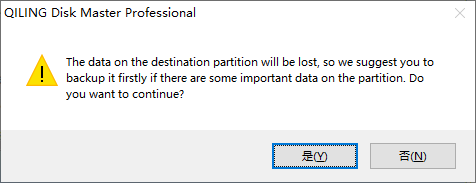
Step 4. Click "Proceed" to officially execute the task.
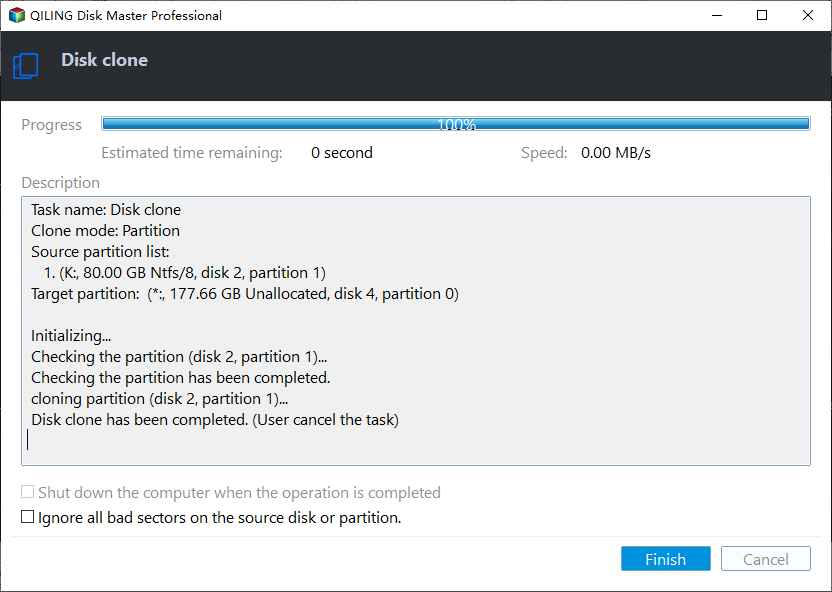
You are about to delete a file or folder. A message appears, warning you that data will be lost. To confirm this, click "OK".
The post is helpful in providing a solution to the issue of not being able to share it with others. It encourages the reader to share it with their followers and fans to help them solve the same problem. This is a helpful reminder to spread the word and make the information more accessible to a wider audience.
To Wrap Things Up
Samsung SSD clone not booting can be resolved by checking the cloned SSD's boot priority, disabling Secure Boot, and verifying the cloned SSD's firmware version and compatibility with the motherboard. Additionally, checking for any issues with the cloned SSD's partition table and file system, and ensuring that the cloned SSD is properly connected to the motherboard. If still experiencing issues, a fresh clone may be necessary.
Samsung Data Migration is not the best choice due to its limited features and support. Qiling Disk Copy is a better alternative, offering advanced SSD cloning features and faster speed, making it easy to clone HDD/SSD and boot from it with minimal hassle.
FAQs Related to Samsung SSD Cloning Not Boot
1. Why is my Samsung data migration not making progress?
Samsung Data Migration may get stuck due to various reasons, including insufficient disk space, large files or partitions being migrated at once, bad sectors on the source or target disk, or incorrect partition selection on the source or target disk.
2. How long does Samsung cloning take?
Cloning a Samsung SSD can take a significant amount of time, depending on the amount of data stored on the disk. The more data, the longer the process. Additionally, factors like cloning speed, hardware condition, and connection cable can also impact the time it takes. Using a reliable disk cloning tool, such as Qiling Disk Copy, can help speed up the process. The cloning speed can vary from 10Mb/s to 1000Mb/s.
3. How do I get BIOS to recognize a new SSD?
If your SSD isn't being detected or recognized by BISO, check the SATA cable connection to your computer, ensuring it's securely and tightly connected. Also, inspect the SSD for any physical damage. Lastly, verify that your BIOS settings are correct.
Was this page helpful? Your support is truly important to us!
Qiling Disk Copy
Qiling Disk Copy is a user-friendly tool that makes it easy to clone and migrate HDD/SSD drives. It's ideal for quickly migrating an existing system disk to a new disk or SSD with minimal configuration required.
Related Articles
- [Tried and True] Ignore Bad Sectors During Copying
- Tutorial | How to Move Windows Boot Partition to A New Drive
- [Full Guide] Clone Toshiba Hard Drive to SSD Quickly
- How to Clone Your Desktop Computer | Easiest Method
- Acronis True Image WD Edition Clone Not Working - Try These Fixes
Acronis True Image WD Edition, a program exclusive to WD users, can sometimes cause issues and fail to efficiently clone hard drives. - 4 Best Alternative Cloning Software to Samsung Data Migration (2024 Pick)
Samsung Data Migration is a tool that allows you to transfer data from one Samsung drive to another, but it only supports Samsung drives. To transfer data from one drive to another, regardless of the manufacturer, alternative cloning software can be used instead.
Products
Articles & Tutorials
- Data Recovery
- Data Backup
- File Recovery
- File Backup
- System Backup and Restore
- Disk and Partition Clone
- Technical articles
- Mobile articles
- Disk Master Help
- Windows Data Recovery Tutorials
- Windows Secure Delete Tutorials
- Windows Partition Management Tutorials
- Windows File Backup and Restore Tutorials
- Windows System Backup and Restore Tutorials
- Windows Disk Backup and Restore Tutorials
- Windows Clone Tutorials