Fix Games Becoming Unresponsive After Windows 11 Update
After a Windows 11 update, some games may stop responding, crash at launch, freeze during loading, or stutter badly. The cause is often a graphics driver, overlay, corrupted game file, anti-cheat conflict, or changed system setting.
Before you reinstall a game or roll back Windows, protect your save files first. This guide explains safe checks, quick fixes, and how to back up game data with Qiling Backup.
Why Games Freeze After a Windows 11 Update
- The graphics driver is outdated or not compatible with the current update.
- Game files were damaged during a forced restart or failed update.
- Full-screen optimization, overlays, or recording tools conflict with the game.
- The game saves are stored in a folder affected by sync, permission, or profile changes.
- Security software or anti-cheat services block the game process.
Back Up Game Saves Before Fixing the Problem
Game fixes can require driver changes, file verification, or reinstallation. Backing up saves first prevents a simple repair from becoming a data loss problem.
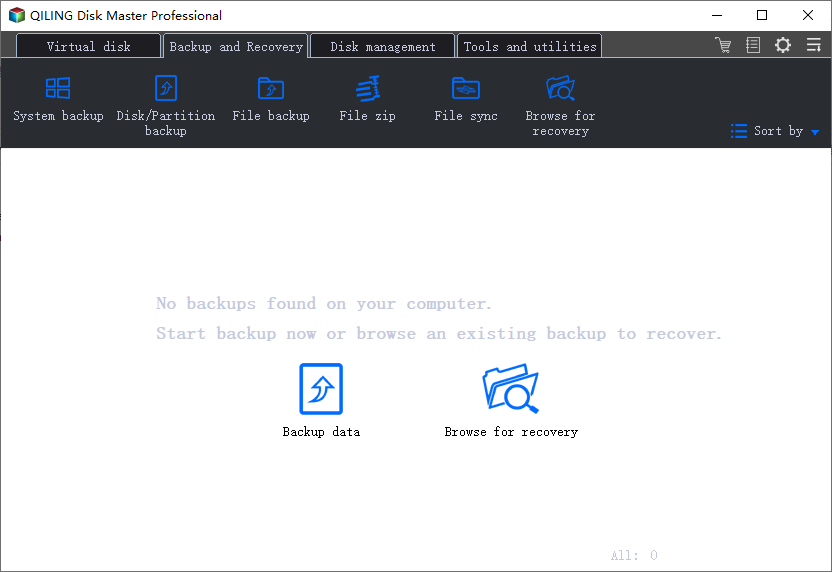
Step 1. Install and open Qiling Backup. Choose File Backup if you only need to protect game saves, screenshots, and configuration folders.
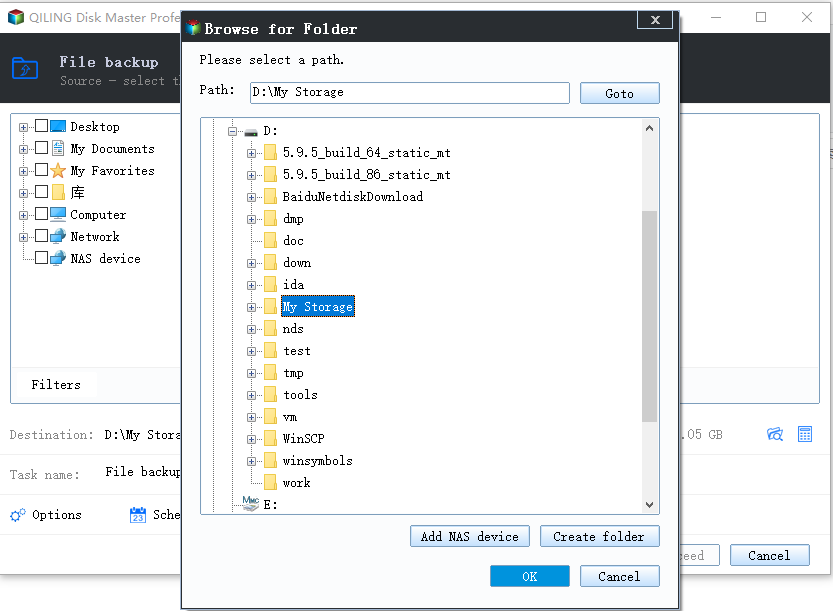
Step 2. Select game folders from Documents, AppData, Steam, Epic Games, or the folder where the game stores saves. If you are not sure, include the whole game save folder and user profile game folder.
Step 3. Choose an external drive, another internal disk, or a NAS folder as the backup destination.
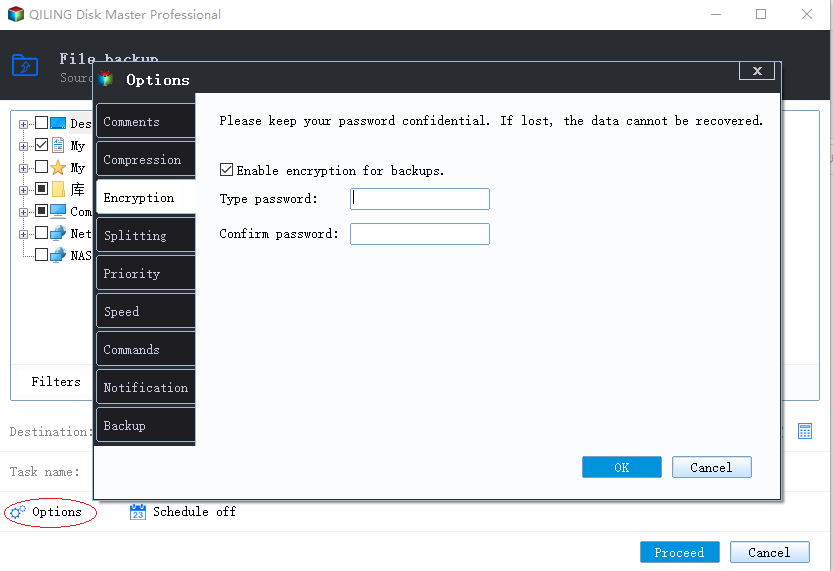
Step 4. Open Options if you want compression or password protection. Click Proceed to start the backup.
Fix 1. Verify Game Files
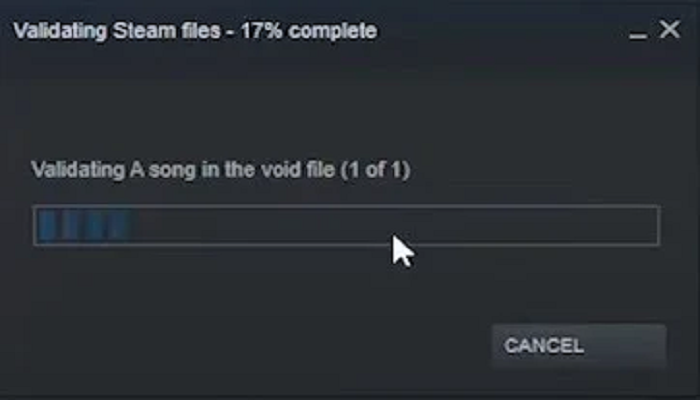
If only one game fails, verify its local files first. In Steam, open the game properties, choose installed files, and run file verification. Other launchers have similar repair options.
Fix 2. Update or Roll Back the Graphics Driver
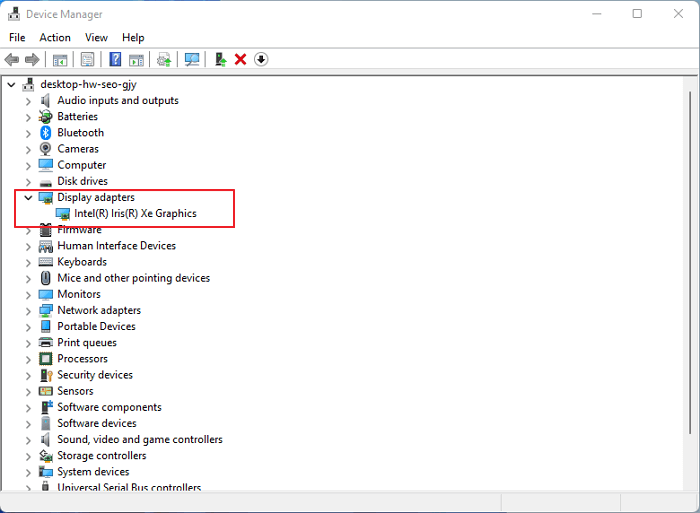
Open Device Manager, expand Display adapters, and update the graphics driver. If the issue started immediately after a driver update, try rolling back to the previous driver version.
Fix 3. Disable Overlays and Full-Screen Optimization
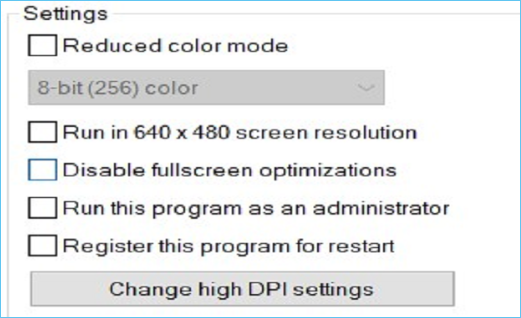
Turn off game overlays from Steam, Discord, Xbox Game Bar, or GPU software. You can also open the game executable properties and disable full-screen optimization for testing.
Fix 4. Recover Missing Game Files
If game saves or local files disappeared after the update, avoid reinstalling to the same location before recovery. Follow the guide to recover game files after Windows update.
Conclusion
Most Windows 11 game freezing issues can be fixed by repairing game files, updating drivers, disabling overlays, or restoring missing game data. Back up saves first so every repair step is safer.
Related Articles
Products
Articles & Tutorials
- Data Recovery
- Data Backup
- File Recovery
- File Backup
- System Backup and Restore
- Disk and Partition Clone
- Technical articles
- Mobile articles
- Disk Master Help
- Windows Data Recovery Tutorials
- Windows Secure Delete Tutorials
- Windows Partition Management Tutorials
- Windows File Backup and Restore Tutorials
- Windows System Backup and Restore Tutorials
- Windows Disk Backup and Restore Tutorials
- Windows Clone Tutorials