Recover Game Files After Windows Update or Crash
A Windows update, sudden crash, or forced shutdown may make game saves disappear from Steam, Epic Games, Xbox app games, emulators, or standalone game folders. The files may be moved, hidden, synced to another account, or deleted.
Stop writing new data to the affected drive first. Then check common game save locations and use recovery software if the files are no longer visible.
Where to Check First
- Documents, Saved Games, Pictures, Videos, and Desktop folders.
- C:\Users\YourName\AppData, especially Local, LocalLow, and Roaming.
- Steam userdata, Epic Games folders, Xbox app folders, and custom installation folders.
- OneDrive, Steam Cloud, or another cloud sync service.
- Windows.old if the update created a temporary old Windows folder.
Recover Missing Game Files with Qiling Data Recovery
Qiling Data Recovery scans the drive for deleted or lost files and lets you preview recoverable data before saving it to another location.
Step 1. Install Qiling Data Recovery on a different drive if possible. Open it and choose the recovery mode for deleted or lost files.

Step 2. Start the scan. Use filters for file type, folder name, or modified date to narrow down saves, configuration files, screenshots, and videos.
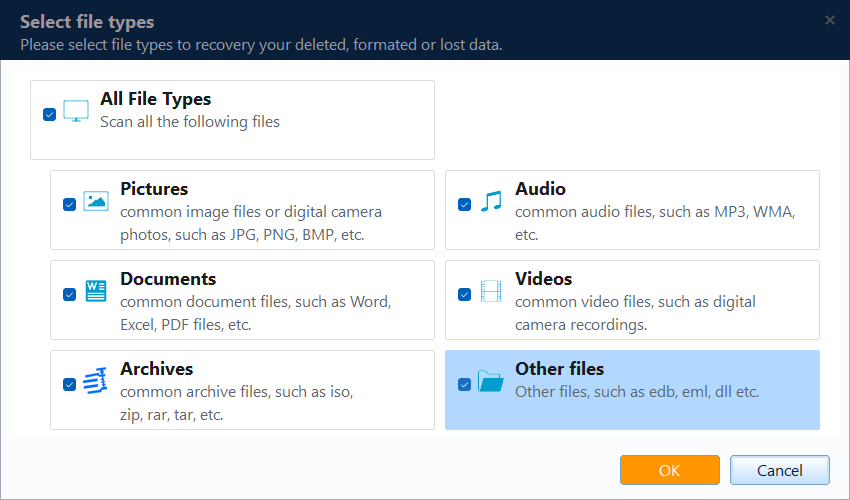
Step 3. Select the drive or folder where the game files were stored, such as the system drive, game library drive, or external game disk.

Step 4. Preview the found files and select the game data you need. Save recovered files to another drive, not back to the original folder.


What If the Game Still Does Not See the Saves?
After recovery, place the saves back into the correct folder for that game. Some games require the same user account, profile ID, or cloud sync setting. If you are unsure, keep a copy of the recovered files before testing.
Prevent Future Game Data Loss
Before large Windows updates, back up save folders and game libraries. If the update also makes the game freeze, see how to fix games becoming unresponsive after Windows 11 update.
Conclusion
Game files are often recoverable if you act early and avoid overwriting the old location. Check Windows.old and cloud sync first, then scan the affected drive and recover files to a safe disk.
Related Articles
Products
Articles & Tutorials
- Data Recovery
- Data Backup
- File Recovery
- File Backup
- System Backup and Restore
- Disk and Partition Clone
- Technical articles
- Mobile articles
- Disk Master Help
- Windows Data Recovery Tutorials
- Windows Secure Delete Tutorials
- Windows Partition Management Tutorials
- Windows File Backup and Restore Tutorials
- Windows System Backup and Restore Tutorials
- Windows Disk Backup and Restore Tutorials
- Windows Clone Tutorials