How to Fix Unable to Expand Zip Mac [Fixed]
If you're experiencing the issue "Unable to expand Zip Mac", try troubleshooting by using the following methods, and the most recommended solution is to repair Zip with the Qiling Fixo repair tool.
| Workable Solutions | Step-by-step Troubleshooting |
|---|---|
| Fix 1. Repair Unable to Expand Zip Files | Before trying difficult methods to solve the unable to expand zip on Mac error, here's an easier...Full steps |
| Fix 2. Expand Zip Files Use Terminal | Go to the "App Store" by clicking on the "Dock" option. Locate the app "Stuffit Expander" in...Full steps |
| Fix 3. Expand Zip Files with Software | Go to the "Launch Finder" option and select the "Applications" option on your Mac...Full steps |
Mac users may face issues with expanding zip files, resulting in the inability to open them, due to potential problems with the zip file itself or compatibility issues with the Mac operating system.
Incomplete compression, file size issues, not having required permissions for zip or incomplete downloads can cause the inability to expand zip on Mac error 1. This issue can be resolved by using the built-in Archive Utility, reinstalling the application, resetting the System Management Controller, or using a third-party app like The Unarchiver. Additionally, checking the file's integrity and permissions, using a different download method, or seeking assistance from the app's support team can also help resolve the issue.
Method 1. Fix Unable to Expand Zip Files on Mac Error 1 with Repair Software
If you're experiencing issues with expanding a zip file on your Mac, before trying complex solutions, consider using professional Zip repair software to fix the corrupted file. This approach can be a quick and easy solution, especially if you've accidentally damaged the zip file. Qiling Fixo File Repair is a tool that can help recover corrupted Zip files on Mac, making it a reliable option to consider.
Mac users experiencing issues with corrupted zip files can rely on Qiling Fixo File Repair, a robust tool that efficiently resolves problems like being unable to expand the Zip file on Mac error 79 and fixes damaged Zip files after zipping files on Mac.
To repair damaged zip files on a Mac, you can use Qiling Fixo File Repair, which allows you to check on the process and fix the issue.
Beginner and professional Mac users can utilize this easy-to-operate software to quickly fix zip files. It's a functional tool that can be shared with more Mac users.
Method 2. Fix "Unable to Expand Zip on Mac" Error with Terminal
If you're having trouble expanding a zip file on your Mac, there are a few potential solutions. One possible fix is to try opening the zip file in a different app, such as The Unarchiver or Keka, rather than using the built-in Archive Utility.
- 02:20 Entering the unzip code
- 02:35 Renaming the file
- 03:10 Expanding the files
- 04:15 List of the expanding files
The top reasons for the zip file opening error on your Mac include issues with the zip file itself, such as corruption or incorrect compression, or problems with the Mac's operating system, such as outdated software or file system errors. Additionally, interference from third-party software or malware can also cause expansion errors. Furthermore, incorrect permissions or ownership settings on the zip file or its containing folder can also lead to expansion errors.
- ✨Incomplete compression: A zip file may cause issues when expanding due to incomplete compression, which can be caused by changes in file location, power failure, or a sudden system shutdown, leading to a damaged file that cannot be expanded on a Mac.
- ✨File size issues: Mac has trouble decompressing heavy zip files. While Terminal can expand them, it may display error codes for large files.
- ✨Permission problems: To expand zip files on a Mac, you may need permission or a password from the source, especially if the file contains confidential information. Before attempting to expand a zip file, ensure you have the necessary permissions or passwords from the private source. This ensures the security and integrity of the confidential information contained within.
- ✨Download incomplete: Zip expanding errors can be caused by incomplete downloads, which may occur due to poor internet connection or server issues, or exiting the download window before completion.
After learning the reasons, are you searching for the best working fix for the unable to expand zip on Mac error? You're at the helpful guide. Do you know about the Terminal utility on your Mac?
To fix the "unable to expand zip on Mac" error using Terminal, follow these steps: First, open Terminal on your Mac. Then, navigate to the directory where the zip file is located using the 'cd' command.
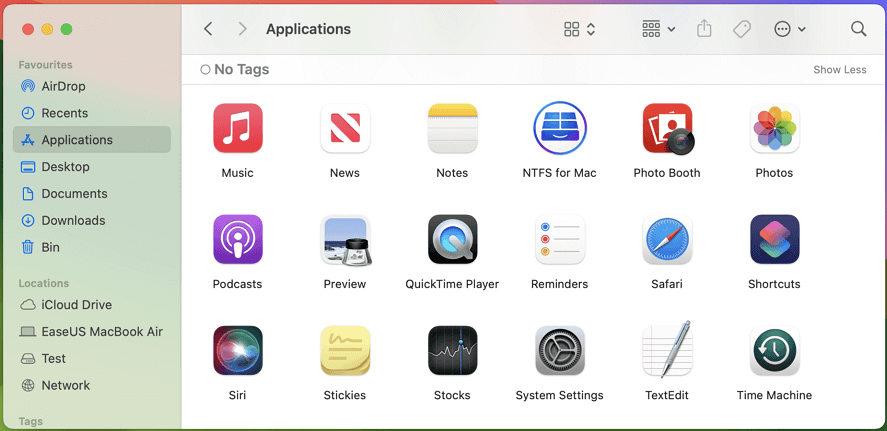
Step 1. To access the Launchpad on your Mac, go to the "Launch Finder" option and select the "Applications" option.
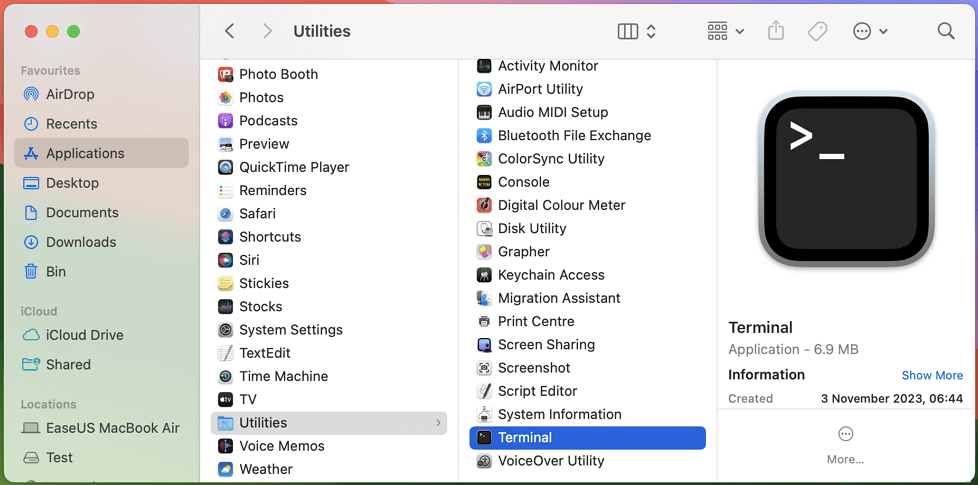
Step 2. To open the Terminal on a Mac, go to the Utilities folder and double-click on the Terminal application.
Step 3. To unzip a file, input the command "Unzip filename.zip" in the command line, replacing "filename" with the name of the zip file you want to expand. Then, press enter.
Step 4. The selected zip file will expand immediately. If the Terminal is unable to resolve the issue, you can proceed with caution or try Qiling Fixo File Repair to resolve the Zip issues.
Method 3. Download Zip Software to Fix 'Unable to Expand Zip on Mac' Error 1
When trying to expand a zip file on a Mac, you may encounter an "Error 1- Operation not permitted" message. The Terminal utility method to resolve this issue may not work for certain zip files, and professional zip handlers can't manage multiple zip files manually using this command option, increasing the risk of entering incorrect file names or commands.
Having a dedicated software like Stuffit Expander on your Mac can be a game-changer for fixing the "unable to expand zip on Mac" error, as it provides an efficient and reliable method for decompressing zip files. Unlike using the Terminal utility, which can be error-prone and time-consuming, a dedicated zip decompression utility like Stuffit Expander ensures a seamless and secure experience for expanding zip files, even those that are not opened using the Terminal option. This makes it an ideal solution for managing all possible zip file expanding issues on your Mac.
Steps to use Stuffit Expander to expand zip files on Mac:
Step 1. Go to the "App Store" by clicking on the "Dock" option.
Step 2. To start the installation process, locate "Stuffit Expander" in the app store and click on the "Get" option. This will initiate the application installation on your Mac.
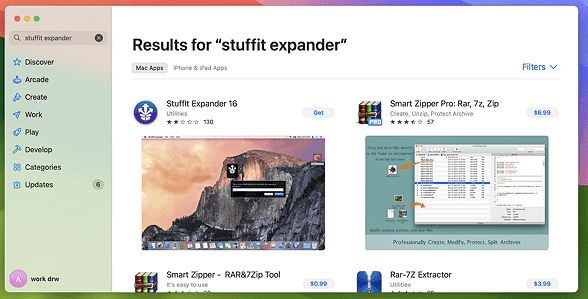
Step 3. To open Stuffit Expander, go to Spotlight, search for Stuffit Expander, and click on the app icon.
Step 4. To extract the contents of a zip file using Stuffit Expander, drag the zip file from your computer to the Stuffit Expander icon on your desktop or in your applications folder. This will initiate the unzipping process, and the contents of the zip file will be extracted and saved to a new folder.

Step 5. To unzip the file, first, select the folder where you want to unzip the file.
Step 6. The app will unzip the compressed file shortly.
To help more Zip users open Zip files successfully, consider sharing the three methods on social media: 1) using a Zip file opener app, 2) extracting the contents of a Zip file using a file manager, and 3) using a cloud storage service to access and open Zip files. This will help spread the word and make it easier for others to open their Zip files.
Summary
Mac users may encounter problems expanding zip files due to inaccurate transfer or download of the files. This issue can be resolved using the built-in Terminal utility or a decompression software such as Stuffit Expander.
If you're looking to repair unexpanded zip files on Mac, Qiling Fixo File Repair is the solution you need. This software works seamlessly on M1/ M2/ M3 series chips and can securely and accurately solve various data corruption cases, including fixing corrupted files on Mac.
Unable to Expand Zip on Mac FAQs
After going through the detailed solutions for the unable to expand zip on Mac error, readers may have some questions related to the same. Some of the top and frequently asked questions on solving the problem of expanding zip on Mac error include:
1. Why can't I expand a zip file on my Mac?
Expanding a zip file on a Mac can be problematic if it was not downloaded correctly, potentially due to issues with the internet connection or transfer errors, which can corrupt the file and prevent it from expanding properly.
2. Can I recover a deleted zip file on Mac?
You can easily recover deleted Zip files on a Mac using a reliable data recovery tool like Deep Data Recovery for Mac. This efficient software is designed to handle various data loss situations and can recover deleted Zip files securely and accurately on Mac and other devices.
Mac users can recover permanently deleted files using the "Time Machine" utility, which is a backup tool that saves selected files to a backup disk.
3. How do you expand a zip file on Mac?
To expand a zip file on a Mac, simply double-click on the zip file, and the unzipped contents will be displayed in the same folder.
4. To fix the "unable to expand zip on Mac" error, try the following: check if the zip file is corrupted by trying to open it with another app, ensure the file is not locked by another process, and try expanding it in a different location. If the issue persists, try updating the operating system or reinstalling the app used to expand the zip file. If none of these solutions work, try using the built-in Archive Utility on Mac to expand the zip file.
To fix the "unable to expand zip on Mac error 1", you can use a leading decompression utility software like Stuffit Expander. Simply download and install Stuffit Expander, and then use it to expand the zip file. This should resolve the error and allow you to access the contents of the zip file.
- 1. To access the App Store, click on the "Dock" option, which will take you to the App Store.
- 2. Go to the app store, locate Stuffit Expander, and click "Get" to start the installation process on your Mac.
- 3. To open Stuffit Expander, go to the "Spotlight" option on your device and search for "Stuffit Expander". Once found, click on the app icon to open it.
- 4. Search the zip file required for unzipping and click "Open."
- 5. Select the folder where you want to unzip the file.
- 6. The app will unzip the compressed file shortly.
Related Articles
- [Solved] Seagate Dashboard Not Working on Windows 10/11
- My PC Randomly Restarts! How to Solve It? [Fixed in 8 Ways]
- 6 Proven Ways to Fix Windows Update Download Error 0x80248007
Products
Articles & Tutorials
- Data Recovery
- Data Backup
- File Recovery
- File Backup
- System Backup and Restore
- Disk and Partition Clone
- Technical articles
- Mobile articles
- Disk Master Help
- Windows Data Recovery Tutorials
- Windows Secure Delete Tutorials
- Windows Partition Management Tutorials
- Windows File Backup and Restore Tutorials
- Windows System Backup and Restore Tutorials
- Windows Disk Backup and Restore Tutorials
- Windows Clone Tutorials