How to Fix macOS Sonoma Freezing and Crashing
After upgrading to macOS Sonoma, many users have been excited about the smoother Mac experience it promises. However, some have encountered frustrating issues, such as their Mac randomly freezing and crashing, which can be a major productivity killer and source of annoyance. If you're experiencing these problems, don't worry - you're not alone, as several others have reported similar concerns since upgrading to Sonoma.
The article will delve into the issues of macOS Sonoma freezing and crashing, and provide a comprehensive guide to resolving these problems, offering 7 efficient ways to fix the issue and get your Mac up and running smoothly again.
- Fix 1. Check macOS Sonoma Compatibility
- Fix 2. Update Your Mac
- Fix 3. Update the Freezing App
- Fix 4. Run First Aid in Disk Utility to Fix Disk Error
- Fix 5. Free Up Your Mac
- Fix 6. Restart Your Mac in Safe Mode
- Fix 7. Force Quit Apps via Activity Monitor
If you experienced freezing and crashing issues with macOS Sonoma, don't worry! We've got a solution to help you recover lost data. Our Sonoma data recovery software is designed to help you restore important files and regain control of your Mac, allowing you to relive the Sonoma experience without the frustration.
macOS Sonoma Freezing and Crashing: Why
The transition to macOS Sonoma introduced new features and improvements, but also brought about various issues, including freezing and crashing Macs, which customers have been experiencing. To understand the root causes of these disruptions, it's essential to explore the fundamental reasons behind them.
😓Issues with Compatibility: Some apps and drivers may not be compatible with the latest macOS version, leading to conflicts that cause system instability.
❌Software faults: MacOS Sonoma, like any first release of an operating system, has encountered software faults and problems, resulting in freezing and crashing issues.
⚠️Insufficient Hardware Resources: If your Mac lacks the necessary hardware resources to run macOS Sonoma, it may experience performance issues like freezing.
⛔Third-Party Software: Certain third-party apps or utilities may not have received updates for Sonoma compatibility, leading to conflicts and failures, such as Excel crashing on a Mac.
📂Corrupted System Files: System files may become corrupted or damaged, leading to irregular system behavior, such as freezing.
😰Hardware problems: Hardware issues like bad RAM, a faulty hard drive, or overheating components can lead to freezing or crashes.
❎Driver Problems: Outdated or incompatible drivers for hardware components can cause system instability, particularly if they're crucial to system function.
Understanding the probable reasons behind macOS Sonoma freezing and crashing is crucial for diagnosing and fixing these issues. These core problems include software conflicts, hardware issues, and system file corruption. Practical remedies will be presented in the following sections to help recover stability and performance on your Mac.
How to Fix macOS Sonoma Freezing and Crashing
After identifying the reasons behind your Mac's freezing and crashing in macOS Sonoma, it's time to tackle the issue. To get your system back on track, consider these practical remedies that address the various possible causes of these problems, which can help you resolve the issue and get your Mac running smoothly again.
Fix 1. Check macOS Sonoma Compatibility
To troubleshoot issues with macOS Sonoma, start by checking the compatibility of your installed software and drivers with the new operating system. If any software or drivers are incompatible, they may need to be updated or replaced to resolve compatibility-related problems.
Step 1. Click on System Preferences.
Step 2. The System Information window can be accessed by clicking on the "About This Mac" menu, which is located in the Apple menu at the top left corner of the screen. This window provides detailed information about the computer's hardware and software, including the processor, memory, storage, and operating system.
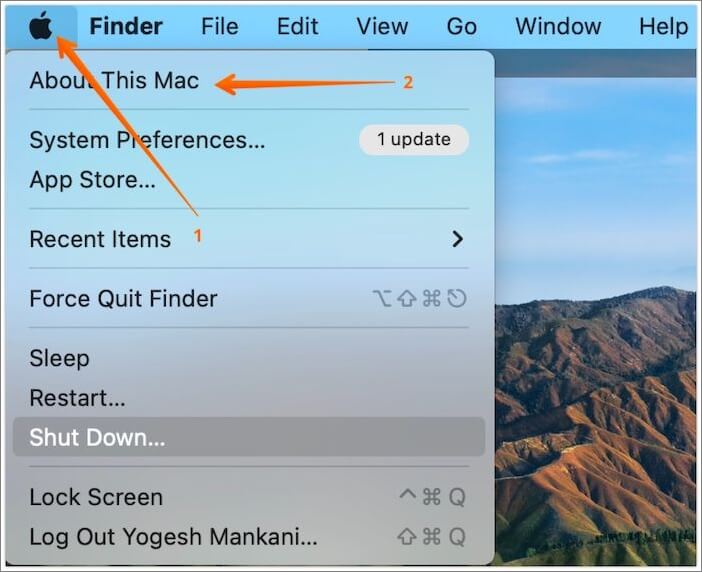
Step 3. To confirm that your macOS version is Sonoma (macOS 14), check the "Software" section of the "Overview" tab.
Step 4. To check for Sonoma compatibility updates, visit the official websites of your installed programs and device manufacturers.
Fix 2. Update Your Mac
macOS releases often include bug fixes and performance improvements, which can help alleviate issues that cause freezing and crashes. Keeping your Mac up to date with the latest Apple software updates is essential to resolve known problems.
Here are steps to update a Mac:
Step 1. Select System Settings from the Apple menu.
Step 2. Choose "General" and then "Software Update".
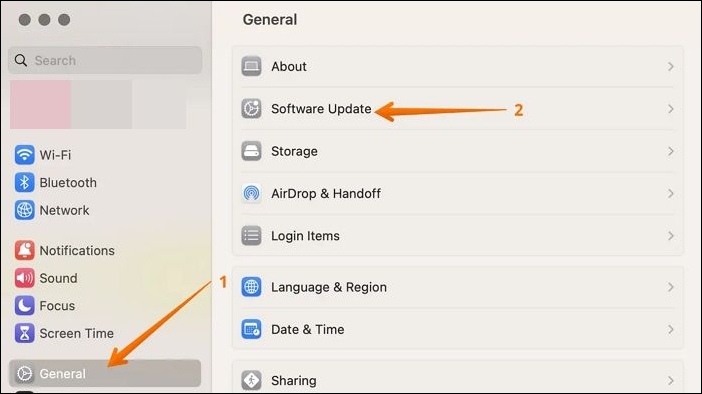
Step 3. If an update is available, click "Update Now" and follow the on-screen instructions to complete the update.
If your Mac's Software Update is not working, don't worry, it's a common issue. Here's a summary of the 6 ways to fix it: You can try restarting your Mac, checking for any software updates manually, or resetting the System Management Controller (SMC).
If you're experiencing issues with the Software Update button not working on your Mac, there are several probable fixes you can try. One possible solution is to restart your Mac, as this can resolve issues with the update process. Another option is to check for any available updates in the App Store, as sometimes the Software Update button may not work if there are no updates available.
Fix 3. Update the Freezing App
If a program is causing issues, check the App Store or the software provider's website for updates, as they often release patches to fix known problems and improve stability.
Step 1. Launch the Mac App Store.
Step 2. Go to the App Store's "Updates" section and select "Update All" if any app updates are available.

If your apps are freezing on macOS Sonoma, don't worry, this article can help you solve the issue.
How to Fix Apps Not Working on macOS Sonoma
This article provides the top reasons why apps may not be working properly on Sonoma, along with the top 7 fixes to resolve this issue completely.
If your Mac is running macOS Sonoma and experiencing freezing or crashing issues, there are several steps you can take to troubleshoot the problem. First, check for any software updates and install them, as this may resolve the issue.
Fix 4. Run First Aid in Disk Utility to Fix Disk Error
Disk problems may cause system instability, but First Aid in Disk Utility can discover and correct disk-related errors, potentially resolving freezing and crashing issues.
Step 1. Launch Finder.
Step 2. Go to the "Applications" directory.
Step 3. Navigate to the "Utilities" folder and double-click "Disk Utility."
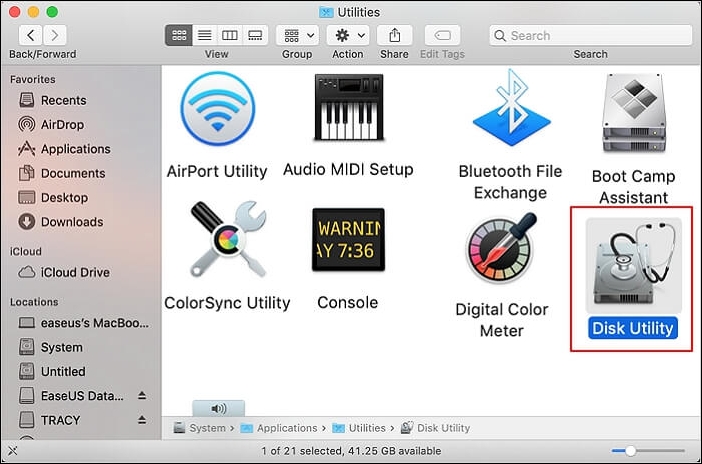
Step 4. Open Disk Utility on your Mac, then select your Mac's internal drive from the left sidebar.
Step 5. Click the "First Aid" button at the top.
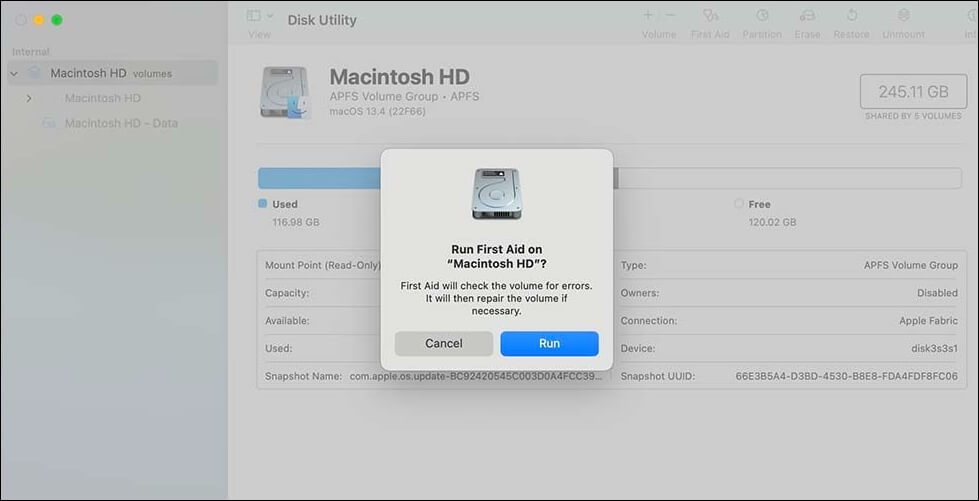
Step 6. To start the disk inspection and repair process, click the "Run" button.
If you've discovered corruption within a first aid organization, it's essential to take a structured approach to address the issue. Start by documenting all relevant information, including dates, times, locations, and details of the corrupt activities.
The First Aid found corruption that needs to be repaired error can be resolved by running a diagnostic test on the game, checking for any corrupted files, and reinstalling the game if necessary. This involves launching the game, going to the "First Aid" menu, and selecting the "Repair" option. If the issue persists, verifying the game's cache and files through the Steam client or other applicable platform can help resolve the problem.
Fix 5. Free Up Your Mac
If your macOS Sonoma is running slow after the update, it's likely due to a crowded hard disk. To resolve this, focus on freeing up space on your Mac. Start by checking your storage usage by clicking the Apple logo, selecting "About This Mac," and then clicking on "Storage." This shows you how much space is being used by each app, file, and folder. Next, delete any unnecessary files, apps, or documents to reclaim space.
- Trash Bin: Emptying the Trash on your Mac is a simple step to free up space, as deleted files can still occupy storage. By deleting these files, you can reclaim the space they're using, which can be significant, especially if you have a lot of large files or documents that you've deleted but not yet emptied from the Trash. This process is quick and easy, and it's a good idea to do it regularly to maintain your Mac's performance and storage capacity.
- Delete Unnecessary Files: Delete unnecessary files, such as outdated downloads, duplicate images, and excessive papers, to declutter your space.
- Uninstall Unused programs: Go through your programs and delete any that you no longer need to declutter your digital life.
- Clean Up System rubbish: macOS accumulates system junk over time, which can be cleared using built-in tools or third-party programs.
To free up Mac storage space, it's essential to know how to permanently delete files on Mac. However, it's easy to accidentally remove important files when cleaning up, which is where the Deep Data Recovery for Mac Pro comes in handy.
Here are the steps to recover permanently deleted files on Mac using the program:
Step 1. Search for lost files
To search for lost files on macOS, select the disk location to search, such as an internal HDD/SSD or a removable storage device, and click the "Search for lost files" button.
Note: Before attempting data recovery, it's recommended to click "Disk Backup" from the left sidebar to create a backup of your Mac, which will prevent further data loss. Once the backup is created, the software can recover data from the backup, allowing your computer to write new data again.

Step 2. Go through the scanning results
Deep Data Recovery for Mac will immediately scan your selected disk volume and display the scanning results.

Step 3. Select the file(s) and recover
Select the desired file(s) from the scan results and click the "Recover" button to restore them.

Fix 6. Restart Your Mac in Safe Mode
Booting your Mac in Safe Mode can help diagnose and resolve issues caused by third-party software or extensions, which may be contributing to your macOS Sonoma freezing problem, and restarting in Safe Mode can help determine if system extensions are the source of the issue.
On an Apple Silicon Mac, you can enter Safe Mode by restarting your Mac while holding the Shift key. On an Intel-based Mac, you can enter Safe Mode by restarting your Mac while holding the Shift key and the Power button at the same time.
For Apple Silicon:
Step 1. Turn off your Mac, then hold down the power button until you see the message 'Loading startup choices' on the screen.
Step 2. When the choice appears, choose your starting disk and hold down the "Shift" key.
Step 3. After the Mac restarts, you will see the "Safe Boot" icon in the top menu bar. This indicates that the system has booted in safe mode. To exit safe mode, restart your Mac normally.

For Apple Silicon Mac:
Step 1. Turn off your Mac.
Step 2. Hold down the "Shift" key while pressing the power button.
Step 3. When you see the login window, release the "Shift" key.
Step 4. To access the system, enter your administrative username and password. If prompted, log in again for verification.
Step 5. When your Mac boots, "Safe Boot" will appear in the menu bar.
Fix 7. Force Quit Apps via Activity Monitor
When unresponsive applications cause system instability, use the Activity Monitor to quit them forcibly, thus resolving the issue.
Step 1. Navigate to "Applications > Utilities" and launch "Activity Monitor".
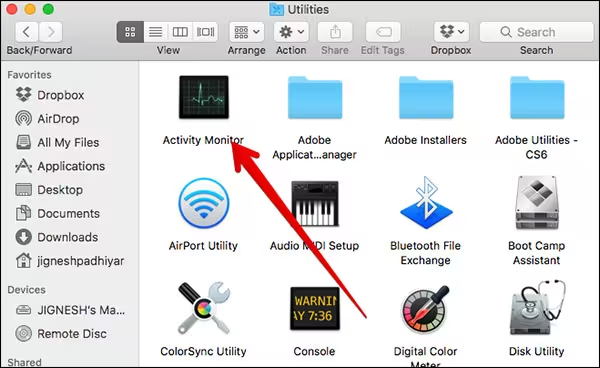
Step 2. Locate the program causing problems in the Activity Monitor pane.
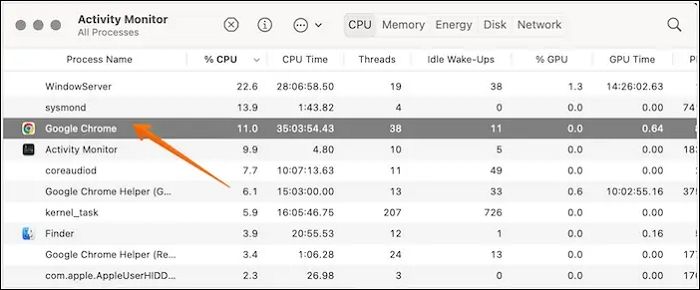
Step 3. Select the app and click "X" in the upper-left corner.
Step 4. Confirm that you wish to force the app to close.
Conclusion
Managing macOS Sonoma freezing and crashing issues can be frustrating, but there are effective remedies available. To resolve these problems, you can try confirming compatibility, which involves checking if your Mac is running the latest software and if your apps are compatible with the new operating system. Additionally, boosting your Mac's speed can also help, which can be achieved by closing unnecessary apps, updating your operating system, and clearing out temporary files and cache.
If you've experienced data loss during this process, we recommend Deep Data Recovery for Mac Pro, which is the best tool for recovering lost data in various situations.
Deep Data Recovery for Mac Pro is a dependable option for retrieving vital data due to its user-friendly interface and powerful features. Amidst macOS Sonoma troubles, it gives a reliable solution to prevent data loss, ensuring your data are secure and recoverable.
macOS Sonoma Freezing and Crashing FAQs
Here are questions related to the topic of this article that people frequently ask; check them out:
1. Why is my Mac freezing and shutting down?
Various circumstances, including program incompatibilities, obsolete system components, and hardware difficulties, may cause Mac to freeze and shut down. To address this, follow the troubleshooting procedures outlined in this tutorial.
2. What to do if an app freezes or quits unexpectedly on a Mac?
If an application freezes or closes suddenly, you can use the Activity Monitor to terminate it immediately. If the problem persists, you may want to update the program or contact the creator for assistance.
Related Articles
- What Is System Restore Command and How to Use It on Windows 11/10
- Short DST Failed! How to Fix Hard Disk DST Short Test Failed
- HP USB Disk Storage Format Tool Free Download [New]
- What Are the Best External Hard Drive for PS4? Top 8 Choice in 2023
Are you tired of deleting your favorite games from your PS4's internal storage to make room for new ones? This article reviews the top 8 best external hard drives for PS4, helping you choose the perfect one to expand your gaming library without the hassle of deleting games. - What Is Firewire? [Definition & Working Principle & Differences Between USB]
Firewire is a kind of connection interface standard which is used to connect external electronic devices. Do you know how it works? What the difference between Firewire and USB? Read this post, it provides a thorough guide to Firewire. - What Is FTP? File Transfer Protocol Explained
FTP is one of the key network protocols in internet and data transfer. So, how does it work and why is it so important? This article will answer these questions and help you understand FTP in a more in-depth light.
Products
Articles & Tutorials
- Data Recovery
- Data Backup
- File Recovery
- File Backup
- System Backup and Restore
- Disk and Partition Clone
- Technical articles
- Mobile articles
- Disk Master Help
- Windows Data Recovery Tutorials
- Windows Secure Delete Tutorials
- Windows Partition Management Tutorials
- Windows File Backup and Restore Tutorials
- Windows System Backup and Restore Tutorials
- Windows Disk Backup and Restore Tutorials
- Windows Clone Tutorials