Fix Memory Management Blue Screen on Windows 11
Fix the Memory Management blue screen in Windows 11. Check RAM, drivers, disk errors, system files, and back up data before advanced repair.
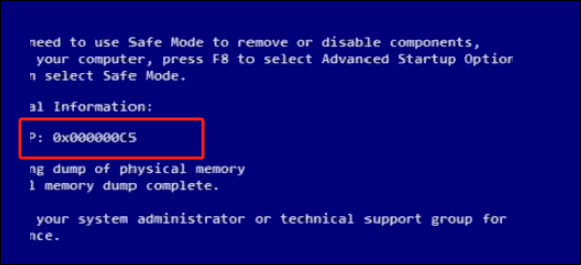
What This Problem Usually Means
This blue screen means Windows detected a serious memory handling problem. Faulty RAM is one cause, but storage errors, bad drivers, overclocking, malware, and damaged system files can trigger the same stop code.
What to Check First
- Undo recent overclocking, driver updates, or hardware changes.
- Run Windows Memory Diagnostic.
- Update chipset, storage, and graphics drivers.
- Run SFC, DISM, and disk checks.
- Back up important files before reset or reinstall.
Protect Windows with Qiling Backup Before Repair
Before reset, system restore, BCD repair, partition repair, or driver rollback, create a backup. It gives you a recovery path if the repair changes files, boot records, or user data unexpectedly.
Step 1. Open Qiling Backup and choose System Backup for Windows protection, or Disk Backup if you want to image the whole drive.

Step 2. Check that the Windows boot partitions and C drive are included. If you are backing up personal data only, use File Backup instead.

Step 3. Choose an external drive, NAS, or another safe disk as the destination. Do not store the backup image on a failing or soon-to-be-formatted drive.

Step 4. Review the task summary and click Proceed. Keep the backup connected until the task finishes and label the image with the repair date.

FAQ
Should I repair Windows before backing up? If the disk is readable, back up first. Repair commands, formatting, resizing, and reset options can change data or boot records.
Can Windows built-in tools solve the issue? Often yes. Use Settings, Disk Management, Startup Repair, CHKDSK, SFC, or DISM first when the risk is low. Use Qiling tools when you need a clearer disk map, safer preview, or a full backup before changing the drive.
What should I avoid? Do not format a drive that still holds needed files, do not run clean commands on the wrong disk, and do not clone to a target disk that contains the only copy of important data.
Conclusion
MEMORY_MANAGEMENT can be caused by RAM, drivers, disk problems, or system corruption. Test hardware and protect files before reset or reinstall steps.
Related Articles
- Windows Partition Management Tutorials
Find practical Windows partition guides for resizing, formatting, checking, converting, and repairing disks without unnecessary risk. - Windows Data Recovery Tutorials
Use these recovery guides when files are lost after formatting, partition errors, Windows repair, or accidental deletion. - Fix UNEXPECTED_KERNEL_MODE_TRAP 0x0000007F in Windows 11
- Fix DRIVER_VERIFIER_DETECTED_VIOLATION (0xC4) in Windows 11
- Fix ATTEMPTED_EXECUTE_OF_NOEXECUTE_MEMORY 0xFC in Windows 11
- Fix PFN_LIST_CORRUPT BSOD (0x0000004E) in Windows 11
- Fix BAD_POOL_HEADER BSOD (0x00000019) in Windows 11
Products
Articles & Tutorials
- Data Recovery
- Data Backup
- File Recovery
- File Backup
- System Backup and Restore
- Disk and Partition Clone
- Technical articles
- Mobile articles
- Disk Master Help
- Windows Data Recovery Tutorials
- Windows Secure Delete Tutorials
- Windows Partition Management Tutorials
- Windows File Backup and Restore Tutorials
- Windows System Backup and Restore Tutorials
- Windows Disk Backup and Restore Tutorials
- Windows Clone Tutorials