How to Recover Deleted VHD and VHDX Files in Windows 10/11
About VHD/VHDX Image File
A VHD or VHDX file is a virtual hard drive created by backup software that contains a PC's disk partitions and files, allowing for System Restore and recovery without reinstalling Windows.
VHDX has increased storage capacity to 64TB, while VHD's standard storage limit is 2TB. Due to the large size of VHD and VHDX files, deleted files are bypassed by Windows Recycle Bin, requiring alternative methods to recover them.
Reasons for VHD/VHDX File Deletion/Corruption
VHD/VHDX files may be lost or corrupted due to various reasons, including data corruption, file system errors, or hardware failures, which can render the virtual machine inaccessible.
- Accidental deletion
- Hard disk/storage device format, damage, or corruption
- Virus attacks
- RAID failure
- Other possible causes
You can recover deleted VHD/VHDX files with the help of powerful VHDX file recovery software, regardless of the reason for their deletion.
How to Restore Deleted VHD/VHDX Files with VHD File Recovery Tool
To recover lost or corrupted VHD and VHDX file data, Deep Data Recovery is a great choice. This tool allows you to easily restore deleted, corrupted, or inaccessible VHD/VHDX files with ease. Simply download the software on your Windows 10/8/7 computer and follow the simple steps to restore deleted or recover permanently deleted files.
To recover deleted files from a VHDX file, you need to load the virtual hard disk with a program first, allowing Qiling data recovery software to identify it as a physical disk and initiate the VHDX data recovery process.
Step 1. Select the location to scan
To recover deleted files, select the specific device and drive where the files were permanently deleted using Shift delete or emptied from the recycle bin. Click the "Scan" button to initiate the recovery process and locate the lost files.

Step 2. Check the results
The software will automatically scan the selected drive, and once complete, you can select the "Deleted Files" and "LostFiles" folders. Then, use the "Filter" feature or click "Search files or folders" to quickly find the deleted files.

Step 3. Recover deleted files
Select the deleted files, click "Preview", then click "Recover" to save them to another secure location or device.

If you're experiencing issues with recovering VHD/VHDX files, you can consider seeking assistance from a data recovery service for personalized help.
Consult with Qiling data recovery experts for one-on-one manual recovery service, which includes a FREE diagnosis, and we could offer the following services after that.
- The corrupted RAID structure, unbootable Windows OS, and corrupted virtual disk file can be repaired using specialized software such as Qiling Backup, DiskGenius, or Deep Data Recovery Wizard. These tools can scan the affected system, identify the issues, and provide a solution to repair the corrupted RAID structure, restore the bootable Windows OS, and recover data from the corrupted virtual disk file.
- Recover/repair lost partition and re-partitioned drive
- To recover data from a RAW Bitlocker encrypted drive, you'll need to unformat the drive first. This involves running a disk utility like Qiling Partition Recovery or a similar tool to scan the drive and recover any readable data.
- Fix disks that become GPT-protected partitions
Recover Deleted or Corrupted VHD/VHDX Files Manually
Want to try the manual way to restore deleted VHD or VHDX files? You can follow these steps to restore lost VHDX files using Hyper-V Manager.
Step 1. To edit a disk in Hyper-V Manager, run the application on your system, and then select the "Edit Disk" option from the right panel.
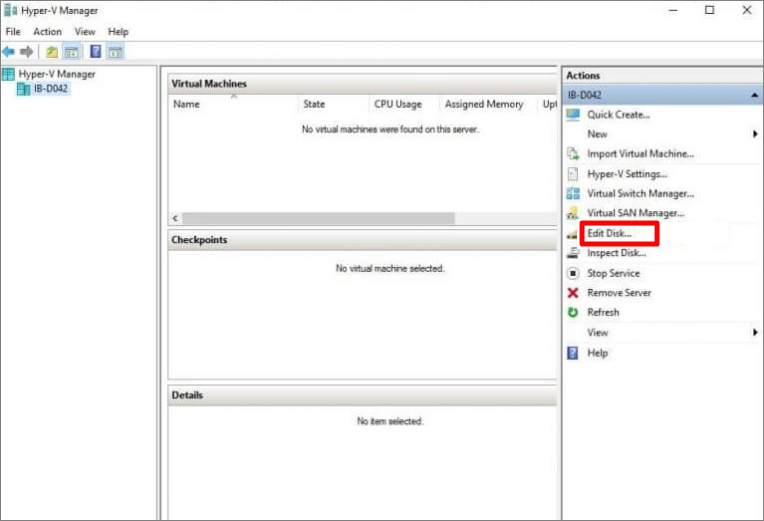
Step 2. To proceed, choose the "Locate Disk" option on the Edit Virtual Hard Disk Wizard, then click "Browse" and finally "Next".
Step 3. On Choose Action window, click "Compact" and "Next".
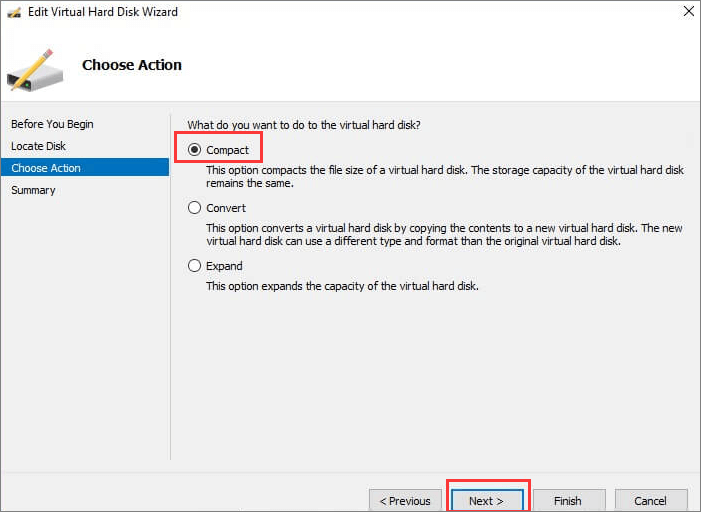
Step 4. Wait to complete editing the virtual disk. After this, click "Finish".
Step 5. Rename the VHD file.
Wrap Up
If you've lost VHD or VHDX files, you can try automatic and manual recovery methods, but if they're gone for good, professional data recovery software is your best bet. The sooner you act, the higher the chances of recovering your deleted files.
Recover Deleted VHD/VHDX Files FAQs
Read the following frequently asked questions for more instructions on VHDX File recovery.
How do I restore a VHDX file in Hyper-V?
Here are the steps to recover deleted VHD files:
- Open Hyper-V manager and click Edit Disk.
- To resolve the issue, choose Locate Disk and click Browse to find the affected VHD files.
- In the Choose Action window, select an action for your file based on your specific need.
- Click on Finish to restore files.
How do I recover deleted files from my virtual machine?
To recover deleted or permanently deleted files from a virtual machine, you can use Qiling file recovery software. Simply download and install the program on your device, select the location where the files were lost, and then scan and recover the files as needed.
Can I delete VHDX file?
You can delete a VHDX file after creating a virtual machine (VM) as it is not required to be stored once the VM is created. The VHDX file is typically large, so deleting it can help free up storage space. You can delete it using the standard delete method.
Related Articles
- Recover Data from a Dead Hard Drive and Repair the Corrupted Disk
- [SOLVED] Will System Restore Recover Deleted Files in Windows 10
- How to Recover Deleted Files from External Hard Drive
- How to Recover Deleted Files from Scan and Fix (3 Steps)
- The Top 10 Data Recovery Services Near Me in New York City
Data recovery services are widely available in New York City. These nearby businesses can help you recover practically any digital data that was unintentionally lost, erased, or corrupted. We offer a list of recovery services and their phone numbers for your convenience. - Best HDD Data Recovery Services in San Diego, CA
When you come across data loss, especially data loss from external or internal hard drives, you may turn to professional data recovery services for help. This post selects the information of the top 9 data recovery services in San Diego for your reference.
Products
Articles & Tutorials
- Data Recovery
- Data Backup
- File Recovery
- File Backup
- System Backup and Restore
- Disk and Partition Clone
- Technical articles
- Mobile articles
- Disk Master Help
- Windows Data Recovery Tutorials
- Windows Secure Delete Tutorials
- Windows Partition Management Tutorials
- Windows File Backup and Restore Tutorials
- Windows System Backup and Restore Tutorials
- Windows Disk Backup and Restore Tutorials
- Windows Clone Tutorials