How to Recover Deleted Files from Scan and Fix (3 Steps)
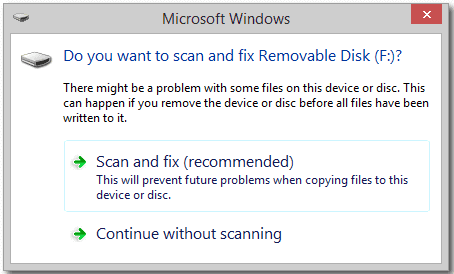
When Windows detects some errors that might prevent your portable device from working properly, it will prompt you to scan and fix them.
Does Scan and Fix Delete Files
At most times, it works seamlessly and will not result in any bad consequences. But there are also some users reported that their data get deleted or lost after the scan and fix. Like the following case:
"Scan and Fix" deleted all my pictures on USB flash drive
You plugged your Sandisk USB drive into your laptop, and Windows prompted you to "Scan and Fix" it, which you did, but unfortunately, all the pictures stored on the drive were deleted. This is likely due to the Windows scan process mistakenly identifying the files as corrupted or malicious and deleting them. To recover your files, try using a data recovery software like Deep Data Recovery or Qiling file recovery software, which can scan the drive and attempt to recover the deleted files. Be sure to stop using the drive immediately to prevent any further data loss. If the files are not recoverable, you may want to try contacting Sandisk support for assistance.
Recovering deleted files can be a frustrating experience, but it's not impossible. After a scan, you can attempt to recover them using simple steps.
How to Recover Deleted Files from the Scan and Fix
To recover deleted files after a scan and fix process, you can use a third-party tool like Qiling disk data recovery. This program can perform a deep scan on your external hard drive, USB flash drive, or SD card, and list all deleted files. You can then preview and select the files you want to recover and save them to a safe location.
Step 1. Choose file types and click "Fast Scan" to start
Launch Deep Data Recovery. Choose file types and click "Fast Scan" to start the recovery process.

Note: You can choose different search modes based on where and why the data was lost.
Step 2. Select a location and start scanning
To recover deleted files, hover over the partition/drive where the files were stored, then click "Scan" to find the lost files.

Step 3. Select the files you want to recover
When the scanning has finished, select the deleted files you want to recover. You can click on the filter to display only the file types you want. If you remember the file name, you can also search in the "Search files or folders" box, which is the fastest way to find the target file.

Step 4. Preview and recover deleted files
Preview the recoverable files, select the desired files, and click "Recover" to save them to a new location, bypassing the original disk where the data was lost.
Why You Choose Deep Data Recovery
It is very wise to choose Deep Data Recovery. This powerful and professional data recovery program can easily and quickly recover deleted, formatted, or lost data from your PC, laptop, or removable devices, making it stand out among other data recovery software.
- Easy Operation
The new interface makes it easy to start a recovery session, eliminating the need for technical expertise to use the tool.
- Wide Compatibility
Qiling data recovery software supports most Windows systems, including Windows 10, 8, 7, Vista, XP, and various Windows Server versions.
- High Quality
Deep Data Recovery offers high-quality data recovery, performing a thorough scan of the drive without causing any harm to the original data.
Conclusion
Windows offers a solution to repair your device when it encounters problems, such as scanning and fixing removable disks with errors. However, this process can sometimes delete valuable files by mistake, prompting many users to seek ways to restore deleted files. If you're still looking for a solution, you may want to try Qiling data recovery software.
For files missing after Windows ran Scan and Fix on a USB drive, recovering files after Windows Scan and Fix starts with the changed file system and any surviving copies.
Related Articles
- Email Password Recovery: How to Recover Gmail Account and Password
- Reset and Recover Instagram Password Without Email
- How to Repair a Corrupted Hard Disk Without Formatting It in Windows 10/8/7
- Netgear NAS Recovery: Safe Software to Restore NAS Data
- [2022 Tutorial] How to Recover Formatted SD Card on Windows & Mac
If you've accidentally formatted your SD card and lost all your saved files, First, stop using the card to prevent any further data loss. - Ultimate Guide on SD Card Recovery in 2022
SD cards are widely used due to their high data transmission speed and hot-swappable features, but this also leads to data loss issues.
Products
Articles & Tutorials
- Data Recovery
- Data Backup
- File Recovery
- File Backup
- System Backup and Restore
- Disk and Partition Clone
- Technical articles
- Mobile articles
- Disk Master Help
- Windows Data Recovery Tutorials
- Windows Secure Delete Tutorials
- Windows Partition Management Tutorials
- Windows File Backup and Restore Tutorials
- Windows System Backup and Restore Tutorials
- Windows Disk Backup and Restore Tutorials
- Windows Clone Tutorials