Backup Error 0x800704CF: Network Location Unavailable
Quick Navigation:
- Why the Path Stops Opening
- Keep a Readable Copy
- Repair the Connection
- Back Up With Qiling Disk Master
- Frequently Asked Questions
A scheduled job that writes to a NAS or to a shared folder on another PC stops with 0x800704CF and a message that the network location cannot be reached. The same share may open in File Explorer five minutes later, which makes the error look random. It is not: the code appears when the account running the job cannot open the path at that exact moment. The reason is usually a saved credential that no longer matches, a name that no longer resolves, a server that only offers an SMB dialect this build of Windows has removed, or a device that went to sleep before the job started. This page covers the causes, the safe way to keep your data, and how to finish the backup from a tool that reports what actually failed.
Why the Path Stops Opening
0x800704CF is a network error, not a disk error. The backup engine builds a path such as \\NAS\Backup, asks Windows to open it, and receives a failure instead of a handle. Nothing is read from the source and nothing reaches the destination, so the previous backup set is untouched.
A saved credential is the most common cause. Windows stores the user name and password used to mount the share, and that entry survives password changes, account expiry, and a factory reset of the NAS. The job then presents an old secret, gets rejected, and reports the path as unreachable because it never opened.
The protocol is the second cause. Windows 11 and recent server builds ship with SMB1 switched off, and an older NAS that only offers SMB1 answers nothing at all. The reverse also happens: a new NAS configured for SMB3 only, while a mapped drive on the PC still points at an SMB1 endpoint that the server disabled in a firmware update.
Name resolution, the network profile, and power settings explain the rest. A hostname that resolved through a router yesterday may fail after the router is replaced, while the IP address still works. A network profile that flipped to Public blocks file sharing. A NAS that spins its disks down, or a USB drive inside it that sleeps, needs longer to answer than the job allows.
A mapped drive letter adds one more trap. Drive letters are created per logon session, so a letter that exists on your desktop may not exist for the process that runs the backup. The UNC path avoids that problem entirely.
Keep a Readable Copy
Open the share from File Explorer and copy the newest backup set to a local disk before you change credentials or firmware. If the server is reachable but the job still fails, the data is probably intact and only the authentication is wrong, so the copy is cheap insurance rather than a rescue.
Leave the failed partial folder in place until you know what it contains. A network interruption often leaves a complete image with an unfinished log beside it, and deleting the folder throws away the one copy that might restore.
Test the content, not just the files. Open one document from the set and confirm that it is readable, because a truncated write can leave a file with the right size and the wrong content.
Repair the Connection
Clear the stale entry first. Open Credential Manager, find the Windows credential that names the server, remove it, then reconnect to the share and tick the option to remember the password. That single step resolves most cases where the path worked last month and fails today.
Next, separate the name from the transport. Try the same share through its IP address. If the IP works and the hostname does not, the problem is name resolution rather than credentials or permissions, and the fix belongs on the router or in the hosts file.
Then compare the protocol on both ends. Check which SMB versions the NAS offers and which ones this Windows build still allows. Set the NAS to SMB2 or SMB3 and reconnect, and remove any mapped drive that points at a protocol the server no longer accepts.
Finally, check the share and NTFS permissions for the account used by the job, set the network profile to Private on a home or office LAN, and stop the NAS from sleeping during the backup window. A device that answers in 40 seconds will always look unreachable to a job that waits 30.
Credential Manager, Disk Management, PowerShell, and the vssadmin and wbadmin utilities are all built into Microsoft Windows and belong to Microsoft, not to Qiling Disk Master. They are listed here because they control the same share, disk, and snapshot layer that a backup touches. The software steps below use only the Qiling interface.
Back Up With Qiling Disk Master
Qiling Disk Master asks for the share credentials inside the task and stores them with the task, so a job can keep working after Windows drops its own cached entry. It also keeps a local destination available, which means a failed network run does not leave you without a backup.
Operation 1: Back Up Straight to the NAS
Use this operation when the share is reachable from File Explorer and you want the task to hold its own credential.
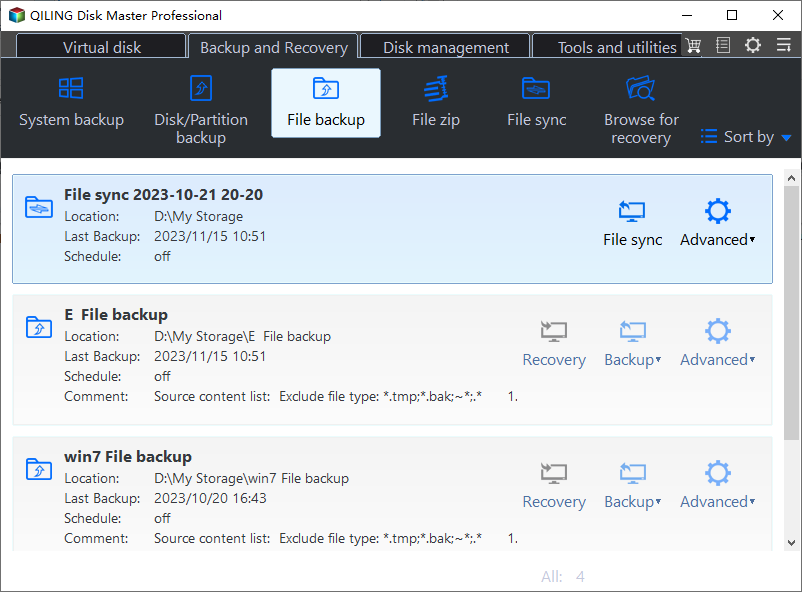
Step 1. Open File Backup. On the Backup and Recovery tab, click File Backup, then tick the folders that need protection. Existing tasks are listed with their destination and last result, so a failed run is easy to spot.
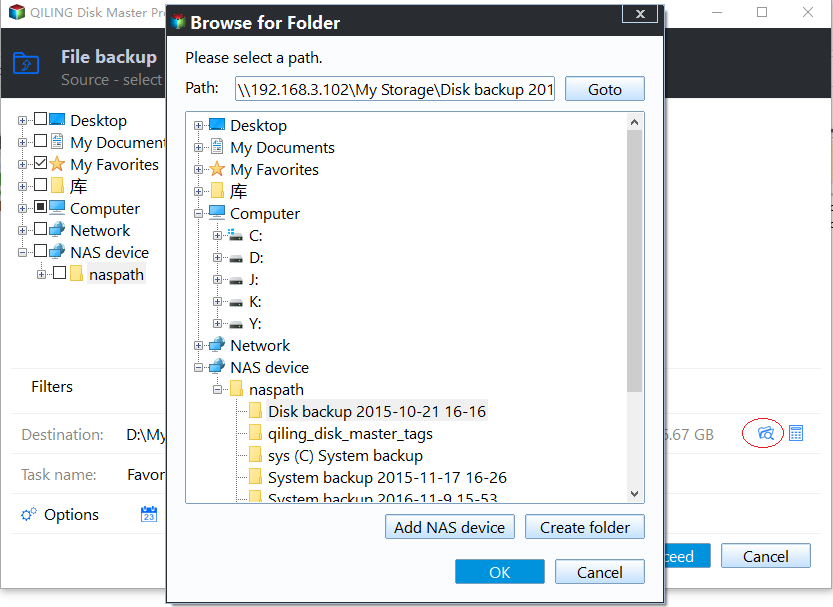
Step 2. Add the share as the destination. Click the folder icon beside Destination and choose the option to add a share or NAS device, then enter the path and the account that owns the backup folder. Type the path in UNC form rather than a mapped letter, so the task does not depend on a logon session.
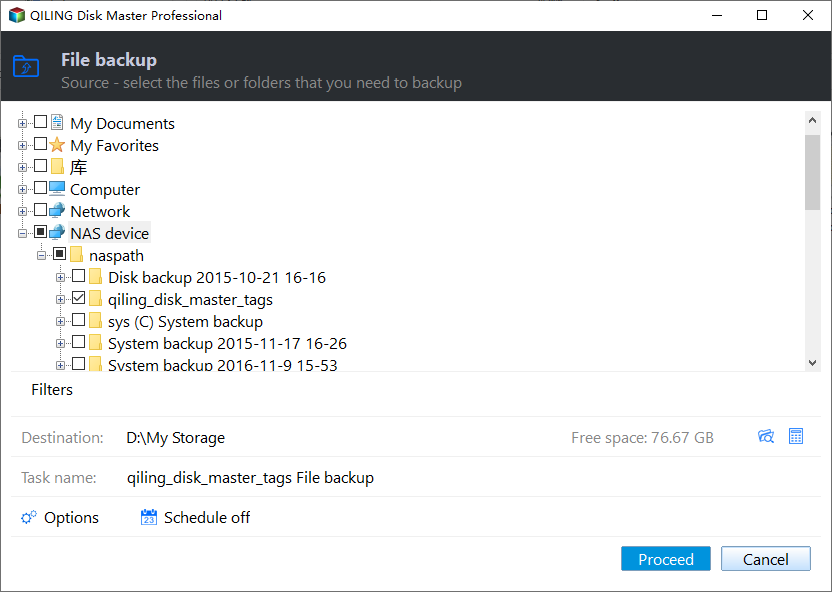
Step 3. Pick the folder, then preview and proceed. Browse to the backup folder on the NAS, open Preview to confirm the source, the destination, and the schedule, click Proceed, and wait until the task reports that the backup has completed. If the share drops during the run, the message names the destination instead of a generic network error.
Operation 2: Keep a Local Copy as the Fallback
Use this operation while the NAS is being repaired, or when the same share fails often enough that a second target makes sense.
Step 1. Point the task at a local disk. Open the task and change Destination to a folder on an internal or external disk. Leave the source selection as it is, so both tasks protect the same folders.
Step 2. Keep the schedule and the version rule. A daily schedule with automatic cleanup of older versions keeps the local disk from filling, and the NAS task can be re-enabled once the connection is stable.
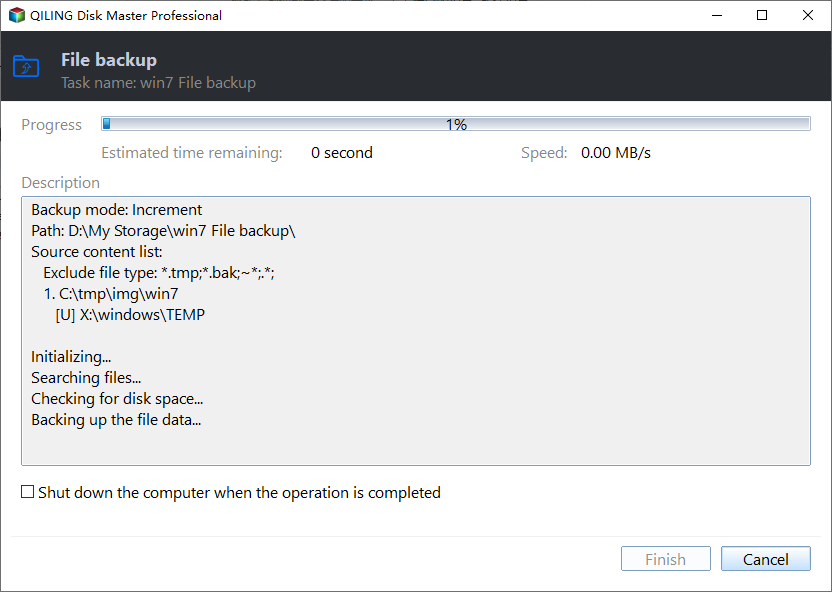
Step 3. Preview the change and click Proceed. Check that the new destination appears in the summary, click Proceed, and wait for the completion prompt before you close the window.
Frequently Asked Questions
Why does the share open in File Explorer but fail in the backup?
File Explorer uses your interactive logon and its cached credential. A scheduled job runs in a different session, so it may present a different account or no credential at all.
Is a mapped drive safer than a UNC path?
No. A mapped letter exists only inside the session that created it. The UNC path names the server directly and survives logoff, reboots, and service sessions.
Will upgrading the NAS firmware fix 0x800704CF?
Only if the failure comes from the protocol. Check the SMB version on both ends first, because a firmware update that removes SMB1 can also cause the error on a PC that still depends on it.
Related Articles
- Windows Backup: No Usable Drives Found
- Windows 11 File Sharing Without a Homegroup
- Transfer Files Between PCs on the Same Network
- Windows Server Backup and Its Alternative
- Windows Backup Error 0x8078005D
Products
Articles & Tutorials
- Data Recovery
- Data Backup
- File Recovery
- File Backup
- System Backup and Restore
- Disk and Partition Clone
- Technical articles
- Mobile articles
- Disk Master Help
- Windows Data Recovery Tutorials
- Windows Secure Delete Tutorials
- Windows Partition Management Tutorials
- Windows File Backup and Restore Tutorials
- Windows System Backup and Restore Tutorials
- Windows Disk Backup and Restore Tutorials
- Windows Clone Tutorials