How to Factory Reset Windows 11 without Moving Apps/Programs
If you're looking to factory reset Windows 11 without losing your apps and programs, you're in luck! Most of us opt for factory settings to make our PC feel like new, but it often comes with the hassle of losing essential data. Fortunately, there's an alternative method that can save the day: Qiling. This software allows you to factory reset Windows 11 without moving apps or programs, so you can breathe a sigh of relief knowing your data is safe. By following the steps with Qiling, you can enjoy a brand new PC experience without losing a thing.
| Workable Solutions | Step-by-step Troubleshooting |
|---|---|
| 1. Transfer Apps to Other Local Drive | Step 1. Launch Qiling Disk Master and select transfer mode...Full steps |
| 2. Run Factory Resetting on Windows 11 | Click on the search bar of the windows and type Settings...Full steps |
Does Factory Reset Move Programs
Factory resetting your PC restores it to its original state when you first bought it, removing installed programs and files, and resetting all settings to their default position, effectively deleting any updates or changes made to the PC over time.
Even after software deletes data, it's not completely gone. The information remains on the computer's hardware until it's either overwritten with new data or physically destroyed. This means that simply deleting files or data from a device doesn't necessarily make it disappear. Additional steps are needed to truly get rid of it.
Factory settings offer several benefits, including ease of use, as they can be completed quickly without requiring permission to erase data. Additionally, factory settings can be performed remotely, which is particularly useful for IT security purposes. This process also helps to remove any malware from the PC, making it safe to sell or give to others.
Using factory settings can be a convenient option due to its simple process, but it's not recommended to do so all the time. In fact, it's often a bad idea to go for factory settings, and it's essential to follow the tips on this page to keep all files and programs safe before running factory resetting.
How Do I Factory Reset Windows 11 Without Moving Apps and Programs?
To factory reset Windows 11 without moving apps and programs, you can follow one of two simple processes. Both methods involve a step-by-step approach that is easy to follow, allowing you to successfully reset your Windows 11 without having to relocate your installed applications and programs. You can choose either method and proceed accordingly.
1. Transfer Apps to Other Local Drive
You can safely reset your computer to factory settings by transferring essential data to another local drive or external hard drive using software like Qiling Disk Master Free, which also helps recover files and programs from a dead computer. This option is easy and safe, allowing you to start fresh without losing any important information.
This tool enables safe transfers of files, settings, applications, and user profiles. It supports popular apps like Line, WhatsApp, AutoCAD, and Dropbox, among others, and automatically transfers files quickly. Three transfer modes are available for users to choose from.
Qiling Disk Master
- Transfer via network connection: This helps to transfer all the essential files between 2 PCs on the same LAN.
- Transfer locally: This helps us to transfer applications among local disks on one computer.
- Transfer via Image files: You can easily export created image files from one PC to another using this method.
Step 1. Launch Qiling Disk Master and select transfer mode
On the main screen of Qiling Disk Master, go to the "Backup and recovery" page and click "File sync" to proceed.

Step 2. Select apps and another drive to transfer
1. Select the source partition where the desired software is located, and tick the boxes next to the applications, programs, and software you'd like to migrate.
2. Select another drive or disk as your target device and click "Transfer" to start the migration process.

Step 3. Finish the migration process
When the transferring process finishes, click "OK" to complete.
You can restart your PC to keep all the changes, and your migrated apps should be able to run on the other drive again after restarting.

You can select one option out of these three as per your need. They also have a professional version available. You can go for it if you want to transfer more unlimited data and for other additional features.
2. Run Factory Resetting on Windows 11
Factory reset is another option, but be prepared to insert recovery media, which can help recover missing files, and may come with your PC or require a USB thumb drive to create.
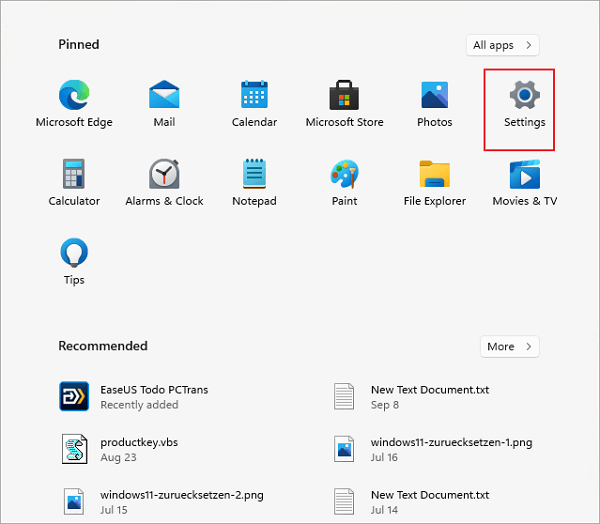
To factory reset on Windows 11, follow these steps: click on the Start button, then select the "Settings" icon, which looks like a gear. In the Settings window, click on "Update & Security", then select "Recovery" from the left menu. Next, click on "Reset PC" and choose whether you want to keep your files or remove them. If you choose to remove them, select "Remove everything" and confirm your choice.
- To access the Settings app on a Windows device, click on the search bar located at the bottom left corner of the screen and type "Settings". This will open the Settings app, allowing you to access various system settings and preferences.
- The open option on the screen is the "Open with" option. Click on that.
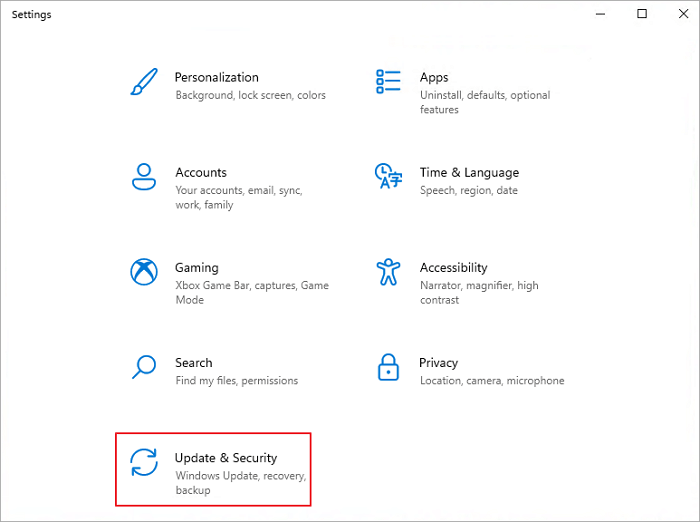
- Select Update and Security from all the available options under the Settings tab.
● To recover deleted files, search for the "Recovery" tab from the menu on the left and click on it.
● Now click on the Reset PC option.
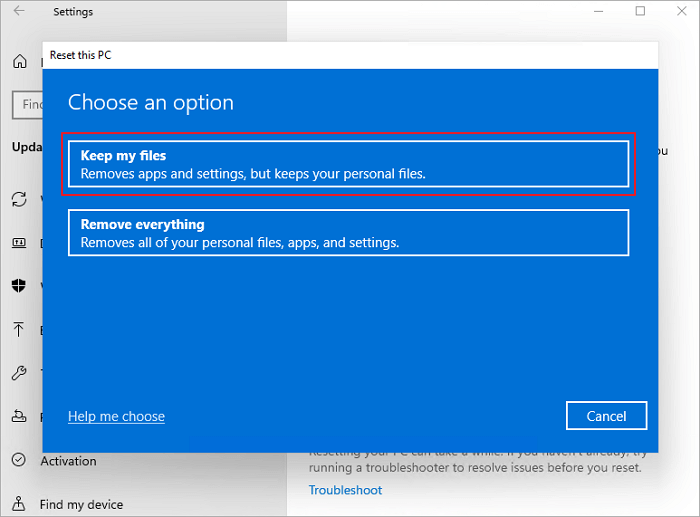
● When you want to factory reset your device, a page will appear with two options: "Keep files" and "Remove everything". To remove only apps and settings without deleting personal files, click on "Keep files". This is the preferred option if you're trying to factory reset without losing your files. If you click on "Remove everything", all data, including personal files, will be deleted. So, for a factory reset without moving files, choose the "Keep files" option.
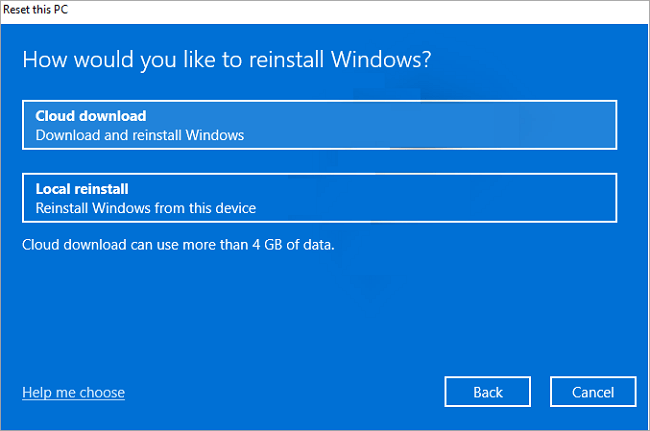
- You can choose to reinstall Windows by selecting an option, which will then prompt you to choose between a cloud download or local reinstallation. The local reinstallation option uses your existing OS to reinstall, making it a convenient choice.
- If you want to make any changes to the settings, click on the "choose settings" option from the pop-up page.
- Then tab on next.
- Now click on the Reset option by thoroughly checking all the changes made.
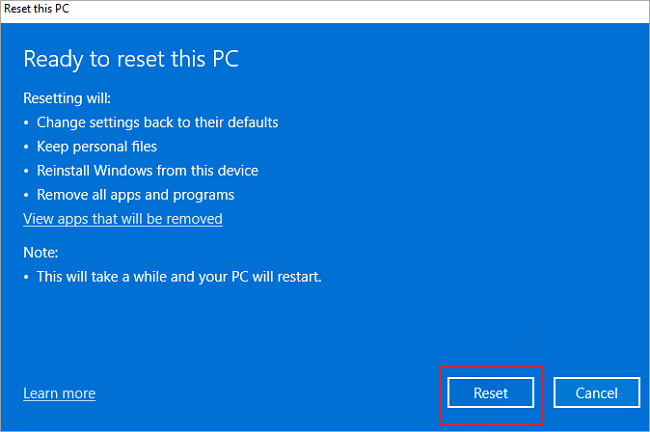
After the factory reset, wait for the installation process to complete, then log in with the password. A pop-up will list deleted apps, which can be reinstalled. Once the process is done, return to Windows 10 to confirm all selected data has been removed.
How to Restore Backed UP Data and Programs after Windows 11 Reset
After completing the factory reset through Windows 11, the next step is to restore all backed-up data and programs. This can be easily done using Qiling Disk Master, a user-friendly tool that guides you through a step-by-step process to safely restore your backup data. By following the provided instructions, you can quickly and conveniently restore all your backed-up data.
Step 1. Create a backup file.
1. To start, connect your USB drive or external hard drive to your source computer. Then, launch Qiling Disk Master and click on the "File backup" option on the main page.
2. To create a backup, hover over the "Applications", "Files" and "Accounts" columns to select the specific data you want to include, and then click "Back up" to generate a backup file.

Step 2. Recover via the created backup file.
1. Plug the USB drive containing the backup file into the target PC, then open Qiling Disk Master and click on the "Backup & Restore" page.

2. To restore a corrupted image file, click on the "Browse" button to select the image file. After selecting the file, click on the "Restore" button to proceed with the restoration process.
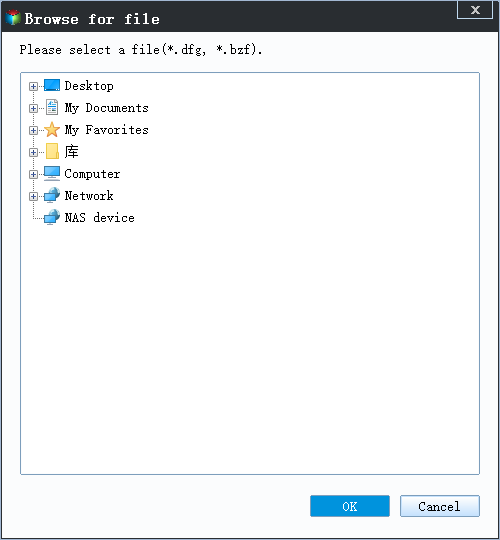
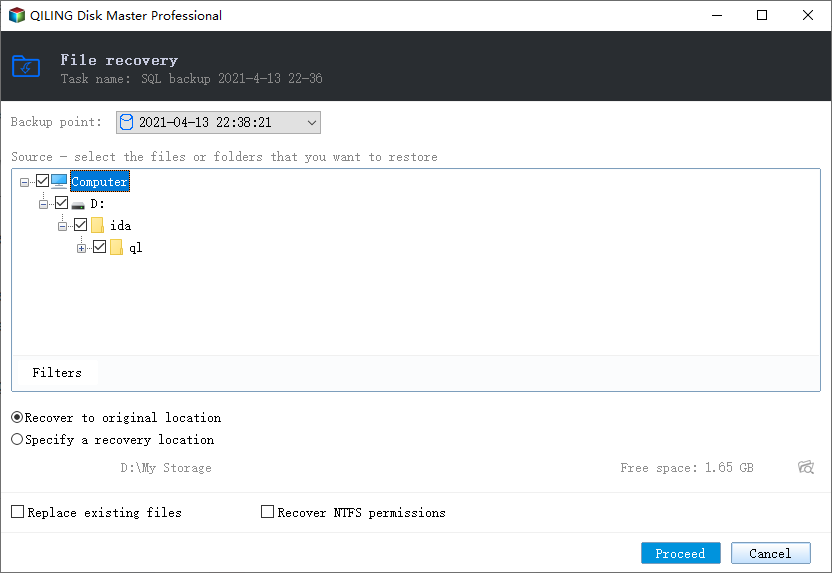
3. Now, you can select Applications/Files/Accounts you want to restore.
To transfer specific data, navigate to Applications, Files, or Accounts and select the desired data. Click "Proceed" to confirm the transfer, or use the browse icon to change the target path to recover and save the files.
This software offers 100% safety and a 30-day money-back guarantee for paid versions, along with any-time online customer support.
Conclusion
To factory reset Windows 11 without moving apps or programs, follow this simple procedure. It's essential to create a backup of your data and programs before resetting, as this will ensure you don't lose any important information. Windows 11 makes it easier to reset compared to Windows 10, and you can take advantage of free software like Qiling to recover your data and programs quickly. Regularly resetting your PC can help prevent future problems and is a good habit to get into. Softwares like Qiling Disk Master can simplify and streamline the process, making it easier to reset your PC and keep it running smoothly.
Follow the above-To factory reset Windows 11 without losing any apps or programs, follow these steps: go to Settings, then Update & Security, and finally Recovery. From there, select Reset this PC and choose the option to keep your files and apps. This will reset Windows 11 to its original settings without deleting any installed programs or data.
Related Articles
- AWS Server Backup: How to Back Up A Windows Server to Amazon S3 or Local Server?
- How to Set Up Computer to Work from Home Productively
- How to Transfer Files from PC to Xbox One on A New PC?
- Best User Profile Migration Wizard for Windows 10 and Windows 11 - Qiling
- Fixed: "File History Element Not Found" Error on Windows 10
You can find solutions to fix the “File History element not found” error on this page. If you don't want to encounter this error again, try a professional backup software. - How to Format Hard Drive without Losing Data | 2 Effective Ways
How could your format hard drive or external drive and how to do it without losing data? This article summarizes 3 approaches to format a drive, and 2 methods to avoid data loss after formatting. Find the solution that suits your situation.
Products
Articles & Tutorials
- Data Recovery
- Data Backup
- File Recovery
- File Backup
- System Backup and Restore
- Disk and Partition Clone
- Technical articles
- Mobile articles
- Disk Master Help
- Windows Data Recovery Tutorials
- Windows Secure Delete Tutorials
- Windows Partition Management Tutorials
- Windows File Backup and Restore Tutorials
- Windows System Backup and Restore Tutorials
- Windows Disk Backup and Restore Tutorials
- Windows Clone Tutorials