How to Set Up Computer to Work from Home Productively
Work-at-Home Computer Requirements
Working from home has become a norm due to COVID-19, but it comes with its own set of challenges. While it can be liberating, it can also be difficult to access necessary data and paid programs from home, especially when they're available on the office computer. To overcome this, setting up a computer to work from home productively is essential, which includes follow the steps below.
Transfer Office Data and Programs to Home Computer
You can move Chrome bookmarks and frequently used paid programs to your home computer by using the "Add to Chrome" extension, which allows you to save a link to the program on your Chrome browser, or by using a cloud storage service like Google Drive or Dropbox to sync your files and programs between devices. This way, you can access your desired programs and bookmarks from your home computer without having to repurchase them.
Qiling Disk Master allows you to transfer software and programs from one computer to another using the "Backup & Restore" feature, making it easy to move essential applications from your workstation to your home PC.
Highlights:
- Transfer applications from one PC to another
- Transfer apps between local disks
- Transfer Windows accounts from one PC to another
- Transfer or back up data from one PC to another
Steps to transfer office files and programs to home PC:
Step 1. Create a backup file.
1. Connect your USB drive or external hard drive to your source computer and launch Qiling Disk Master. From the main page, click on "Backup & Restore" and then select "File Backup".

2. Select "Data Backup" to move on.

3. To create a backup file, hover over the "Applications", "Files", and "Accounts" columns to select the specific data, applications, or files you want to include in the backup, and then click "Proceed" to initiate the backup process.
Step 2. Recover via the created backup file.
1. Insert your USB drive containing the backup file into the target PC and open Qiling Disk Master. Click on "Backup & Restore > Recovery" to proceed.

2. To restore a file, click "Browse" to locate the Image file. Then, choose "Restore" and proceed with the next step.
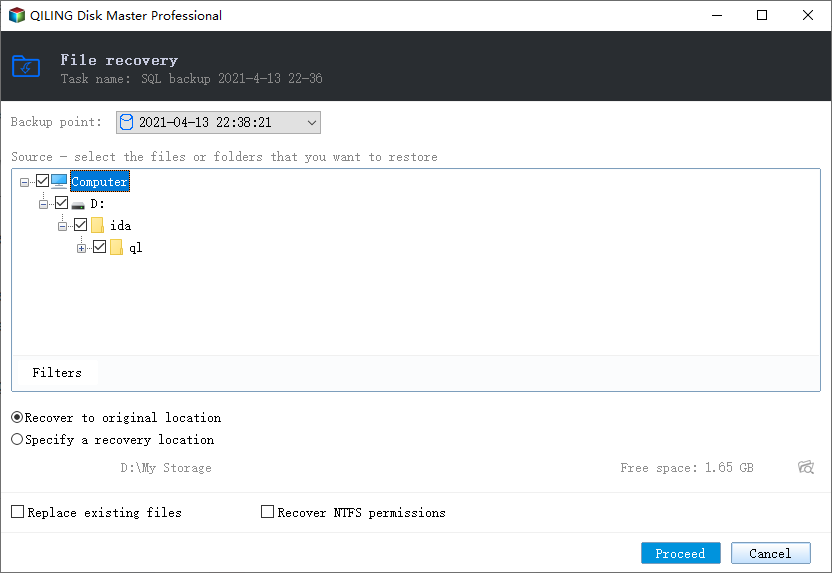
3. Now, you can select Applications/Files/Accounts you want to restore.
To transfer specific data, go to Applications, Files, or Accounts and select the files you want to move. Click "Proceed" to confirm, or use the browse icon to change the target path to recover and save the files.
4 Tips to Work Productively at Home
To maximize productivity while working remotely, it's essential to establish a dedicated workspace, set clear boundaries with family or roommates, and prioritize self-care to avoid burnout. This can be achieved by creating a schedule that balances work and personal time, using time-management tools to stay organized, and taking regular breaks to recharge. Additionally, staying connected with colleagues and friends through video calls or messaging apps can help combat feelings of isolation.
1. Get the internet speed you need
The internet is essential for daily work, and slow download speeds can be frustrating, taking days to download videos, transfer files, or upload work. To improve speeds, try moving closer to the Wi-Fi router or switching to Ethernet.
2. Set up a functional workspace
To minimize distractions, it's helpful to have a dedicated, quiet workspace that's separate from your personal areas, and use it only for work. This helps create a clear boundary between work and personal time.
3. Set up your desktop
After moving necessary programs and data from the office to home, it's essential to tidy up your desktop. A clutter-free desktop can significantly boost your home working productivity. If your desktop is a disorganized "junk drawer" filled with numerous screenshots, images, and documents, it can be challenging to find the files and programs you need. To improve your workflow, consider using a desktop wallpaper organizer, which comes in various styles, and stick to a consistent layout to keep your workspace organized and efficient.
4. Take clear breaks
As a telecommuter, it's easy to get distracted and avoid taking breaks, but it's essential to take a break every 75-90 minutes for about 15 minutes to recharge and avoid burnout. This can be as simple as taking a short walk, doing some stretching, or spending time with family or roommates who might be at home. By taking breaks, you can stay focused and productive throughout the day.
Sync/Upload Home Working Data to Cloud Drive
It's essential to sync or upload your home working data to a cloud drive or external hard drive using Qiling Backup, allowing you to access your data anywhere and at any time, even when returning to the office.
The Incremental backup feature allows for convenient work by automatically backing up new files added, utilizing minimal space. With just a few clicks, you can sync data to external devices or cloud drives, such as OneDrive, GoogleDrive, or Dropbox. This enables quick access to backed up folders when returning to work.
Steps to upload files to cloud drive by making backups:
Step 1. Launch Qiling Backup on your computer, and click File Backup on the home screen.
Step 2. Your Microsoft Outlook database folder will appear. Select the mailbox addresses you want to make a backup of, such as mails, contacts or calendars.
Step 3. To save the Outlook backup, select a location to save the file by clicking the illustrated area.

Step 4. The backup location can be a local drive, external hard drive, network, cloud, or NAS, with external physical drives or cloud services being the most recommended options for preserving backup files.

Step 5. Customization settings, such as setting an automatic backup schedule in daily, weekly, monthly, or upon an event, and making differential and incremental backups, are available in the Options button. Clicking Proceed initiates the Outlook backup process, which displays the completed task on the left side in a card style.

To Sum Up
With the rise of remote work due to the coronavirus pandemic, it's essential to set up your computer for productive work-from-home days. By following the tips above, you can create an efficient work environment. Additionally, using software like Qiling Disk Master and Qiling Backup can help you stay organized and work quickly, making your remote work experience smoother and more effective.
Related Questions on Setting Up the Computer to Work from Home
Here are some other questions on setting up the computer to work from home. If you are interested in them, read on.
How do I set up my computer for remote access?
To set up a PC for remote connections, first ensure the PC is turned on and connected to the internet. Then, on the PC, go to Settings > System > Remote Desktop, and toggle the switch to On.
Step 1. To enable remote desktop, go to Start, then Settings, then System, then Remote Desktop, and toggle the switch to turn on Enable Remote Desktop.
Step 2. Make a note of the name of this PC, and you'll need this later.
To connect to the PC using Remote Desktop, you can use the Remote Desktop app on your Windows 10 PC, or the Remote Desktop client on a Mac or Android device. On Windows, open the Start menu, type "Remote Desktop," and select the Remote Desktop app.
Step 1. To connect to another PC using Remote Desktop Connection, type the name of the PC you want to connect to in the search box on the taskbar, select Remote Desktop Connection, and then click Connect.
Step 2. To connect to a remote PC, open the Remote Desktop app, add the name of the PC you want to connect to, and then select it to wait for the connection to complete.
What type of computer do you need to work from home?
Your work-To start a from-home business, you'll need a personal desktop computer or laptop that meets certain requirements, including a processor with at least 2.5 GHz speed, 4 GB of RAM, and a 256 GB solid-state drive (SSD) for storage.
- A wired connection to the Internet
- High-speed WiFi or Internet
- Clean desktop
- Common software moved from office
How do I set up work from home?
Here are our essentials for the optimal home office setup.
- Must-have programs
- A functional workspace
- Considerable Internet speed and more.
Related Articles
- How to Transfer Files Between Two Different Operating Systems
- [microsoft edge vs internet explorer 11] Internet Explorer End of Life! Is Microsoft Edge the Future?
- How to Transfer Skype with Settings, Chat History to A New Computer
- How to Move User Folder to Another Drive on Windows 11 (4 Methods)
- Top 5 Best HDD S.M.A.R.T Monitor Software Free Download 2024
Do you need how to efficiently check and learn the hard drive health state in your computer? We collected the top 5 best S.M.A.R.T hard drive monitor software for you to free download and apply to monitor the hard drive health status efficiently in a few simple steps. - Fix SSD SMART Status Bad, Backup and Replace Error [2023 Easiest Guide]
Are you facing the constant error of SMART status bad SSD on your computer? If so, learn the proper ways to fix the problem and figure out how to back up and replace the drive if needed.
Products
Articles & Tutorials
- Data Recovery
- Data Backup
- File Recovery
- File Backup
- System Backup and Restore
- Disk and Partition Clone
- Technical articles
- Mobile articles
- Disk Master Help
- Windows Data Recovery Tutorials
- Windows Secure Delete Tutorials
- Windows Partition Management Tutorials
- Windows File Backup and Restore Tutorials
- Windows System Backup and Restore Tutorials
- Windows Disk Backup and Restore Tutorials
- Windows Clone Tutorials