Fix SSD SMART Status Bad, Backup and Replace Error
The SMART status bad SSD error is a system associated with the storage devices of computers, where SMART (Self-monitoring, Analysis, and Reporting Technology) is used to monitor and report the health of the device. This error indicates that the SSD (Solid-State Drive) has encountered a problem, and the SMART system has detected it, but the exact nature of the issue is not specified. The SMART status bad SSD error can be caused by various factors, including physical damage, firmware issues, or other technical problems, and it may require professional assistance to resolve.
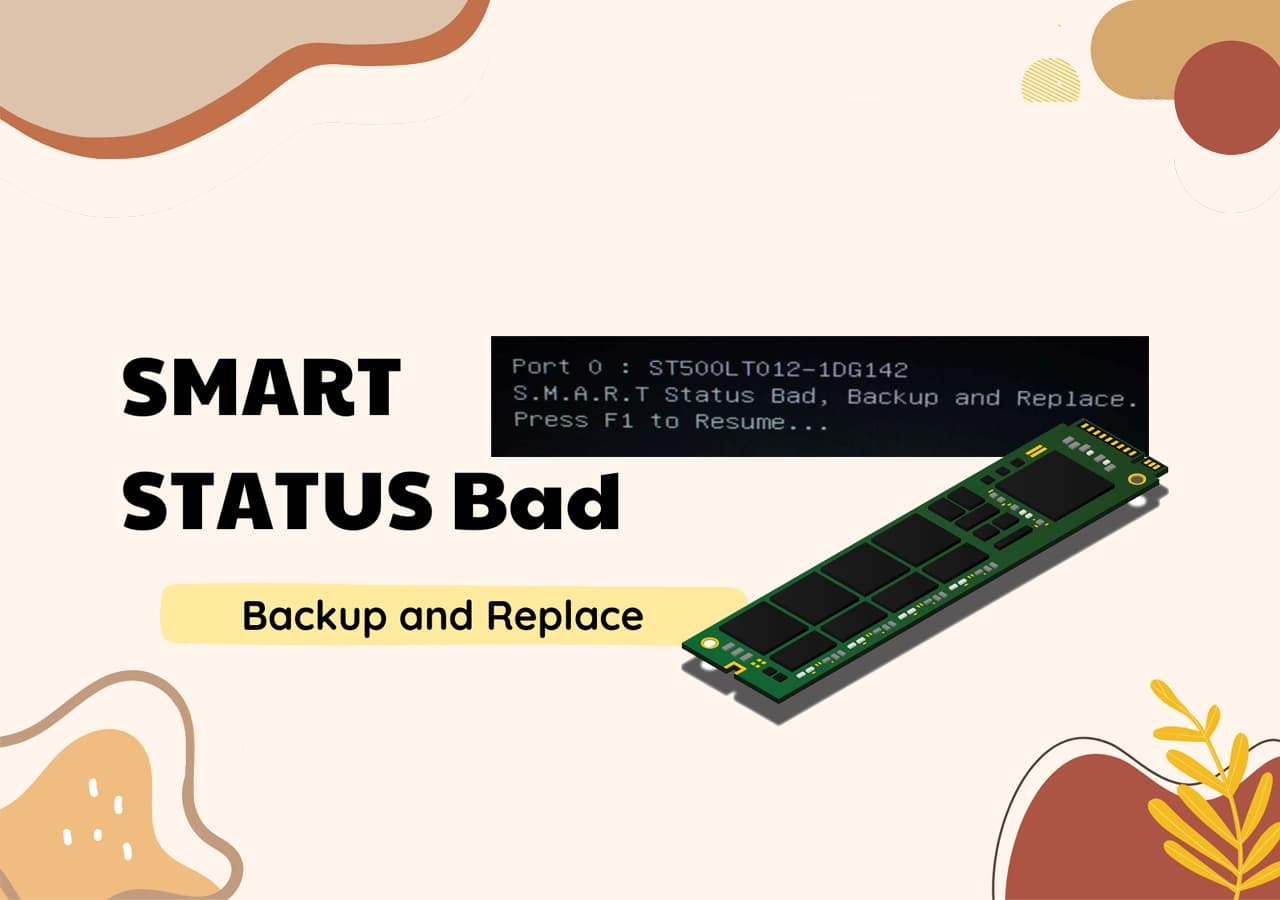
The SMART system is often misunderstood, leading to confusion in its operation. This article aims to clarify the details and provide a solution to the recognized problems, helping users understand and effectively utilize the SMART system.
What To Do When SMART Status Bad on SSD
As you've grasped the key points about the SMART status bad on SSD error, let's proceed to the next step: figuring out what actions to take when encountering this issue. Some potential solutions to consider when observing the SMART status bad SSD error on your computer include.
1. Disable SMART Test from BIOS
To avoid viewing the SMART error, disabling the SMART test from the BIOS is a viable option. This can be done by entering the BIOS settings, navigating to the Advanced or Security tab, and locating the SMART or Self-Monitoring, Analysis, and Reporting Technology option. From there, you can toggle the switch or select the option to disable SMART. This may resolve the issue, but it's essential to note that disabling SMART can potentially mask underlying hardware issues, so it's crucial to monitor the system's performance and consider running diagnostic tests to ensure the system is functioning correctly.
Step 1: To resolve the issue, try restarting your computer and entering the BIOS by pressing the "F2" key or any other key that triggers the BIOS setup. This should resolve the problem.
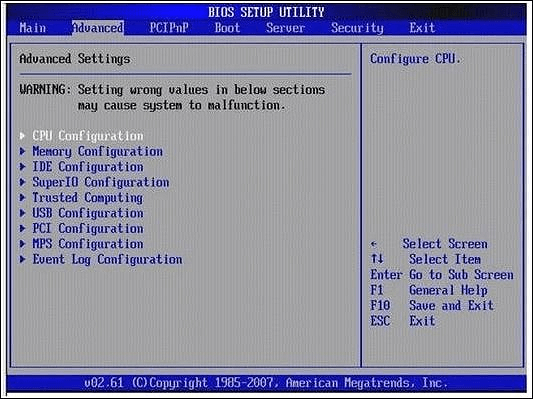
Step 2: In the BIOS settings, go to the "Advanced" tab and select "SMART settings". Turn off "SMART Self-Test" to "Disabled" using the buttons, then exit the BIOS mode and restart your computer normally.
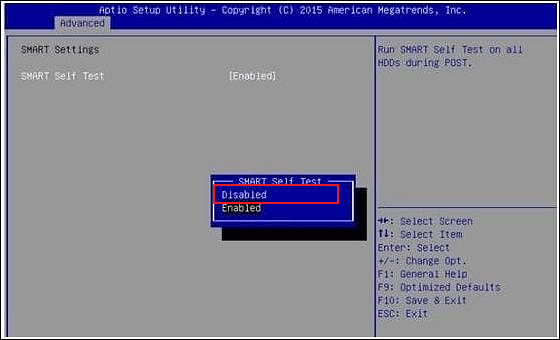
If the error involving the SMART status is still causing issues, you will have to work on the following guides to find the appropriate solution to the problem.
2. Check SSD SMART Test Status
The SMART status bad SSD error can prevail and might need a proper authoritative solution to resolve the problem. A third-party tool can be used to determine the underlying issues with the storage device.
Qiling Disk Master is the best option for checking and resolving SMART SSD test status issues. Its Disk Health feature provides a reliable source for managing SMART SSD test, and running the software can help fix disk drive problems once and for all.
How To Check SSD SMART Test Status with Qiling Disk Master
To check the SSD SMART test status, we'll use the Qiling Disk Master tool. This process involves several steps, including running the Qiling Disk Master, selecting the SSD drive, and initiating the SMART test.
Step 1. Launch Qiling Disk Master and click the blue arrow to activate the "Disk Health" feature under the "Tools and utilities" tab page.

Step 2. To check the health condition of your disk, select the target disk and click the "Refresh" button. This will display the current status of your disk.

How To Interpret Results Properly?
The third-party tool can lead to fatal results if the status is misinterpreted, so it's essential to understand the different dynamics included in the results to determine the status of your storage device.
- Status: The status of a storage device will be indicated by four metrics: Good, Caution, Bad, and Unknown.
- Temperature: The metric would have two indications: "Lower than 60 degrees Means Good" and "Higher than 60 degrees Means Bad".
- Lights Color: The user will receive specific light colors against the SMART status, where "Green" means a good result and "Red" indicates a bad outcome.
If you get a good result, you can keep using your storage device. But if the results are bad and the SMART status is poor, you'll need to replace your SSD. We'll cover the replacement process in the next part.
If you find these tips helpful in detecting your SSD SMART status, feel free to share this guide with your friends online to help them monitor their SSD health states.
3. Backup SSD Data and Replace It With a Newer & Healthy Disk
If you're experiencing issues with your storage device and the SMART system has detected potential problems, the best course of action is to immediately back up your data and replace the storage disk. To properly back up your data, consider using Qiling Disk Master, a service that makes it easy to transfer all sorts of data from one computer to another. This will ensure that your important files and information are safely transferred to a new storage device.
For a step-by-step guide, refer to this page:

How to Backup SSD to HDD Automatically
To ensure your important data is safe, it's crucial to set up automatic backups of your SSD, especially after migrating your operating system to the SSD. By following this article, you can easily set up automatic backups of your SSD to a hard disk drive (HDD), providing a secure and reliable way to protect your data.
Once you have backed up your data, you can proceed with replacing the disk with a new one. To do this safely and without any issues, follow these steps below.
Step 1: To determine the type of SSD that can be attached to a computer, start by confirming the M2 slot on the motherboard. This will help identify the type of SSD that can and should be attached to the computer. Additionally, check the location of the existing hard drive or SSD on the computer to ensure compatibility and proper installation.
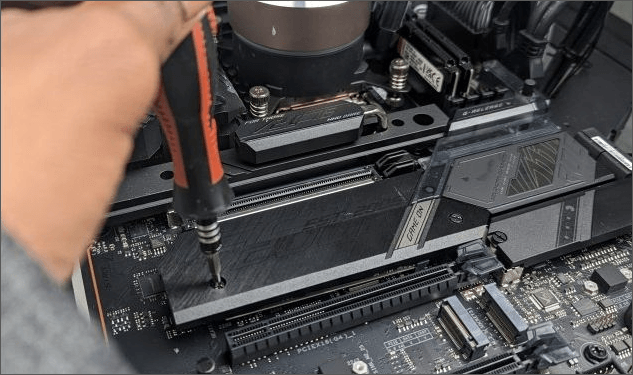
Step 2: To confirm the location of the SSD heatsink cover on the motherboard, you would unscrew it, which would allow you to access the SSD.
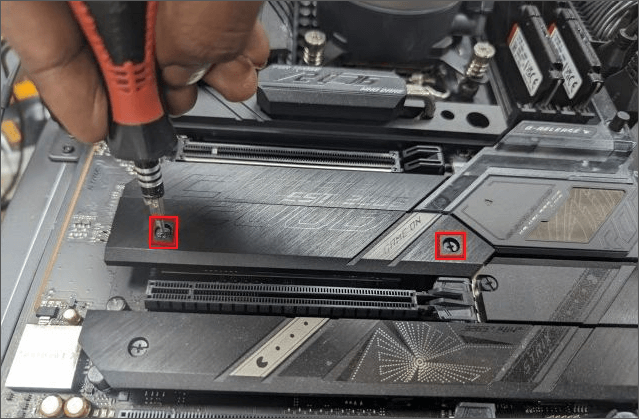
Step 3: To install a new SSD, slide it into the slot at a 45-degree angle, ensuring the drive is not damaged.
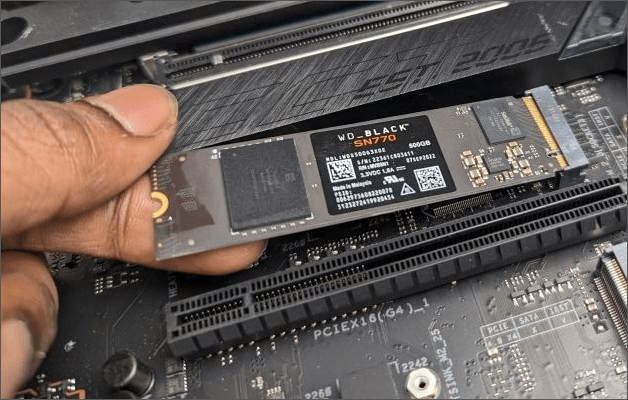
Step 4: Press the SSD from the opposite end as it is attached to the slot, then connect the heatsink and tighten the screws to complete the replacement.
To fix the SSD S. M. A. R. T status bad error, you can try running a disk check and repairing any errors, updating the SSD firmware, checking for and removing any unnecessary drivers, and re-seating the SSD in the computer. If the issue persists, you can try using a third-party tool to clear the S. M.
What SMART Status Bad Error Is
The SMART status bad SSD error is an indication within the SMART system that is connected to a computer storage device, typically associated with hard disk drives (HDDs) or solid state drives (SSDs). If the drive fails or an issue is detected, this error is displayed.
The SMART system in computers is designed to monitor and report the health and performance of storage devices, detecting potential issues and warnings. When a SMART error occurs, it typically represents a warning or indication of a potential problem with the device, such as a failing hard drive or SSD, but does not necessarily mean the device is about to fail. The error message itself may not provide specific details, but it can be used as a starting point for further investigation and troubleshooting to determine the cause and take necessary actions to prevent data loss or system crashes.
The "SMART status bad SSD" error message is a warning that a storage device is about to fail, potentially causing data loss and computer instability, prompting a pre-emptive warning to protect the computer's performance.
Also Read: How to Bypass SSD Failure Error.
Tips To Prevent SSD SMART Status Bad Issue
To prevent SMART status bad SSD issues, follow these tips: As you've learned about the operations of SMART status bad SSD and how to fix it, now is the time to know the tips that can be used to prevent this particular issue. By following these tips, you can improve the SMART health state of your SSD and avoid potential problems. To do so, ensure that your SSD is properly maintained, update your operating system and SSD firmware regularly, and run disk checks and cleaning tools to keep your SSD in top condition.
- You should prefer updating the firmware of your SSD repeatedly. These updates improve the performance of the disk drive.
- The hard drive's temperature should be kept in mind, ideally it should be in a cold environment or have proper airflow to avoid overheating.
- To prevent physical damage to the SSD drive, it's recommended to handle it with care and avoid any physical impact. This includes not dropping, bending, or applying excessive pressure to the drive, as this can cause direct data loss or drive damage.
- Fluctuating power supply can cause data corruption and instability on an SSD, potentially shortening its lifespan.
- To prevent the connected SSD from becoming overloaded with data, it's essential to monitor and manage the data storage capacity. If the SSD is consistently storing large amounts of data, it may automatically slow down, leading to performance issues. To avoid this, users should regularly check the SSD's storage capacity and delete or transfer unnecessary files to free up space.
Conclusion
The SMART system in computing devices plays a crucial role in determining the conditions of disk drives, but it may also lead to issues like the SMART status bad SSD problem.
this article provides discussed various methods to resolve issues with SSDs, including using Qiling Disk Master, which has been recognized as the best technique to fix problems and monitor disk health using its Disk Health feature.
FAQs About SSD SMART Status Bad Issue
When dealing with the SMART status bad SSD issue, there are some critical questions to consider.
1. What causes SMART status to be bad on SSD?
There are several reasons why the SMART status might be bad on an SSD drive, including overloading of the disk drive, power outages and fluctuations, or physical damage that can cause fatal results for the SSD.
2. How do I fix HDD SMART's bad error?
To fix the HDD SMART's bad error on your computer, turn off the respective settings in the BIOS, reboot, and access the "Advanced" settings. Look for the "SMART Settings" and disable the "SMART Self-Test" settings.
3. What is the SMART Status on SSD?
The SMART status is a way to check the condition of a hard drive connected to a computer, providing different indications to assess its condition.
Related Articles
- How to Move Windows 10 to Another Drive without Reinstalling
- Toshiba USB Flash Drive Write Protected Removal/Format Solutions
- Can C Drive Space Be Extended in Windows 11
- The 7 Best Disk Partitioning Tools Free Download for Windows 11/10 [2026]
- How to Fix USB Drive or SD Card Write Protected Error
Are you facing a similar situation? This article will show how to fix the USB drive or SD card write-protected error. - Is It Possible to Fix Write-Protected Pen Drive Without Losing Data
Is your pen drive shown as write-protected by the computer? This article provides a detailed tutorial to help you fix a write-protected pen drive without losing data.
Products
Articles & Tutorials
- Data Recovery
- Data Backup
- File Recovery
- File Backup
- System Backup and Restore
- Disk and Partition Clone
- Technical articles
- Mobile articles
- Disk Master Help
- Windows Data Recovery Tutorials
- Windows Secure Delete Tutorials
- Windows Partition Management Tutorials
- Windows File Backup and Restore Tutorials
- Windows System Backup and Restore Tutorials
- Windows Disk Backup and Restore Tutorials
- Windows Clone Tutorials