[VLC Transfer]How to Transfer VLC Files to Android/iPhone/PC
You can download VLC media player to the current PC, then create a bootable USB drive or burn the installer to a CD/DVD. From there, you can transfer it to the offline PC using the USB drive or CD/DVD. Simply insert the USB drive or CD/DVD into the offline PC, run the installer, and follow the prompts to install VLC. This will allow you to install VLC on the offline PC without needing an internet connection.
Transferring VLC media player to a new PC using a disc is not a time-efficient method as it involves multiple steps, including formatting the disc and dragging the .exe file to the target location. Fortunately, there's a Windows VLC transfer tool, Qiling Disk Master Free, that allows you to transfer VLC from one PC to another in just one click. Additionally, we're exploring ways to transfer VLC files to Android or iPhone devices.
Transfer VLC from One PC to Another (2 Ways)
How to Transfer VLC Files to Android
How to Transfer VLC Files to iPhone without iTunes
Transfer VLC from One PC to Another
#1. Using Qiling Disk Master Free
If you're looking for a reliable tool to transfer programs to a new computer, Qiling Disk Master Free can be a helpful solution. Unlike traditional methods like copy-paste or burning, this software is user-friendly and ensures data security, making the transfer process smoother. You can download the free version to get started.
To transfer VLC from one PC to another without the internet, you'll need to create a portable version of VLC on a USB drive. First, download the VLC installer on the first PC and run it to create a portable version.
Step 1. Create a backup image of installed apps
1. Launch Qiling Disk Master on your PC and go to "Backup & Restore", click "File backup" to continue.

2. To save a backup of the current system, click "Browse" to select a target location where the backup file will be saved. This allows users to choose a specific folder or drive where the backup will be stored.

3. To back up specific applications, navigate to the "Application" section of your backup software or tool, and select the applications you wish to include in the backup process. This will ensure that the data and settings associated with those applications are preserved during the backup operation.

4. Click "Proceed" to start creating the backup image of selected applications. When the process is complete, continue with Step 2.
Step 2. Restore apps from the created backup file
If the app exists on your PC, it won't restore the app image to your PC. You'll need to uninstall the existing one and then retry the process with the new guidelines.
1. Copy the backup file to your target computer, and then run Qiling Disk Master.
On the "Backup & Restore" section, click "Start" to continue, then select "Data Restore" as the transfer mode.

2. Click "Browse" to select the Qiling Disk Master image and click "OK" to proceed.
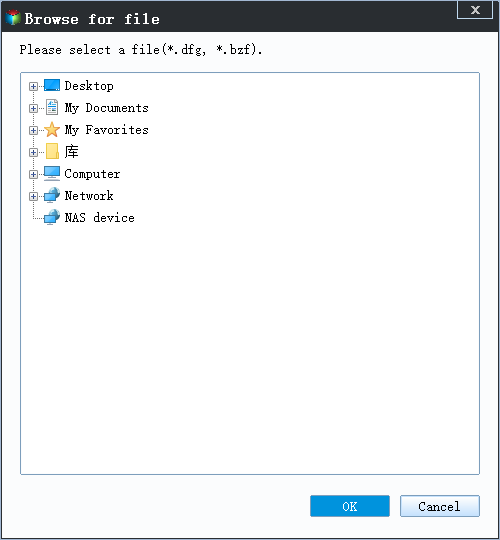
3. On the Application section, select the programs and applications you want to restore from the image file, then click "Proceed".
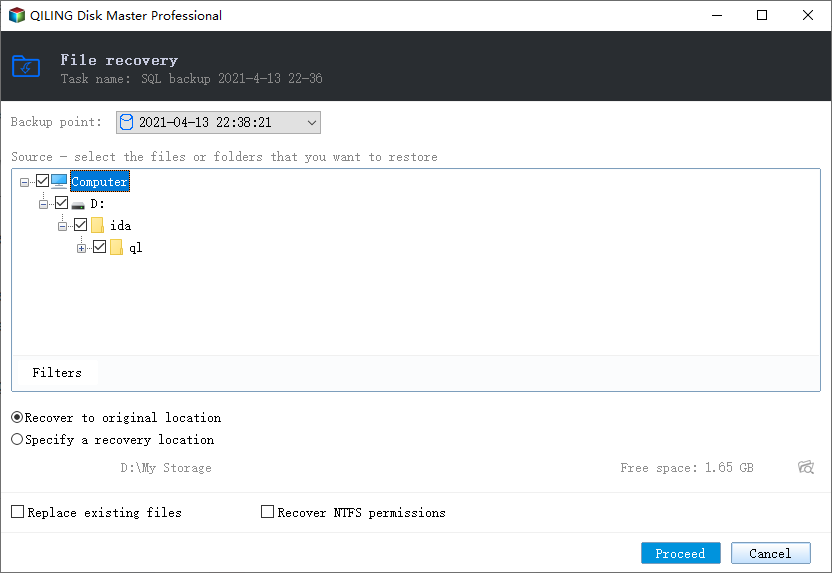
The PC to PC mode allows for data transfer between devices on the same network.
#2. Other Manual Way to do the VLC Transfer
How to Burn .exe files to a Disc:
Step 1. Place the disc on the optical drive, and the burn disc wizard will appear on the screen. Customize the disc title and select the option to make it function like a USB flash drive, allowing you to store files and transfer them between devices.
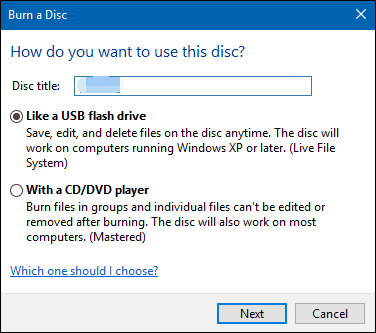
Step 2. Choose Next to format the disc for using.
Step 3. Copy the .exe file of VLC to disc.
How to Transfer VLC Files to Android
Step 1. Install VLC from the application store on Android .
Step 2. Set Play videos in background on Android.
To enable background video playback in VLC, go to Settings, which can be found on the navigation menu, and check the option that says "Play videos in background".
Step 3. Share files with Homegroup setting.
To set up a homegroup, go to the Start menu, click on the Control Panel, select HomeGroup, and if you haven't already set one up, click the "Create a homegroup" button.
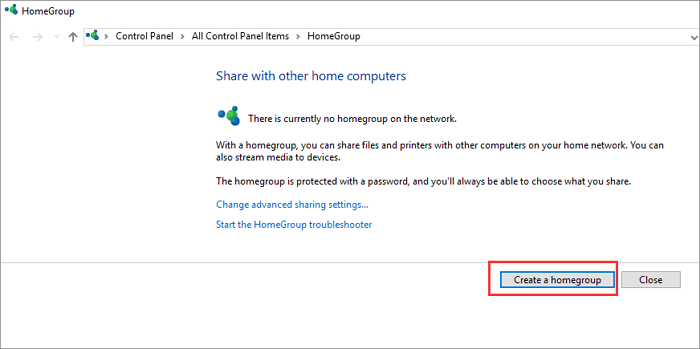
Choose the library or folder you want to share, such as the Videos and Music share option for transferring VLC files to Android.
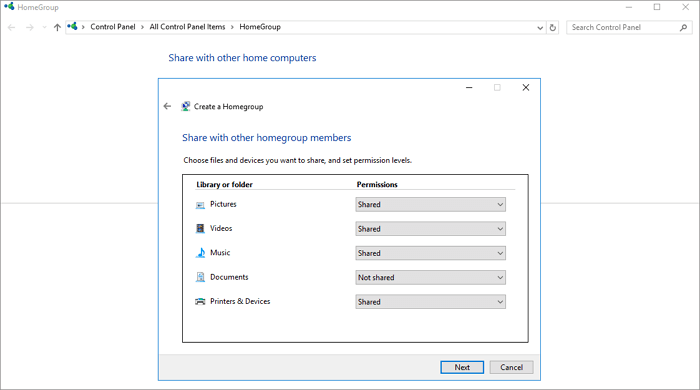
Go back to the Change homegroup settings window, click Allow all devices on this network such as TVs and game consoles to play my shared content.
To set up HomeGroup settings, uncheck the "Allowed" button under "Media programs on this PC and remote connections" and click next.
Step 4. Transfer files from VLC to Android.
Connect both PC and mobile devices to the same local network, then choose the Local Network option from the navigation menu, and the PC's name will appear under the Share folders field.
Please open it and check your videos or audios from the VLC.

How to Transfer VLC Files to iPhone without iTunes
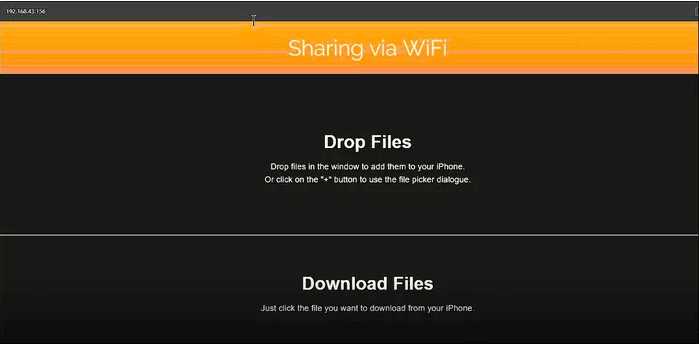
Step 1. To share a video via WiFi using VLC on an iPhone, launch the VLC app and tap the icon at the top-left corner. Then, choose "Sharing via WiFi" under the Network icon, which will display an IP address and a .local address.
Step 2. To access VLC on your PC, open VLC on the PC and enter the IP address or .local address in your default browser.
Step 3. Upload the files to VLC on your iPhone, and if the upload process is complete, you should be able to see the files displayed on the VLC app.
Related Articles
- Move/Transfer Apps and Programs from PC to an External Hard Drive
- Transfer Programs from Windows 7 to Windows 11/10
- [Easiest] How to Transfer/Move/Migrate Outlook to New Computer
- How to Transfer Files Using Easy Transfer Cable Between Computers
- How to Do Dell Factory Restore in Windows 7 Command Prompt
This tutorial shows you how to do Dell factory restore in Windows 7 Command Prompt and provides an alternative way to perform Dell factory restore efficiently. - Error Loading Operating System in Windows 7 – How to Fix It Easily
This article introduces you the causes and solutions to “Error Loading Operating System” issue. And how to prevent data loss from it again.
Products
Articles & Tutorials
- Data Recovery
- Data Backup
- File Recovery
- File Backup
- System Backup and Restore
- Disk and Partition Clone
- Technical articles
- Mobile articles
- Disk Master Help
- Windows Data Recovery Tutorials
- Windows Secure Delete Tutorials
- Windows Partition Management Tutorials
- Windows File Backup and Restore Tutorials
- Windows System Backup and Restore Tutorials
- Windows Disk Backup and Restore Tutorials
- Windows Clone Tutorials