[Updated Methods] How to Move Eclipse Manager to Another Folder/Computer
Overview
Project management software has become a crucial aspect of office management in today's digital age, where speed and efficiency are paramount. Digital software like Eclipse Manager offers unique and effective solutions for workload management and division, enabling teams to track projects efficiently.
Eclipse Manager offers a user-friendly interface with clear segregation, making it easy to understand even for first-time users. As a project manager, this platform helps organize all projects and tasks as desired, with customized progression and controlled data and insights, making project management perfect across Eclipse Manager.
Can I Move An Eclipse Project to Another Folder?
Eclipse Manager offers a straightforward way to transfer an Eclipse project to another folder within the same directory, which can be helpful when organizing previous project data in a new folder and setting up a system for new projects on the platform.
Can I Transfer Eclipse Manager to Another Computer?
If you've upgraded your office systems, you can transfer files by copying the entire MPN folder to the new device. Alternatively, you can use Eclipse Manager's Online License to carry out the process, allowing you to quickly transfer the software and its data to another computer.
How to Move An Eclipse Project to Another Folder?
Moving an Eclipse project to another folder can be achieved through two effective methods. To start, you can use the Eclipse IDE itself to relocate the project by copying the project folder, updating the workspace settings, and adjusting the project's location in the Eclipse project view. Alternatively, you can use the Eclipse command line to achieve the same result by using the `eclipse` command with the `-data` option to specify the new workspace location, followed by the `eclipse` command with the `-application` option to specify the `org.
Method 1. Move Eclipse Project to Another Folder in an Automatic Way
Data migration can be complicated if not managed properly, potentially leading to data loss, which can be damaging at a professional level. To avoid this, a reliable service is needed to transfer data to another location without any loss. Qiling Disk Master is a professional tool designed to facilitate this process securely.
Qiling Disk Master provides a convenient way to move an Eclipse project to another folder, making it easy to transfer large files between drives, which can be a complex task.
Powerful Features and Benefits of Using Qiling Disk Master
To inherit the data transferring platform for your Eclipse project, you'll need to have some prior knowledge about the platform's features and benefits. This includes understanding how it handles data transfer, any specific security measures it has, and how it integrates with your project's existing infrastructure.
- This platform streamlines the process of transferring data from an old PC to a new one, eliminating the need to manually copy and paste data.
- Transfer all programs, software, applications, and games to the new PC, along with all associated data.
- This technology allows for the transfer of data between storage devices, such as external hard drives and flash drives, without the need for a network connection.
- The platform ensures that users won't face any issues such as losing their data or facing any false operations across the platform.
Steps to Use Qiling Disk Master to Move Eclipse Project to Another Folder
We shall now look into the simple steps of moving an Eclipse project to another folder with Qiling Disk Master as follows:
Step 1. Launch Qiling Disk Master and select transfer mode
To proceed with Qiling Disk Master, navigate to the "Backup and recovery" section on the main screen and select "File sync" to continue.

Step 2. Select apps and another drive to transfer
1. Select the source partition and mark the applications, programs, and software you'd like to migrate.

2. To initiate the migration process, select a different drive or disk as the target device by clicking the triangle icon, and then click "Proceed" to start the process.

Step 3. Finish the migration process
When the transferring process finishes, click "OK" to complete.
To keep all changes and run migrated apps on the other drive, restart your PC.
Method 2.Move Eclipse Project to Another Folder in Manual Way
Eclipse Manager offers a direct manual method for moving an Eclipse project to another folder, which is particularly useful for users familiar with the interface. This technique ensures that working sets, including project information and edit history, are retained successfully. However, users should be aware of the specific steps involved in this process.
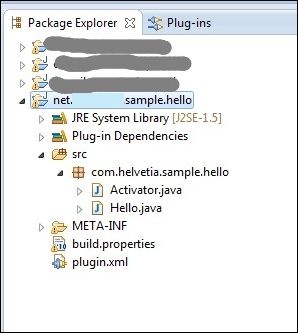
Step 1. Launch Eclipse Manager on your computer and navigate to the "Package Explorer" view.
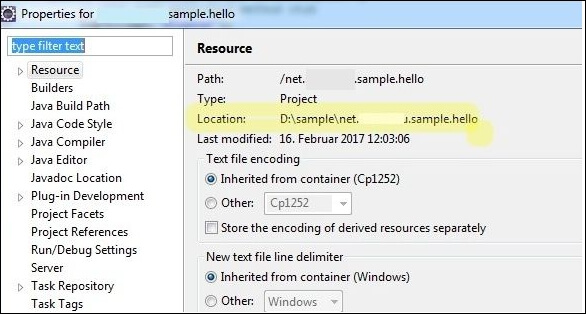
Step 2. For any specific folder, you can check its location to keep track of the locations involved in the process.
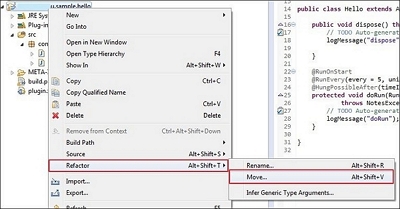
Step 3. Right-click on the project in the Package Explorer panel and select "Refactor" then "Move".
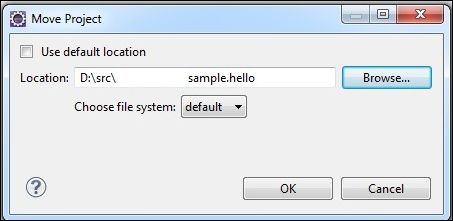
Step 4. Set the new location of the project in the following dialog box and click "OK" to conclude.
How to Transfer Eclipse Manager to Another Computer?
Transferring Eclipse Manager to another computer can be necessary when upgrading or replacing your device entirely. In such cases, several methods can be tried to successfully transfer the Eclipse Manager and its associated data to the new device.
Method 1.Transfer Complete Eclipse Manager via Qiling Disk Master
Using the Qiling Disk Master is the best method to transfer your complete Eclipse Manager to a new computer. This tool not only changes file location within a single device but also transfers data from one computer to another, making it a reliable option to avoid data loss.
To learn how to transfer a complete Eclipse manager via Qiling Disk Master, follow these steps:
Step 1. Run Qiling Disk Master on both PCs
On the source PC, select "File sync" on the main screen of Qiling Disk Master and proceed.
Step 2. Connect two computers
1. To connect to your target PC, select it from the list of available devices by either using its IP address or device name, and then click the "Connect" button.
2. To access the target PC, enter the login password and click "OK" to confirm.
If you didn't see the target PC in the listed devices, you can also add the target PC manually by clicking "Add PC" and entering its IP address or device name.
Step 3. Select apps, programs, and software and transfer to the target computer
1. You can select and choose what you want to transfer from the current computer to the target PC.
2. After selecting the desired applications and programs, click "Proceed" to initiate the transfer process.
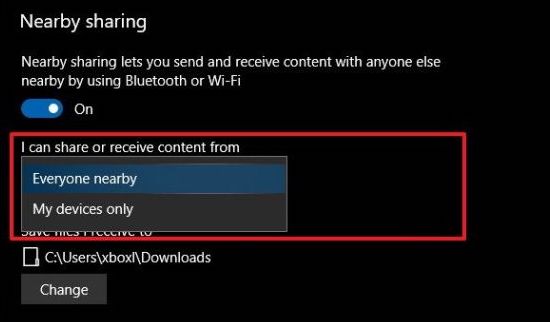
Here's a brief guide on how to transfer files from one PC to another: you can follow a full guide on this topic by clicking the link below.
Transferring files from one PC to another can be done in several ways, including using a USB drive, cloud storage services, and network connections. To use a USB drive, simply insert it into both PCs, copy the files from the source PC to the drive, and then copy them from the drive to the destination PC.
Looking for a way to transfer files from one PC to another? This comprehensive guide has got you covered, covering every possible method to move files from one computer to another.
Method 2.Copy Entire MPN Folder to Another Computer
This is one of the first conventional methods that can be considered to transfer Eclipse Manager to another computer. For this, you need to have a USB Sentinel key as an essential. While you ensure this specific component, close out all Eclipse processes across the computer. Before applying this method, remember that it only applies to Eclipse Manager versions before 2014. Follow the steps as provided below:
Step 1. Copy the entire MPN folder from the old computer and remove the sentinel key from the old computer.
Step 2. Transfer the MPN folder to the new computer, open the folder, navigate to the Sentinel folder, and locate the 'setup.exe' file.
Step 3. Install the software successfully by opening it and rebooting your computer. Once done, attach the Sentinel key across the new computer.
Method 3.Move Eclipse Manager Through Online License
If you own an online license to Eclipse Manager, you can consider transferring it to another computer. However, before doing so, ensure you have an original email from "Eclipse EHR Solutions" with your license information and instructions. With this in hand, you can proceed with the transfer process.
Step 1. To deactivate the Eclipse license, ensure that Eclipse is not running on the computer. Log in to the main device, go to the "Help" menu, select "About," and then "Options." Choose "License Deactivation" and use the System Administrator password or contact EES Help-Desk for assistance.
Step 2. Copy the MPN folder from the software into the new device once it is deactivated. Then, launch the file "ECLIPSE32.exe" and log in.
Step 3. To activate your online license, go to the "Help" menu, select "About", and then click on "Online License Activation" from the options. Enter the license information you previously saved and follow the prompts to successfully activate your license.
FAQs about Moving the Eclipse Manager
You may have some frequent questions about transferring Eclipse Manager to another computer or moving an Eclipse project to another folder. To transfer Eclipse Manager, you can export your workspace as an archive, then import it on the new computer.
1. How do I transfer Eclipse from one computer to another?
Transferring Eclipse to another computer can be done in three ways. You can use Qiling Disk Master to transfer the entire Eclipse Manager, copy the entire MPN folder to another computer, or move the Eclipse Manager via an online license. These methods allow you to transfer the complete Eclipse Manager and its data to another computer without worrying about data loss, making the process quick and efficient.
2. Automatically, how to move the Eclipse project to another folder?
Losing data during migration is a common issue, but tools like Qiling Disk Master can be a lifesaver. This tool can help move an Eclipse project to a new folder, providing a safe transfer of large files between two drives. By launching Qiling Disk Master, selecting the transfer mode, choosing the apps to transfer, and specifying the destination drive, you can complete the migration process with ease.
3. How do I send a project to someone in Eclipse?
To share your project in Eclipse, you can use the Share Project wizard to put it under Engineering Workflow Management source control and make it part of a component in a repository workspace, allowing you to collaborate with teammates or test new components before sharing with the team.
Conclusion
This article provides methods to move Eclipse to another folder or computer, but recommends using Qiling Disk Master for best results, as it protects against data loss and offers a user-friendly interface.
Related Articles
- How to Move Tencent Games to Another Drive/PC
- Download Best Steam Mover Software to Transfer Steam Games in Windows 10/8/7
- How Do I Transfer Microsoft Silverlight from Windows 10 to Windows 11
- How to Move Desktop Folder to Another Drive on Windows and Mac in Simple Ways
- How to Back Up Google Drive to OneDrive? Best Solutions
Google Drive and OneDrive are two popular cloud storage services, and sometimes users need to back up their Google Drive data to OneDrive for various reasons. However, many are unsure about the process. This guide aims to provide the best solutions for backing up Google Drive to OneDrive. - Backup HDD with Bad Sectors [Detailed Guides]
Learn how to back up an HDD with bad sectors, protect readable data, and reduce the risk of data loss from a failing hard drive.
Products
Articles & Tutorials
- Data Recovery
- Data Backup
- File Recovery
- File Backup
- System Backup and Restore
- Disk and Partition Clone
- Technical articles
- Mobile articles
- Disk Master Help
- Windows Data Recovery Tutorials
- Windows Secure Delete Tutorials
- Windows Partition Management Tutorials
- Windows File Backup and Restore Tutorials
- Windows System Backup and Restore Tutorials
- Windows Disk Backup and Restore Tutorials
- Windows Clone Tutorials