How to Move Picasa from One Computer to Another
| Workable Solutions | Step-by-step Troubleshooting |
|---|---|
| Transfer by Qiling Disk Master | Step 1. Run Qiling Disk Master on both PCs; Step 2. Choose transfer direction - Old or New Computer...Full steps |
| Transfer by Reinstallation | Step 1: Open Picasa on your old computer, and go to the correct path to find images; Step 2: Open the Run dialog...Full steps |
| Backup by Picasa | Step 1: Start Picasa; Step 2: Click "Tools > Backup Pictures…"; Step 3: Define a new Backup Set - you will...Full steps |
Is Google Picasa Still Available?
Picasa is a tool to edit and organize photos and videos on Windows and Mac computers, also allowing uploads to photos.google.com. It is linked to Picasa Web Albums, a website where users can upload and share media, which is also visible in Google Photos.
Google has stopped supporting the Picasa desktop app, which will continue to work but won't receive any further updates. This decision was made to focus on Google Photos, which will provide a better experience with more functionality across mobile and desktop.
How to Move Picasa from One Computer to Another
You can move your Picasa photos from one computer to another using two methods. Firstly, you can utilize Qiling Disk Master to transfer Picasa between computers with ease. Alternatively, if you prefer not to download any additional software, you can reinstall Picasa on the new computer and then copy and paste the Picasa files from the old computer.
#1. Transfer Picasa Photos by Qiling Disk Master (Recommended)
Moving Picasa from one computer to another is a straightforward process with the right tools. Qiling Disk Master is specifically designed for this purpose, making the transfer quick and easy.
To get started, download and install the software on both computers, then proceed with the following steps.
Step 1. Run Qiling Disk Master on both PCs
On the source PC, select "File sync" on the main screen of Qiling Disk Master and proceed.

Step 2. Connect two computers
1. Connect to your target PC using its IP address or device name by clicking "Connect".
2. Enter the login password of the target PC and click "OK" to confirm.
If you didn't see the target PC in the listed devices, you can manually add it by clicking "Add PC" and entering its IP address or device name.

Step 3. Select apps, programs, and software and transfer to the target computer
1. You can choose what to transfer from your current computer to the target PC, selecting specific files, folders, or settings to move over.
2. Once you've chosen the applications and programs you want to transfer, click the "Transfer" button to initiate the transfer process.

Transferring Picasa photos to a new computer is a straightforward process using Qiling Disk Master. Once the transfer is complete, you'll be able to access your Picasa photos on the new computer just as you did on the old one. This makes it easy to get up and running with your new computer.
#2. Transfer Picasa Photos by Reinstallation (Complex)
If you're switching computers, you may need to move your Picasa album. You can reinstall Picasa on your new computer, but be sure to copy and paste your database correctly to ensure all your photos and albums are transferred.
Here is a guide on how to do this:
Step 1: To access your old Picasa images, start Open Picasa on your old computer, then navigate to the correct path where your images are stored. This path is usually located in the "My Pictures" or "Pictures" folder, but it may vary depending on your operating system and personal settings.
Step 2: The command to open the Run dialog, type, and press Enter is: `cmd`
Windows XP: %userprofile%\Local Settings\Application Data\Google\
The path for Google's local application data in Windows Vista, Windows 7, Windows 8.1, and Windows 10 is %LocalAppData%\Google\.
Step 3: When the Google folder opens, you'll see two sub-folders named "Picasa2" and "Picasa2Albums", copy these two folders to external storage.
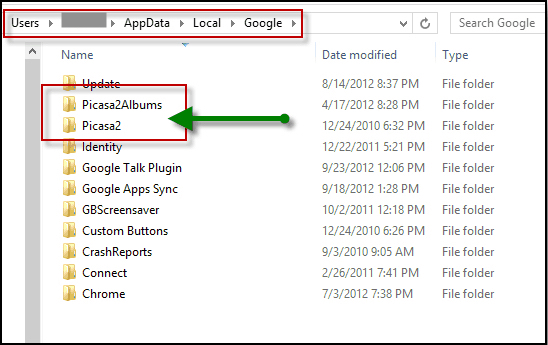
Step 4: Download and reinstall Google Picasa on your new Computer.
Step 5: Copy the two sub-folders from the external storage device to the image folder on the new PC. You can use commands such as "xcopy /s /i E:\path\to\sub-folder1 F:\path\to\new\PC\image\folder" and "xcopy /s /i E:\path\to\sub-folder2 F:\path\to\new\PC\image\folder" in the Run dialog.
Windows XP: %userprofile%\Local Settings\Application Data\Google\
The path for Google-related files in Windows Vista, Windows 7, Windows 8.1, and Windows 10 is %LocalAppData%\Google\ .
Note: The saving path in the new PC should be the same as the old one. This can be achieved by copying the old save files to the new PC and setting the save path to the same location in the new PC's file system.
Step 6: If Picasa has been run before on the new PC, you'll see two folders named "Picasa2" and "Picasa2Albums" that can be renamed to avoid duplication.
How to Back Up Photos by Picasa
Picasa allows you to back up your photos, but it doesn't automatically back up other file types like documents, music, and videos. To avoid losing your photos after reinstalling or experiencing data loss, it's essential to manually back up your photos in a timely manner. This will ensure that your cherished memories are safe and can be easily retrieved when needed.
Step 1: Start Picasa.
Step 2: Go to "Tools > Backup Pictures…".
Step 3: To create a new Backup Set, go to the "Backup Sets" tab, click the "Add" button, and then select "New Backup Set" from the dropdown menu. This will initiate a full backup of your data, which will be stored in the selected backup location.
Step 4: In Picasa, ensure all collections are open in the left column, indicated by a green triangle to the left of each name.
Step 5: Click the "Select All" button.
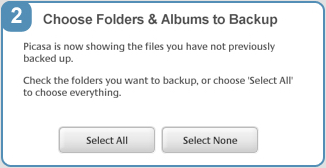
Step 6: Click the "Burn" button.
Conclusion
The article provides a clear and concise guide on how to move Picasa from one computer to another, with a well-organized and easy-to-follow format that includes helpful screenshots. This makes it extremely useful for anyone who wants to transfer their Picasa account to a new computer.
Qiling Disk Master is an excellent choice for transferring installed programs and files to a new computer, offering a quick and simple process with excellent customer support. The software is user-friendly, making it easy to move Picasa photos and other data, and the price is very reasonable, making it a highly recommended option for those looking to transfer their files.
Related Articles
- Move Office/Outlook or Other Programs to New HDD/SSD
- 6 Ways to Transfer Files from Laptop to Laptop in Windows 11
- (2 Fixes) How to Transfer Photoshop from One Computer to Another
- Windows Server 2016 Migration Step by Step Guide
- Does Clonezilla Work with Windows 10?🔥
Clonezilla is free open-source disk imaging and cloning software compatible with Windows 10. Clone or backup entire system including OS, apps and data. Discover better cloning alternatives with more features. - Does Cloning a Hard Drive Copy Bad Sectors?
Does cloning a hard drive copy bad sectors? Do you know the answer? If not, this short post can help you. You can learn if you can clone a hard drive with bad sectors and how to clone a hard drive with bad sectors.
Products
Articles & Tutorials
- Data Recovery
- Data Backup
- File Recovery
- File Backup
- System Backup and Restore
- Disk and Partition Clone
- Technical articles
- Mobile articles
- Disk Master Help
- Windows Data Recovery Tutorials
- Windows Secure Delete Tutorials
- Windows Partition Management Tutorials
- Windows File Backup and Restore Tutorials
- Windows System Backup and Restore Tutorials
- Windows Disk Backup and Restore Tutorials
- Windows Clone Tutorials