How to Set Up a Server to Server File Transfer Successfully
How to Move File from One Server to Another?
You can move most old files to another server when needed. There are various easy ways to transfer data, whether you want to carry everything or just the basics.
Server administrators often need to transfer data to improve speed and flexibility, much like individuals who upgrade their personal computers or laptops. This process involves copying files, programs, and data from one server to another, a common task for server admins.
Can I move files from one server to another?
In various industries such as finance, defense, and manufacturing, the transfer of critical data is crucial. A business's success and efficiency rely on the movement and synchronization of multiple documents or files.
Progressive file transfer systems ensure high-performance capacity for reliable digital material flows. Effective methods for executing this activity include various approaches, and we'll examine the most effective technique. To move files from one server to another, the best approach involves a combination of high-speed data transfer protocols, robust error handling, and optimized network configurations. This enables seamless and efficient file transfer, minimizing downtime and ensuring data integrity.
Method 1. Run Qiling Disk Master to Move Files from One Server to Another
Qiling Disk Master Technician is a cost-effective solution for businesses to deploy large PCs, simplifying disc partition management and making IT administration tasks easier, ultimately reducing end-user downtime.
Qiling Disk Master is a cost-efficient and powerful tool designed to facilitate file migration between two computers, making it easy and quick to relocate credentials, configurations, apps, documents, and folders.
The tool transfers programs and information from a compact partition to a bigger one, freeing up space on a system. This is done via a network connection or a compressed picture file, but both the source and destination computers must have a Qiling Disk Master client.
Main Features of Qiling Disk Master Software
Here are the main features of Qiling Disk Master Software:
-
Move files (include large files), data, programs to new PC
Qiling Disk Master is a simple PC transfer program that allows moving files from one machine to another without data loss, and also supports app migration and image transfer.
With this free tool, you can easily transfer software, documents, configurations, and even profiles from an old PC to a new one, supporting programs like Microsoft Office, Photoshop, Adobe applications, AutoCAD, and Dropbox.
-
Transfer user's accounts and domain account
The new version 10.0 of Qiling Disk Master allows for easy switching between domain user accounts, making it simple to transfer local and domain accounts to a new PC with just one click, utilizing the same parameters as before.
-
Free tech support services
The Qiling Disk Master company provides free technical assistance 24/7, allowing users to get help from a skilled specialist at any time for issues such as data transfer.
-
Rescue data from a dead or broken computer
How to Transfer Files from One Server to Another
Even if your laptop breaks, you won't lose all your data and apps. You can transfer everything to a new laptop using Qiling Disk Master Pro.
Step 1. To sync files between two Open Qiling Disk Master instances, you can follow these steps. On both server computers, open Open Qiling Disk Master and select the "File sync" option to proceed. This will allow you to synchronize files between the two instances.

Step 2. Connect the current PC to the target PC by entering the target computer's account password or its verification code.

Step 3. Check all the files you want to transfer to another Server computer, then click "Proceed" to migrate specific data you have chosen.

Step 4. Wait for the process to finish. PCTrans will transfer files at a fast speed, so it won't take too long.
Method 2. Use FTP Desktop App to Copy Files
Transferring data between two Windows servers typically involves using the FTP desktop application, but most servers don't come with an FTP server by default. However, you can still use FTP to transfer data by adding a network address to your user's PC in Windows 10, allowing you to physically transfer files to it using File Explorer.
To achieve the same goal on Windows Server, you can utilize the Remote Desktop feature. Here's a brief overview of the steps involved:
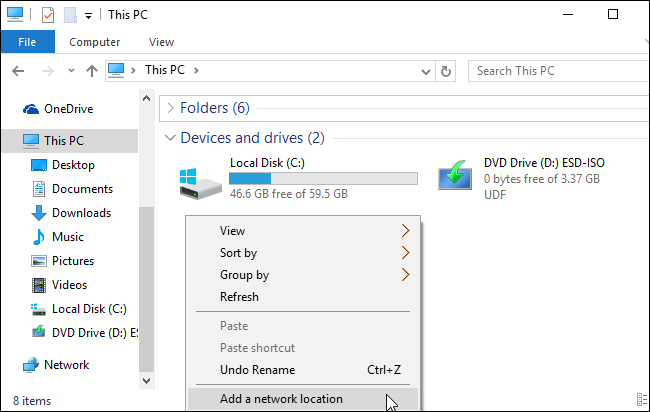
Step 1. To add a network location in Windows, start by selecting the "This PC" option in File Explorer. Then, right-click on a blank spot and choose the "Add a network location" option from the context menu. This will allow you to add a new network location.
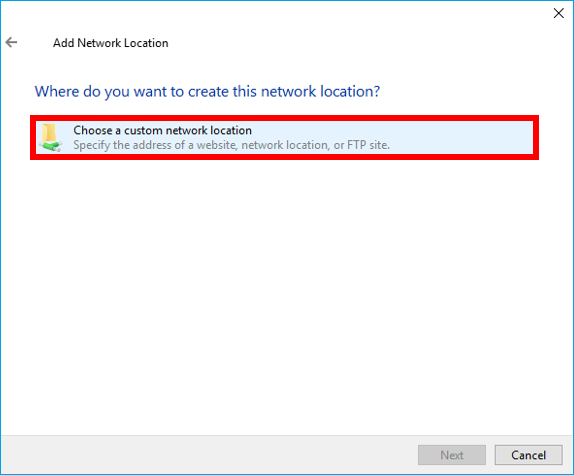
Step 2. A pop-up box will appear, and you need to select "Choose a custom network location" from the box to proceed further.
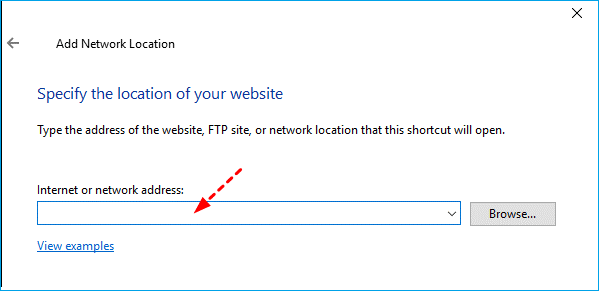
Step 3. To access the FTP server, input the server address and then enter login details if required, or select "Login anonymously" to access restricted areas without a login.
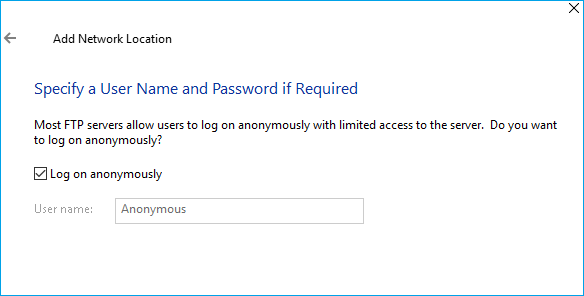
Step 4. Choose a name that is easy to remember, then the FTP site will appear in the "This PC" window under "Network locations".
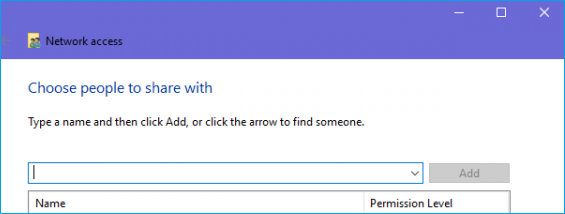
Step 5. Lastly, copy-paste thefiles and directories to or from theserver.
Method 3. Transfer Files Between Servers with SCP
The SCP command securely copies a document by encoding it and any passwords used, making it unreadable to anyone. This means you don't need to access the system or establish an FTP connection to use SCP.
SCP uses SSH to transmit files, requiring login and password for both origin and destination systems. This allows file transfer between local and remote computers, as well as between two servers, facilitating data movement between systems.
To familiarize yourself with the SCP command syntax, start with the basic syntax SCP [OPTIONS] [SOURCE] [DESTINATION]. Understand that if a path is on a remote server, you should provide the server address with an "@" symbol, such as SCP [OPTIONS] @[SOURCE] @[DESTINATION]. On Windows 10, you can access the command prompt by typing "cmd" in the search bar, and then use the syntax "scp" instead of "SCP" to switch files between local and remote servers. For example, "scp [SOURCE] @[DESTINATION]" would copy a file from a local source to a remote destination, and "scp @[SOURCE] [DESTINATION]" would copy a file from a remote source to a local destination. Note that the actual command may vary depending on the specific options and requirements.
- The syntax for transferring a file or folder from a local system to a remote system using SCP (Secure Copy Protocol) is `scp local_file remote_user@remote_host:/remote_path`, where `local_file` is the file or folder on the local system, `remote_user` is the username on the remote system, `remote_host` is the hostname or IP address of the remote system, and `/remote_path` is the path on the remote system where the file or folder will be transferred. For example, `scp file.
SCP [file_path] [user]@[remote_host]:[remote_dir]
SCP -r [local_dir] [user]@[remote_host]:[remote_dir]
- When transferring a file from a remote server to the local system, use the following syntax: `scp [username]@[remote_server_ip]:[path_to_file] [local_system_path]` or `sftp [username]@[remote_server_ip]:[path_to_file] [local_system_path]` or `wget [url] [local_system_path]` or `rsync -avz [username]@[remote_server_ip]:[path_to_file] [local_system_path]`
scp [user]@[remote_host]:[remote_file_path] [local_dir]
scp -r [user]@[remote_host]:[remote_dir] [local_dir]
- To transfer a file between two remote servers, you can use the following syntax: `scp -P 22 user1@server1:/path/to/file.txt user2@server2:/path/to/destination` or `rsync -avz user1@server1:/path/to/file.
scp [user]@[remote_host]:[remote_file_path] [user]@[remote_host]:[remote_dir]
Concluding Thoughts
For Windows systems, you can transfer files from server to server using Qiling Disk Master, FTP, or SCP, which are all efficient solutions that allow for swift file transfer between computers, making it easy once you understand how they work.
When deciding which tool to use for data transfer, take a moment to review the options carefully. Each one offers a user-friendly and straightforward process for running scheduled jobs and other operations, making it easy to transfer data without worrying about the process.
Related Articles
- Server Migration: Everything You Need to Know | 2022 Complete Guide
- How to Transfer Files from PC to Xbox One on A New PC?
- (100% Transfer) How to Transfer H&R Block to New Computer
- How to Move Diablo III 3 to Another Drive/PC Without Re-downloading
- How to Back Up and Restore Windows 8/8.1 System [SOLVED]
For a comprehensive guide on backing up and restoring Windows 8/8.1, click here. You can also find a comparison between file and system backups. For a seamless backup and restore experience, consider using Qiling Backup. - Windows Backup Encountered An Error When Writing Data to the Backup Target [Full Guide]
This article gives you full knowledge about windows backup encountered an error when writing data to the backup target and how to fix it. We recommend you use Qiling Backup to perform system backup and recovery for its powerful functions and user-friendly interface.
Products
Articles & Tutorials
- Data Recovery
- Data Backup
- File Recovery
- File Backup
- System Backup and Restore
- Disk and Partition Clone
- Technical articles
- Mobile articles
- Disk Master Help
- Windows Data Recovery Tutorials
- Windows Secure Delete Tutorials
- Windows Partition Management Tutorials
- Windows File Backup and Restore Tutorials
- Windows System Backup and Restore Tutorials
- Windows Disk Backup and Restore Tutorials
- Windows Clone Tutorials