How to Share Files with Dropbox [Step-by-Step Guide]
PAGE CONTENT:
- Can I Share Files and Folders with Dropbox for Free
- How to Share Dropbox Files with Non-Dropbox Users
- Bonus Tip: Dropbox Files to Non-Dropbox Users via File Sharing
Introduction
Sharing a crucial file with a group of people on short notice can be frustrating, but using a fast-sharing app like Dropbox can help. This app is compatible with both desktops and mobile phones, allowing you to share files from anywhere, at any time.
Dropbox is a popular cloud storage option that offers various sharing choices and security protections. New users can learn how to use it in a beginner's tutorial, but this post will focus on transferring files and keeping private information safe.
Sharing files on Dropbox is a crucial aspect for individuals who need to send details of the files to multiple people, and knowing how to share them is equally important. This article aims to enlighten people on the ways to share files and the benefits of using Dropbox, making it a valuable resource for those seeking to utilize this file-sharing platform effectively.
Dropbox simplifies file sharing, saving time, and effort. To use Dropbox for sharing files, follow the solutions in this article for reliable information. The article provides a step-by-step guide with Qiling Disk Master to help you share files and folders from your Dropbox account with others safely and efficiently.
Can I Share Files and Folders with Dropbox for Free
Dropbox allows users to share files without incurring any charges, making it a convenient option for sending files to others. By following a few simple steps, users can share files with multiple recipients at once, saving time and effort. The main advantage of using Dropbox for file sharing is its efficiency, as it eliminates the need to send files individually and provides a way to track whether the files have been received.
Dropbox allows users to track whether recipients have viewed shared files, adding an extra layer of transparency. Additionally, it supports sharing a wide range of file types, including large documents that might not be compatible with other file-sharing options. This flexibility is a significant advantage over more conventional file-sharing methods.
Dropbox users can share files using three main methods: Dropbox.com, the Dropbox Desktop App, and the Dropbox Mobile App.
The three options for sharing files offer flexibility, allowing users to choose the one that suits them best. The mobile app is a convenient option, enabling users to share files from almost anywhere, even while traveling.
Method 1. Share Files with Dropbox.com
Step 1. Sign in to Dropbox.com.
Step 2. To share a folder or file, hover over it and click on the share icon, a rectangle with an up arrow.
Step 3. To send an email, click on the "Compose" button, type the name, group, or email of the recipient/s and then click to select them from the given results.
Step 4. Users can choose between "can view" and "can edit" to get more options, and also add a note with the option to post it as a comment.
Step 5. Click on either "share folder" or "share file".
Method 2. Share Files with Dropbox App
Step 1. To access the Dropbox folder, open File Explorer on Windows or Finder on Mac. This will allow you to view and interact with the contents of your Dropbox account.
Step 2. To share a folder or file, right-click on it and select the "Share" option.
Step 3. To: [Select the group, name, or emails of the recipient/s from the results]
Step 4. Before sharing a file, select either the "can view" or "can edit" options before adding a message (optional) and sharing. This will determine who can access and modify the file.
Method 3. Share Files with Dropbox Mobile App
Step 1. Openthe app and tap the ellipsis on iPad/iPhone or vertical ellipsis on Android next to the folder or file one would like to share.
Step 2. Tap on "share",followed by "invite to file".
Step 3. Tapon "send to" and typethe group, name, or email of the recipient/s.
Step 4. Tap to select them from the results.
Step 5. The document can be shared with others in three different ways: "can edit", which allows them to edit, comment and view; "can view", which allows them to comment and view but not edit; and "view only", which only allows them to view the document without seeing comments.
Step 6. Before sharing the final result, let's add a personal touch by including a message. This will make the outcome even more special and meaningful to the recipient.
Users who want to share files with non-Dropbox users can find helpful information in the bonus tips at the end of this page.
To explore more ways of sharing files and folders, check out the articles listed below, which provide additional methods and techniques for sharing your digital content.
How to Share Dropbox Files with Non-Dropbox Users
Dropbox users who want to share files with non-Dropbox users should use either the File Transfer Tool or File Sharing.
Method 1. Download Dropbox Files to a Local Drive
To share files with non-Dropbox users, start by downloading the files you want to share to a local computer on your drive. This involves identifying the files to download, which is a straightforward process. Once you have the files on your local computer, you can proceed with sharing them with the intended recipient.
Method 2.Share Dropbox Files with Non-Dropbox Users with File Transfer Tool
Dropbox users often want to share files with colleagues or others without Dropbox accounts. If the non-Dropbox users are in the same network, Qiling Disk Master is a suitable option. This tool allows users to share various types of files, notify recipients of received messages, and add comments to make the shared files more relevant. If you're interested in learning how to transfer files between different Windows versions, you can check out the article "Transfer Files from Windows 8.1 to Windows 10".
Here is a step-by-step guide on how toshare files with Qiling Disk Master
Step 1. Open Qiling Disk Master on both of your computers. Choose "File sync" to proceed.

Step 2. To connect two PCs via the network, enter the password or verification code of the target PC, choose the correct transfer direction, and click "Connect" to proceed.
The verification code can be found on the right side of the main "File sync" screen on the target computer.

Step 3. Select the files you want to transfer and customize the storage path for transferred data.

Step 4. Please transfer files from one PC to another using the given instructions. The time it takes to transfer files depends on the size of the file, so be patient and wait for the transfer to complete.
Bonus Tip: Dropbox Files to Non-Dropbox Users Using File Sharing in Windows
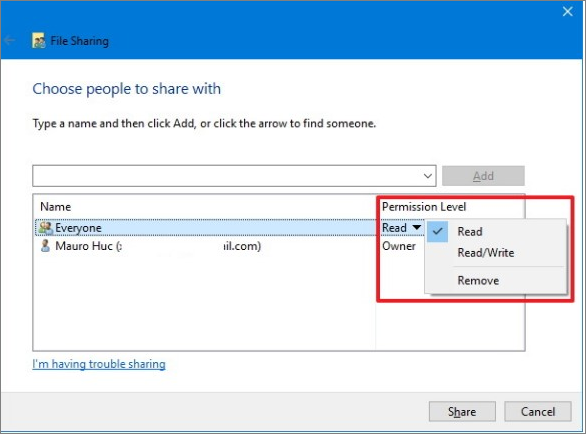
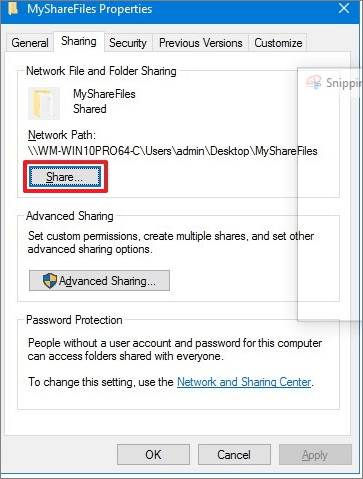
To share a file or folder on Dropbox with a non-Dropbox user, the most convenient method is using the basic setting. Start by opening File Explorer on Windows 10, then navigate to the folder or file you want to share. Right-click the item, select "Properties," and go to the "Sharing" tab. Finally, click the "share" icon to initiate the sharing process.
To proceed, select the recipients of the files or folders from the drop-down menu and click the "Add" icon. Next, choose the permission level, deciding whether the recipients will have editing privileges or only be able to view the files.
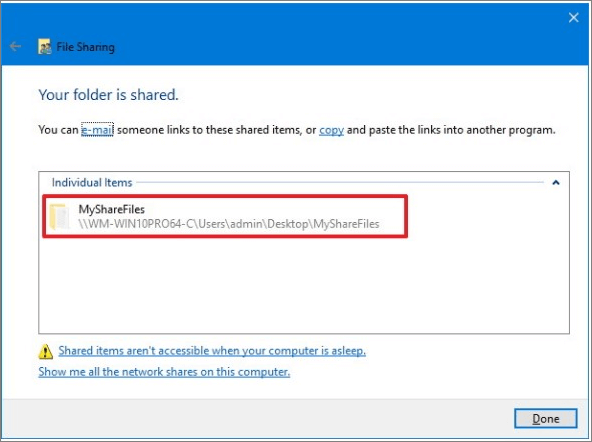
After selecting the preferred option, click the "share" icon. Then click the "done" and "close" icons to confirm that the files have been shared with non-Dropbox users.
More information about windows file sharingis in this article:
Lan File Sharing Software Windows 10
If you're looking for a secure and hassle-free way to share files between computers on the same local network, you've come to the right place.
Conclusion
Dropbox revolutionized the way people share files, eliminating the time-wasting process of sending individual files to each recipient. With Dropbox, sharing files is now a matter of seconds, allowing users to easily share files with multiple people at once. This convenience has made it a popular option for workplaces and companies, where sharing files was once a tedious task.
Dropbox offers various methods for users to share files with both Dropbox and non-Dropbox users, ensuring that everyone can choose the option that suits their needs. With different versions of Dropbox, including the Dropbox Mobile App, users can select the best option for their file-sharing needs, making it a convenient and effortless tool for sharing files and documents.
Share Files with Dropbox FAQs
More questions you may ask:
1. How does sharea Dropbox work?
A shared folder in Dropbox is any folder that you've invited others to view or edit, whether they're on your team or not, and even if they don't have a Dropbox account. Those with shared folder access can see all the files within that specific folder, but nothing else outside of it.
2. Is it safe to share files via Dropbox?
Dropbox shared links are secure, allowing anyone with the link to view and download the shared file, but they won't have access to other files or folders in the account.
3. What happens when you share a Dropbox folder?
When you share a view-When you share a file or folder with someone, they can view, download, and share it on Dropbox, and you can send the link via email, social media, or messaging apps.
Related Articles
- Best Free Data Migration Software for Data and Applications Transfer
- How to Move Riot Games to Another Drive on Windows 11 (2022 Fixed)
- [VLC Transfer]How to Transfer VLC Files to Android/iPhone/PC
- How to Move Zoom to Another Drive in Windows 10
- Fix 'Windows Cannot Be Installed to This Disk MBR'
When installing Windows, you may encounter the error message "Windows cannot be installed to this disk. The selected disk has an MBR partition style." To fix this issue, follow these simple steps: (insert steps here). - Windows File Backup - 4 Efficient Ways for You to Protect Data
This ultimate guide shows you how to back up your files on your Windows computer, covering Windows 7 to Windows 11.
Products
Articles & Tutorials
- Data Recovery
- Data Backup
- File Recovery
- File Backup
- System Backup and Restore
- Disk and Partition Clone
- Technical articles
- Mobile articles
- Disk Master Help
- Windows Data Recovery Tutorials
- Windows Secure Delete Tutorials
- Windows Partition Management Tutorials
- Windows File Backup and Restore Tutorials
- Windows System Backup and Restore Tutorials
- Windows Disk Backup and Restore Tutorials
- Windows Clone Tutorials