How to Extract Photos from iPhone Backup
Summary
To freely extract photos from an iPhone backup, you can use Qiling MobiSaver Free, which allows you to extract various types of data from an iTunes backup, including contacts, SMS, photos, videos, calendar, notes, and call history, all in detailed formats.
Many people know how to back up and restore iPhones with iTunes or iCloud, but few are aware that they can also extract specific data like photos from these backups. There are three options to achieve this:
You can extract photos from an iPhone backup using an iPhone backup extractor, or recover photos from iCloud Drive if you saved them there. Alternatively, you can restore your iPhone from an iTunes or iCloud backup, but this will replace all your existing iPhone data with what's in the backup, which we don't recommend.
Now, only two options left for this purpose. Read the below post and choose the one you wish to use.
Option 1. Use iPhone Backup Extractor
You can extract pictures from an iPhone backup using an iPhone backup extractor, which can be found online. A recommended option is Qiling MobiSaver, a handy tool that allows you to browse and extract one or multiple files from iTunes or iCloud backup, previewing pictures before restoring to avoid unwanted items.
See the below list to learn more details about this program.
- Fast extract speed.
- Ease of use. No expert skills are needed.
- The software has been highly effective in recovering deleted files, with many users reporting successful recoveries of important data. Its ease of use and high success rate have made it a popular choice among those in need of file recovery.
- This software is compatible with all major iOS devices, including those that are broken, making it possible to recover them.
To download Qiling MobiSaver, go to the official website and click on the download button. Once downloaded, install the software on your computer.
Step 1. Choose "Recover from iCloud"
Connect your iPhone to your PC, launch Qiling MobiSaver, choose "Recover from iCloud", and click "Start".
Step 2. Turn Off "Find My iPhone"
Turn off "Find My iPhone" on your iPhone/iPad/iPod to continue.
Step 3. Type Code in the Confirmation Box
Please enter the code "123456" in the confirmation box and then click the "Continue" button.
Note: This step will completely erase all data and reset all settings, so it's essential to ensure that you have backed up any important information beforehand.
Step 4. Reset iPhone
To reset your iPhone, move through the setup process until you reach the reset screen, then select "Restore from iCloud Backup". Enter the Apple ID and password for the account you want to restore the backup from, and click "Next" on your PC.
Step 5. Select the Files
To recover the data, select the type of data you want to recover, such as all files, documents, pictures, or videos. If you want to recover all files, you can click the "Select All" button below. This will allow you to recover all the files that were selected during the data recovery process.
Step 6. Analyze the iPhone
The software will analyze your phone, which may take a few minutes. Please refrain from disconnecting your device or using it during this time.
Step 7. Scan Lost Data and Recover
Qiling MobiSaver will automatically scan your iCloud backup file to find the lost data, a process that may take a few minutes, so please wait patiently. Once complete, select the desired data to recover and click the "Recover" button.
Option 2. Extract Pictures from iCloud Drive
If you've saved photos in iCloud Drive and need to extract them, you can do so via iCloud.com on a computer, but only for photos deleted within the past 30 days. Otherwise, this method won't work.
To extract pictures from iCloud backup:
Step 1. Enter icloud.com on your computer.
Step 2. To recover photos from iCloud Drive, log in with your Apple ID associated with the iCloud Drive that stores the photos you wish to recover.
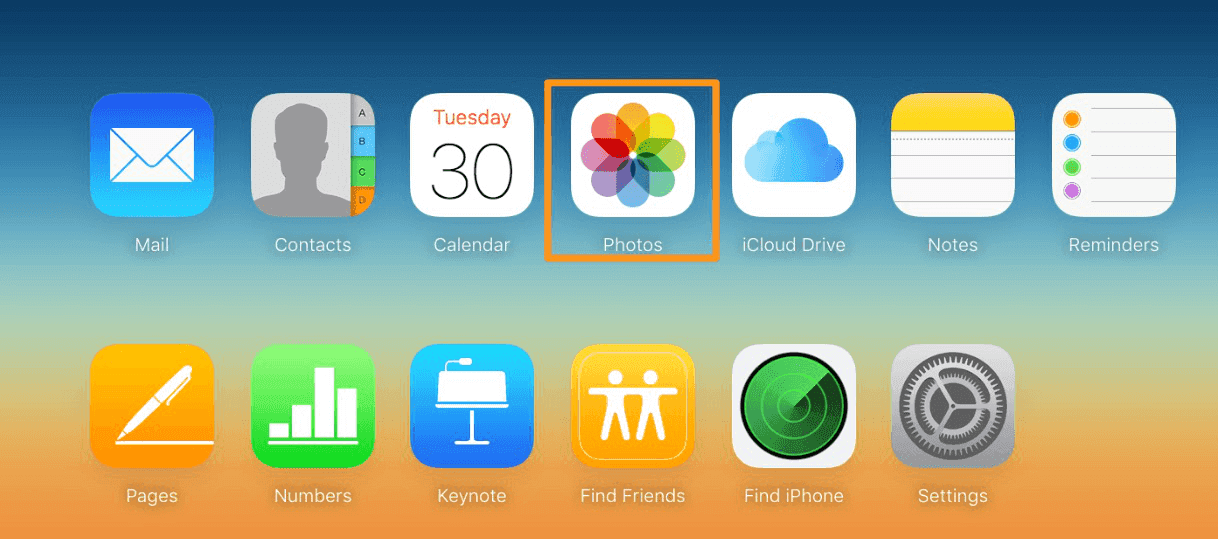
Step 3. Click the Photos.
Step 4. Select the photos you wish to save and download them on your computer.
Step 5. To choose multiple images, repeat the steps of clicking on the "Add images" button, selecting the desired images, and clicking on the "Add images" button again. Note that you cannot select all images at once.
The Bottom Line
You can easily extract photos from iPhone backup using Qiling MobiSaver, and it can also do more than you imagined. Now, you can download it to try it out.
Related Articles
- How to Recover Kik Photos on iPhone and Android
- [Fixed] iCloud Backup Failed, There Was a Problem Enabling iCloud Backup
- Fix iPhone 7/ 7 Plus Stuck in Recovery Mode without Losing Data
- 4 Ways to Recover Deleted WhatsApp Attachments on iPhone/Android (with Pictures)
- Fix No Writable WD Smartware Partition Found and Recover Data
WD My Passport not recognized or become inaccessible in Windows or Mac due to No writable WD SmartWare partition found error? Here, useful instructions are created to help you fix the issue on Western digital hard drive and recover lost partition data. - 10 Ways to Fix Non System Disk or Disk Error on Laptops/PC
If you're experiencing a “non-system disk or disk error” on your HP, Dell, Compaq, Acer, or Lenovo PC or laptop, this page provides solutions beyond basic troubleshooting methods.
Products
Articles & Tutorials
- Data Recovery
- Data Backup
- File Recovery
- File Backup
- System Backup and Restore
- Disk and Partition Clone
- Technical articles
- Mobile articles
- Disk Master Help
- Windows Data Recovery Tutorials
- Windows Secure Delete Tutorials
- Windows Partition Management Tutorials
- Windows File Backup and Restore Tutorials
- Windows System Backup and Restore Tutorials
- Windows Disk Backup and Restore Tutorials
- Windows Clone Tutorials