2 Ways to Deleted iPhone Documents and Data
Summary
If you've accidentally deleted important documents and data on your iPhone, don't worry - there are easy ways to recover them. You can try to recover deleted documents and data on your iPhone using various methods, which can help you retrieve the lost files and data.
To clean up your iPhone and recover important documents safely, consider using built-in features such as iCloud Backup, which allows you to create backups of your data and restore them when needed. Additionally, you can use the Files app to organize and save your documents, and the Photos app to manage your media. If you're looking to recover deleted documents, you can try using the "Recently Deleted" album in the Photos app or the "Recently Deleted" folder in the Files app. It's also a good idea to regularly clean up your iPhone's storage by deleting unnecessary files and apps. This will help you free up space and prevent clutter.
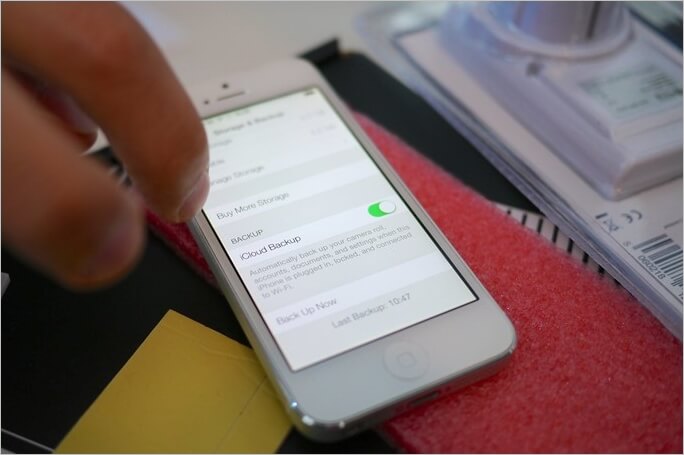
On an iPhone, documents and data are a key feature of many apps, but they can also create storage problems, especially for phones with low storage capacity. This can be particularly troublesome for users who like to keep many apps on their device. In some cases, cleaning up documents and data is necessary to free up storage space. Whether you're looking to remove unwanted documents and data or have lost important files, we'll explore ways to clean up and manage your iPhone's documents and data.
This article will guide you through ways to free up space by cleaning up Documents and Data, as well as provide methods to recover lost files in case of a failed or awry data cleanup. We'll cover the necessary steps to create some space and also offer solutions to retrieve files that may have been deleted or lost during the process. Let's get started.
What Is Documents and Data on iPhone
Before we get started, let's understand what is Documents and Data on iPhone. If you're suffering from low storage on an iPhone device, the problem might not be with photos or images, but rather with documents and data, which is a feature that every app uses on an iOS device, saving important information like notes, messages, and work files, and bulking up the storage.
- Cached files
- Log-in data
- App preferences
- Files saved by the application
- Cookies and app junk
Using multiple apps on an iPhone can take up a significant amount of storage space, sometimes consuming hundreds of megabytes. If a user has many apps installed, this can lead to a substantial storage burden, causing the phone to slow down as a result.
The iPhone's way of saving files and information can lead to improved performance by understanding usage patterns, but it can also cause issues such as slow performance or running out of storage.
How to Delete Documents and Data on iPhone
To delete documents and data on an iPhone, you can either delete the app itself, which will remove all associated documents and data, or use the iPhone's built-in "Offload Unused Apps" feature, which will remove unused apps, including their documents and data, without deleting the app itself. This way, you can still access the app later if needed. Alternatively, you can also delete specific documents and data by going to the app's settings or preferences, and then selecting the option to delete or remove unwanted documents and data.
Method 1.Go to Settings to free up the "Document & Data"folder in App
The first solution you have is to find the application taking up most of your storage and clean up Documents and Data from it. Here's how:
Step 1. Tap "Settings" on your home screen
Step 2. Go to "General".
Step 3. Head into "Usage".
Step 4. Tap "Manage Storage (Storage)".
Step 5. Tap the app name with most storage taken
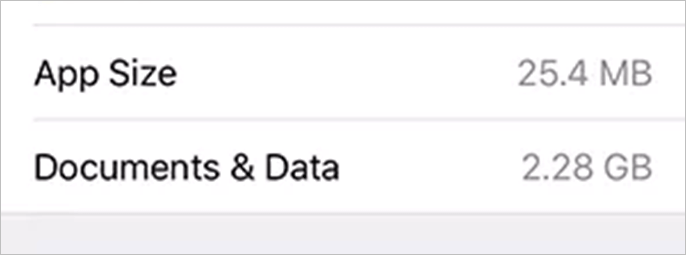
If an application's documents and data are taking up too much storage, you might see this. So, tap on Documents & Data and then tap Clear Data to clear them both.
Method 2.Delete Document and Data by Uninstalling and Reinstalling App Completely
To thoroughly delete Documents and Data, go to Settings > General > iPhone Storage > Documents & Data, then tap "Edit" and select the items you want to delete. Tap "Delete" to confirm. Alternatively, you can also delete these files by going to Settings > [Your Name] > iCloud > iCloud Drive, then toggle off the switch for "iCloud Drive" and confirm the deletion.
Step 1. Tap and hold the app icon on the home screen
Step 2. Select the "Remove App" option
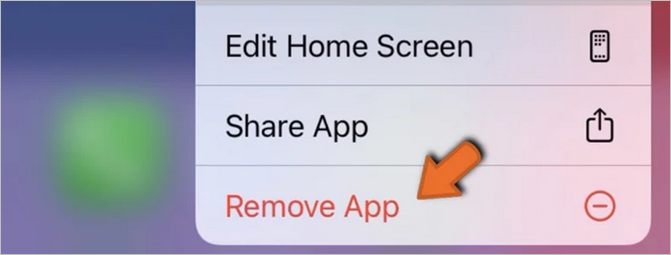
Step 3. Tap "Delete" to confirm when prompted again
After reinstalling the app, head to the Storage settings and check Documents and Data for the reinstalled app. You will notice a significant difference in the space it takes up compared to the original installation.
How to Recover iPhone Documents and Data
To recover Documents and Data on iPhone, you can try three different methods: using iCloud backup, restoring from iTunes backup, or using a third-party recovery app. Each method can help you recover your files.
Method 1. Restore iPhone documents and data Via iPhone Data Recovery Software
The most dependable option for iPhone users is to use Qiling MobiSaver, a data recovery tool that can help recover lost files or data in the Documents and Data cleanup process, making it the best recovery option.
- Recover lost/deleted iPhone messages.
- You can recover photos, images, and other attachments from various messaging apps, including WhatsApp, Kik, and LINE, among others.
- To recover data on various iPhones, including the latest models 13, 13 Pro, and 13 Pro Max, users can try the following methods:
To recover files from your iPhone, the application works on both Windows and Mac, allowing you to restore lost data from your device.
Step 1. Connect iPhone to Your PC
Launch Qiling MobiSaver, click "Recover from iOS device" on the left, and click "Start" to begin the recovery process.
Step 2.Scan for Lost iPhone Data
Qiling MobiSaver automatically scans iPhone/iPad/iPod, finding both present and lost data, and all you have to do is wait for the scan to complete.
Step 3.Click the "Recover" Button
You can select the lost data you want to recover, such as photos, videos, contacts, SMS, notes, voice mails, and other files, and save them to a different location.
Recovering files with Qiling MobiSaver is a breeze, offering a more efficient and user-friendly experience compared to traditional methods. With Qiling MobiSaver, users can easily retrieve lost data without the need for technical expertise, making it an ideal solution for those who want to recover files quickly and effectively.
Method 2.Recover iPhone Documents and Data Via iCloud
If you're not a fan of the first method, you can try the other method: to recover iPhone Documents And Data from iCloud. Here's how you can do it by using the iCloud service: you can sign in to your iCloud account, go to the "Account Settings" page, and then select the "iCloud Backup" option to view your backup history. From there, you can select the most recent backup that contains your lost files and click on "Restore" to recover your iPhone Documents And Data.
Step 1. Head to iCloud.com.
Step 2. Sign in to your Apple ID/iCloud account.
Step 3. Find "Restore Files" in the bottom-left corner.

Step 4. Select the files or App for which you need to recover Documents & Data.
Step 5. Click "Restore".
Apple stores various backups through automatic restore points, so you may need to recover the latest backup to restore your documents.
If you didn't create a recent backup point before removing an app's Documents and Data, it might be lost forever. It's crucial to set up a backup before cleaning up to avoid losing important data.
Method 3.Restore iPhone documents and data Via iTunes
To recover your lost Documents & Data using iTunes, you'll need to have at least 60% battery life and a USB cable. Simply connect your iPhone to your computer, open iTunes, and follow the on-screen instructions to restore your device from a backup. This method allows you to recover your lost data, including documents, without having to restore your entire iPhone. By following these steps, you can easily retrieve your lost documents and data using iTunes.
Step 1. Run iTunes on your PC or Mac.
Step 2. Connect iPhone via USB cable.
Step 3. To allow the iPhone to be trusted in the Finder sidebar, select iPhone from the sidebar and tap "Trust on your iPhone".
Step 4.Click "Restore Backup" on the home/welcome screen.
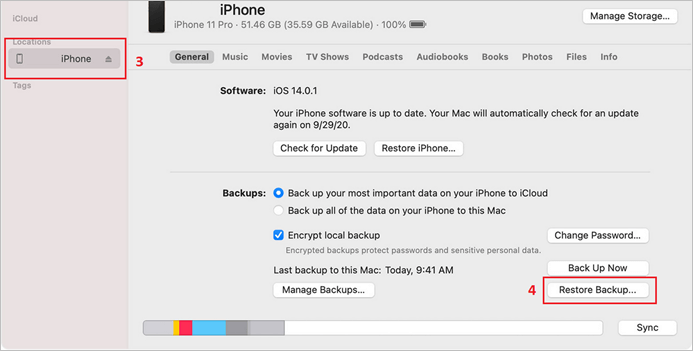
Step 5. If prompted, enter the password to decrypt your encrypted backup and access its contents. This ensures that only authorized individuals can view the backup data.
The time taken by this depends on the size of your backup, typically taking around 15-30 minutes.
Summary
To clean up Documents and Data, you'll need to use specific methods. Once you've completed these steps, you can try the latter method to recover important files and data. It's essential to back up your files and use a third-party tool like Qiling MobiSaver to make the recovery process easier.
iPhone Documents and Data FAQs
What are the most common questions people have about [topic]? They want to know what [specific information] is, how it works, and what benefits it provides. Some people also ask about the process of getting started, what to expect, and how to overcome common challenges.
Can I recover data from wiped iPhone if there was no backup?
If you're looking to recover lost files, you can try using a data recovery software or taking your device to a professional for assistance. However, if you've already cleaned up your device, there's no way to recover the files. It's essential to set up regular backups to prevent data loss in the future.
Does resetting the iPhone delete everything?
Resetting your phone to factory settings will erase all data, including personal files, and return it to its original condition, similar to when it was first purchased.
How do I recover deleted internal storage?
If you have a backup point, you can try using a data recovery software, a file recovery app, or a factory reset with a data recovery option to recover your internal storage files.
Related Articles
- Top 3 Ways to Recover Permanently Deleted Voicemail iPhone
- What Is the Latest Version of iTunes 2022
- How Do I Recover Deleted Text Messages on My iPhone for Free
- Fixed: iPhone Stuck in Recovery Mode after Failed Update
- Best PC/Computer Backup Software for 2021
Here is the best computer backup software for 2020. You can make full use of any of them to back up your PC. - Word Recovery Online - Top 5 Corrupted Word File Recovery Online
Are you struggling with a corrupted Word file and don't know how to recover it? We've got you covered.
Products
Articles & Tutorials
- Data Recovery
- Data Backup
- File Recovery
- File Backup
- System Backup and Restore
- Disk and Partition Clone
- Technical articles
- Mobile articles
- Disk Master Help
- Windows Data Recovery Tutorials
- Windows Secure Delete Tutorials
- Windows Partition Management Tutorials
- Windows File Backup and Restore Tutorials
- Windows System Backup and Restore Tutorials
- Windows Disk Backup and Restore Tutorials
- Windows Clone Tutorials