LINE not Receiving/Sending Messages on iPhone/Android
Summary
If you're experiencing issues with the LINE app not sending or receiving messages on your Android or iPhone, there are several techniques you can try to resolve the problem. These include restarting the app, checking for updates, and verifying your internet connection. Additionally, you can try clearing the app's cache and data, or uninstalling and reinstalling the app. If none of these solutions work, you can try contacting LINE's customer support for further assistance.
The past decade has seen significant improvements in communication, with numerous apps offering exceptional features. LINE app is one such popular platform that enables users to connect with people worldwide. However, despite its widespread use, many users have reported issues with the LINE app not sending messages across the platform.
Users experiencing issues with the LINE app, such as delayed messages, can find effective solutions by addressing application update, phone, and app cache-related problems, which are common causes of such issues across various applications, including LINE.
Fix LINE App Not Sending/Receiving Messages
To resolve the issue of the LINE app not sending messages, it's essential to understand the problem across your app. Three extensive methods can be employed to fix this concern: understanding the issue, identifying the root cause, and implementing a solution. By addressing the root cause, you can resolve the issue and ensure that messages are sent successfully through the LINE app.
Method 1. Internet Connection
Check your internet connection speed and status, as a faulty connection can cause issues with sending or receiving messages on the LINE app.
To check the speed of your internet connection, you can use Ookla services, which provide a comprehensive overview and clear results on the condition of your internet connection.

Method 2. Update and Restart Device
If your internet connection is working perfectly, it's possible that LINE has a pending update on your smartphone, which can cause glitches and prevent you from sending and receiving messages. To resolve this, try updating and restarting your device.
For iPhone
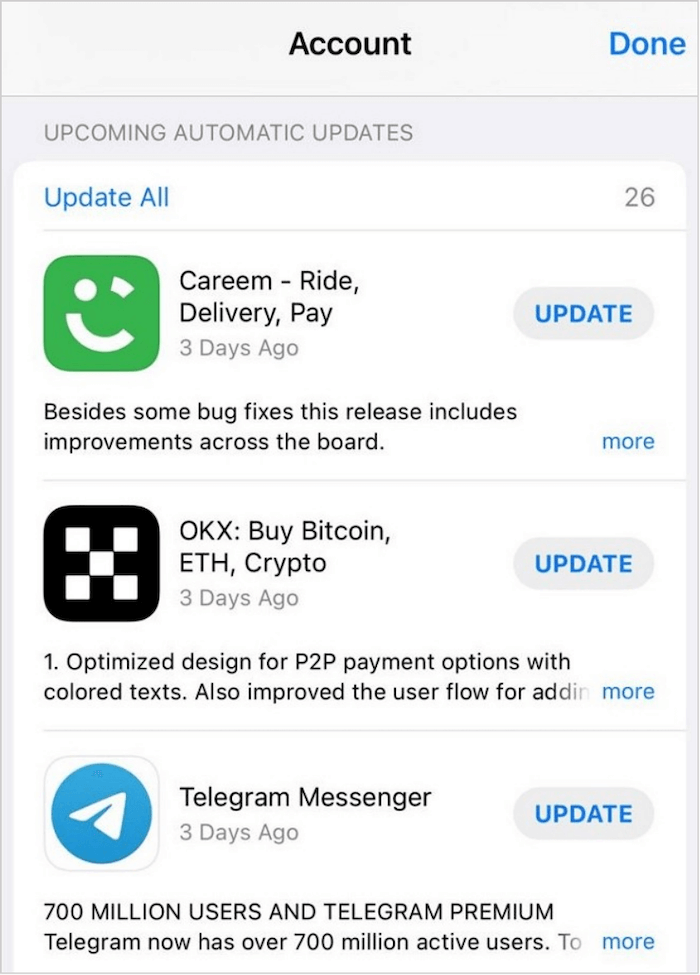
Step 1.To access the App Store on your iPhone, launch the App Store app and tap on the profile icon located in the top-right corner of the screen.

Step 2.Please go through the list of applications on the next screen and find LINE. If there's a pending update, you'll find the "Update" button. Tap on it to update the app to its latest version.
Step 3.To turn off your iPhone, go to the "Settings" app, then select "General", and finally click on "Shut Down".
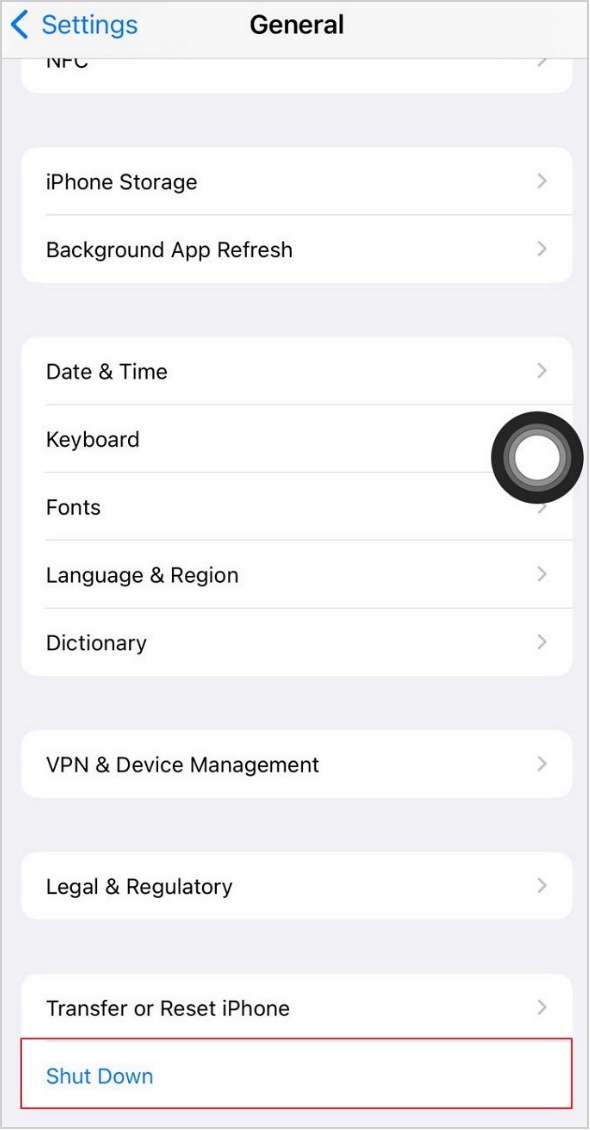
Step 4.To quickly restart your iPhone and use LINE efficiently, hold the "Power" button for a few seconds. This will restart your device and allow you to access LINE without any issues.
For Android
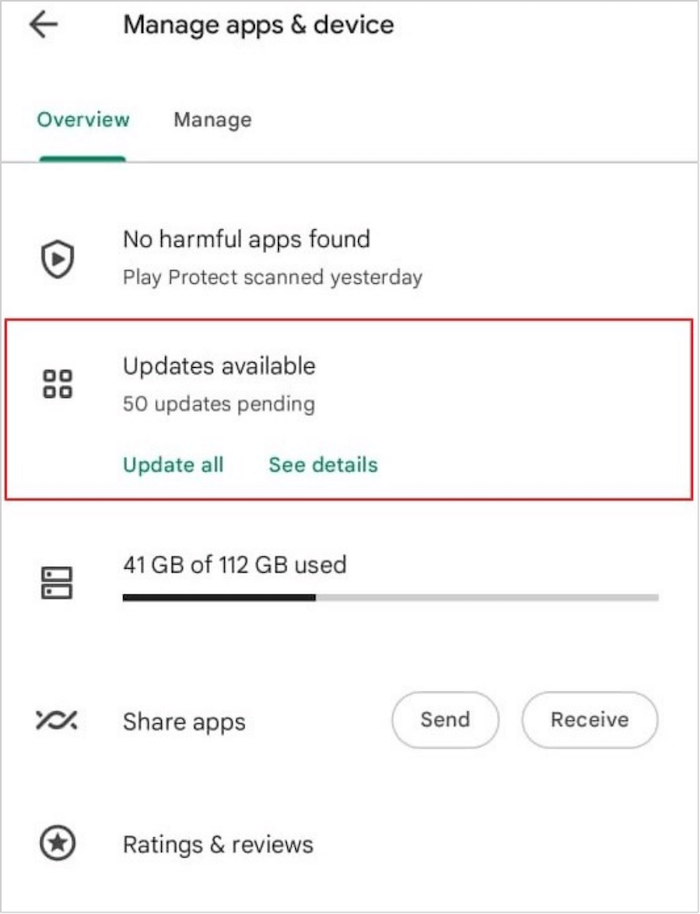
Step 1.To access the Developer Options on your Android, open the Play Store, tap on the "Profile" icon, and select "Manage apps and device" from the menu. This will lead you to the next screen.

Step 2.On the new screen, click on "Updates Available" and find the LINE app update in the list, then click on "Update" to start the process.
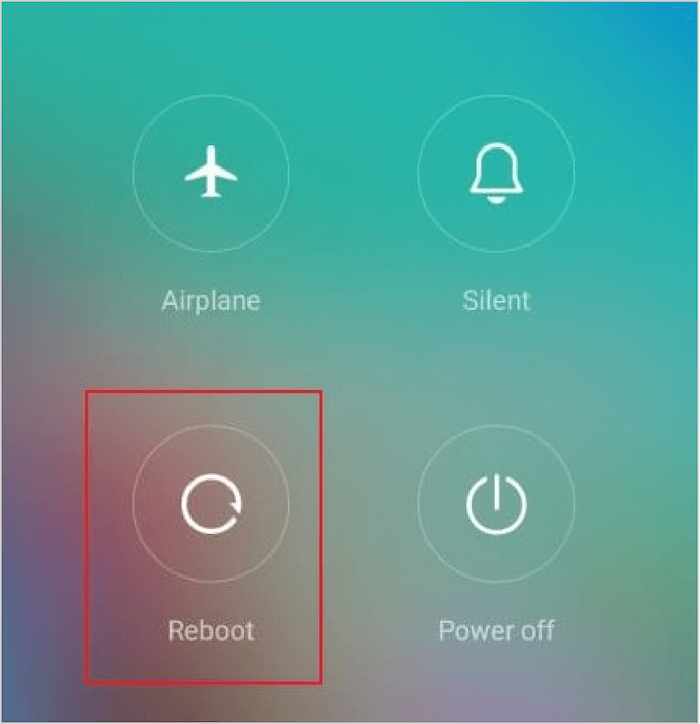
Step 3.Once updated, press and hold the power button to reboot your device. A screen will appear, select "Reboot/Restart" to complete the process.
Method 3. Clear Cache on LINE
To resolve the issue of a particular application slowing down due to filled cache space, follow these steps: Clear the cache by navigating to the application's settings, then to the cache or storage settings. Look for an option to clear or delete the cache, and confirm the action. Alternatively, you can also restart the device or computer to clear the cache. If the issue persists, consider uninstalling and reinstalling the application to ensure a fresh start.
For iPhone
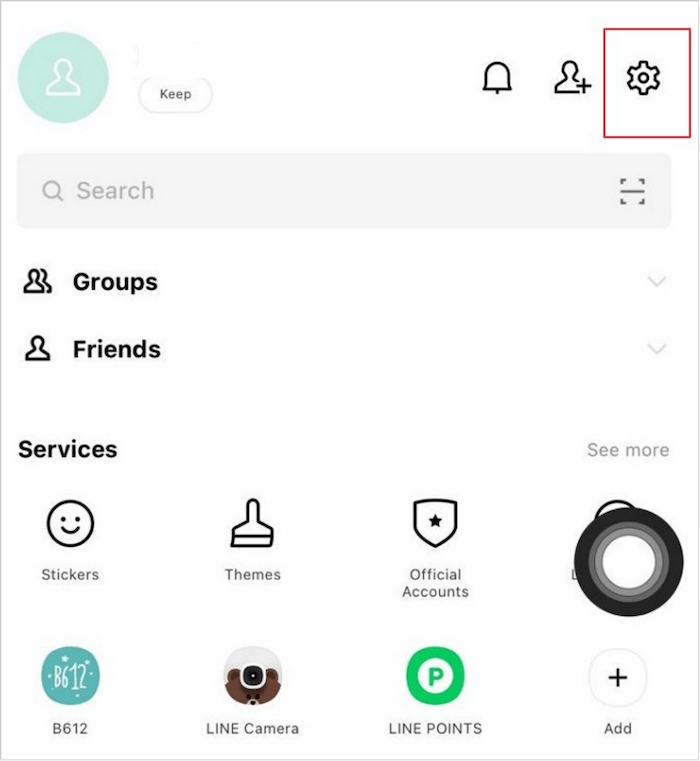
Step 1.Open the LINE app on your iPhone and click on the "Gear" icon in the top-right corner.
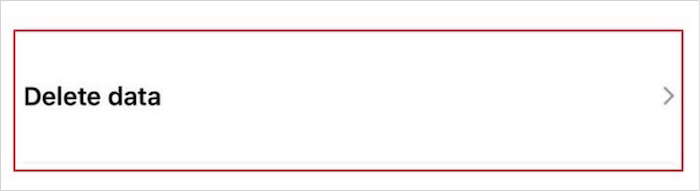
Step 2.On the next screen, find the "Chats" option, then select the "Delete Data" option to clear the application's cache.
For Android
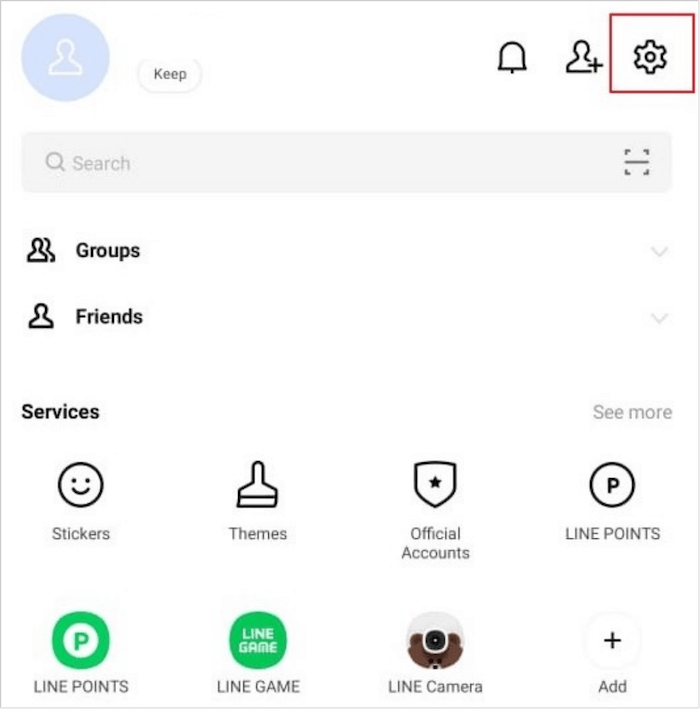
Step 1.To launch the LINE app on your Android, select the "Gear" icon on the top-right corner to open its settings.
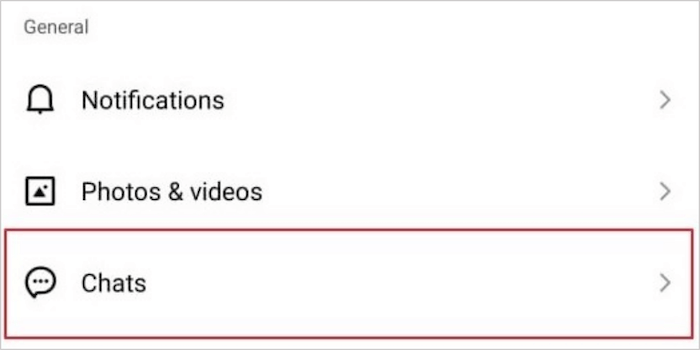
Step 2.Find the "Chat" option on the next screen and proceed to find two options for clearing data on your device. One option is to clear the data for the app itself, and the other is to clear the data for the device, which will remove all data for the app.
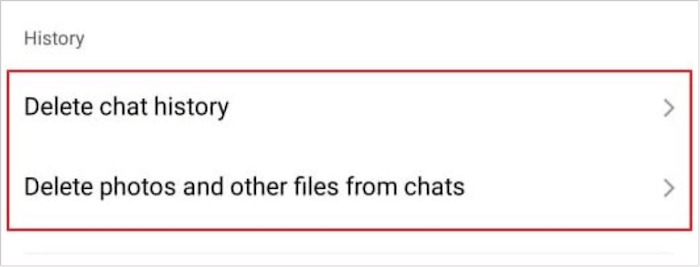
Step 3.To clear the cache on LINE, you can select "Delete chat history" or "Delete photos and other files from chats" to clear the cache. Confirm the process to get a prompt.
How to Fix LINE Messages Delayed
If you're experiencing issues with LINE notifications not going through, such as delayed or non-existent notifications, there are some potential solutions to resolve this problem. These solutions can be tried to troubleshoot the issue and get notifications working properly again.
- Method 1.Turn on LINE Notifications
- Method 2.Change Network Connection
- Method 3.Offload and Reinstall LINE
- Method 4.Clear App and Device Storage
Method 1. Turn on LINE Notifications
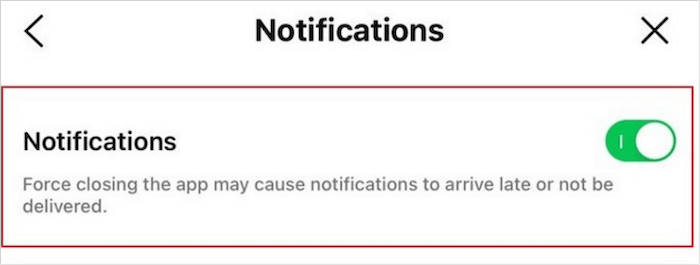
To resolve the issue of not receiving notifications in the LINE app, start by ensuring that notifications are enabled for the app on your device. For Android users, go to Settings, then Apps, and select LINE from the list. Look for the "Notifications" or "Alerts" option and toggle it on. For iPhone users, go to Settings, then Notifications, then LINE, and make sure that the "Allow Notifications" toggle is enabled.
Step 1.Open the LINE app on your device and click on the "Gear" icon to access its settings.
Step 2.To enable notifications for an application, go to the settings list, find the "Notification" settings, and navigate to the next screen to toggle on the switch for enabling notifications for that specific app.
Method 2. Change Network Connection
If you're experiencing delayed messages on LINE, it's likely due to a poor network connection. To resolve this, try switching to a different network or improving your current connection. For Android users, go to Settings > Network & internet > Wi-Fi or Data usage, and toggle off and on the network connection. For iPhone users, go to Settings > Wi-Fi or Mobile Data, and toggle off and on the network connection.
For iPhone
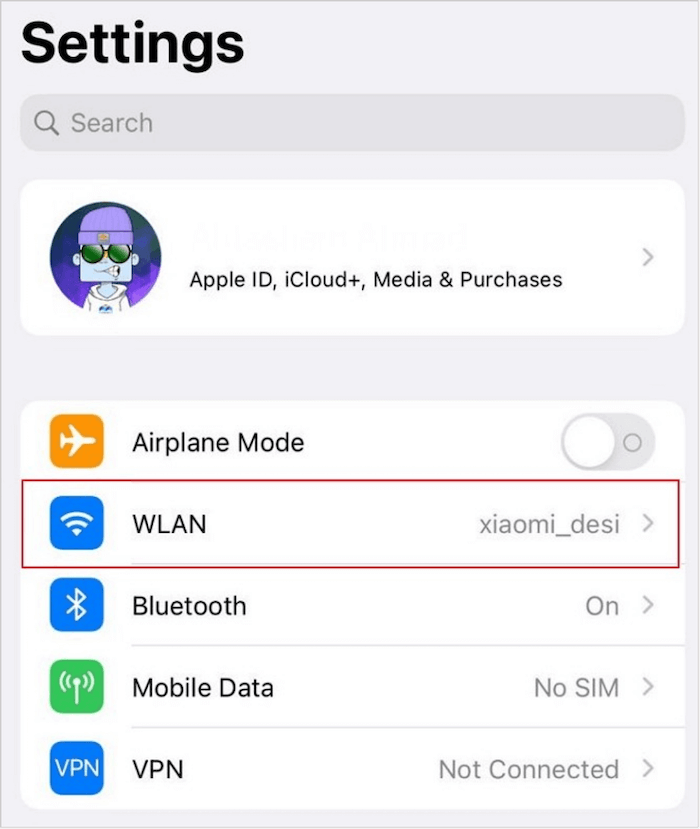
Step 1.Open the "Settings" of your device and find the "Wi-Fi" option in the list.
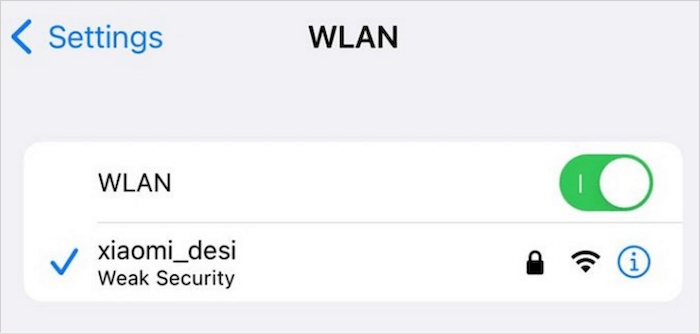
Step 2.On the next screen, switch to a network with a stronger signal by selecting it and entering the required information.
For Android
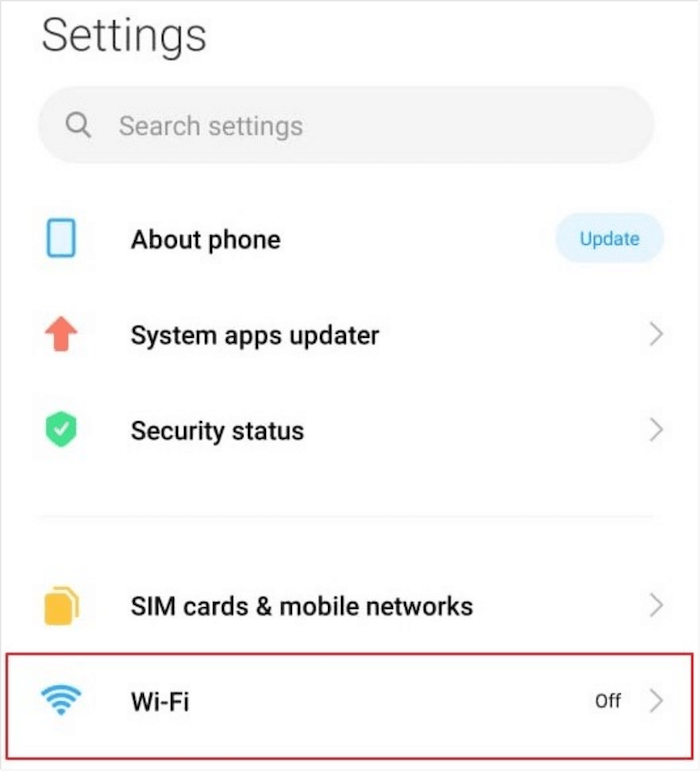
Step 1.Go to your Android's "Settings" app, then select the "Wi-Fi" option from the menu.
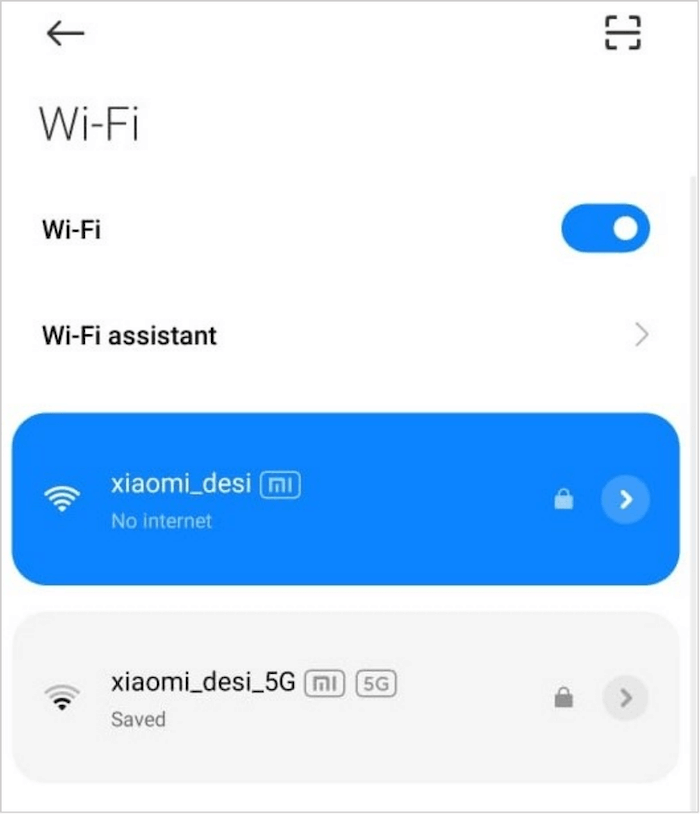
Step 2.Find a better Wi-Fi connection and shift your network to that connection so you can send your LINE messages on time.
Method 3. Offload and Reinstall LINE
For iPhone users experiencing problems with their LINE app, offloading and reinstalling the application may be a potential solution to resolve the issue. If you're experiencing delayed LINE messages, consider following these steps to resolve the problem.
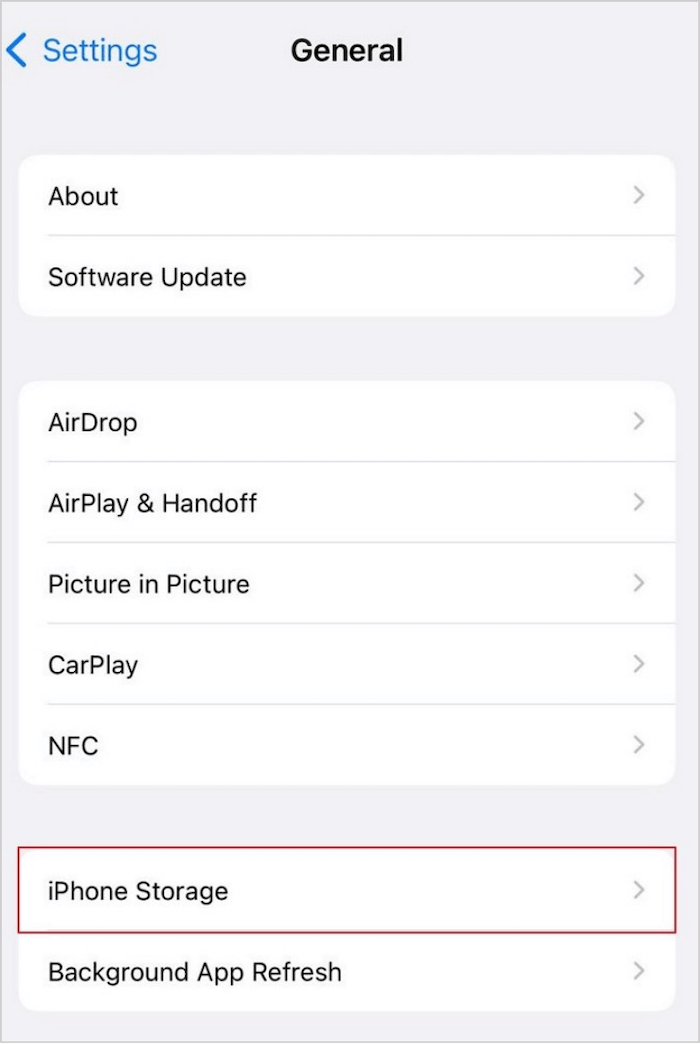
Step 1.To free up storage space on your iPhone, go to the "Settings" app, then select "General" and scroll down to "iPhone Storage". Tap on "iPhone Storage" and find the LINE app in the list of applications.
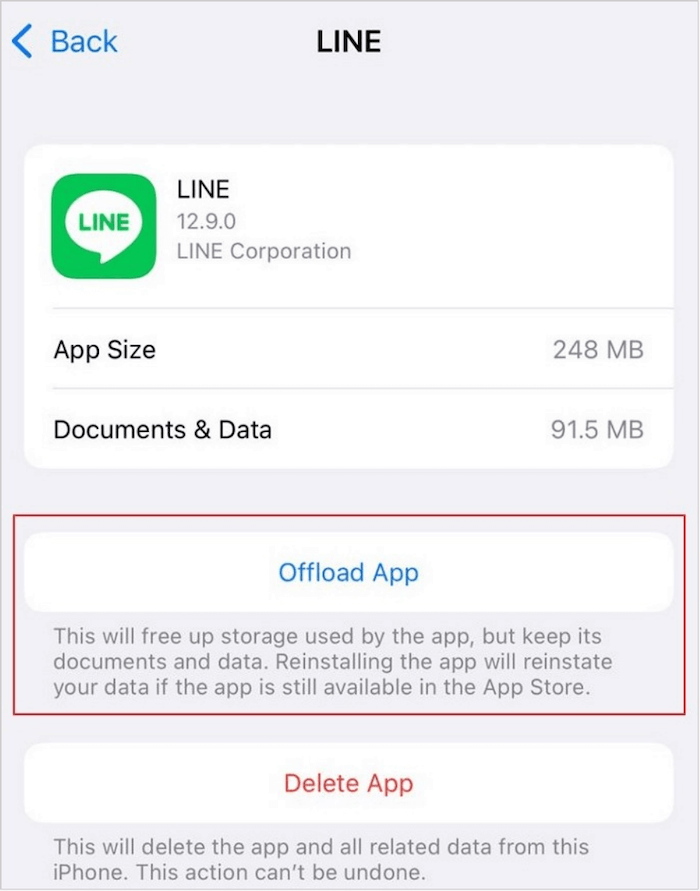
Step 2.Click "Offload App" on the next window, then go back to the home screen and reinstall the LINE app.
Method 4. Clear App and Device Storage
Android users can try clearing the app's and device's storage to run the application efficiently. Clearing the cache of the app speeds it up by multiple times, which can be done by following the simple steps.
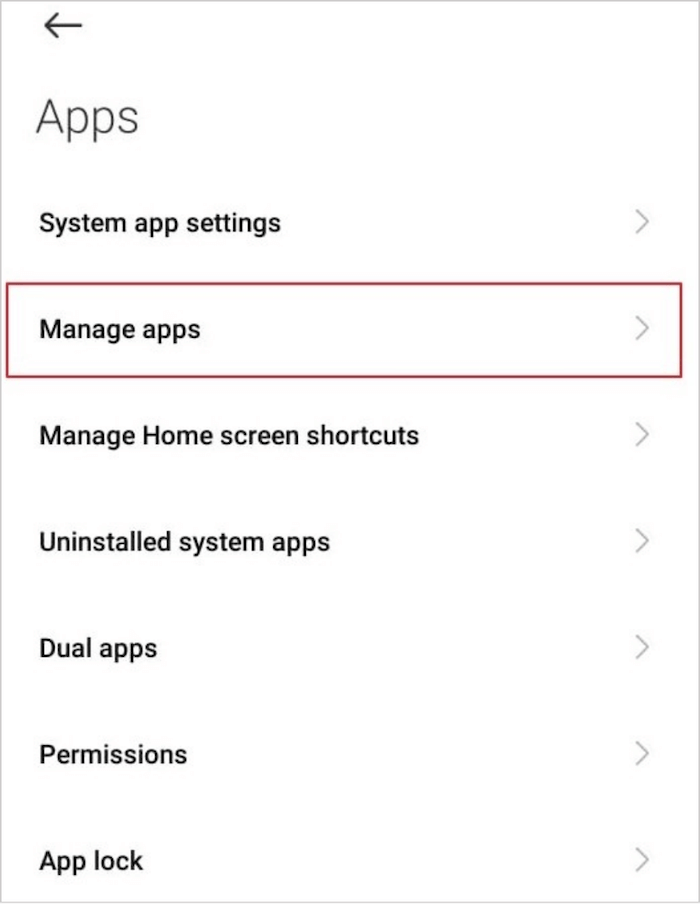
Step 1.To delete the LINE app, go to your Android's Settings, then to Apps, followed by Manage apps, and find LINE in the list.
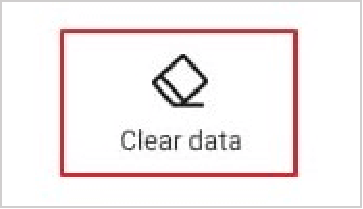
Step 2.To clear the app's cache and storage, click on "Storage" in the next window and select the "Clear data" button at the bottom of the screen. This will remove the app's cache and storage.
How to Recover Deleted/Lost LINE Chat
To resolve issues with your LINE application, you may need to implement certain methods, which could result in data loss. However, you don't have to worry about losing LINE data as Qiling MobiSaver can help recover LINE messages with ease.
Qiling MobiSaver is a progressive platform that helps users quickly recover data, featuring an unlimited data recovery option and providing technical assistance to make the process even quicker. With its extensive modes and features, it indeed makes data recovery easy.
Recover LINE Messages on iPhone
Qiling MobiSaver offers iPhone users a convenient system for recovering LINE messages with ease. To know more about the platform and its functionality, follow these steps:
Step 1. Connect iPhone to Your PC
To recover data from your LINE app, you can use Qiling MobiSaver. Simply launch the app, click on the "LINE" button, and then select "Device Storage" from the options provided.
Step 2. Analyze iPhone/iPad/iPod
The software will analyze your device to perform LINE data recovery, allowing you to recover any lost or deleted messages, photos, and other data from the LINE app.
Step 3. Scan iPhone and Find LINE Data
Qiling MobiSaver will automatically scan your iPhone and find present LINE data and some lost data for you, regardless of the iPhone model you have.
Step 4. Preview and Restore LINE Chats or Attachments
To recover your LINE data, first select "LINE" or "LINE Attachments" on the left to preview them. Then, choose either "Recover to PC" or "Recover to Device" to save your LINE data.
Recover LINE Messages on Android
Android users can recover LINE messages using Qiling MobiSaver for Android, following a step-by-step guide that includes installing the app, connecting it to the device, scanning for recoverable data, and exporting the recovered messages.
Step 1. Connect your Android phone to the computer
Install Qiling MobiSaver for Android and connect your Android phone to the computer with a USB cable. Then, click the "Start" button to make the software recognize and connect your device.
Step 2. Scan Android phone to find the lost data
After connecting your Android phone, the software will quickly scan the device to find both existing and lost data. You can easily locate the lost files you're looking for by selecting the correct file types.
Step 3. Preview and recover data from Android phone
Preview all the recoverable files and select the desired items to recover, then click the "Recover" button to retrieve the selected files.
Conclusion
The LINE app not sending or receiving messages issue can be resolved by checking internet connection, restarting the app, and clearing cache, as well as updating the app. If data is lost during the process, Qiling MobiSaver can be used to recover it. This solution applies to both Android and iPhone users.
Related Articles
- 10 Best iPhone Data Recovery Services and Software
- 3 Fixes to 0 Bytes Available on iPhone XS/XR/X
- 3 Ways to Recover Lost Data on iPhone 7
- Top 3 Ways to Recover Permanently Deleted Voicemail iPhone
- Pen Drive Recovery CMD: How to Recover Data from Pen Drive Using CMD
If you're experiencing issues with your pen drive and want to try a more technical approach, you can attempt to recover data using the Command Prompt (CMD). While this method may not always be successful, it's worth a try. - Seagate Hard Drive Recovery - How to Recover Data from Seagate External Hard Drive
Before you start the file recovery process, make sure the Seagate external hard drive is connected to your Mac or Windows PC.
Products
Articles & Tutorials
- Data Recovery
- Data Backup
- File Recovery
- File Backup
- System Backup and Restore
- Disk and Partition Clone
- Technical articles
- Mobile articles
- Disk Master Help
- Windows Data Recovery Tutorials
- Windows Secure Delete Tutorials
- Windows Partition Management Tutorials
- Windows File Backup and Restore Tutorials
- Windows System Backup and Restore Tutorials
- Windows Disk Backup and Restore Tutorials
- Windows Clone Tutorials