Pen Drive Recovery CMD: How to Recover Data from Pen Drive Using CMD
Quick Navigation:
- Part 1. How to Recover Deleted Files from Pen Drive Using CMD
- Part 2. How to Recover Virus-infected/Formatted Data from Pen Drive Using CMD
- Part 3. The Ultimate Way to Recover Deleted/Formatted Files from Pen Drive
- Step 1. Connect Pen Drive with Computer
- Step 2. Select File Types to Recover from Pen Drive
- Step 3. Select Pen Drive to Scan
- Step 4. Preview and Recover Data from Pen Drive
You're right that using CMD can be an effective way to recover files on a computer, but you're wondering if it's possible to use CMD for pen drive recovery. The good news is that, yes, you can try using CMD to recover data from your pen drive.
While recovering files from a desktop computer using CMD can be relatively straightforward, recovering data from a pen drive can be a bit more challenging. However, with the right approach, you can successfully recover deleted or formatted files from your pen drive using CMD.
Part 1. How to Recover Deleted Files from Pen Drive Using CMD
If you've accidentally deleted files from your Pen Drive, don't worry! You can try using the Command Prompt (CMD) to recover the deleted files.
1. To begin the process of recovering deleted files from your Pen Drive, first, connect the device to your computer. Ensure that your computer can recognize the Pen Drive.
2. Go to the Start menu. Click it and in the search box, please enter "cmd" and click Enter.
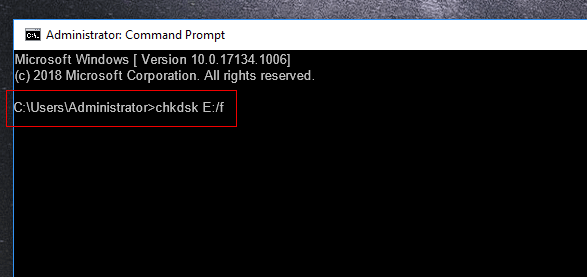
3. Type "chkdsk E:/f" and click Enter. Here the "E" means the pen drive letter. You're supposed to replace it with your pen drive letter from which you want to recover deleted data.
4. Type "E" and click Enter again (E stands for the drive letter of the pen drive).
5. Type "E: \>attrib -h -r -s /s /d *.*" and click Enter.
If you were unable to recover your deleted files using the previous method, or if you accidentally formatted your pen drive, don't worry! There are additional methods you can try to recover your data using the Command Prompt.
Part 2. How to Recover Virus-infected/Formatted Data from Pen Drive Using CMD
If your pen drive has been compromised by a virus, the first step is to remove the malware using professional security software. Once you've done that, you can try the following steps to recover your data using the Command Prompt (CMD).
1. Connect the virus infected pen drive to your computer.
2. Click the Start button at the bottom left of the main screen. Type in the "cmd" in the search box and click Enter.
3. Type "attrib -h -r -s /s /d E:\*.*", press Enter(E stands for the drive letter of the pen drive). Check the pen drive, and your files would be restored.
Part 3. The Ultimate Way to Recover Deleted/Formatted Files from Pen Drive
If the previous methods using the Command Prompt did not work for you, don't worry! There is a more effective way to recover data from a pen drive using the Deep Data Recovery software. This tool is specifically designed to help you recover deleted, formatted, or corrupted files from a pen drive.
Your Safe & Effective Pen Drive Recovery Software
- It can retrieve your pictures, videos, documents, PDF, music files, archives, emails from pen drive easily and completely.
- The best undelete or unformat pen drive tool has advanced file retrieval capabilities and a standalone Windows/Mac version so you don't have to worry about System compatibility.
- It can also recover hard disk, SSD, USB drive, SD card, external hard drive, and other storage devices.
Step 1. Connect Pen Drive with Computer
Connect your pen drive to your computer, ensuring it is recognized by your system. This means the pen drive should be visible as a drive letter on your computer. Then, download and install the latest version of the pen drive recovery software on your computer. This tool is compatible with almost all versions of Windows and Mac OS.
Step 2. Select File Types to Recover from Pen Drive
In the first window, you'll need to select the file types you want to recover from your pen drive. By default, all supported file types are selected. To proceed, unselect any unwanted file types and click "USB/SD Scan". This will initiate the recovery process for the selected file types.

Note: You can choose different search modes based on where and why the data was lost.
Step 3. Select Pen Drive to Scan
In the next window, locate the flash drive letter that corresponds to your pen drive. Select the correct letter and click "Scan" to initiate the recovery process. This will instruct the program to scan the pen drive, searching for the selected file types. The program will then display a list of recoverable files, allowing you to preview and select the ones you want to recover.

Step 4. Preview and Recover Data from Pen Drive
The scanning process typically takes a few minutes to complete. Once finished, you can select the desired file types from the left panel and preview the details in the right panel. When you've identified the correct files, select them and click "Recover" to save the recovered files to your computer. This will ensure that your important data is safely restored.

By default, the Pen Drive Data Recovery CMD Alternative Tool uses Quick Scan mode, which scans your pen drive swiftly. While this mode is efficient, the results may not be as comprehensive as those obtained with the Deep Scan mode. To scan for more files, you can try switching to Deep Scan mode from the result window. This may take longer, but it can help recover more data from your pen drive.
Related Articles
- Pen Drive Hidden Files Recovery - How to Open Hidden Files
- HP Pen Drive Recovery – How to Recover Files from HP Pen Drive
- Sony Pen Drive Data Recovery Software Free Download
- Detailed Tutorial for Diskpart Move Partition in 2023 [Step-by-Step Guide]
This article provides a detailed guide on Diskpart move partition and also provides an ideal and easy alternative to Diskpart to help you resize or move a partition. - [SOLVED] DMG File No Mountable File Systems on macOS Ventura/Monterery/Big Sur
You may notice the no mountable file system problem when attempting to mount a DMG file on Mac. It is perplexing, but certain procedures can fix it. Qiling data recovery software will share a few techniques with you in this article. - Do You Have to Format A New SD Card? Latest Tips!
Do you have to format a new SD card? Check short and fast answers! - USB Unreadable: Recover Files from Unreadable USB Flash Drive
A corrupted USB flash drive can be caused by either logical or physical damage. To resolve the issue, it's essential to determine the root cause - whether it's a logical corruption, which can often be fixed, or physical damage, which may require more extensive solutions.
Products
Articles & Tutorials
- Data Recovery
- Data Backup
- File Recovery
- File Backup
- System Backup and Restore
- Disk and Partition Clone
- Technical articles
- Mobile articles
- Disk Master Help
- Windows Data Recovery Tutorials
- Windows Secure Delete Tutorials
- Windows Partition Management Tutorials
- Windows File Backup and Restore Tutorials
- Windows System Backup and Restore Tutorials
- Windows Disk Backup and Restore Tutorials
- Windows Clone Tutorials