[SOLVED] DMG File No Mountable File Systems on macOS Ventura/Monterery/Big Sur
Mac operating systems are known for their reliability and stability, making them a popular choice for productivity and work-related environments. However, despite their stable nature, Macs are not immune to errors or issues.
| Workable Solutions | Step-by-step Troubleshooting |
|---|---|
| Fix 1. Restart Your Mac | You can try to restart your Mac. There are times when caches and NVRAM have a lot of junk...Full steps |
| Fix 2. Download the DMG again | Another fix you can try is to download the DMG file again. You should download it again...Full steps |
| Fix 3. Check File System Format | The third method is to check the file system format and whether it's compatible with...Full steps |
| Fix 4. Mount DMG with Terminal | If a file system is compatible with your DMG, then you can mount the DMG using the Terminal...Full steps |
| Fix 5. Repair in Recovery Mode | This method will help you use the DMG file in recovery mode. You'll have to turn off your computer...Full steps |
Mac users may encounter the "no mountable file systems" error when trying to open DMG files. This issue isn't new, but there are ways to work around it.
This article will explore some common issues that occur with your computer, as well as help you identify the reasons behind them. Let's dive in and get started.
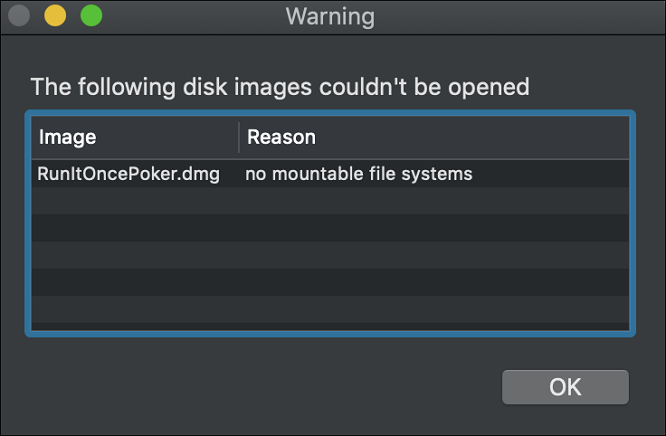
What Is No Mountable File Systems on macOS
In macOS, DMG files are a common occurrence, required for installing new software or applications. However, the purpose of these files can vary, and users may encounter the "no mountable file systems" error at any time, regardless of the file's intended use. This can be frustrating, but understanding the possible causes and solutions can help resolve the issue and get the desired software up and running on your Mac.
The underlying issues behind this error can tell you the same thing in many different ways, such as a lack of resources, poor planning, or inadequate communication.
- No mountable file systems error
- Unable to find the DMG file
- File not found
- Access is denied
When you encounter errors while trying to open or install a DMG file on a Mac, it's often due to issues with the file itself or the installation process. To resolve the problem, it's crucial to identify the underlying cause - whether it's a corrupted DMG file, an incomplete download, or a problem with the installation package. Once you've diagnosed the issue, you can apply the necessary fix, which may involve redownloading the DMG file, reinstalling the software, or using a different installation method. By understanding the root cause of the error, you can take the correct steps to resolve the issue and successfully open or install the DMG file on your Mac.
What Causes the No Mountable File System Error
The macOS may show errors when trying to open DMG files due to various reasons, and no single issue can be pinpointed as the cause. Therefore, it's essential to understand the possible causes before applying the necessary fixes.
When a DMG file is unreadable on macOS, there are a few common culprits to consider. One reason might be that the DMG file is corrupted, perhaps due to a faulty download or incomplete transfer. Another possibility is that the DMG file is not compatible with your version of macOS, or that it's been compressed with a format that's not supported by your system.
Reason 1. The Format of the DMG File Is Corrupt
DMG files are not readable due to corruption, which can occur when downloading a file that has been damaged, leading to the file being unusable.
Reason 2. The Format of the DMG File Is Not Compatible with Your macOS
While macOS may seem similar, not all are created equal, and the file format of the DMG you're using may not be compatible with your macOS. To resolve this, compare the compatibility of the file with your macOS and download the correct one.
Reason 3. Malware Problem on the File System
Malware on a Mac computer isn't uncommon and could be one reason the DMG file is unreadable. Alternatively, your DMG file may have a virus or malware, causing the Mac to refuse to read it.
Reason 4. Virus Attack on the File System
To resolve the issue of your operating system refusing to read any DMG files, ensure your Mac computer is free of viruses, which can cause such problems. This will allow you to successfully mount a DMG file.
Reason 5. Bad Sectors on the Hard Drive
Another rare but possible reason is that your hard drive might have a bad sector on it, which could be causing the issue, not the operating system or the DMG file itself, but rather a hardware issue, often the hard drive.
Here are the most common reasons why a macOS may refuse to read a DMG file, followed by some fixes: The DMG file may be corrupted or damaged, the file may be too large, the file may be encoded in an unsupported format, or the file may be password-protected and the correct password is not entered. To fix these issues, you can try opening the DMG file in Disk Utility, checking the file size and format, or trying to open the file in a different location. You can also try to repair the DMG file using a third-party tool. If the issue persists, you may need to reinstall macOS or seek further assistance.
Recover Mac Data When File System Corrupts
To address the DMG issue, ensure your data is secure by running a virus scan and removing any malware. This will prevent further damage to your system. If the issue persists, you can try reinstalling macOS or seeking professional help.
Using Terminal commands or other methods to fix DMG files can be risky, as it may result in losing important data, making it a less desirable approach.
For recovering lost files on Mac, consider using a professional tool like Deep Data Recovery. This software allows you to restore, repair, or recover lost files in various cases, making it a reliable solution for file recovery needs.
Deep Data Recovery for Mac
- Recover files from formatted external hard drives using Disk Utility.
- Allows you to recover deleted files on Mac with unmounted drives or system crashes.
- Ensures recovery of files lost in macOS installation gone wrong
This tool can help you recover lost files, including DMG files, and get them to work, making it a reliable recovery tool. It offers a range of benefits, including being able to recover files even in situations where you're trying to recover a DMG file, making it a great option to use as your primary recovery tool.
- A possible recovery or restoration tool to recover essential data.
- This software saves files from operation errors, hard drive damage, or bad repartitioning, providing a safeguard against data loss.
- Ability to recover photos, videos, and other personal data.
- It has an unwavering ability to recover lost files and allows users to restore them comprehensively.
To fix DMG files, you need a tool that converts your files first, then proceeds with the DMG fixes. This ensures your files are in the correct format for the fixes. You can use a simple tool to convert your files quickly and easily, saving time and effort.
Walking through the following steps may help you operate it better:
Step 1. Select file types
Launch Deep Data Recovery software, select the desired file types, and click "Fast Scan" to initiate the recovery process.

Note: You can choose different search modes based on where and why the data was lost.
Step 2. Scan for lost documents
To recover lost Word/Excel/PPT/Numbers/Pages documents, select the location where the files were lost, click "Search for lost files", and follow the on-screen instructions to complete the recovery process.

Step 3. Find lost documents on Mac
Deep Data Recovery for Mac will immediately start a scan on your selected disk volume, presenting scanning results in the left pane, where selecting "Documents" allows for quick filtering of lost DOC/PDF/PPT/XLS files.

Step 4. Recover lost/deleted documents
Select the target files, double-click to preview them, and then click "Recover" to retrieve lost documents.
How to Fix the Error No Mountable File Systems on macOS
If you're encountering no unmountable file systems errors with DMG files, there are a few simple fixes you can try. These fixes have been tested and proven to work, but if one doesn't work for you, the other might.
The simplest fix is to simply restart the computer. The most complicated fix involves replacing the motherboard.
Method 1. Restart Your Mac
Try restarting your Mac and rerun the DMG file to resolve the issue.
Method 2. Download the DMG Again
If the DMG file is corrupted, try downloading it again as the most apparent issue is often the one that needs to be fixed.
Here’s how to download a complete website using the Terminal on a Mac:
Step 1. Open Terminal on your macOS
Step 2. Type curl -0 URL (download URL) and press enter
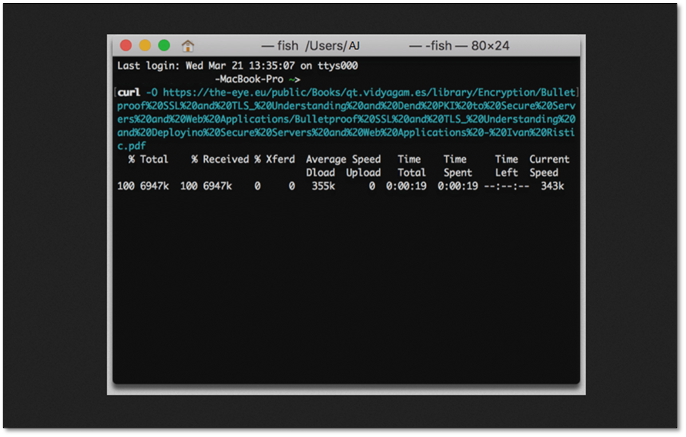
Step 3. Wait for the download to finish
To download a file, enter the curl command in the Mac terminal, followed by the download URL, and then press enter. The URL should be copied and pasted after the command.
Method 3. Check the File System Format
The third method to troubleshoot DMG file issues on macOS involves checking the file system format, as it may not be compatible with the installed operating system, which is a common reason DMG files aren't mounted on macOS.
To determine which file system your older OSX version uses, you can simply check your computer's settings. Go to System Preferences, then click on "About This Mac" and select the "Storage" tab. The file system used will be listed at the bottom of the window, either APFS or HFS.
Step 1. Open Terminal on your mac device
Step 2. Type "diskutil info /" and press enter
Step 3. Check the file system personality
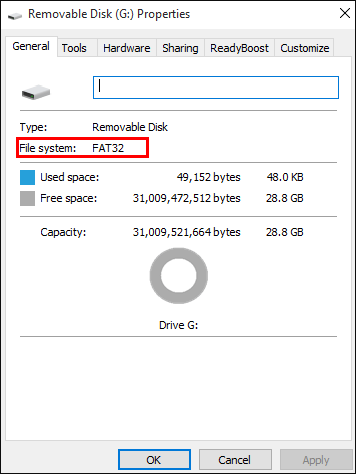
Once you've checked this, make sure the DMG file you download is compatible with this file system personality.
Method 4. Mount the DMG with the Terminal
To mount a DMG file using Terminal, ensure your file system is compatible with your DMG version. If compatible, you can use Terminal commands to mount the DMG file. First, open Terminal and navigate to the location of your DMG file. Then, type the command "hdiutil attach /path/to/your/dmg/file.
Step 1. Open Terminal on your Mac
Step 2. And open the folder of the DMG file
Step 3. Type this command "hdiutil attach -verbose," but don't press enter
Step 4. The process can be installed by dragging and dropping the DMG file from the folder into the Terminal, which will initiate the installation process.
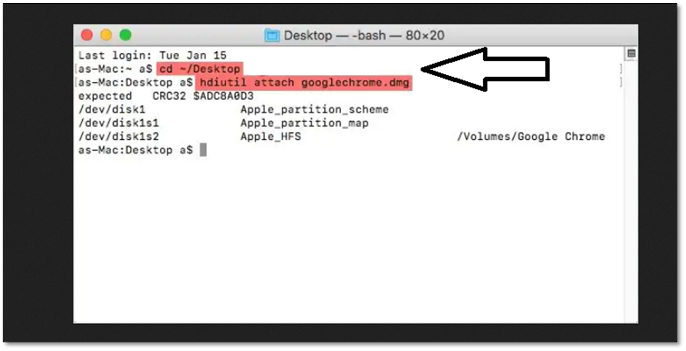
Step 5. Once done, press enter to mount the DMG file
Step 6. You will notice the DMG file will show up on your desktop, or the Finder utility will prompt you to open it.
The command `hdiutil attach -nobrowse` will mount the DMG file and make its contents accessible, allowing you to explore the file or use the installed application without the Finder's window. This is useful for troubleshooting or when you need to use the application without the visual interface of the Finder.
Method 5. Repair the Corrupt DMG File in Recovery Mode
To use the DMG file in recovery mode, you'll need to turn off your computer. Then, you can try to boot into recovery mode using either the Intel or Apple method, depending on your Mac's architecture. Once you've successfully booted into recovery mode, you can use the DMG file as needed.
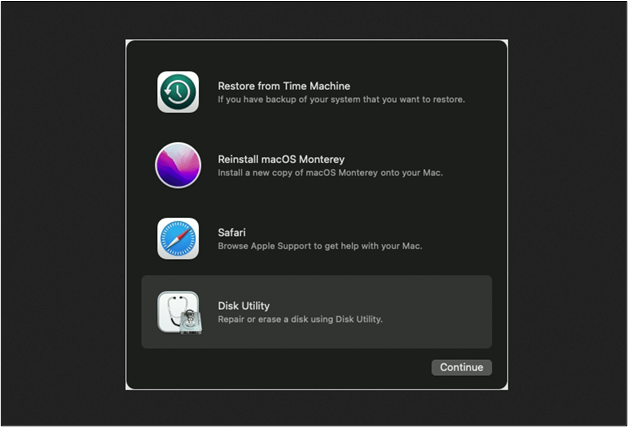
Step 1. Restart into Recovery Mode on your Mac
Step 2. Click on Disk Utility in the recovery menu
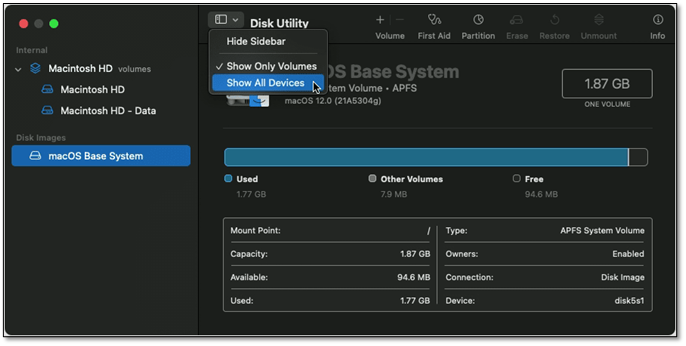
Step 3. To view all devices in the Disk Utility, open the toolbar options and click on "Show All Devices."
Step 4. Head into the location for your DMG file
Step 5. Open the DMG and select First Aid
Step 6. Confirm when prompted
Step 7. Please wait for it to finish
Run the repair on the file and its contents, then restart your Mac and try to run the DMG again.
To Wrap It Up
To successfully run and mount a DMG file on your Mac, consider trying the methods mentioned earlier. Note that not all DMG files are compatible with all macOS versions, so it's essential to tailor each fix accordingly.
Before using these methods, ensure a complete backup and use a professional tool like Deep Data Recovery for Mac to recover or repair any lost files.
No Mountable File Systems FAQs
Here are some of the FAQs to help you answer any additional queries.
1. What is a DMG file?
A DMG file is a type of file used on Mac devices, similar to how an EXE file is used on Windows, allowing users to install or use new software.
2. How do I mount a DMG file on a Mac?
You can double-If you're having trouble opening a DMG file on your Mac, you can try clicking on it to see if it mounts properly. If not, you can refer to the article for various fixes and methods to help it run more smoothly.
3. How to install DMG files in Ubuntu?
To use the Terminal command in Ubuntu, you can use the "dmg2dmg" command, specifying the path to the DMG file and the desired output path for the IMG file. For example, you would enter "dmg2dmg /path/to/name.dmg /path/to/name.img" to convert the DMG file to an IMG file, making sure to replace "/path/to/name.dmg" and "/path/to/name.
4. Why can't open mountable file Linux?
If you're experiencing issues with the file, it's possible that it's corrupted or not supported by your Linux version, similar to how it might be on macOS. Make sure to address these requirements before trying again.
Related Articles
- How to Boot from USB Ubuntu? [Full Guide in 2023]
- (Solved!) How to Effectively Download Windows 10 ISO Without Tool
- Fix System Restore Failed and Did Not Complete Successfully Error in Windows 10
- How Long Does It Take to Format an External Hard Drive [Full Guide]
- What Is SD Card Reader? [You Must Know This]
You need an SD card reader when you want to use your computer to access files on an SD card. This article will detail what is SD card reader and recommend some of the best ones for you. Please continue reading this article and learn more useful information. - Target Disk Mode | How to Use Target Disk Mode on Mac
Learn what Target Disk Mode is on Mac, how to start it, and how to use another Mac to access, transfer, or recover files.
Products
Articles & Tutorials
- Data Recovery
- Data Backup
- File Recovery
- File Backup
- System Backup and Restore
- Disk and Partition Clone
- Technical articles
- Mobile articles
- Disk Master Help
- Windows Data Recovery Tutorials
- Windows Secure Delete Tutorials
- Windows Partition Management Tutorials
- Windows File Backup and Restore Tutorials
- Windows System Backup and Restore Tutorials
- Windows Disk Backup and Restore Tutorials
- Windows Clone Tutorials